








 Store
Store


Nowadays, more and more users are accustomed to streaming music and scrolling social media, or doing something else with the screen off. In this case, the feature of listening to music in the background is a top priority. If you are looking for an uninterrupted listening experience, you should not miss this guide that breaks down how to play YouTube Music in the background on Android, iPhone, and computers. Whether you are a long-time subscriber or a casual listener, you can find available methods in the following content, from official subscription features to alternative tricks. Now, keep an eye on this post to take control of your music experience.
Part 1. How to Make YouTube Music Play in the Background with Premium
With regard to playing YouTube Music songs in the background, the most straightforward method is to subscribe to YouTube Premium or YouTube Music Premium. The official Premium subscription offers ad-free and background play on both its application and web player.
Step 1. Open the YouTube Music app installed on your mobile device or visit https://music.youtube.com/ in a browser on your desktop.
Step 2. Then, you can sign in to your Premium YouTube Music account. Find any track you like and begin playing it.
Step 3. After that, you can go back to the home screen of your device or turn off your screen. The YouTube Music song will continue to play in the background.
Part 2. How to Play YouTube Music in the Background on Android
If you don’t want to pay for YouTube Music monthly only for the background play feature, you can utilize an alternative workaround to play YouTube Music in the background. For Android users, the process is easier since Android devices generally provide more flexibility.
Step 1. Open the Chrome browser on your Android phone. Then, navigate to the official YouTube Music web player.
Step 2. Tap the three-dot icon at the top right corner.
Step 3. After that, you need to select the Desktop site option from the drop-down menu.
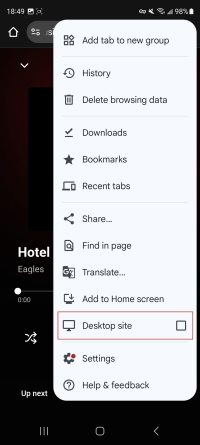
Step 4. Once done, the YouTube Music web player will reload automatically and show its full desktop version.
Step 5. Now, you can start playing your favorite song. It will keep playing even when you return to the home screen. You can control the music playback from the control center on your Android device.
Note
To ensure a smooth background music playing experience, make sure the low power mode is not enabled. Also, you should make sure the Chrome app is not restricted in Settings > Apps > Chrome > Battery.
Part 3. How to Play YouTube Music in the Background on iPhone
Compared to Android devices, background playback is more restrictive. But you can still succeed using the Safari app on your iOS device. Just be aware that this method isn’t always reliable. If you are looking for a 100% working method, you can find the best alternative in Part 4.
Step 1. Head to the Safari app on your iPhone. Then, visit the official YouTube Music website.
Step 2. Then, pay attention to the bottom address bar and tap the aA icon in the far left.
Step 3. Choose Require Desktop Website and wait for this page to reload.
Step 4. Once finished, you can sign in to your YouTube Music account and play the music track you like.
Step 5. Now, you can swipe up to head to the home screen or lock your iPhone screen. If the music pauses, you can continue to play it from the Control Center in the top-right corner.
Part 4. Best Way to Play YouTube Music in the Background without Premium
Playing YouTube Music in the background is super easy for YouTube Music subscribers. If you don’t want to keep paying for the YouTube Music service, you can utilize some browser tricks. But these tricks rely on a stable network connection and only offer limited music features. If you want a permanent solution that works on all devices, you will need a dedicated tool like TunesMake YouTube Music Converter.
TunesMake YouTube Music Converter is a professional music downloader designed for music lovers. With its help, you can download songs, playlists, albums, and podcasts from YouTube Music and more music platforms to plain audio formats. Available options include MP3, M4A, M4B, WAV, FLAC, and AIFF. When downloading and converting YouTube Music songs, the TunesMake software smartly ensures your experience by retaining music quality and all ID3 tags. When the downloading and converting process is finished, you can get your favorite YouTube Music songs as local music files. Then, it’s a piece of cake to import them to other media players for unlimited background playback.

Streaming Audio Recorder –
Download YouTube Music Locally and Play It in the Background
- Unlimitedly download streaming music songs, playlists, and podcasts
- Losslessly convert streaming music to MP3, M4A, M4B, WAV, FLAC, and AIFF
- Remove DRM protection from many streaming music platforms
- Convert streaming songs with original sound quality and ID3 tags kept
Security Verified. 100% Clean & Safe.
Step 1
Configure the Output Settings
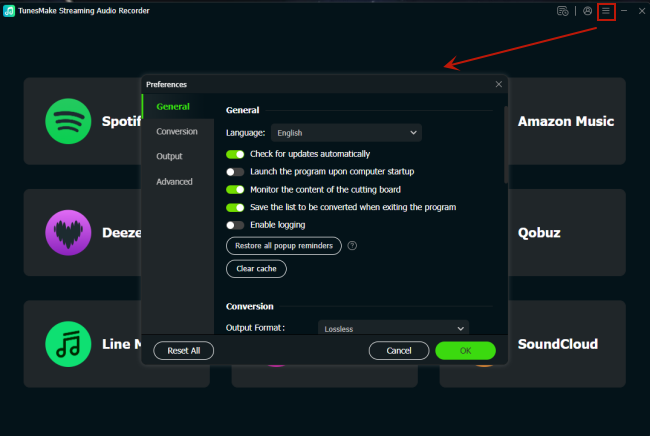
To have a personalized music experience, you should configure the output music parameters on the TunesMake YouTube Music Converter after installing it on your Windows or Mac computer. On its interface, click the Menu icon in the top right corner. Then, choose Preference > Conversion. In this window, you can choose the output format you need. Also, you can change other parameters if you need, including bit rate, sample rate, channel, and so on.
Step 2
Select YouTube Music and Sign in
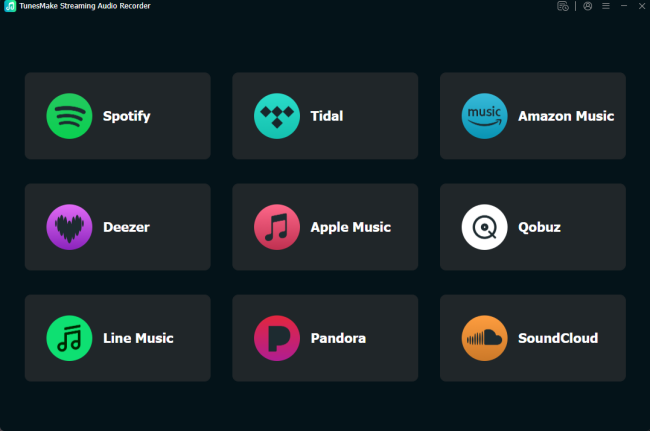
When you finish the audio settings, go back to the interface of the TunesMake software. Here, you need to click YouTube Music from all available music services. Then, you will be navigated to the official YouTube Music website. Sign in to your free account.
Step 3
Find Target YouTube Music Songs to Download
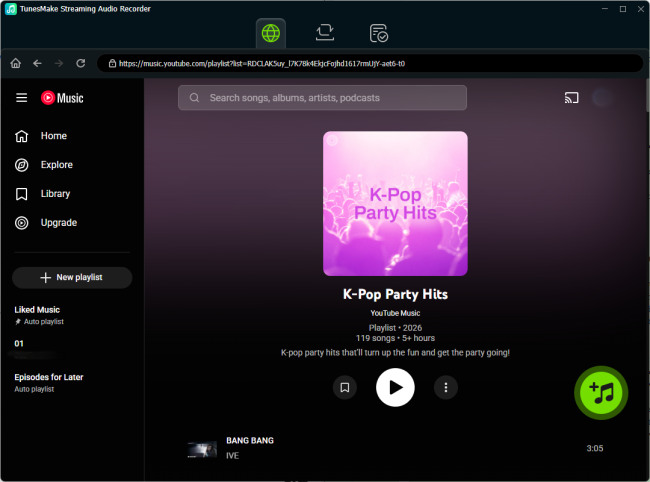
Feel free to browse the YouTube Music library and find the preferred songs that you want to listen to in the background. Enter any playlist or album you like, and then click the lower Add icon. After that, the TunesMake tool will analyze it and show all the included songs. Pick the songs you like and add them to the conversion list via the Add to List option.
Step 4
Download YouTube Music Songs for Background Playback
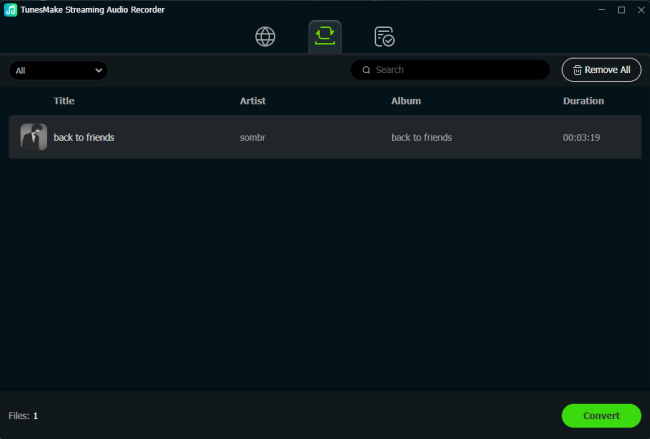
Now, everything is ready. You can begin downloading YouTube Music songs to local files by clicking the Convert button. With TunesMake’s fast conversion speed, you just need to wait for a while. When all the songs are downloaded successfully, you can browse them by clicking the Converted icon. To find their exact location, you just need to click the file icon next to each song.
Now, feel free to import them to other media players for playing in the background without limits. You can also transfer the local music files to your Android or iPhone device via a USB cable. Then, play them on the default media players on your phone, since most of them support background playback.
Part 5. FAQs about YouTube Music in the Background
Do I need a Premium subscription to play YouTube Music in the background?
Basically, yes. The background playback is a Premium feature. With an active YouTube Music Premium subscription, you can easily play YouTube Music in the background, whether you lock your screen or switch apps. However, if you convert songs into local music files via the TunesMake YouTube Music Converter, you can bypass this streaming limitation.
Why won't YouTube Music play in the background?
If you have an available YouTube Music Premium subscription, but still fail to play music in the background, it’s likely that you have enabled Battery Saving Mode. You should turn it off. If you are using an iPhone, you need to turn on the Background App Refresh feature. To fix this issue, you can try to clear the app cache or restart your device.
Does background playback use more battery?
Yes, using a browser app to play music in the background consumes more battery than the dedicated YouTube Music app. That is because the browser app runs in memory, and data is continuously transmitted.
Conclusion
How to play YouTube Music in the background? This question is super easy for YouTube Music subscribers: simply use the official YouTube Music app. If you don’t have a Premium subscription, you can utilize a browser trick or a more reliable method - downloading YouTube Music songs to local files. Once done, you can play them in any media player that supports unlimited background playback.
Related Articles



A senior editor from TunesMake, dedicated to sharing professional tutorials and solutions of software, movies, and music.
- 1
- 2
- 3
- 4
- 5
- 6
- 7
 Leave Your Comment
(0)
Leave Your Comment
(0)

 Download Center

