








 Store
Store


You press the power button to lock your phone, put it in your pocket, and suddenly your music cuts out. If Spotify stops playing when your screen is off, you are not alone. This is one of the most common issues reported by Spotify listeners on both Android and iOS devices.
In most cases, this problem isn't caused by a broken Spotify app. Instead, it occurs because your phone's operating system is trying to save battery or mobile data by aggressively shutting down background processes as soon as the display turns off. This guide provides step-by-step solutions to fix Spotify stops playing when screen is off on both Android and iPhone, getting your audio playback back to normal.
Part 1. How to Fix Spotify Stopping When Screen Is Off on Android
Android devices, especially those running custom interfaces like Samsung One UI, Xiaomi MIUI, or OnePlus OxygenOS, frequently stop background audio due to aggressive battery management features. Follow the steps below to fix Spotify stopping when screen is off on Android devices.
Step 1: Set Spotify Battery Usage to "Unrestricted"
Android limits background activity for apps set to "Optimized." Changing Spotify to "Unrestricted" prevents the system from closing it when the display turns off.
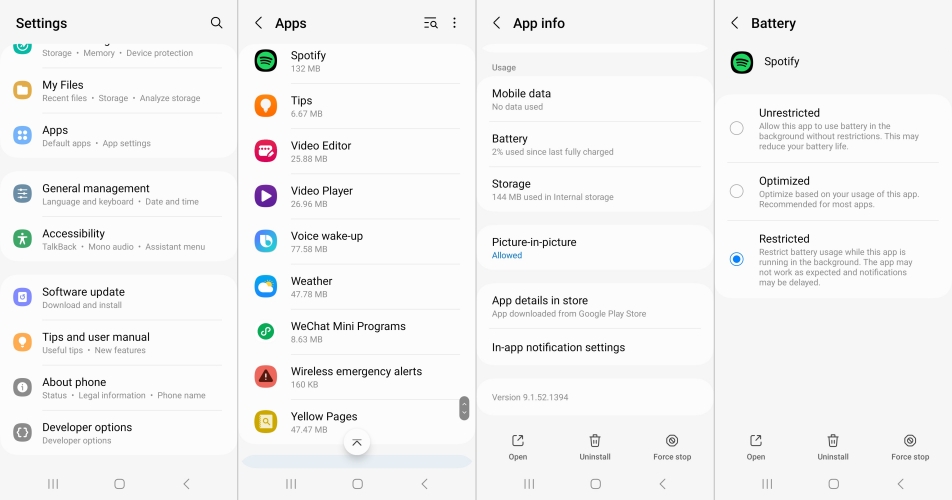
1. Open Settings on your Android phone.
2. Tap Apps, select Spotify, and tap Battery.
3. Change the setting from Optimized to Unrestricted.
Step 2: Remove Spotify from "Sleeping Apps"
Samsung phones feature a dedicated "Never Sleeping Apps" list. If Spotify is listed under "Sleeping Apps" or "Deep Sleeping Apps," it will instantly halt playback upon locking your screen.
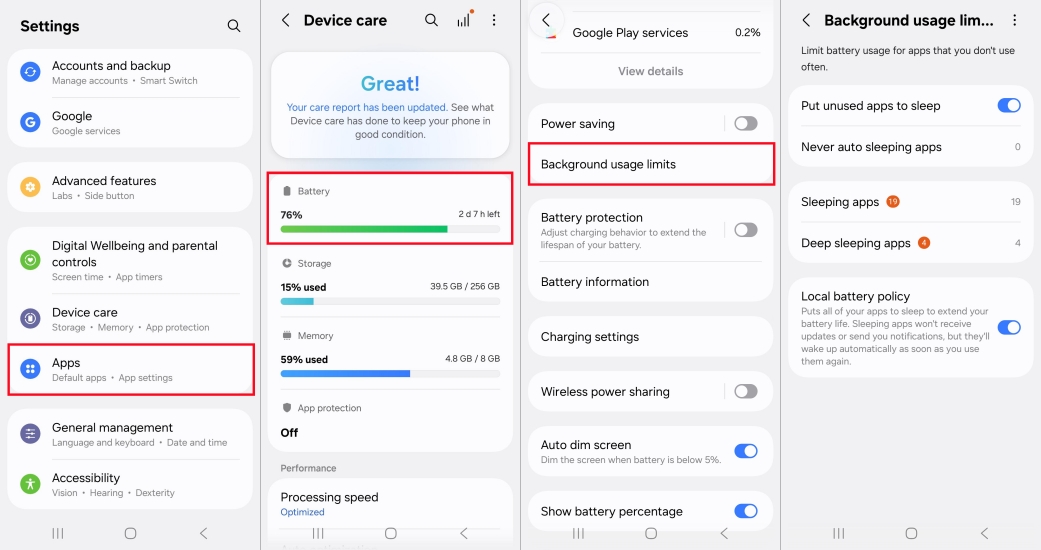
1. Go to Settings > Device Care.
2. Tap Battery > Background Usage Limits.
3. Check Sleeping apps and Deep sleeping apps.
4. Remove Spotify from either list.
5. Tap Never sleeping apps, tap the + icon, and add Spotify.
Step 3: Enable Background Data Access
If Spotify loses access to mobile data when the screen locks, online playback will freeze. In this case, make sure that Spotify is allowed to play with the mobile data.
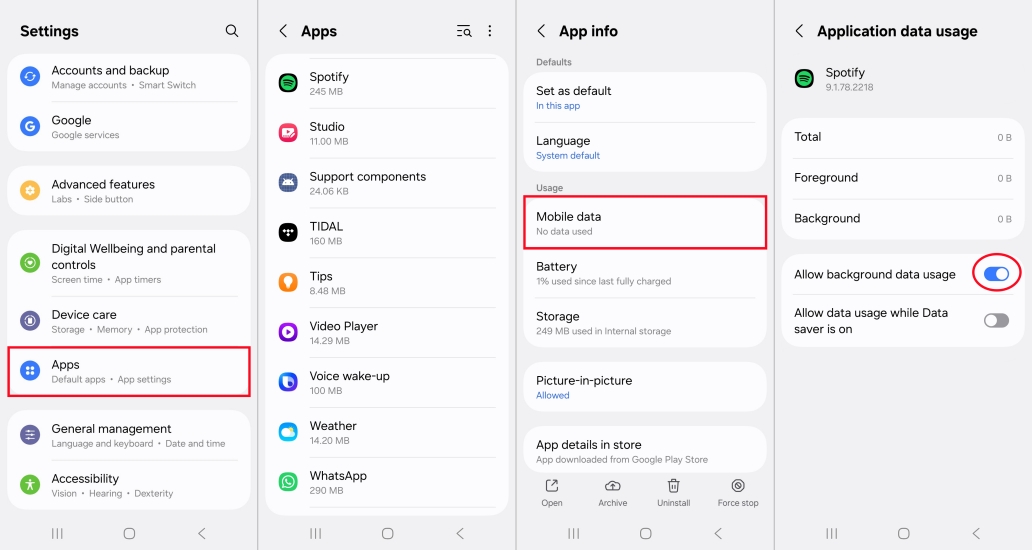
1. Open Settings > Apps > Spotify.
2. Tap Mobile Data.
3. Toggle on Allow background data usage.
4. If available, also toggle on Allow data usage while Data Saver is on.
Part 2. How to Fix Spotify Stopping When Screen Is Off on iPhone
iOS devices rely on strict background permissions and power modes to manage battery life. If Spotify keeps pausing when your iPhone screen locks, verify these iOS settings.
Step 1: Turn On Background App Refresh for Spotify
Background App Refresh allows apps to update content and maintain background tasks even when you aren't actively using them on screen.
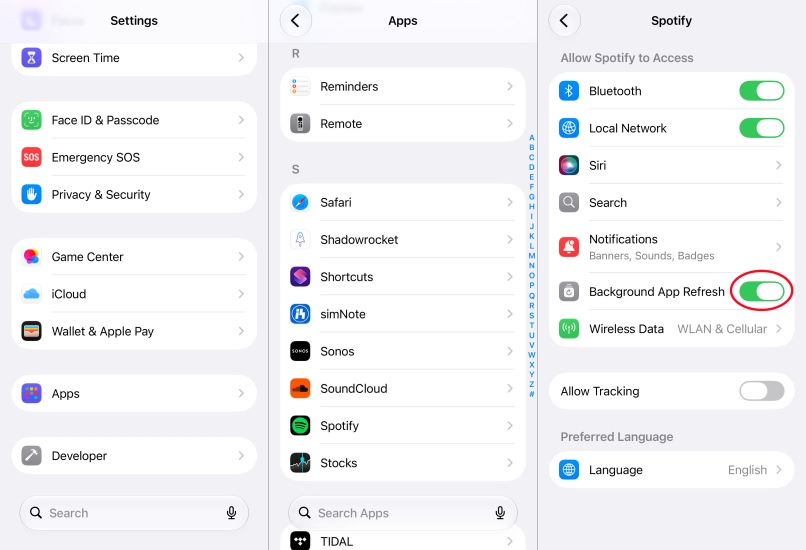
1. Open Settings on your iPhone.
2. Scroll down to tap Apps, then select Spotify.
3. Ensure the toggle for Background App Refresh is turned ON.
Note:
If "Background App Refresh" is grayed out, go to Settings > General > Background App Refresh and ensure it is enabled globally for Wi-Fi & Cellular Data.
Step 2: Disable Low Power Mode
When your iPhone is in power-saving mode, background activity for non-essential apps including Spotify is heavily throttled or suspended entirely.
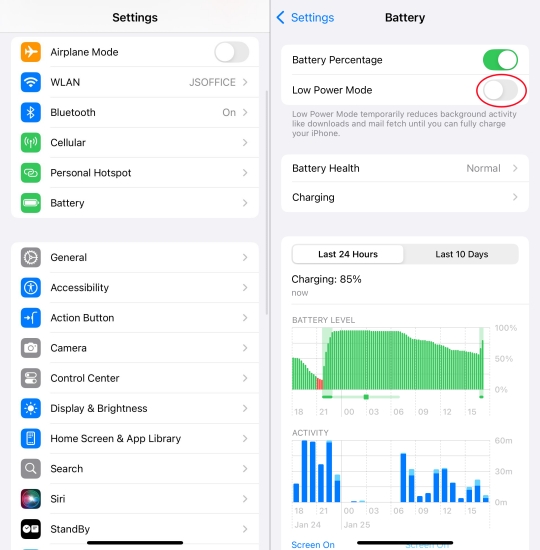
1. Open Settings > Battery.
2. Toggle Low Power Mode to OFF.
Step 3: Allow Cellular Data Access for Spotify
If Spotify pauses while playing over mobile data when the screen locks, make sure your iPhone permits Spotify to use cellular data.
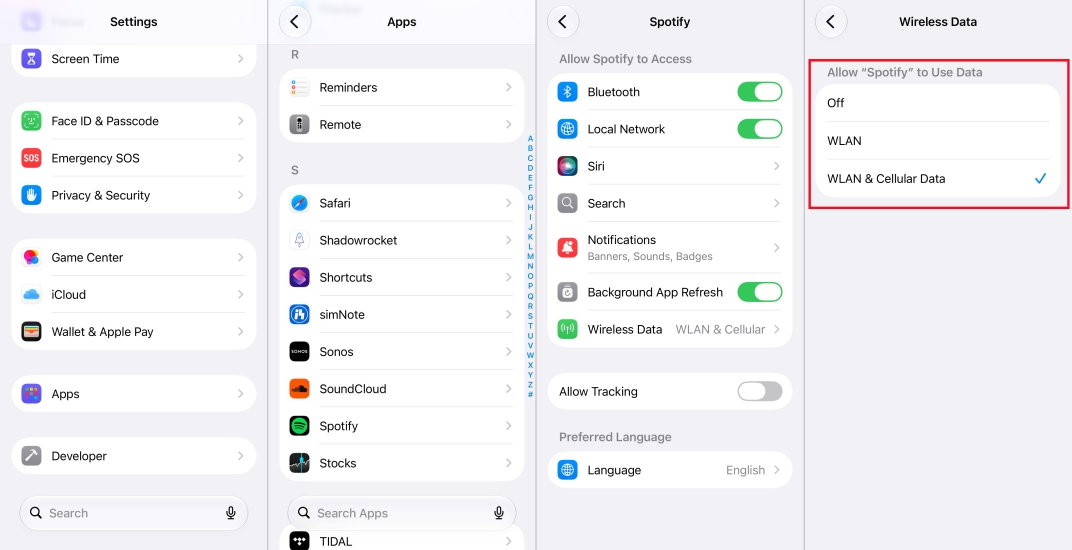
1. Open Settings > Apps and tap Spotify.
2. Tap Wireless Data and select WLAN & Cellular Data.
Part 3. Universal Fixes to Spotify Stops Playing When Screen Is Off
If adjusting system permissions hasn't resolved the issue, the root cause may be within the Spotify app itself or corrupted cache files. Here are the universal fixes to Spotify stops playing when screen is off on both Android and iOS devices.
Solution 1. Clear Spotify Cache
Accumulated temporary files can corrupt playback states. Clearing the cache inside the Spotify app will not delete your downloaded offline songs.
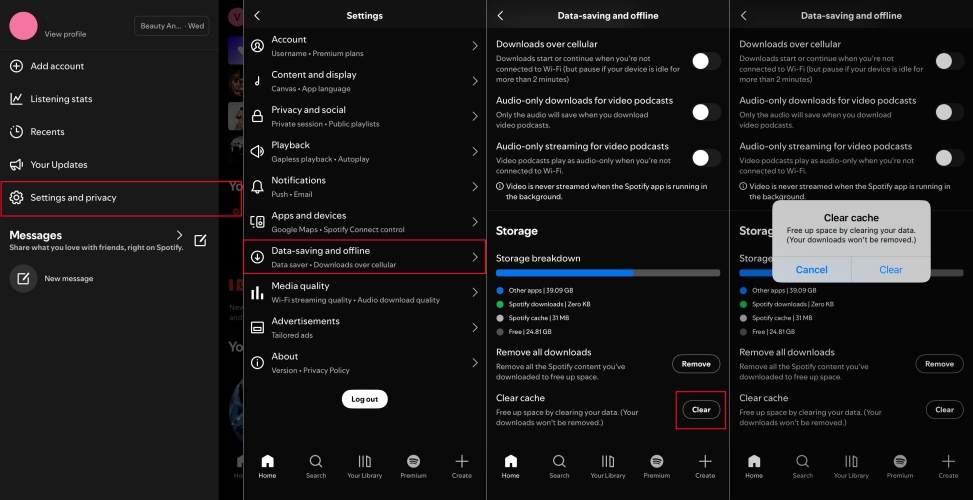
Step 1. Open the Spotify app.
Step 2. Tap your Profile icon or Settings gear in the upper corner.
Step 3. Scroll to the Storage section.
Step 4. Tap Clear Cache and confirm.
Solution 2. Turn Off In-App Data Saver
Spotify includes an internal Data Saver feature that lowers stream quality and restricts background data transfer.
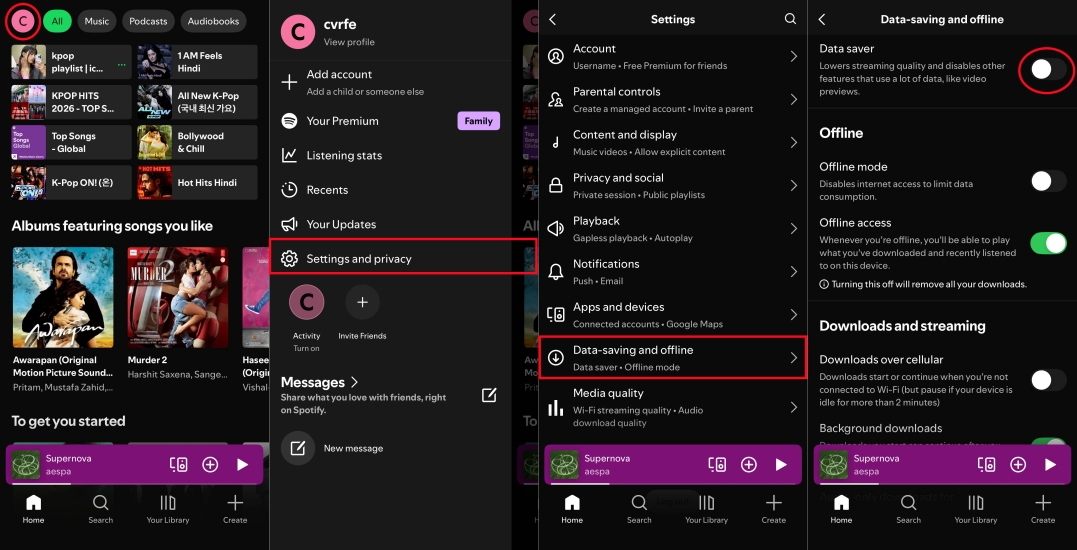
Step 1. Tap your profile image at the top left corner.
Step 2. Tap Settings and privacy > Data-saving and offline.
Step 3. Under Data saver mode, switch to Always off.
Solution 3. Perform a Clean Reinstall
If background playback remains problematic, a corrupted installation may be preventing background service registration.
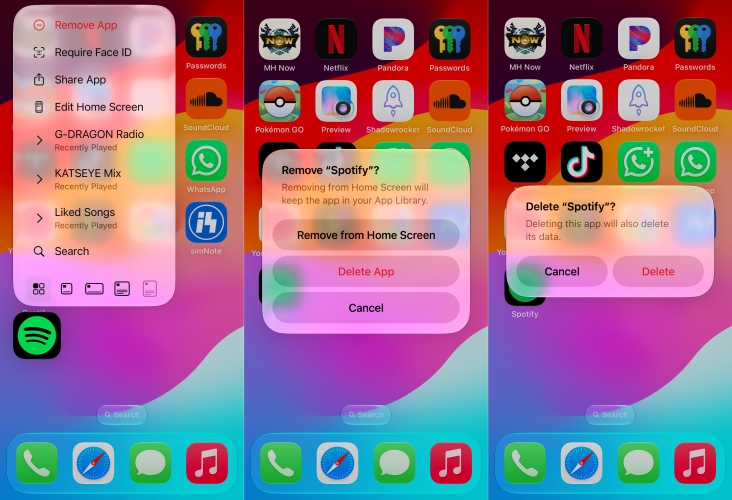
Step 1. Uninstall the Spotify app from your device.
Step 2. Restart your device to clear system RAM.
Step 3. Reinstall Spotify from the Google Play Store or Apple App Store.
Step 4. Log back in and test playback while locking your screen.
Solution 4. Play Tracks via Local Players
When aggressive OS policies persistently stop third-party streaming apps from running in the background, playing local audio files through your phone's built-in media player provides a reliable alternative. The built-in players such as Apple Music on iOS or Samsung Music on Android are exempt from strict background power throttling.
You can use TunesMake Spotify Music Converter to download Spotify songs, albums, or playlists as standard MP3, FLAC, or WAV files. Once transferred to your mobile device, these local music tracks can be played using built-in media players without experiencing background cutoff issues, even though your device is offline.

TunesMake Spotify Music Converter –
Download music from Spotify without premium
- Download Spotify songs, albums, playlists, audiobooks, and podcasts
- Losslessly convert Spotify music to MP3, FLAC, WAV, AIFF, and more
- Remove ads from Spotify music tracks even with a Free account
- Convert Spotify music at 15× faster speed in batch with ID3 tags kept
Security Verified. 100% Clean & Safe.
Part 4. Conclusion
When Spotify stops playing when your screen is off, the issue is almost always a result of aggressive OS-level power management, strict background data limits, or minor app cache conflicts rather than a broken app. By making adjustments to those settings, you can restore uninterrupted background audio streaming. If OS permissions continue to block streaming, converting Spotify music tracks into local MP3 files via TunesMake Spotify Music Converter or clearing the in-app storage cache ensures smooth playback under any power-saving condition.
Related Articles


A senior editor from TunesMake, dedicated to sharing professional tutorials and solutions of software, movies, and music.
- 1
- 2
- 3
- 4
- 5
- 6
- 7
 Leave Your Comment
(0)
Leave Your Comment
(0)

 Download Center

