








 Store
Store


There is nothing more frustrating than queuing up an album only to find half the tracks unplayable, skipped entirely, or grayed out. If you are seeing gray text or missing songs, it almost always means your device is enforcing content filters. Fortunately, getting your library back to normal is simple. This guide will walk you through how to turn on explicit content on Apple Music. Also, this guide provides deep troubleshooting methods for when settings get stuck and answer to the most questions about media restrictions.
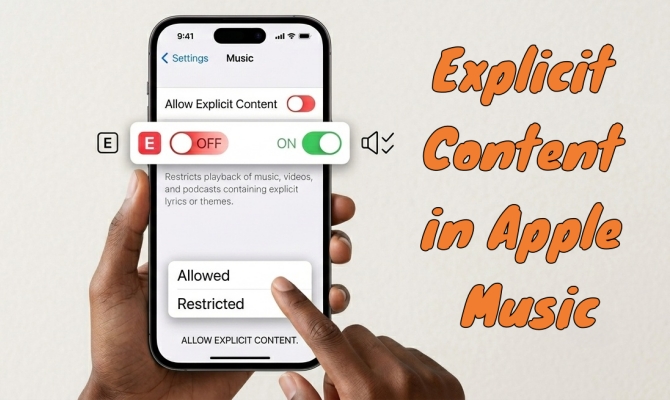
Part 1. What Is Explicit Content on Apple Music?
On Apple Music, Explicit Content refers to songs, music videos, or podcasts that contain mature themes or material that might not be suitable for all audiences, particularly younger children. Tracks containing these elements are flagged with a small gray "E" icon next to the song title or album name.
What Makes a Song "Explicit"?
A track is typically given an explicit label if it contains:
-
Strong Language: Frequent or severe profanity and curse words.
-
Adult Themes: References to complex or mature real-world situations, substance use, or suggestive scenarios.
-
Intense Content: Depictions of violence, heavy emotional themes, or discriminatory language.
How "Explicit" Works on Apple Music?
For most users, the explicit content toggle is not in the Apple Music app on iOS and macOS devices. Instead, Apple uses system-wide parental control feature called Screen Time to mange this content. If a user's device settings have restrictions turned on, tracks with the "E" badge will be completely grayed out or unplayable.
If your settings on your iPhone or other devices already allow explicit content but your songs are still grayed out, your Apple Music app may be experiencing a cloud syncing glitch, or your Apple Account may be restricted by a Family Sharing organizer. No matter what reasons, there are methods to help you allow explicit content on Apple Music across devices.
Part 2. How to Turn on Explicit Content on Apple Music
Following are the specific steps for the device you are currently using to instantly unlock explicit tracks. If you are looking for an immediate fix, use the reference table below to locate the restriction paths for your specific device.
| Device | Primary Settings Location | Quick Path Summary |
|---|---|---|
| iPhone & iPad | Settings App | Settings > Screen Time > Content & Privacy Restrictions |
| Android Phones | Apple Music App | Apple Settings > Content Restrictions |
| Mac | System Settings | System Settings > Screen Time > Content & Privacy |
| Windows PC | Apple Music App | Edit > Preferences > Restrictions |
| Web Browser | music.apple.com | Account Settings > Parental Controls |
Unlock Explicit Content on iPhone & iPad (iOS 17 and Later)
Because iOS treats content management as a system-wide safety feature, unlocking explicit songs on an iPhone or iPad requires modifying your device's core privacy settings rather than looking inside the music player itself.
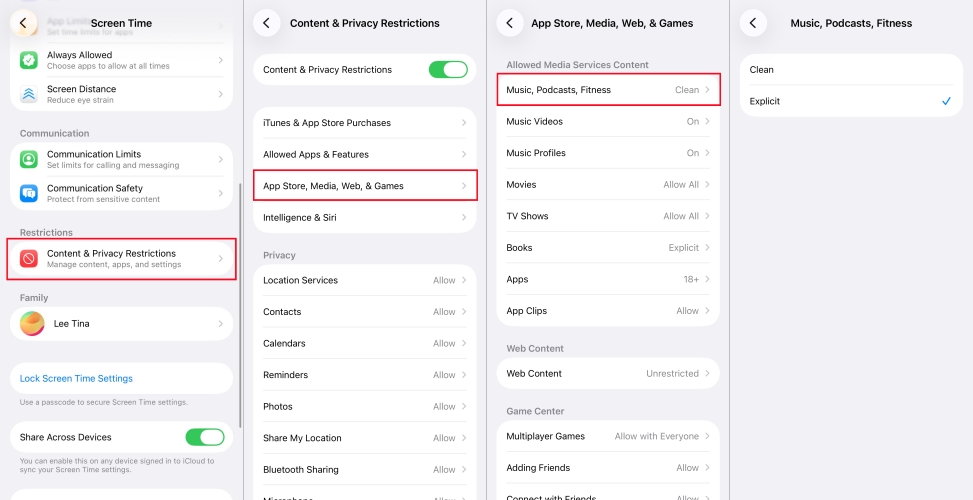
Step 1. Open the Settings app on your iPhone or iPad.
Step 2. Scroll down and tap on Screen Time.
Step 3. Locate and tap on Content & Privacy Restrictions.
Step 4. Tap on App Store, Media, Web, & Games.
Step 5. Under the Allowed Media Service section, tap on Music, Podcasts, Fitness.
Step 6. Switch the setting from Clean to Explicit.
Allow Explicit Content on an Android Phone
Android users enjoy a much faster setup process. Because the Android operating system does not use Apple's parental control ecosystem, all restriction modifications are housed directly within the Apple Music app itself.
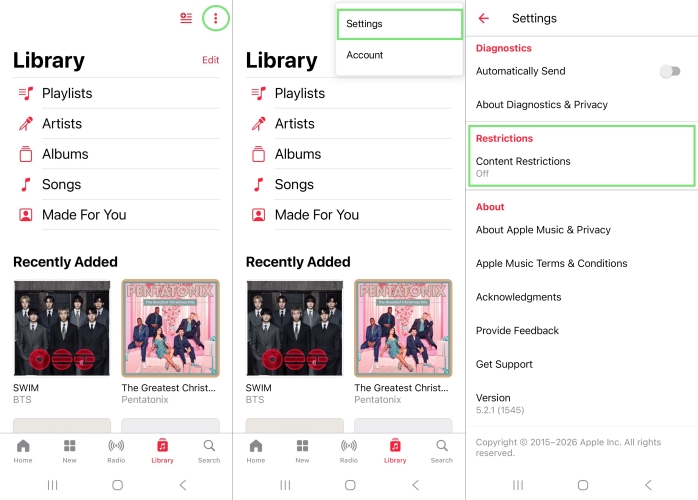
Step 1. Open the Apple Music app on your Android device.
Step 2. Tap the three vertical dots located in the upper right-hand corner.
Step 3. Select Settings from the drop-down list.
Step 4. Scroll down to the Restrictions category and choose Content Restrictions.
Step 5. If prompted, input your security passcode.
Step 6. Switch the master Content Restrictions toggle to off.
Enable Explicit Content on Mac
Similar to the iPhone and iPad, permissions on laptops and desktops running macOS are also tied closely to your primary user account settings. Enabling explicit content in Apple Music on a Mac needs to adjust in the Mac's System Settings panel.
Step 1. Click the Apple menu in the top-left corner of your System Settings.
Step 2. Click Screen Time in the left-hand sidebar.
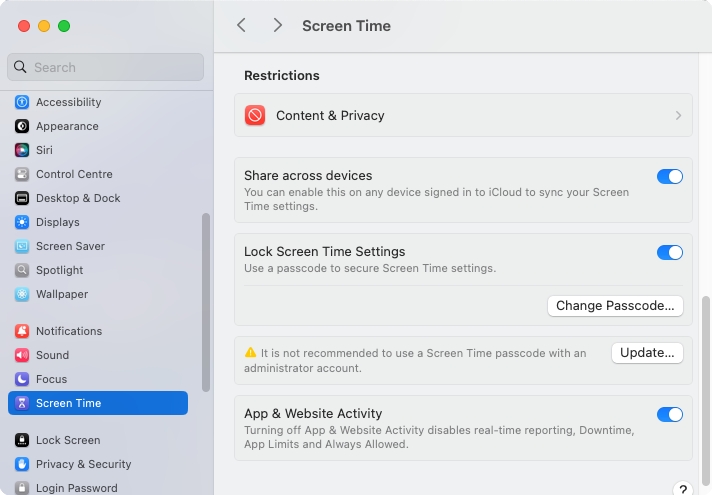
Step 3. In the main window, click on Content & Privacy.
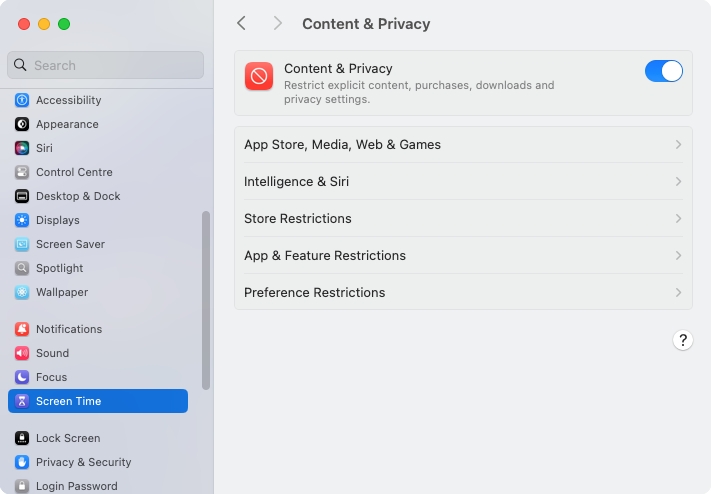
Step 4. Select Store Restrictions, then find the row labeled Music, Podcasts, Fitness.
Step 5. Turn on Allow Explicit Music and Podcasts.
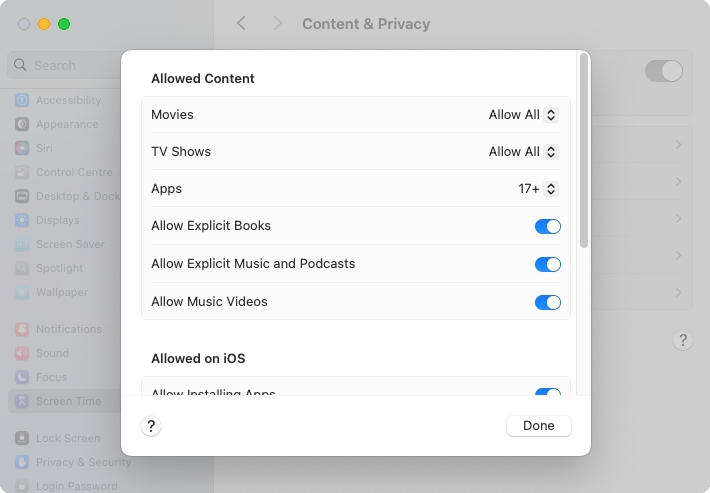
Step 6. Enter your Mac's administrator password or Screen Time passcode if prompted to save changes.
Turn on Explicit Content on Windows PC
Differing from desktop systems running macOS, users who listen to Apple Music on a Windows PC can directly change the explicit content restriction in the Apple Music app or iTunes. Once removing the restriction, explicit content is available.
Step 1. Open the Apple Music app or iTunes on your Windows PC.
Step 2. Click Edit > Preferences to open the General Preferences windows.
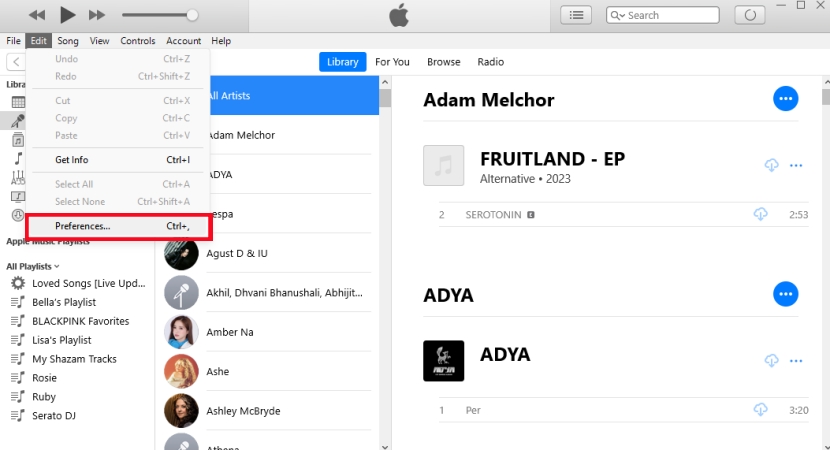
Step 3. In the General Preferences windows, switch to the Restrictions tab.
Step 4. Find Music with explicit content and uncheck the box.
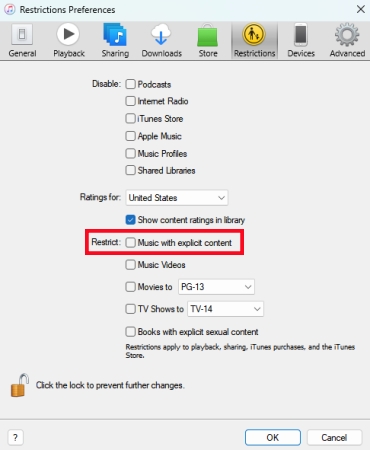
Step 5. Click the OK button to save your settings.
Remove Explicit Content Restrictions on Web Browser
For those accessing Apple Music via a web browser on a Mac or Windows PC, the restriction settings are built right into the web interface. You can change your preferences through your account settings.
Step 1. Go to music.apple.com in a web browser on your computer and sign in to your Apple ID.
Step 2. Click your profile icon in the bottom corner of the screen and select Settings.
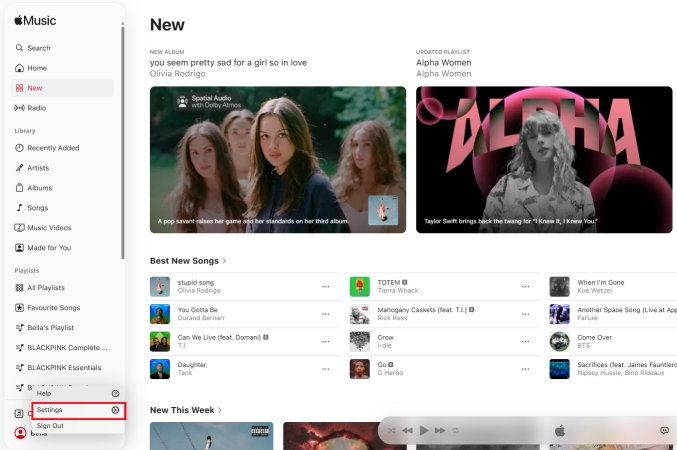
Step 3. Scroll down until you find the Parental Controls section.
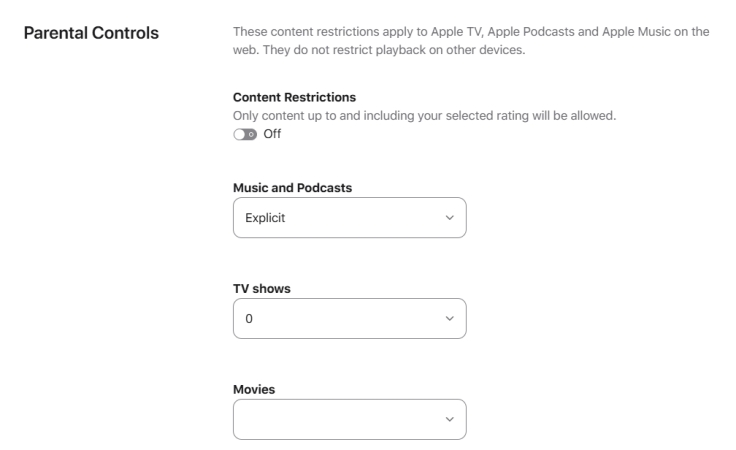
Step 4. Turn on the option to allow explicit content, or adjust the drop-down menu to Explicit.
Part 3. Troubleshooting Apple Music Explicit Content Glitches
One of the most annoying bugs happens when you have already enabled explicit content, yet your tracks remain unplayable or grayed out. This is a incredibly common cloud-syncing glitch. If you are facing this glitch, try these proven fixes.
Fix 1: The iTunes Store Permission Bypass
When Apple Music gets stuck in a loop and fails to read your Screen Time preferences, you can force a system-wide permission prompt using the iTunes Store app.
Step 1. Launch the iTunes Store app on your device.
Step 2. Search for any popular track known to have an explicit rating.
Step 3. Tap on the price or preview button.
Step 4. A built-in system prompt will pop up stating: "This item has explicit content. To play it, you must allow explicit content in Screen Time."
Step 5. Tap Allow. This action forces your Apple ID profile to update its media permissions globally across all music apps.
Fix 2: Check for Alternate Album Versions
Sometimes, the explicit settings are perfectly fine, but a "Clean" version of a song or album was accidentally saved to your library. To fix this, search for the album globally using the search bar. Scroll all the way to the very bottom of the tracklist. If there are multiple editions, you will see a section titled "Other Versions." Tap on it to select and add the proper explicit edit.
Fix 3: Force a Clean iCloud Library Sync
A corrupted app cache can trick the player into thinking restrictions are still active. You can clear this cache by forcing a cloud refresh.
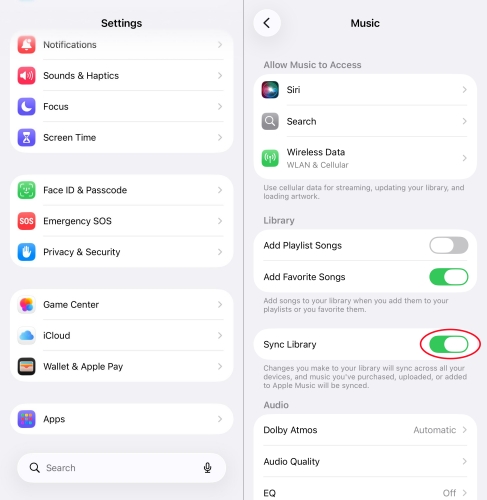
Step 1. On your iPhone, open Settings and tap App > Music.
Step 2. Locate the Sync Library toggle and turn it OFF.
Step 3. Exit to your home screen and wait roughly 30 seconds.
Step 4. Return to turn Sync Library back ON.
Fix 4: Check for Device Profile (MDM) Overrides
If you use a phone or laptop provided by a school or employer, it likely has a Mobile Device Management (MDM) profile installed. These profiles can enforce strict safety filters that override your personal settings. You can check for this by going to Settings > General > VPN & Device Management. If a profile is present, ask the system administrator or use a professional MDM removal tool to remove the restriction.
Fix 5: Convert Apple Music Tracks for Offline Playback
When system bugs or persistent account restrictions stand in the way of listening to explicit music normally, an effective alternative is to move your music offline. Utilizing a third-party utility like TunesMake Apple Music Converter can help bypass streaming restrictions altogether.
It works by converting Apple Music tracks, albums, and playlists into unprotected audio formats like MP3, FLAC, or WAV with their original ID3 tags intact. Because it saves the high-fidelity files directly onto your Windows or Mac computer, you can play your explicit tracks on any media player or transfer them to any smartphone without worrying about Screen Time, local cache glitches, or platform restrictions filtering your music.

Streaming Audio Recorder –
Convert Apple Music to unprotected audio files losslessly
- Download songs, albums, and playlists from Apple Music
- Convert Apple Music to MP3, M4A, M4B, WAV, FLAC, and AIFF
- Remove DRM protection from Apple Music completely and safely
- Preserve the original audio quality and ID3 tags for management
- Support downloading music from 10 popular streaming platforms
Security Verified. 100% Clean & Safe.
Part 4. FAQs about Apple Music Explicit Content
Does turning on explicit content require a passcode?
If you have a Screen Time passcode active on your device, you will be required to enter that 4-digit code before you can alter any content or privacy restrictions. If you forgot your passcode, you can reset it by tapping "Forgot Passcode?" and entering your Apple ID credentials.
Why are cuss words still muted if my settings are set to explicit?
If your settings are correct but you still hear muted lyrics, you are likely playing a "Clean" version of the track or listening to a curated radio station/playlist that specifically utilizes edited audio files. Double-check the song title to see if it features the explicit [E] badge.
Why is the explicit content option grayed out and unclickable?
If the menu options cannot be selected, your account is likely restricted by an Apple Family Sharing plan. If your profile is registered as a minor, the designated family organizer must log into their own device to adjust these media permissions for you.
Part 5. Conclusion
Uncensoring your Apple Music library doesn't have to be a frustrating process. In most cases, navigating to your device's Screen Time or Content Restrictions menu and toggling the settings to "Explicit" will immediately give you access to your favorite tracks. If a lingering cloud sync glitch keeps your music grayed out, quick workarounds like the iTunes Store trick or forcing a fresh iCloud Library sync can get the platform back on track.
However, if you find yourself stuck due to restrictive account permissions, managed device profiles, or persistent system bugs, shifting your listening habits offline offers a reliable workaround. Using a tool like TunesMake Apple Music Converter allows you to download and convert your preferred tracks into open formats like MP3 or FLAC. By saving your music directly to your local storage, you can bypass platform filters entirely and ensure your playlists are always available exactly as the artists intended.
Related Articles


A professional writer at TunesMake, crafts in-depth tutorials, practical tips and expert advice focusing on streaming music, technology, and more.
- 1
- 2
- 3
- 4
- 5
- 6
- 7
 Leave Your Comment
(0)
Leave Your Comment
(0)

 Download Center

