









 Store
Store


Nothing elevates an intense gaming session quite like a custom soundtrack. Whether you are tearing through the tracks in Gran Turismo, exploring vast open worlds, or warming up for a competitive match, background audio can completely change the experience.
Fortunately, Sony and Apple have made it incredibly easy to blend your gaming world with your favorite audio tracks. Here is your definitive guide to setting up Apple Music on the PlayStation 5, optimizing it for background play while gaming, and troubleshooting common bugs.
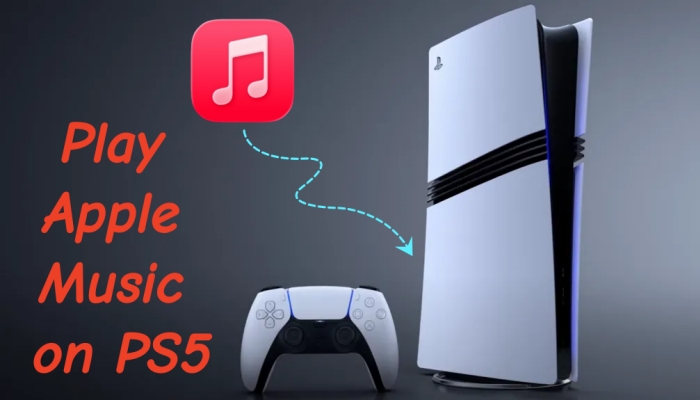
Part 1. How to Set up Apple Music on PS5 for Playing
Setting up the Apple Music app on your console takes only a few minutes. Before starting, make sure your PS5 firmware is updated to the latest version and have your smartphone or tablet nearby for quick authentication. Then set up Apple Music on PS5 for playing your liked content.
Step 1 Download the Apple Music App
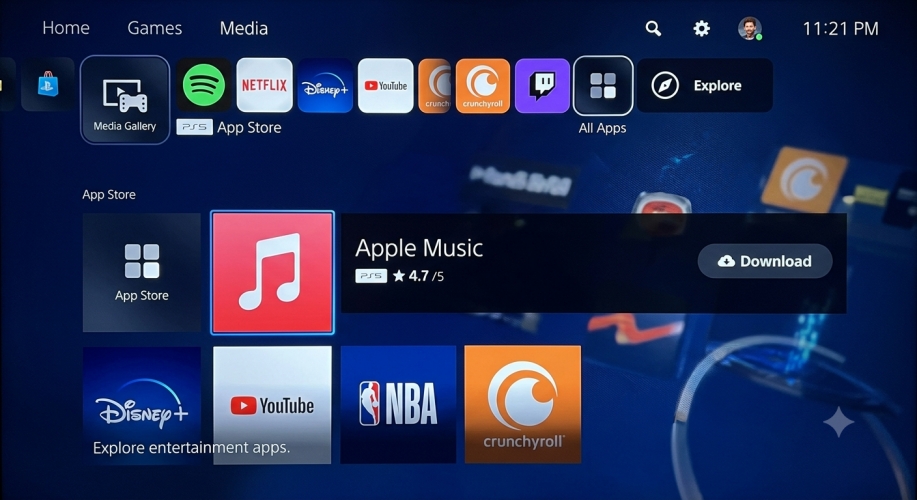
1. Turn on your PS5 and navigate to the Media tab at the top of the home screen.
2. Select All Apps and scroll down to find Apple Music.
3. Select Apple Music and click Download.
Step 2 Link Your Apple Account to PS5
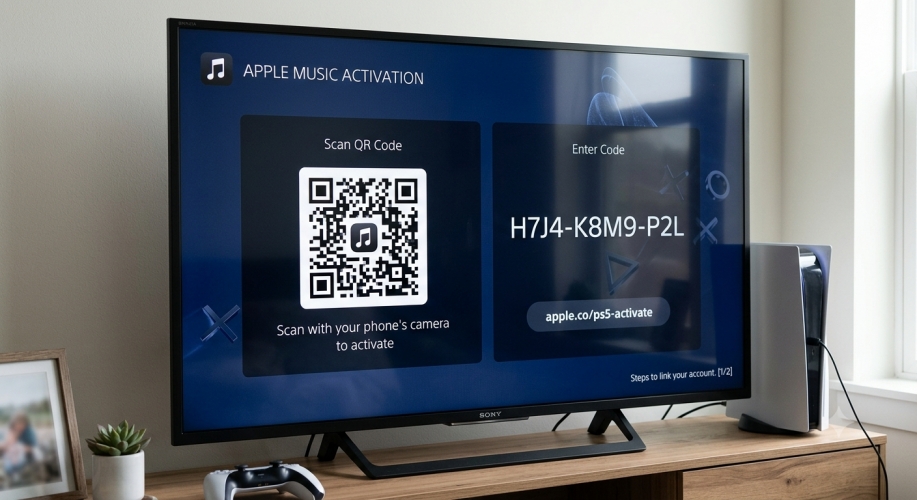
1. Open the Apple Music app from your media library.
2. Select Sign In or Start Listening.
3. A QR code and a 9-character activation code will appear on your TV screen.
4. Scan the QR code with your phone camera, or open a web browser and go to the activation URL displayed on the screen.
5. Sign in with your Apple ID and password, then enter the code shown on your TV to authorize the console.
Once authorized, your entire Apple Music library, including personal playlists, saved albums, and curated gaming stations, will instantly sync to your PS5.
Bonus: How to Claim Free Apple Music Trial on PS5
Sony and Apple frequently partner to offer exclusive perks for console owners. If you are a new subscriber or a qualifying returning user, you can often claim an extended free trial directly through your PS5. To check if a promotion is currently active and claim your offer:
Step 1. Launch the newly installed Apple Music app on your PS5.
Step 2. Follow the on-screen prompts during the initial setup. If your account is eligible, a special promotional banner will appear offering a multi-month free trial.
Step 3. Confirm your billing details on your linked Apple device to activate the trial.
Part 2. How to Control Apple Music on PS5 While Gaming
The real power of having Apple Music on PS5 is the ability to stream music directly in the background while playing your favorite games. With the following steps, you can control Apple Music while playing games on your console.
Access the Control Center Card
You do not need to quit or suspend your game on your console to change tracks, pause, or swap playlists from Apple Music.
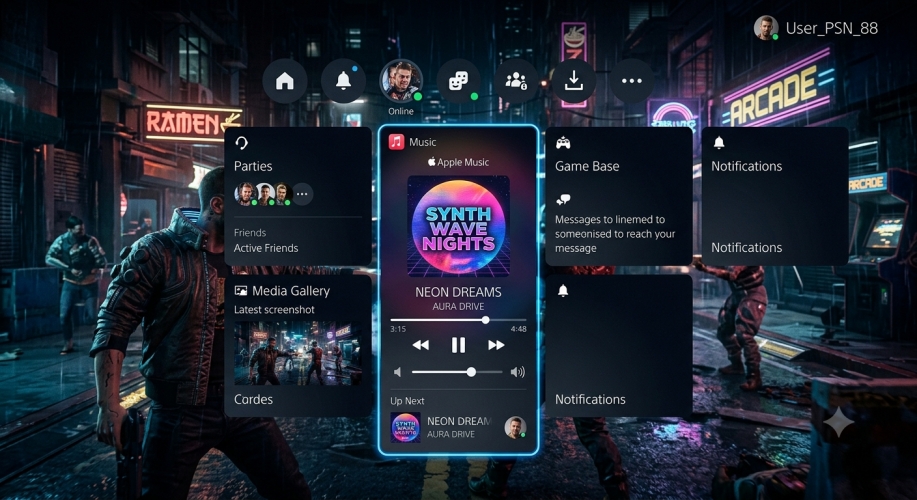
1. Press the physical PS button on your controller once to pull up the Control Center.
2. Navigate to the Music card represented by a musical note icon.
3. From here, you can instantly pause, skip songs, or see what track is playing.
Tune Your Audio Mix
For the best immersion, you don't want your music drowning out crucial in-game audio cues, nor do you want dialogue overlapping with a loud song.
-
Disable In-Game Music: Head into the audio settings of the specific game you are playing and turn the Music Volume slider down to 0% while leaving sound effects and dialogue at 100%.
-
Adjust the Balance Card: Open the PS5 Music card, select the Media Volume slider, and fine-tune the balance so your Apple Music tracks blend seamlessly with the game's audio environment.
Part 3. How to Fix Apple Music Not Working on PS5
While the Apple Music for PS5 app is generally stable, users occasionally run into frustrating glitches like Apple Music not working on PS5 or Apple Music not loading on PS5. Hare are a few quick troubleshooting steps to fix them quickly so you can get back to your game.
Solution 1. Quick Reinstall of Apple Music
The most common issue on the PS5 is the app hanging indefinitely on the black Apple Music logo screen. A standard restart rarely fixes this because of corrupted cache data.
Step 1. Hover over the Apple Music icon on your PS5 home screen or Media tab.
Step 2. Press the Options button on your controller and select Delete.
Step 3. Turn off your console and unplug the power cable for 30 seconds to clear the cache.
Step 4. Plug it back in, turn on the PS5, and download Apple Music again from the Media tab.
Solution 2. Restore Console Licenses
If the app opens but songs will not play or you encounter error messages, your digital licenses might be out of sync with the PlayStation Network.
Step 1. Open Settings at the top right of the PS5 home screen.
Step 2. Navigate to Users and Accounts > Other.
Step 3. Select Restore Licenses and click Restore.
Solution 3. Clear App Cache via Internal Settings
If you can access the quick mini-menu from your PS5 Control Center but the main app interface won't load, you can force a hard reset.
Step 1. Open the Apple Music app.
Step 2. Go to the app's internal Settings.
Step 3. Select Reset Apple Music.
Solution 4. Play from a USB Drive
If server issues or persistent app glitches prevent the streaming app from loading entirely, you can play your tracks using a local USB drive via the PS5's built-in Media Player. Because standard Apple Music downloads are DRM-protected and cannot be read directly by the console from a flash drive, you can use a third-party tool like TunesMake Apple Music Converter on a computer to save your playlists as standard MP3, AAC, or FLAC files.
Step 1. Convert your desired Apple Music tracks into MP3 or FLAC format with TunesMake.
Step 2. Format a USB flash drive as FAT32 or exFAT.
Step 3. Create a folder in the root directory named exactly "Music".
Step 4. Transfer your converted files into that folder and plug the drive into your PS5.
Step 5. Press the PS button on your controller and select the Music card.
Step 6. Change the sound source to your USB Drive.
Step 7. Play your tracks locally in the background while you game.
Part 4. FAQs about Apple Music on PS5
Does PS5 have Apple Music?
Yes, the PlayStation 5 has an Apple Music app. You can find and download it directly from your console. Once it is set up, you can listen to your playlists or albums in the background while playing compatible PS5 and PS4 games by pressing the PS button on your controller to bring up the Music card in the Control Center.
Can you control Apple Music from your phone on PS5?
No, you cannot control Apple Music from your phone on the PS5. Unlike Spotify, which allows you to seamlessly use your phone as a remote control for the console app via Spotify Connect, Apple Music doesn't support direct phone-to-console casting or remote playback.
Does Apple Music on PS5 support Dolby Atmos?
Currently, the PS5 Apple Music app does not support Dolby Atmos or Spatial Audio tracks in the same way an Apple TV 4K or HomePod setup does. However, if you are using a compatible headset like the PlayStation Pulse Elite or Pulse Explore, the PS5's internal Tempest 3D AudioTech will virtualize the stereo audio stream into a highly immersive 3D soundscape.
How to shuffle Apple Music on PS5?
You can shuffle your songs on the PS5 Apple Music app using two different methods, depending on whether you are in the full app or playing a game.
Method 1. From the Full Apple Music App
Step 1. Open the Apple Music app from your PS5 Media dashboard.
Step 2. Select any playlist, album, or your song library.
Step 3. Look for the Shuffle button located next to the Play button at the top of the tracklist.
Step 4. Select it to begin randomized playback.
Method 2. Vie the Control Center (While Gaming)
Step 1. Press the PS button on your controller once to bring up the Control Center cards.
Step 2. Select the Music card represented by the musical note icon.
Step 3. Select the active Apple Music player card.
Step 4. Highlight and toggle the Shuffle icon on the playback control bar.
Part 5. Conclusion
Streaming Apple Music on your PS5 is one of the best ways to customize your gaming experience, seamlessly blending your favorite tracks into the background of your favorite games. While the native app is incredibly convenient, technical hiccups like frozen loading screens or server mismatches can occasionally disrupt your rhythm.
By keeping your console cache clear, resetting your digital licenses, or utilizing a reliable offline alternative like TunesMake Apple Music Converter for USB playback, you can ensure your gaming soundtracks never skip a beat. Fire up your console, link your account, and optimize your audio balance to build the ultimate immersive gaming setup today.
Related Articles


A professional writer at TunesMake, crafts in-depth tutorials, practical tips and expert advice focusing on streaming music, technology, and more.
- 1
- 2
- 3
- 4
- 5
- 6
- 7
 Leave Your Comment
(0)
Leave Your Comment
(0)

 Download Center

