








 Store
Store


Whether you are hosting a party, taking a long road trip, or just curating a personal soundtrack for your workday, learning how to queue Apple Music tracks quickly is an essential skill. This quick guide breaks down how to queue songs on Apple Music across iPhone, Android, Windows, and Mac, along with tips for mastering AutoPlay and managing playback on non-supported devices.
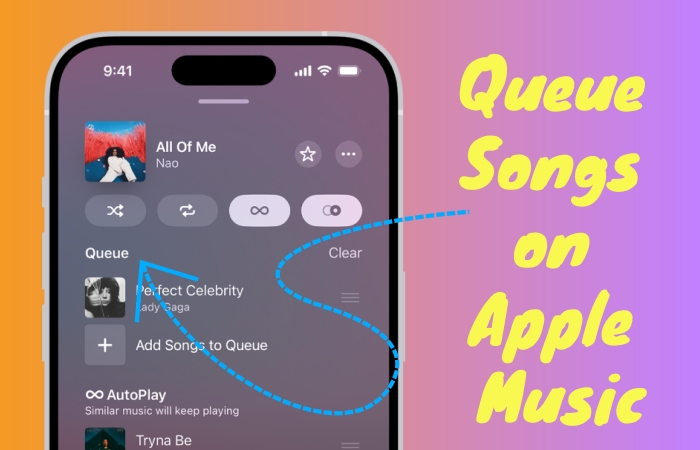
Part 1. Explanation of Play Next and Add to Queue
While Apple Music offers robust playback controls, its queuing system, specifically the difference between adding a track to play next versus adding it to the end, can sometimes confuse even longtime subscribers. It is essential to understand the two core commands Apple Music uses to manage upcoming tracks: Play Next and Add to Queue.
| Feature | What It Does | Best Used When |
|---|---|---|
| Play Next | Places your selected song or album at the very top of your queue, directly after the song currently playing. | You want to hear a specific song immediately right after the current track finishes. |
| Add to Queue | Places your selected song or album at the very bottom of your active queue or playlist list. | You are building a long background playlist and want songs to play in order later on. |
Key Takeaway:
-
If you tap Play Next on three different songs consecutively, the last song you selected will play first because each new selection gets bumped to the top spot. If you want songs to play in the exact sequence you select them, use Add to Queue instead.
Part 2. How to Queue in Apple Music across Devices
Whether you are listening to Apple Music on a phone, desktop, tablet, or a non-supported device, here is how to manage your Apple Music playback queue, including queuing songs and clearing queue in Apple Music.
How to Queue Songs in Apple Music on iPhone & iPad
Managing your Apple Music queue on your iPhone or iPad is quick once you know where the controls are hidden.
Add Songs to the Queue
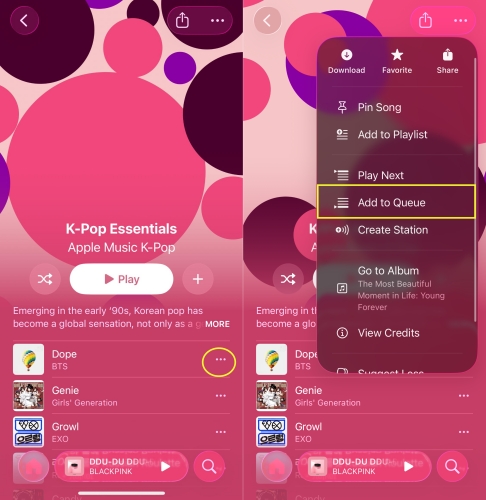
Step 1. Open the Apple Music app and find the song, album, or playlist you want to add.
Step 2. Touch and hold the track or tap the three dots next to the song title.
Step 3. Tap either Play Next or Add to Queue from the menu options.
Remove Songs from the Queue
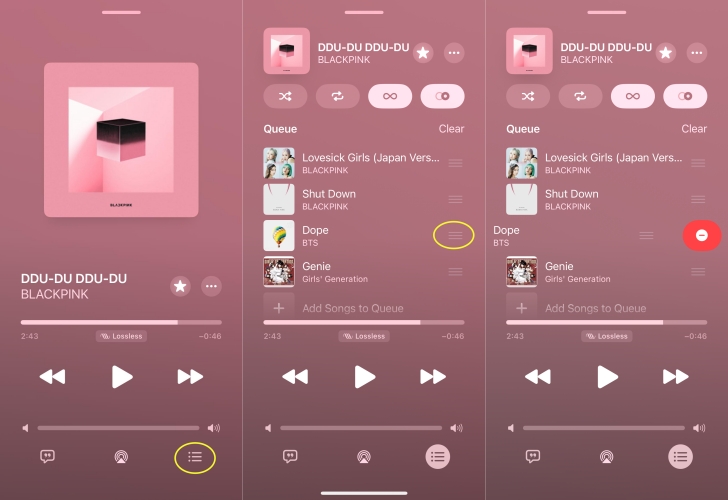
Step 1. Tap the Now Playing bar at the bottom of your screen to open the full-player view.
Step 2. Tap the Playing Next icon in the bottom-right corner.
Step 3. Swipe left on the song you wish to remove and tap Delete.
How to Queue Songs in Apple Music on Mac & Windows
If you are listening to Apple Music on a computer, you can manage your music queue using keyboard shortcuts and drag-and-drop actions.
Add Songs to the Queue
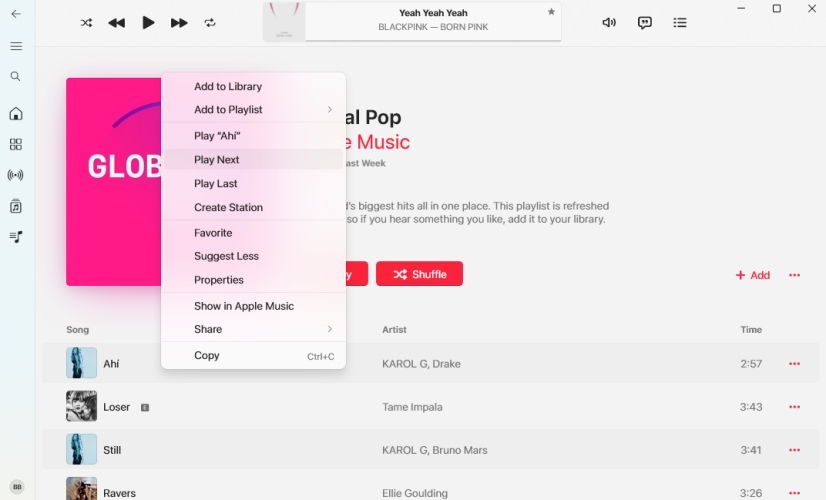
- Right-Click Method: Right-click any song, album, or playlist, hover over the menu options, and select Play Next or Add to Queue.
- Drag and Drop: Click and drag any song directly onto the Playing Next icon at the top of the application window to drop it directly into your queue.
Clear the Apple Music Queue
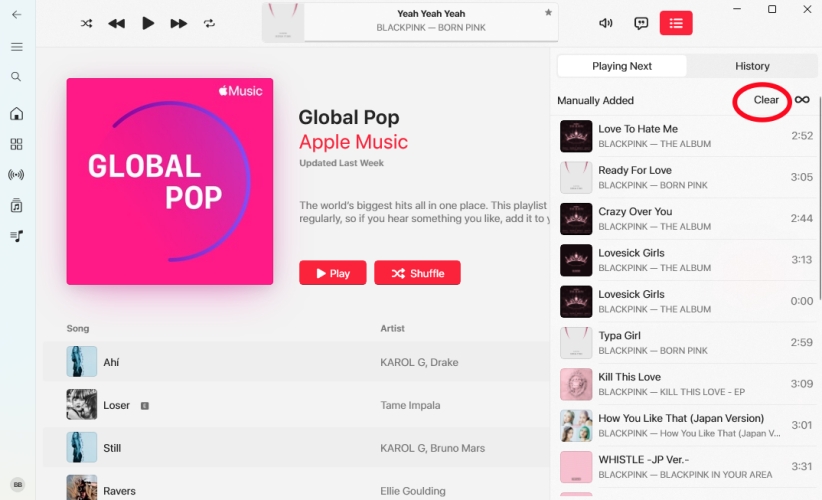
Step 1. Click the Playing Next icon in the top-right control area.
Step 2. Click the Clear button located at the top of the queue list.
How to Queue Songs in Apple Music on Android
The Apple Music Android app matches the iOS experience almost identically, making it easy to build a queue in Apple Music for Android.
Add Songs to the Queue
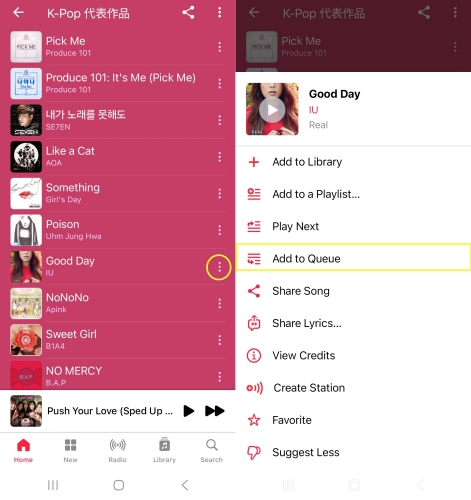
Step 1. Open Apple Music on your Android device.
Step 2. Tap the three dots (...) beside any song or album.
Step 3. Choose Play Next or Add to Queue.
Remove Songs from the Queue
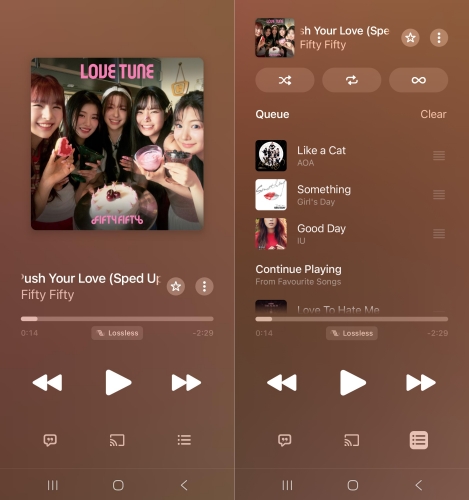
Step 1. Open the Now Playing screen in the Apple Music app.
Step 2. Tap the Playing Next list icon at the bottom right to view your upcoming tracks.
Step 3. Touch a song and swipe left to remove a song.
How to Queue Songs in Apple Music on Unsupported Devices
While the Apple Music app works well on smartphones and computers, you may run into limitations if you want to create a music queue on devices that do not support the official Apple Music app such as MP3 players, DJ software, or third-party media players like VLC or Foobar2000.
Because Apple Music tracks are DRM-protected, you cannot directly transfer streaming tracks into standard media players to build offline queues. In this situation, TunesMake Apple Music Converter offers a practical workaround. TunesMake allows you to convert Apple Music songs into DRM-free audio formats such as MP3, FLAC, or WAV while preserving original audio quality and metadata. Once converted to local files, you can import your Apple Music library into any media player or software of your choice and build custom playback queues without restriction.

Streaming Audio Recorder –
Bakc up Apple Music tracks for playing anytime
- Download songs, albums, and playlists from Apple Music
- Convert Apple Music to MP3, M4A, M4B, WAV, FLAC, and AIFF
- Remove DRM protection from Apple Music completely and safely
- Preserve the original audio quality and ID3 tags for management
- Support downloading music from 10 popular streaming platforms
Security Verified. 100% Clean & Safe.
Part 3. More Advanced Apple Music Queue Features
Once you have mastered the basics of queuing songs in Apple Music, you can take advantage of Apple Music's smart automation and social features. Here are more advanced queue features you may be interested in.
How to Turn AutoPlay On or Off in Apple Music
Apple Music's AutoPlay feature automatically creates an infinite queue of similar songs whenever your current album, playlist, or manual queue ends. When you're not sure what to play next, you can use AutoPlay to get continuous listening.
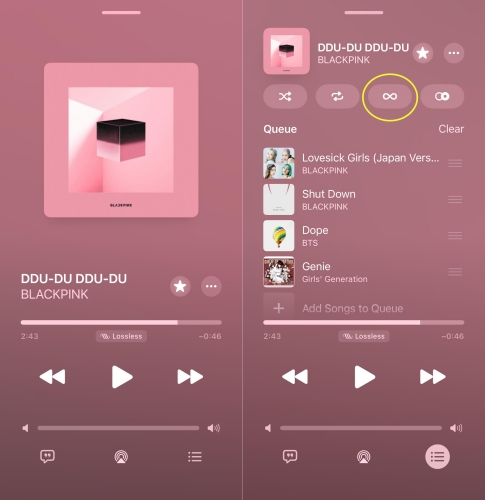
Step 1. Open your Playing Next queue list.
Step 2. Look for the Infinity symbol near the top right of the queue interface.
Step 3. Tap the Infinity icon to toggle it on.
If AutoPlay is on, Apple Music will continuously generate similar songs when your queue finishes. When the feature is disabled, music will stop completely after the final queued song ends.
How to Collaborate on Queues with SharePlay and HomePod
If you are streaming any song, album, or playlist from Apple Music to a HomePod or an Apple TV, anyone on the same Wi-Fi network can contribute to the playback queue. Besides, when in a SharePlay session, all participants can queue songs on Apple Music.
- When playing music through a shared HomePod, guests can tap a song in their own Apple Music app and select Play Next or Add to Queue to contribute without taking over the speaker entirely.
- You can also host a SharePlay session in CarPlay or FaceTime, allowing all passengers or participants to seamlessly add songs to the live queue from their own devices.
Part 4. FAQs about Queue in Apple Music
Why did my Apple Music queue disappear?
If your queue suddenly clears, you likely selected a new album or playlist directly by tapping on a song inside it. Tapping a new song outside your existing queue tells Apple Music to start a completely new playback context, which replaces your existing queue. Always use the Play Next or Add to Queue options to preserve your current queue.
Can I clear the entire Apple Music queue at once on iPhone?
Yes. The Apple Music app offers a single Clear button for the Queue. In the Apple Music app, open the Now Playing screen, tap the Playing Next icon, and choose Clear. Then you will be asked to confirm the removal of the entire queue.
What is the difference between "Playing Next" and "Continue Playing"?
In your queue view, Playing Next shows the manual tracks you explicitly added using the Play Next or Add to Queue options. Continue Playing shows the default tracks remaining in the album or playlist you originally started playing before you added manual queue items.
How do I stop Apple Music from automatically playing random songs?
Turn off AutoPlay by tapping the Infinity icon in your Playing Next view. This prevents Apple Music from automatically generating similar tracks when your manual queue reaches the end.
Part 5. Conclusion
Mastering your Apple Music queue is the easiest way to take full control of your audio experience across any device. Whether you are prioritizing instant playback with Play Next, building an event playlist with Add to Queue, or managing playback on unsupported hardware using tools like TunesMake Apple Music Converter, understanding these features prevents unexpected playback interruptions. By adjusting your AutoPlay settings and taking advantage of cross-device queue controls, you can enjoy a seamless, personalized soundtrack wherever you listen.
Related Articles

A passionate writer specialized in creating engaging content about music and entertainment, covering everything from the latest music trends and entertainment news to practical tutorials.
- 1
- 2
- 3
- 4
- 5
- 6
- 7
 Leave Your Comment
(0)
Leave Your Comment
(0)

 Download Center

