








 Store
Store


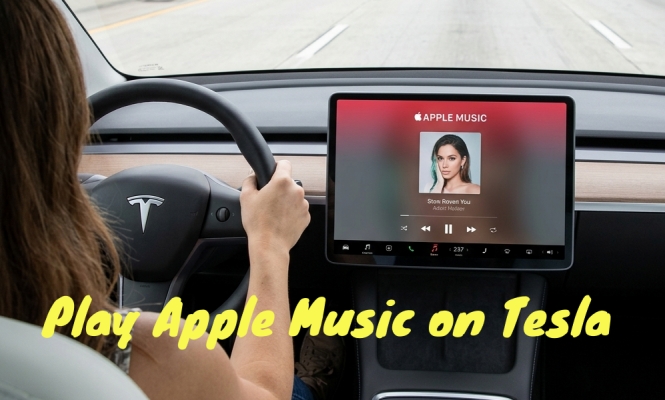
Turning the volume up is the first thing most people do when they get in the car. Whether driving the familiar streets of your daily commute or going on a road trip with your friends, listening to music will be a great thing for entertainment in the car. And if you already use Apple Music to listen to music, you can easily and seamlessly continue listening from the car. There are several ways in which users subscribing to Apple Music can take their favorite songs on the road with them. Now start to play Apple Music in car with the following methods in this guide.
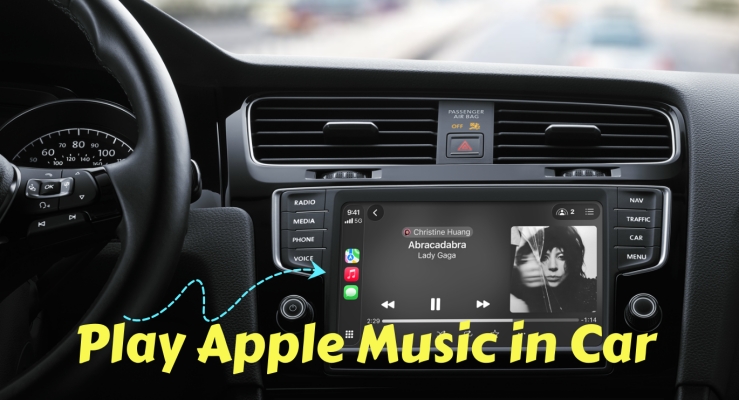
Part 1. Smart Methods to Play Apple Music in Car
Android Auto and Apple CarPlay are in-car assistant systems that let you access certain features on your phone. With the help of Android Auto and Apple CarPlay, you can do a variety of things like playing music, podcasts, and audiobooks in the car once your phone is connected to your car. Here is how to play Apple Music in your car via Apple CarPlay and Android Auto.
Option 1. Listen to Apple Music in Car with Apple CarPlay
CarPlay is an Apple standard that enables a car radio or head unit to be a display and a controller for all iOS devices. With Apple CarPlay, you can access all your content from your Apple Music subscription and ask Siri to play your favorite song in the car.
Requirements:
-
A Lightning cable (wired setup)
-
WiFi and Bluetooth turned on (wireless setup)
-
An active Apple Music subscription
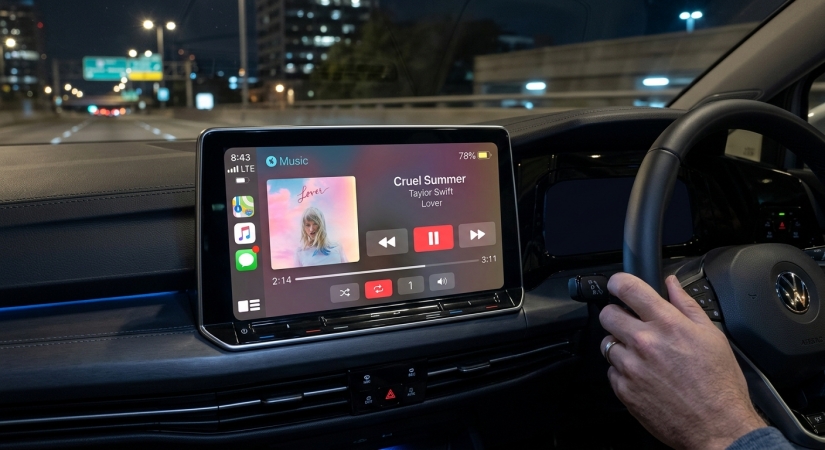
Option 1. Wireless CarPlay Setup
Step 1. Ensure Wi-Fi and Bluetooth are enabled on your iPhone.
Step 2. Go to Settings > General > CarPlay on your iPhone.
Step 3. Press and hold the Voice Control button on your steering wheel or select the pairing option on your car's touchscreen.
Step 4. Select your vehicle from the available list on your iPhone screen and follow the on-screen prompts to pair.
Option 2. Wired USB CarPlay Setup
Step 1. Connect your iPhone to your car's USB port using an official Lightning cable.
Step 2. Look for the USB port marked with a smartphone or CarPlay icon.
Step 3. Unlock your phone and select Allow to give CarPlay access while your phone is locked.
Ask Siri to Play Apple Music in the Car
Upon setting up CarPlay with your iPhone, you can ask Siri in CarPlay to play songs from Apple Music while driving. Just say something like:
"Hey Siri, skip this song"
"Hey Siri, shuffle this playlist"
"Hey Siri, repeat this song"
"Hey Siri, play 'You Need to Calm Down' by Taylor Swift"
"Hey Siri, let's hear the Acoustic playlist"
Option 2. Listen to Apple Music in Car with Android Auto
Android Auto is a mobile app developed by Google to mirror features from an Android device to a vehicle. Once an Android device is paired with a head unit, the system mirrors qualified apps from the device to the car's display, with a simple, drive-friendly user interface.
Requirements:
-
A USB cable
-
An active Apple Music subscription
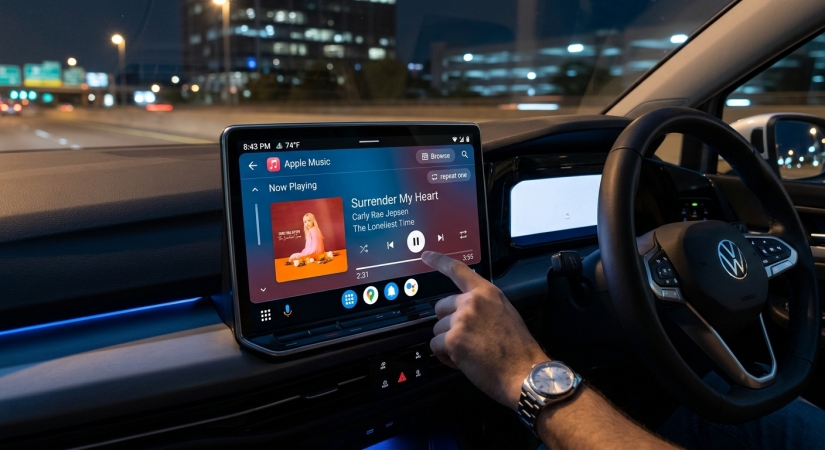
Step 1. Connect your Android device to your car using a USB cable.
Step 2. Launch the Apple Music app on your display in the car after the setup.
Step 3. Select a playlist or an album from Apple Music to play in the car.
Talk to Google to Play Apple Music in the Car
Having connected your Android phone to your car via Android Auto, you can talk to Google to control the playback of your Apple Music songs in the car.
"Hey Google, play house music"
"Hey Google, listen to a comedy podcast"
"Hey Google, play some music sung by Taylor Swift"
"Hey Google, repeat this song"
"Hey Google, shuffle this album"
Part 2. Traditional Methods to Play Apple Music in Car
Listening to a great album or playlist in the comforts of your car is a great thing. For starting your playback of Apple Music in the car, using Apple CarPlay or Android Auto is a great way. In addition to Apple CarPlay or Android Auto, there are other ways for you to choose from depending on the equipment of your car. So, just see your options and start your listening.
Option 1. Get Apple Music to Play in Car via a USB Cable
It is easy to stream Apple Music to your car if your car has a built-in USB port. Just connect your Android phone or iPhone to your car using a USB cable, then start the playback of Apple Music in the car.

Step 1. Plug your phone directly into your car's USB media port using a USB cable.
Step 2. Switch your car's audio source to USB Audio.
Step 3. Go to Apple Music from the root folder to play your favorite songs.
Option 2. Get Apple Music to Play in Car via Bluetooth
Except for using a USB cable, Bluetooth makes your playback of Apple Music in the car easier if you don't have a USB cable. If your car has a Bluetooth connection, you are able to use Bluetooth to build the connection between your car and phone.

Step 1. Navigate to your car's infotainment menu and set it to Bluetooth pairing mode.
Step 2. On your iPhone, go to Settings > Bluetooth and select your vehicle's system.
Step 3. Confirm the PIN code on both screens to complete the connection.
Step 4. Select Bluetooth Audio as your car's input source and open Apple Music to play.
Option 3. Get Apple Music to Play in Car via Auxiliary Input
Most phones have both USB cable and auxiliary outputs which both deliver music from your phone to your car or home stereo. So, if your car has an auxiliary jack, you can plug your phone into your car for playing Apple Music in the car.

Step 1. Find the AUX port in your car and plug in one end of the cable to the port.
Step 2. Go to plug the other end of the cable into your phone's jack.
Step 3. Select the AUX option in your car's entertainment system.
Step 4. Launch the Apple Music app to play your favorite tunes in the car.
Option 4. Get Apple Music to Play in Car via FM Transmitter
FM Transmitter is a low-power FM radio transmitter that allows portable audio devices to make use of the louder or better sound quality of a car stereo without requiring a wired connection. If you don't have Apple CarPlay or Android Auto, FM Transmitter is a good option.
Step 1. Plug the FM transmitter into the music device within the car via Bluetooth or a USB cable.
Step 2. Choose a radio frequency on the transmitter to transmit your songs from Apple Music.
Step 3. Tune your radio to the same frequency and turn the volume up.
Step 4. Open Apple Music and choose a playlist or an album to play on that FM frequency.
Part 3. Best Method to Get Offline Apple Music in Car
The beauty of Apple Music is that it lets you hear the stuff you already love, plus new stuff you're probably going to love as soon as you hear it. However, there still exists some shortages. If you are driving through remote areas with zero cellular service, or if your car's USB port only reads standard media files off a flash drive, playing music directly from a USB stick is an ideal solution.
It is not possible to get Apple Music to a USB stick directly due to the built-in protection. However, if you have TunesMake Apple Music Converter installed on your computer, it could be easier for you to copy Apple Music to USB for playing in the car. It is a professional and powerful audio converting tool that is designed for the conversion of Apple Music. With it, you can convert Apple Music to several formats while retaining the lossless audio quality.

Streaming Audio Recorder –
Download Apple Music tracks for playing anytime
- Download songs, albums, and playlists from Apple Music
- Convert Apple Music to MP3, M4A, M4B, WAV, FLAC, and AIFF
- Remove DRM protection from Apple Music completely and safely
- Preserve the original audio quality and ID3 tags for management
- Support downloading music from 10 popular streaming platforms
Security Verified. 100% Clean & Safe.
Step 1 Add Apple Music Songs to the Conversion List
Start by launching TunesMake Streaming Audio Recorder on your computer then it will shows several streaming platforms. Simply click the Apple Music icon and log into your Apple Music account in the built-in Apple Music web player. After finding any music tracks, albums, or playlists you want to download, click the + button to add them into the conversion list.
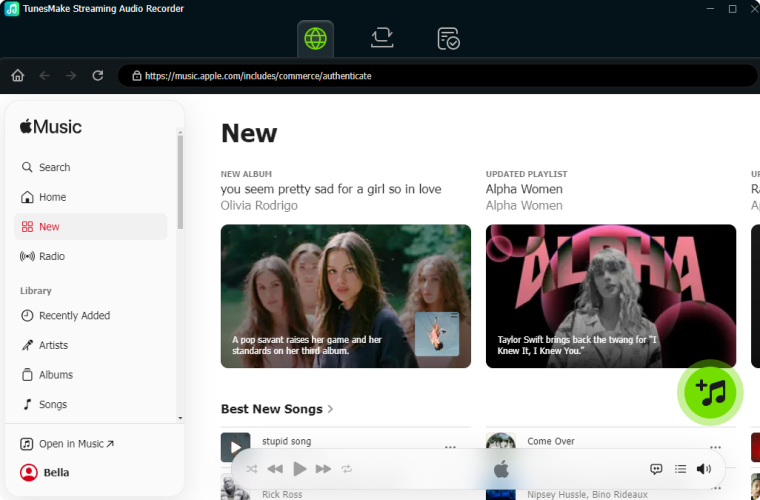
Step 2 Set the Output Audio Format for Apple Music
When your selected items are added to the conversion list, you can go to set the output audio parameters by clicking the Settings button at the bottom left corner. In this window, you can select the MP3 option from the list of audio formats. From there, you can also set the bit rate, sample rate, and channel for getting better audio quality.

Step 3 Start to Convert Apple Music to MP3 Files
The third step is to initiate the conversion of Apple Music songs by clicking the Convert button on the bottom right corner. After conversion, you can click on the History icon to browse your converted songs in the history list. As your files have been saved to your default downloads folder, you can locate the folder by clicking the Search icon at the rear of each track.

Step 4 Play Apple Music Tracks in Your Car
Once your required Apple Music songs have been converted to MP3 or other universal audio formats by using the TunesMake application, you can prepare to copy the converted Apple Music songs to a USB drive into your car stereo for getting Apple Music songs to play in the car. Then you can listen to Apple Music songs in the car offline.
Part 4. More Useful Tips about Apple Music for Car
From modern touchscreen interfaces to offline workarounds, you can find one best suited for playing Apple Music in your car. Meanwhile, there are some useful tips to make you get a better listening experience while driving.
How to Enhance Sound Quality for Apple Music in Car
To get the absolute best audio experience out of your car's sound system, adjust these key settings for Apple Music on your iPhone.
- Enable Lossless Audio: Go to Settings > Apps > Music > Audio Quality and toggle Lossless Audio on. Choose Lossless or Hi-Res Lossless for wired connections.
- Use Wired over Wireless: Bluetooth bandwidth is capped and cannot transfer Lossless ALAC audio streams. Use CarPlay USB, direct USB, or AUX cables for maximum audio depth.
- Adjust Equalizer (EQ): Go to Settings > Music > EQ and select presets like Late Night, Acoustic, or Car to optimize playback for vehicle speaker cabin dynamics.
- Turn On Sound Check: Enable Sound Check in Settings > Apps > Music to ensure all songs play at a consistent, balanced volume level.
How to Stop Apple Music from Automatically Playing in Car
With Apple CarPlay or Android Auto, you can surely control the playback of Apple Music in the car. You may come across that Apple Music automatically plays in the car.
- Turn Off Automatic AirPlay & Handoff Settings: Go to Settings > General > AirPlay & Handoff. Tap Automatic AirPlay and change it to Never or Ask. Toggle off Handoff.
- Disable Autoplay in the Apple Music App: Open the Apple Music app and tap the current playing track at the bottom. Tap the Up Next list icon. Tap the Infinity symbol next to Playing Next so it is no longer highlighted.
- Turn Off Cellular Data for Apple Music: Go to Settings > Apps > Music or Settings > Cellular. Toggle Cellular Data to Off that prevents the app from pulling and streaming songs automatically.
- Check Vehicle Infotainment Settings: Check your car display screen settings under Media, Bluetooth, or Smartphone Integration. Look for toggles labeled "Bluetooth Auto Play," "USB Auto Launch," or "Auto Play Media" and switch them off.
How to Shareplay Apple Music in Car
SharePlay in CarPlay allows passengers to control music, add tracks to the queue, and pause or skip songs directly from their own iPhones.
- Start Apple Music & Open SharePlay: The driver connects their iPhone to CarPlay and plays any song in the Apple Music app. Open the Now Playing screen on the car's display dashboard. Tap the SharePlay icon in the top-right corner.
- Passenger Joins the Session: A QR code of Shareplay will pop up on the car display. Passengers open the Camera app on their iPhone, point it at the CarPlay screen, tap the link that appears below the QR code, and tap Connect.
- Driver Approves the Connection: A prompt will appear at the bottom of the CarPlay screen showing that a passenger wants to join. The driver taps the Green Checkmark to grant permission.
- Passengers Use SharePlay: Once approved, passengers can open the Apple Music app on their own iPhones to browse, search, pause, skip, or add tracks to the playing queue.
How to Make Apple Music Louder in Car
If Apple Music sounds surprisingly quiet in your car, the issue is usually caused by software volume limiters, equalizers, or low output signals over Bluetooth and AUX connections.
- Disable Sound Check: Sound Check normalizes track volume across your library, which often lowers overall volume significantly. Go to Settings > Apps > Music on the iPhone. Then toggle Sound Check to Off.
- Change the Equalizer (EQ) Preset: Certain EQ profiles boost the output signal without causing distortion. Go to Settings > Apps > Music > EQ. Select Late Night or Off.
- Check Headphone Safety: The iPhone may restrict total audio output to protect hearing. Go to Settings > Sounds & Haptics > Headphone Safety. Toggle off Reduce Loud Sounds or slide the threshold up to 100 dB.
- Maximize Physical & Hardware Volume: How your iPhone connects to your car determines how volume levels are passed to your speakers. Turn your iPhone's physical volume buttons all the way up to 100% while connected to the car.
- Check Vehicle Head Unit Settings: Open your car display settings under Audio. Look for settings labeled Aux Gain, Bluetooth Audio Level, or Source Level Adjust (SLA). Increase the gain setting to +2 or +3 to match the volume level of standard AM/FM radio.
Part 5. Troubleshooting Common Apple Music in Car Issues
If your playback of Apple Music suddenly stops playing or your vehicle fails to recognize your phone, walk through these common issues and the corresponding fixes.
Problem 1: CarPlay Fails to Connect
Verify that Siri is active. CarPlay requires Siri permissions to function. Go to Settings > Siri & Search and enable both "Listen for 'Hey Siri'" and "Allow Siri When Locked". Also, ensure you are using an MFi-certified data cable rather than a charge-only cable.
Problem 2: The "Silent USB" Playback Bug
Some car head units fail to establish an initial handshake over USB unless at least one song is saved locally to your device's Apple Music library. Purchase or download a single audio track to your device offline to resolve the issue.
Problem 3: Random Bluetooth Disconnections
Clear corrupted cache settings by forgetting and re-pairing Bluetooth. Navigate to Settings > Bluetooth, select the (i) icon next to your vehicle, tap Forget This Device, and complete the pairing process from scratch.
Part 6. Conclusion
Streaming Apple Music in your vehicle doesn't require a brand-new car or a high-end audio receiver. Whether you use Apple CarPlay or Android Auto for a smart dashboard interface, rely on Bluetooth or AUX cables for daily driving, or convert Apple Music songs to a USB drive for offline playback, choosing the right connection method ensures a reliable connection.
If you ever run into account sync errors, regional restrictions, or offline playback needs, alternative solutions such as Bluetooth pairing or converting tracks for local media playback ensure you never miss a beat. Pick the setup method that best fits your listening routine and enjoy your favorite tracks on any Echo speaker.
Related Articles

A professional writer at TunesMake, crafts in-depth tutorials, practical tips and expert advice focusing on streaming music, technology, and more.
- 1
- 2
- 3
- 4
- 5
- 6
- 7
 Leave Your Comment
(0)
Leave Your Comment
(0)

 Download Center

