








 Store
Store


For years, Windows users who wanted to listen to Apple Music on PC had to rely on iTunes, a software program that often felt slow, outdated, and clunky on modern operating systems. Fortunately, the landscape has completely changed. Apple has modernized its desktop ecosystem, offering native tools and seamless browser integration tailored specifically for Windows users.
Whether you want to enjoy studio-grade audiophile settings or simply need a quick way to play your favorite playlists while working, this comprehensive guide covers the absolute ways to get Apple Music up up and running on your computer. Also, a way to listen to Apple Music on PC without iTunes or Apple Music is shared.
Part 1. Can You Listen to Apple Music on PC?
Sure, you can listen to Apple Music on PC because Apple also offers its streaming services to PC users. And PC users don't need to worry they will lose the premium features that make Apple's service stand out on iOS and Mac. Fortunately, parity between the systems is remarkably high, though there are a few technical differences to keep in mind.
Lossless & Hi-Res Audio
Unlike competitors that charge extra for high-fidelity audio or cap playback speeds, the Apple Music Windows app provides complete access to Apple's ALAC library at no additional cost.
-
Lossless Audio: Delivers CD-quality sound up to 24-bit/48 kHz.
-
Hi-Res Lossless: Offers studio-grade resolution up to 24-bit/192 kHz.
Time-Synced Lyrics and Dark Mode
The visual hallmarks of the mobile app translate beautifully to the big screen. The desktop interface includes a dedicated lyrics panel that flows in real-time with the music, changing its gradient background based on the specific artwork of the album currently playing. It also adapts instantly to your native Windows dark or light mode system settings.
What's Missing in Apple Music on PC?
While the application is highly advanced, there are a couple of ecosystem limitations:
-
Spatial Audio Limitations: While Dolby Atmos works effortlessly on Mac hardware, its performance on PC depends heavily on your specific computer motherboard audio driver and Windows sound configuration.
-
AirPlay Limitations: Streaming audio from your PC app directly to secondary smart speakers like a HomePod requires utilizing basic Windows casting tools rather than a native, one-click AirPlay icon built into the player interface.
Before diving into the setup steps of Apple Music on a Windows PC, it helps to understand which method fits your current operating system and listening preferences.
| Feature | Apple Music Windows App | iTunes App | Apple Music Web Player |
|---|---|---|---|
| Best For | Maximum audio quality & offline listening | Older PCs & legacy iOS syncing | Quick access, work PCs, & Windows 10 |
| Installation Required | Yes | Yes | No |
| Maximum Audio Quality | Hi-Res Lossless (24-bit/192 kHz) | Standard AAC (256 kbps) | Standard AAC (256 kbps) |
| Offline Downloads | Yes | Yes | No |
| OS Compatibility | Windows 11 | Windows 10 or below | Windows 11 or below |
Part 2. How to Listen to Apple Music on PC
Setting up Apple Music on a PC for playing your favorite music doesn't have to be complicated. Whether you are moving away from the old iTunes framework or setting up your account on a computer for the very first time, the following is how to listen to Apple Music on a PC in several different methods, depending on your computer's operating system and your own demands.
Method 1. Play Apple Music on PC via Apple Music App (Best for Audiophiles)
If you are running a modern Windows 11 PC, downloading the dedicated Apple Music desktop application is the premier choice. This official application offers a clean interface built on Windows design principles, matching the smooth experience found on macOS.
Requirements:
-
To run the native application seamlessly, your PC must be updated to Windows 11 (version 26100.0 or higher).
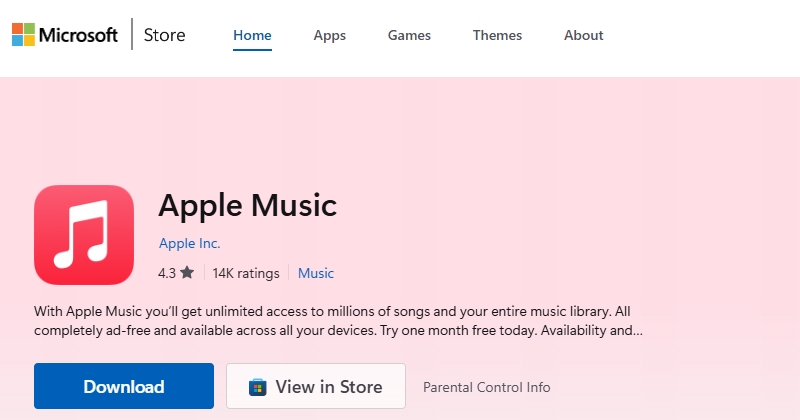
Step 1. Open the Microsoft Store on your computer.
Step 2. Search for Apple Music in the top search bar.
Step 3. Click the Get or Install button to download the official app.
Step 4. Once installed, launch the app and log in using your Apple ID credentials.
How to Listen to Lossless Apple Music on PC
One of the biggest advantage of using the Apple Music Windows app is access to uncompressed, studio-quality audio. By default, the Apple Music app streams at standard quality to save data. To unlock maximum fidelity, follow these steps.
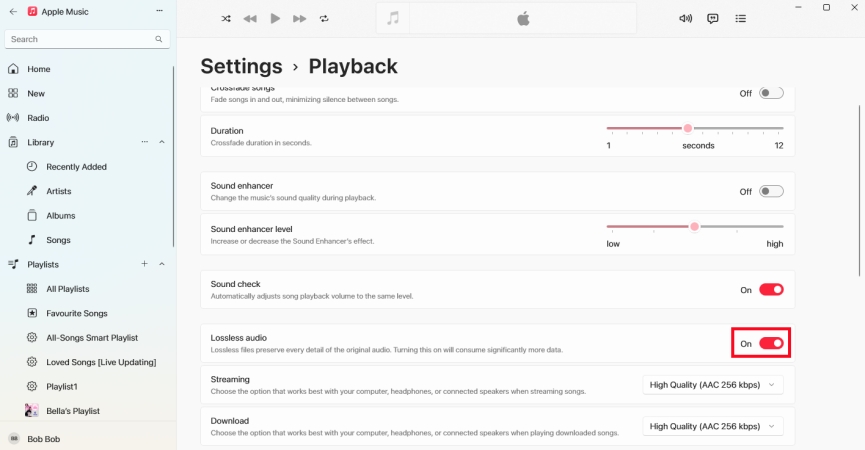
Step 1. In the Apple Music app, click on your profile name at the bottom of the sidebar.
Step 2. Select Settings from the menu and click the Playback tab.
Step 3. Locate Lossless audio and toggle the switch to On.
Step 4. Change your streaming and download preferences to Lossless or HiRes Lossless.
Method 2. Play Apple Music on PC via iTunes (For Windows 10 & Local Media Syncing)
While Apple is actively phasing out iTunes on newer operating systems, it remains a vital utility tool for users running older iterations of Windows 10 or individuals who rely on physical cable connections to manage older Apple devices.
When to Use iTunes:
If you install the Apple Music app on a Windows 11 PC, it will automatically disable the music features of iTunes. However, you should stick to iTunes if
-
Your computer cannot be upgraded to Windows 11.
-
You possess a large, localized library of imported MP3s or ripped CDs that you manually sync to legacy Apple media devices using the Apple Devices app.
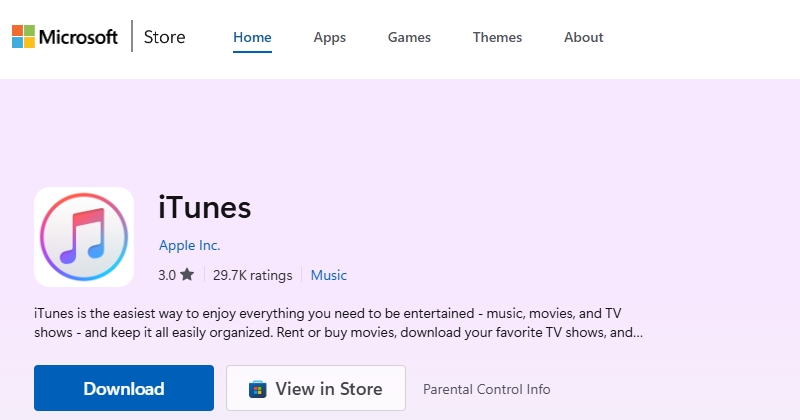
Step 1. Download iTunes directly through the Microsoft Store or download the installer from Apple's iTunes Page to install.
Step 2. Run iTunes, click Account > Sign In, and enter your Apple ID credentials.
Step 3. Go to Edit > Preferences > General and turn on iCloud Music Library.
Step 4. Navigate to Music and click Library to see your playlists or songs.
Method 3. Play Apple Music on PC via Apple Music Web Player (Best for Quick Access)
If you are using a managed work computer that restricts software installations, running an older version of Windows 10, or using an alternative OS like Linux, the Apple Music web player is your perfect alternative. You can access your entire music catalog through almost any modern desktop web browser such as Google Chrome, Microsoft Edge, Mozilla Firefox, or Brave.
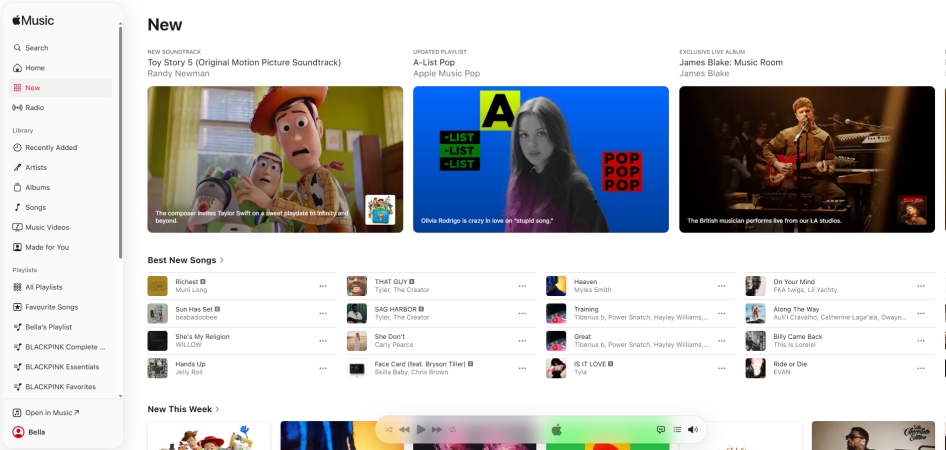
Step 1. Download iTunes directly through the Microsoft Store or download the installer from Apple's iTunes Page to install.
Step 2. Click the Sign In button located in the top-right corner of the webpage.
Step 3. Authenticate using your Apple ID and password.
Step 4. Browse your music library and select any song or playlist to play.
While the Apple Music web player is incredibly fast and requires zero storage space on your hard drive, it does come with a couple of technical trade-offs.
-
😀 Pros
- Work universally on virtually any computer
- Load the entire music catalog quickly
- Support advanced user features like synchronized
-
☹️ Cons
- Limited streaming speed
- Not support Lossless audio formatting
- Offline Mode not available
Part 3. Best Way to Listen to Apple Music on PC
For users who prefer to avoid using the Apple Music app entirely or need to play their Apple Music songs on local, third-party media players such as VLC, Windows Media Player, or DJ software, specialized Apple Music converting tools can bridge the gap.
Using a utility like TunesMake Apple Music Converter allows you to download and convert any music tracks, albums, playlists, and artists from Apple Music into universal audio formats like MP3, WAV, FLAC, AIFF, M4A, or M4B directly on your PC. Then it's pretty easy to add your converted Apple Music tracks into any media player or DJ software for playing and managing.

Streaming Audio Recorder –
Download Apple Music songs for playing on PC
- Download songs, albums, and playlists from Apple Music
- Convert Apple Music to MP3, M4A, M4B, WAV, FLAC, and AIFF
- Remove DRM protection from Apple Music completely and safely
- Preserve the original audio quality and ID3 tags for management
- Support downloading music from 10 popular streaming platforms
Security Verified. 100% Clean & Safe.
Step 1 Choose Parameters for Apple Music
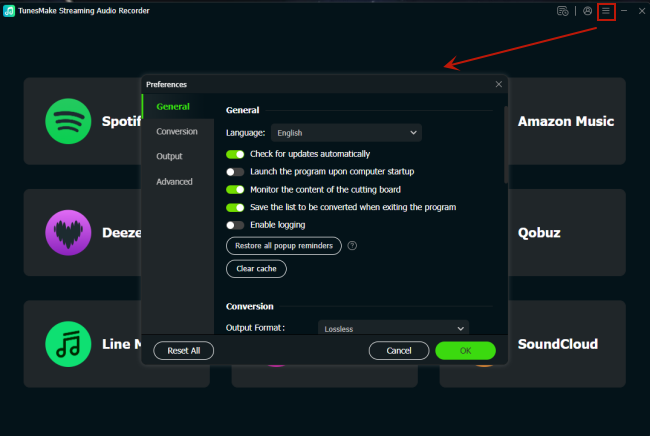
Launch TunesMake Apple Music Converter, then click the three-line at the top right corner and select the Preferences option to load the Preferences window. In the pop-up window, you can choose the output audio format for your Apple Music songs. You may choose MP3 that works with most media players. Finally, click the OK button to confirm all the settings.
Step 2 Select Apple Music Tracks to Convert
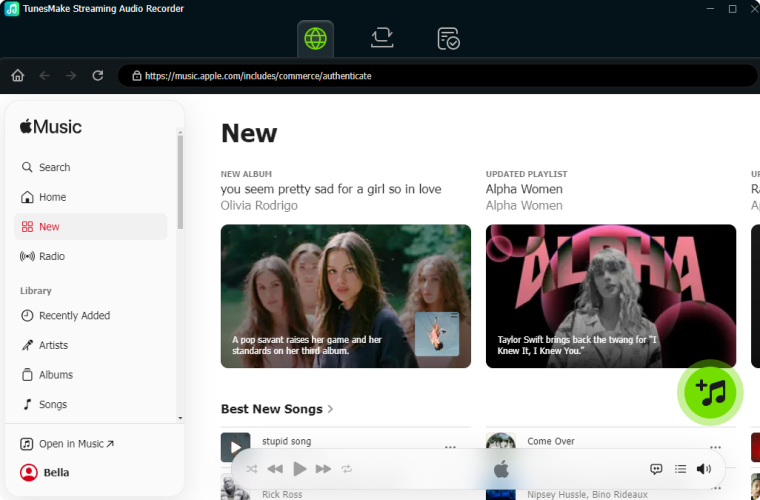
Go back to select Apple Music from the main interface of the program. There will be the Apple Music web player where you can log into with your Apple ID and password. You can use the Load in Library option to browse and select your liked songs from the Apple Music library. Then you can click the + button to add them to the conversion list for conversion and downloading.
Step 3 Download Apple Music Local Files
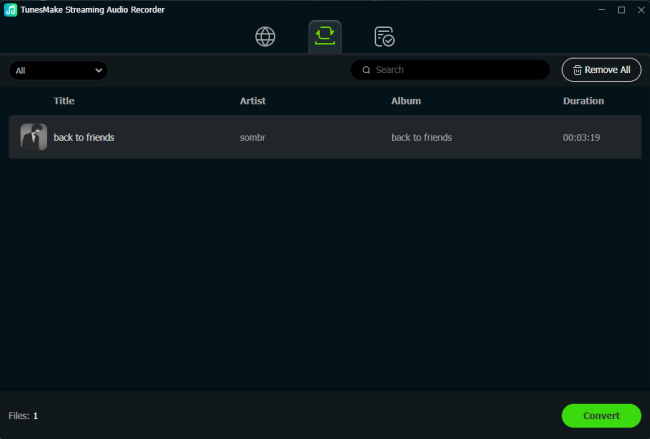
When your required items are added into the conversion list, you can click on the Convert button to begin the conversion of Apple Music songs. After the conversion, in the TunesMake program, you can click on the Converted tab at the top to view all the downloaded Apple Music songs. Also, you can locate the folder where you store the converted music files.
Step 4 Play Apple Music with Windows Media Player
Now you already get the local Apple Music files stored on your Windows PC, then you can play them on many platforms. Here we will show you how to play Apple Music with Windows Media Players.
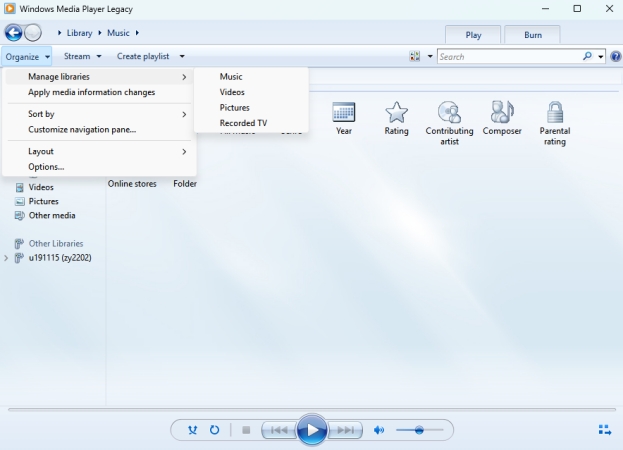
1. Open Windows Media Player and choose Organize.
2. Head to Manage Libraries > Music > Add.
3. Open the folder containing the converted Apple Music files.
4. Click Include Folder > OK to add them to Windows Media Player.
5. Browse and select the added music files to play on your PC.
Part 4. Troubleshooting Apple Music PC Not Working
Because the Windows environment features thousands of different hardware configurations, you may occasionally run into minor software glitches while listening to Apple Music on PC. Here is how to fix the most common issues of Apple Music on PC.
Songs Stuck at 0:00 or Playback Freezes
If a song refuses to buffer or stops playing entirely, it is usually a conflict with your Windows audio driver or audio sample rate settings.
Fix 1. Check the Default Output Device
Step 1. Go to your Windows taskbar, right-click the speaker icon, and select Sound Settings.
Step 2. Ensure your default output device matches where your sound is supposed to go.
Fix 2. Lower the Streaming Audio Quality
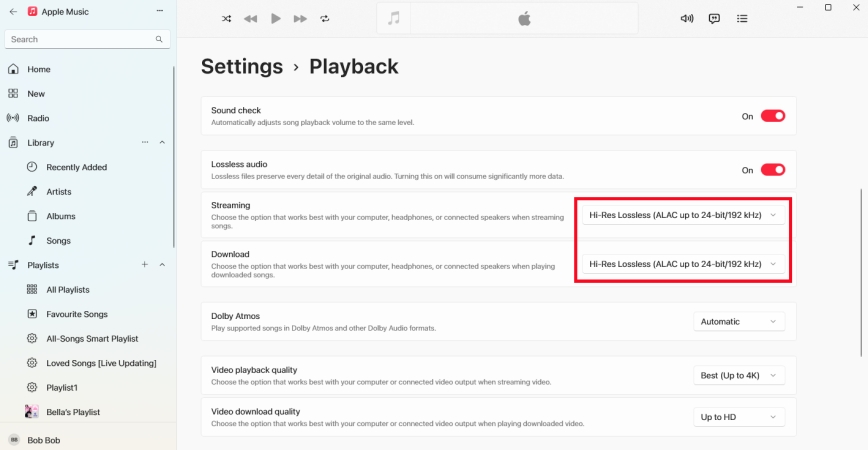
Step 1. Click your profile image and click the Settings icon.
Step 2. Lower the streaming quality to High Quality temporarily.
Step 3. Check if a slow network connection is causing the playback buffer stall.
Apple Music Library Syncing Errors
Sometimes, playlists created on your iPhone or iPad might not instantly appear on your PC. It can be caused by several reasons.
Fix 1. Enable Sync Library
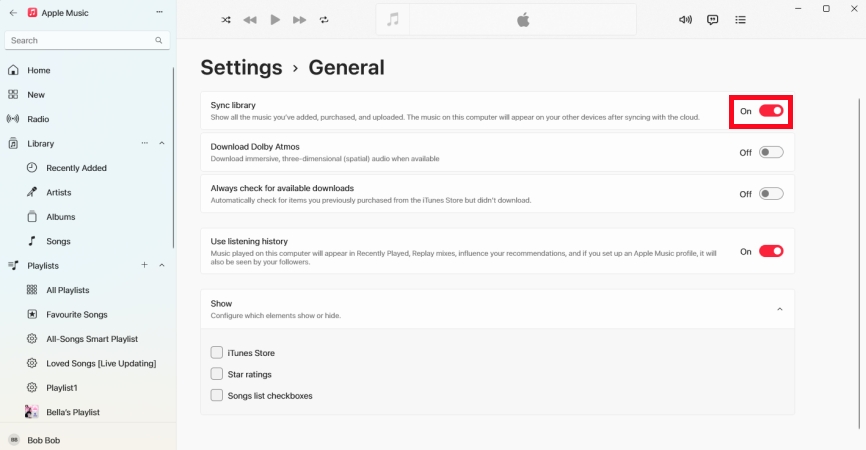
Step 1. Click on your profile options or settings and navigate to Settings > General.
Step 2. Ensure that Sync Library is actively checked.
Fix 2. Log Out and Back
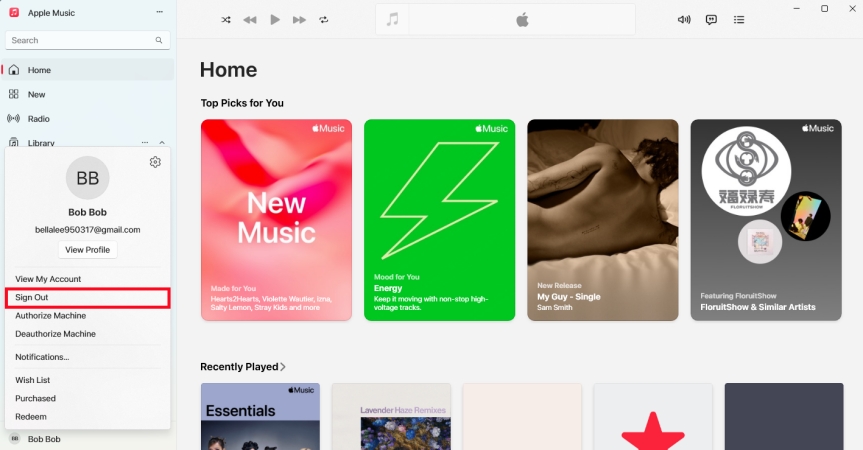
Step 1. Click your profile name and select Sign Out.
Step 2. Log out of your Apple ID account, then log back.
Part 5. Conclusion
Now you know how to listen to Apple Music on a PC. Depending on your own demands and device compatibility, you can choose one way that suits you best, like using the Apple Music app, iTunes, or the Apple Music web player. For better management and playback of Apple Music on a PC, you can consider using TunesMake Apple Music Converter to get local Apple Music files. If you want to know more about TunesMake Apple Music Converter, just click the link below.
Related Articles

A professional writer at TunesMake, crafts in-depth tutorials, practical tips and expert advice focusing on streaming music, technology, and more.
- 1
- 2
- 3
- 4
- 5
- 6
- 7
 Leave Your Comment
(0)
Leave Your Comment
(0)

 Download Center

