








 Store
Store


Missing artwork, blurry cover images, or mismatched album covers can disrupt an otherwise seamless digital music library. Whether you are managing custom audio tracks, personal recordings, or imported audio files, learning how to change album covers on Apple Music gives you complete visual control over your library. This guide covers step-by-step methods to update album artwork on Mac and Windows and sync those changes across your devices. Let's explore how to change album cover on Apple Music now.
Part 1. Can You Change the Album Cover on Apple Music?
Yes, but with key limitations based on the platform and file type. You cannot directly edit or change individual album artwork inside the Apple Music app on an iPhone or Android device. Modifying album metadata requires a computer. Once updated on your computer, the changes sync automatically to your mobile devices via your Cloud Library.
Recommended Apple Music Album Cover Size and Format
To ensure your album covers display clearly across retinal mobile displays and high-resolution monitors, stick to these standards.
| Parameter | Recommended Specification |
|---|---|
| Aspect Ratio | 1:1 (Square) |
| Minimum Resolution | 1000 x 1000 pixels (3000 x 3000 preferred) |
| Supported Formats | JPEG, PNG, GIF, TIFF |
| Color Mode | RGB |
Part 2. How to Change Album Cover on Apple Music
With a desktop Apple Music app or iTunes, you can easily change the album cover artwork in Apple Music. Here is how to change album cover in Apple Music on Mac and Windows PC.
How to Change Album Cover in Apple Music on Mac
If you use macOS, updating album artwork in the Apple Music app takes only a few clicks.
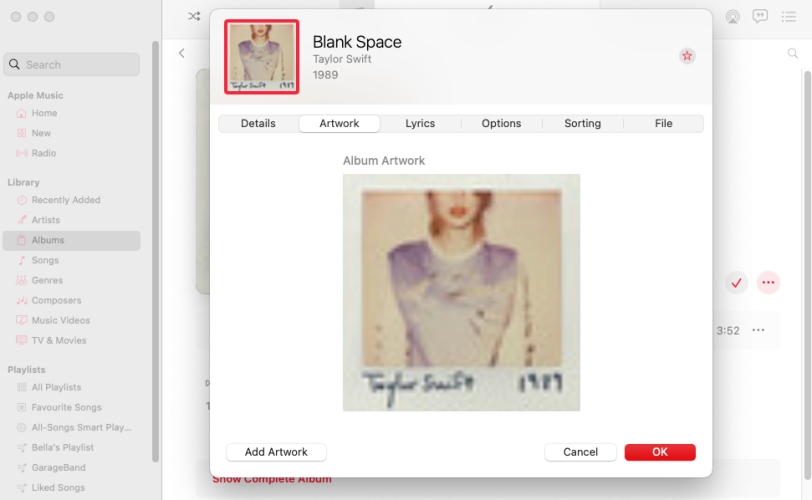
Step 1. Launch the Music app on your Mac.
Step 2. Navigate to Albums or Songs in the sidebar to find the album you want to update.
Step 3. Click the three dots (...) on the album header and select Get Info.
Step 4. Click on the Artwork tab at the top of the pop-up window.
Step 5. Click the Add Artwork button, select your image file, and click Open.
Step 6. Click OK to apply the new cover art.
How to Change Album Cover in Apple Music on Windows PC
Whether you use the Apple Music app or iTunes on a Windows PC, the process is straightforward.
Using the Apple Music App for Windows:
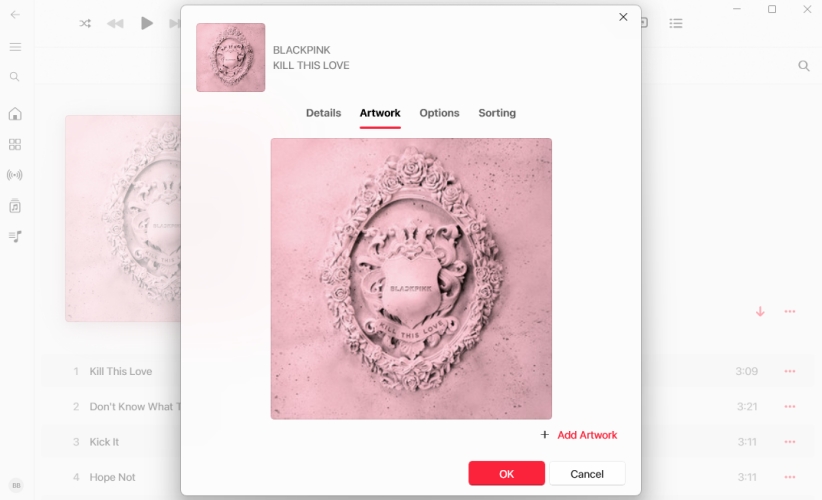
Step 1. Launch the Apple Music app.
Step 2. Right-click the album you wish to modify and select Properties.
Step 3. Navigate to the Artwork tab.
Step 4. Click Add Artwork, locate your desired image file, and select Open.
Step 5. Click OK to save the updated cover.
Using iTunes for Windows:
Step 1. Open iTunes.
Step 2. Right-click the item and choose Album Info or Song Info.
Step 3. Select the Artwork tab, click Add Artwork, choose your image, and click OK.
How to Change Artwork for Protected Streaming Tracks on Mac & PC
A common point of frustration arises when users attempt to edit artwork for songs streamed directly from the Apple Music subscription catalog. Because catalog tracks are protected by DRM, Apple restricts direct metadata editing on these files. If you want complete control over track metadata, including the ability to attach custom album artwork to subscription tracks, converting the audio files into open format local tracks is an effective workaround.
Here TunesMake Apple Music Converter is a great helper. Not only converts Apple Music catalog tracks into standard audio formats such as MP3, M4A, WAV, or FLAC, TunesMake also supports editing the metadata with its built-in ID3 tags editor. After conversion, you can directly change the album cover artwork for those protected Apple Music albums. Or you can re-import these open audio files into your local Apple Music or iTunes library on Mac or PC. From there, right-click the file, go to Get Info > Artwork, and attach any custom artwork without restriction.

Streaming Audio Recorder –
Download Apple Music tracks for playing anytime
- Download songs, albums, and playlists from Apple Music
- Convert Apple Music to MP3, M4A, M4B, WAV, FLAC, and AIFF
- Remove DRM protection from Apple Music completely and safely
- Preserve the original audio quality and ID3 tags for management
- Support downloading music from 10 popular streaming platforms
Security Verified. 100% Clean & Safe.
Step 1 Select Apple Music Albums to Download
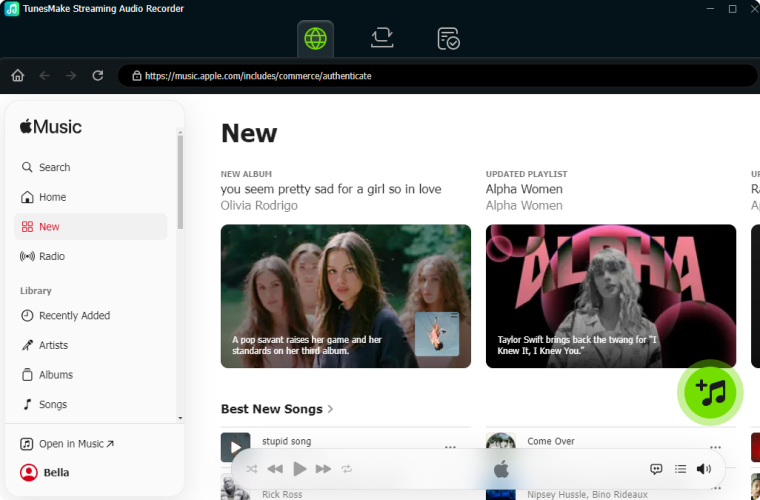
Start by installing and opening TunesMake Streaming Audio Recorder on your computer, select Apple Music on the main interface and log into the built-in Apple Music web player. Go to Your Library to select albums or search some albums to download. Simply open the target albums and click the + button to add them into the conversion list.
Step 2 Set the Audio Parameters for Apple Music
Now, click the Settings at the bottom left corner to open the settings menu. In the Settings menu, you can adjust the parameters like the format, bit rate, sample rate, and channel. You can choose the output format from MP3, FLAC, AIFF, WAV, M4A, or M4B. Finally, click the OK button to save your changes to the parameter settings.

Step 3 Start to Download Apple Music Albums
After all the settings are finished, click the Convert button to start downloading and converting albums into your chosen format. Wait for a little while, your added Apple Music albums will be converted and saved on your computer as local audio files. You can browse all the converted album in the history list by clicking the History button at the left column.

Step 4 Change the Album Cover Artwork
Locating in the History panel of the software, you can find the converted Apple Music album. You can sort those converted tracks by Album. Then click the Edit button at the rear of each track to start changing the album cover artwork. Or, you can upload those converted Apple Music tracks into your local music library in iTunes or Apple Music, and change the album cover.
Part 3. How to Sync Custom Apple Music Album Covers
Even though the Apple Music app on iOS and Android devices doesn't support changing the album cover artwork, you can edit on a Windows PC or Mac. Once you have updated your album covers on your computer, you need to sync the changes so they appear on your other devices.
Step 1 Verify Sync Library is Enabled
- On Mac: Go to Music > Settings > General, and make sure Sync Library is checked.
- On Windows PC: Open Apple Music, click Settings > General, and turn on Sync Library.
- On iPhone: Go to Settings > Apps > Music, and ensure the Sync Library toggle is turned on.
Step 2 Manually Force Cloud Sync
- On Mac: Click File in the top menu bar in the Music app, hover over Library, and select Update Cloud Library.
- On Windows PC: Click Sidebar Actions (...) in the top left corner, click Library from the drop-down menu, and choose Update Cloud Library.
Give Apple Music a few moments to sync the new visual metadata to iCloud. Your custom cover will now populate across all connected devices.
Part 4. FAQs about Apple Music Album Cover
Why is my custom album cover not showing up on my iPhone?
Ensure that Sync Library is enabled on both your computer and your iPhone under settings. After adding artwork, click File > Library > Update Cloud Library on the computer to force a sync.
Can I remove an existing album cover?
Yes. Go to the Get Info > Artwork tab on your Mac or Windows PC, click the existing image, and press the Delete key on your keyboard, then click OK.
Why does my cover art revert back after I close the app?
This typically happens when trying to attach artwork to an unsupported file format like .WAV, or when file permissions on your local hard drive are set to "Read-Only."
Will changing album artwork alter the audio file quality?
No. Modifying visual metadata changes how your track is displayed visually, but it does not compress, alter, or diminish the underlying audio stream.
Part 5. Conclusion
Customizing your music library keeps your tracks organized and visually engaging. While Apple Music limits album artwork editing on mobile devices to maintain library integrity, managing covers through a Mac or Windows PC remains simple. By following the above steps, you can maintain a unified, high-resolution aesthetic across all your Apple devices. To edit those protected Apple Music streaming albums, you can use convert them into plain audio formats using TunesMake Apple Music Converter and edit the cover artwork without limitations.
Related Articles


A passionate writer specialized in creating engaging content about music and entertainment, covering everything from the latest music trends and entertainment news to practical tutorials.
- 1
- 2
- 3
- 4
- 5
- 6
- 7
 Leave Your Comment
(0)
Leave Your Comment
(0)

 Download Center

