








 Store
Store


Few things are more frustrating than hitting the "Add to Library" button on Apple Music, only to watch the song vanish a few seconds later, or finding out that songs added on your computer refuse to appear on your phone. Whether your + button is unresponsive or your newly added tracks keeps disappearing, this guide will help you resolve the issue quickly.
Part 1. Why Apple Music Won't Add Songs to Library?
Before diving into the fixes, it helps to understand how Apple Music handles library additions. When you tap "Add to Library", Apple Music doesn't just store the song locally, and it sends a request to Apple's Cloud Music Library servers to link that track to your account. Common causes for Apple Music not adding songs to library including:
- Background Sync Errors: Temporary sync glitches between your device and iCloud.
- Network Restrictions: Low Power Mode or poor network interrupting background processes.
- Account Token Expiration: Expired authentication tokens under your Apple ID.
- Device-Specific Lockouts: Settings on iOS, macOS, Windows, or Android preventing updates.
Part 2. How to Fix Apple Music Not Adding Songs to Library
If you are trying to add songs directly from the Apple Music catalog but the tracks fail to save, you can go through this quick diagnostic checklist to eliminate common surface-level glitches. When failing to resolve the issue, proceed with the following primary fixes.
- Check Apple's System Status: Apple's Cloud Music Library occasionally undergoes maintenance. Visit the official Apple System Status page to confirm that Apple Music show a green icon.
- Verify Internet Connection: Apple Music requires a stable connection to communicate with your cloud library. Switch between Wi-Fi and Cellular Data to verify your network connection.
- Check Subscription Status: Go to Settings > your Apple Account > Subscriptions to ensure your Apple Music account is active. If a payment fails, library modifications are paused immediately.
- Force Restart the App and Device: Force close the Apple Music app on your device, toggle Airplane Mode on and off, and perform a quick device reboot.
- Disable Low Power Mode: Low Power Mode or Power Saving settings restricts background syncing processes, which can pause cloud library updates. Turn it off via Settings > Battery.
Solution 1. Toggle Sync Library Off and On
The Sync Library setting links your local device to your iCloud Music Library. A momentary sync breakdown can cause additions to fail silently. When Apple Music not adding songs to your Library, you can disable and enable Sync Library on your iPhone, Windows PC, or Mac.
On iPhone
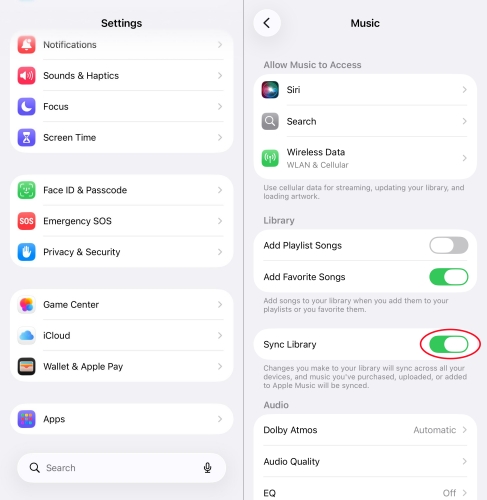
Step 1. Open Settings on your iPhone or iPad.
Step 2. Go to Apps and select Music from the list of apps.
Step 3. Toggle Sync Library to the Off position.
Step 4. Wait 30 seconds, then toggle Sync Library back On.
Step 5. Relaunch Apple Music and try adding a song.
On Windows PC
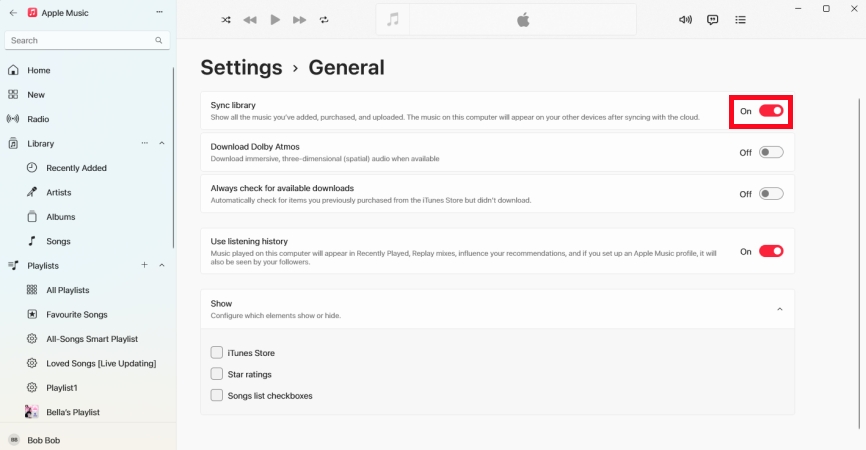
Step 1. Open the Apple Music app and click your profile image at the bottom left corner.
Step 2. Go to the Settings menu, then click General and disable Sync library.
Step 3. Close the app and go back to enable Sync library.
Step 4. Try to add a song or multiple songs to your library.
On Mac
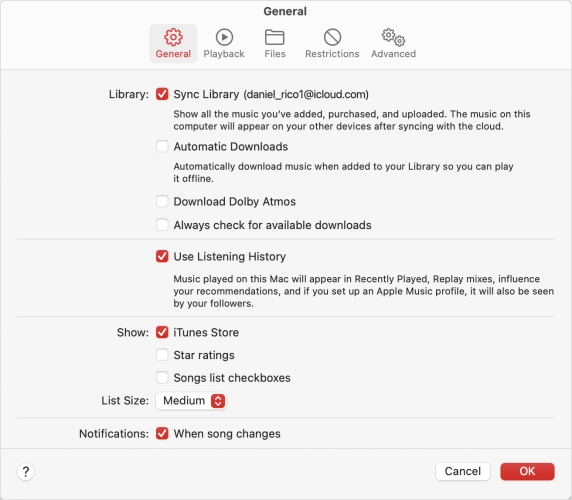
Step 1. Launch the Apple Music app and choose Account in the menu bar.
Step 2. Choose Music, then select Settings.
Step 3. In the Settings window, click the General tab.
Step 4. Disable Sync Library and click OK.
Step 5. Restart the app and enable Sync Library again.
Solution 2. Check Add Playlist Songs Settings
If songs aren't saving to your overall library when you add them to a specific playlist, your library configuration may set to bypass global saves. To resolve Apple Music add songs to playlist but not library, check the Add Playlist Songs setting on your iPhone, Android phone, Windows PC, or Mac.
On iPhone
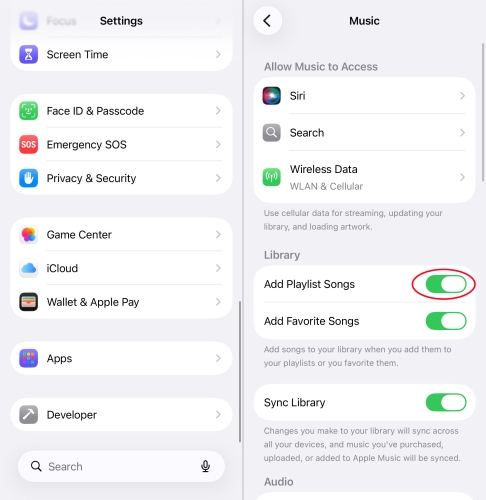
Step 1. Go to Settings > Apps > Music.
Step 2. Ensure Add Playlist Songs is turned on.
Step 3. Turn on Add Favorite Songs so favorited tracks automatically route to your library.
On Android
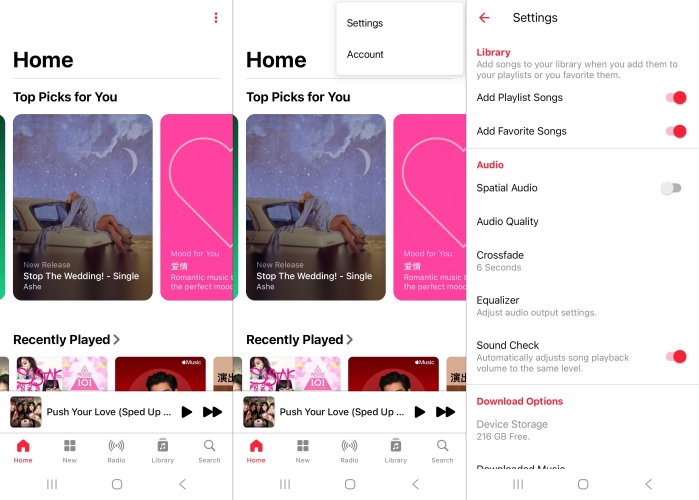
Step 1. In the Apple Music app, tap the three-dot icon at the top right corner.
Step 2. From the pop-up menu, select Settings.
Step 3. Ensure Add Playlist Songs is turned on.
On Windows PC
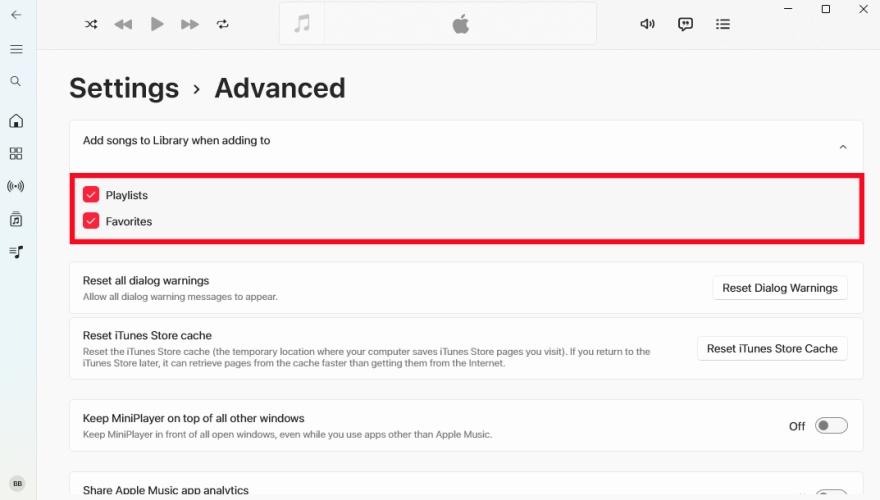
Step 1. Run the Apple Music app and click the three-dot button.
Step 2. Select Settings and go to the Advanced tab.
Step 3. Check Add songs to Library when adding to playlists.
On Mac
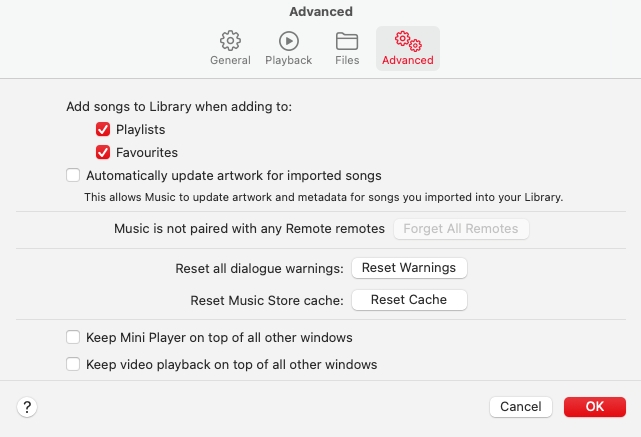
Step 1. Open the Apple Music app.
Step 2. In the top menu bar, click Music > Settings or press Cmd + ,.
Step 3. Click the Advanced tab.
Step 4. Check the box next to Add songs to Library when adding to playlists.
Solution 3. Refresh Your Apple Music Account
Sometimes, your Apple Music account security token expires in the background, preventing your account from writing new data to the Cloud Music Library. In this case, try to sign out and sign back into the Apple Music app on your iPhone, Android phone, Windows PC, or Mac.
On iPhone
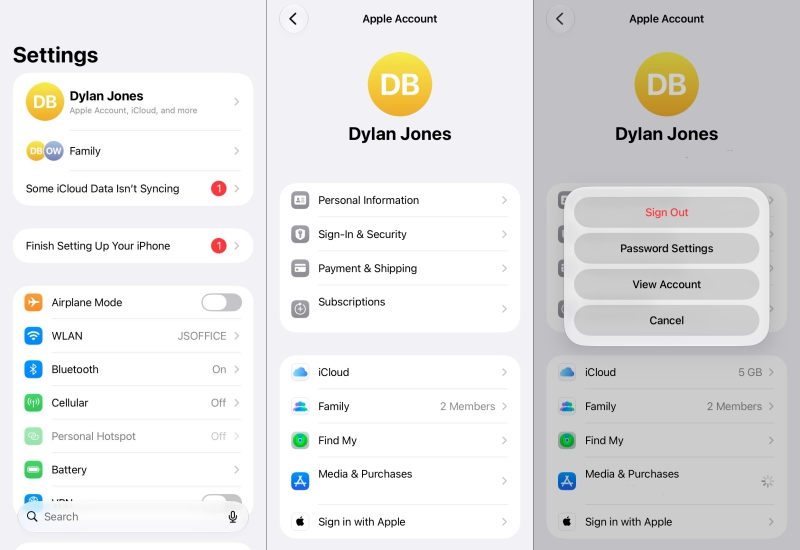
Step 1. Open Settings and tap your Apple Account at the top.
Step 2. Tap Media & Purchases and select Sign Out.
Step 3. Restart your device and navigate back to Media & Purchases.
Step 4. Sign back in with your Apple Account credentials.
On Android
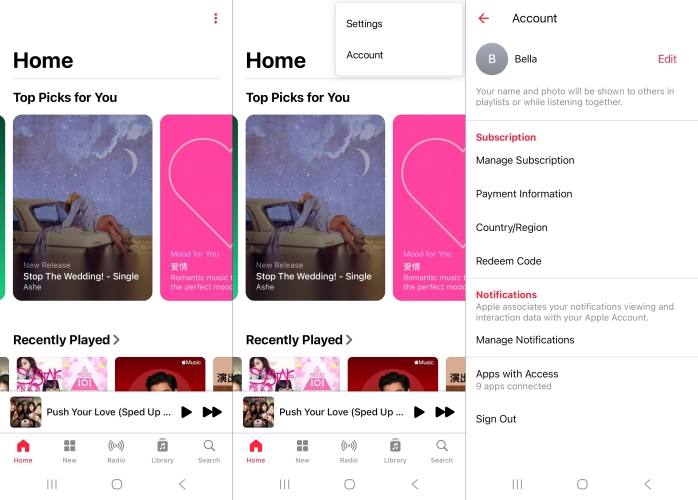
Step 1. Launch the Apple Music app and tap the three-dot icon at the top right corner.
Step 2. Select Account and scroll down to tap Sign Out.
Step 3. Reboot your device and go back to sign into your Apple Music account.
On Windows PC
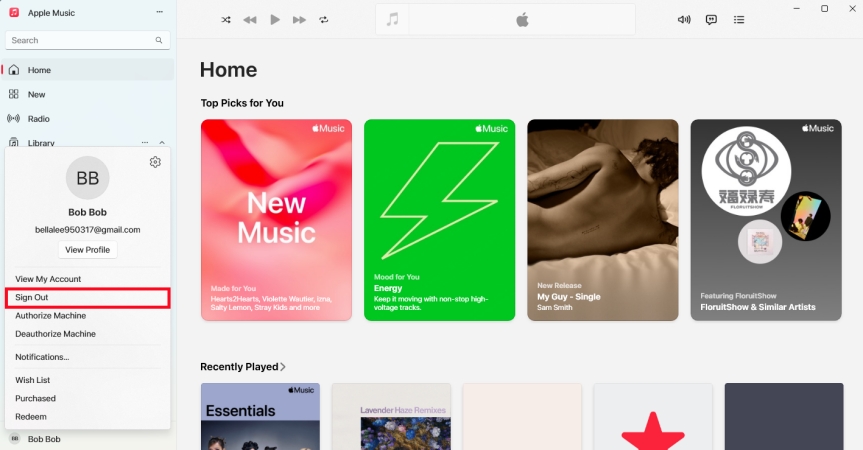
Step 1. In the Apple Music app, click your profile image at the bottom left corner.
Step 2. Select Sign Out, then confirm to log out of your Apple Music account.
Step 3. Wait for several seconds and sign back into.
On Mac
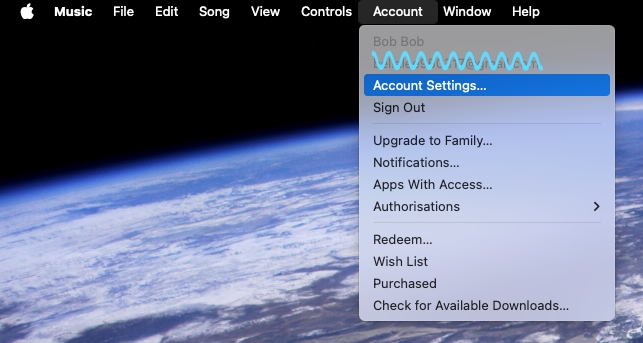
Step 1. Go to the Music app on your Mac.
Step 2. Choose Account > Sign Out.
Step 3. Click Sign In at the bottom-left corner of the window.
Solution 4. Check Content & Explicit Restrictions
If specific songs or whole albums fail to add or appear grayed out, your device may be blocking explicit content. To fix Apple Music not adding album to library, you can check the Content & Explicit Restrictions on your iPhone, Android phone, Windows PC, or Mac.
On iPhone
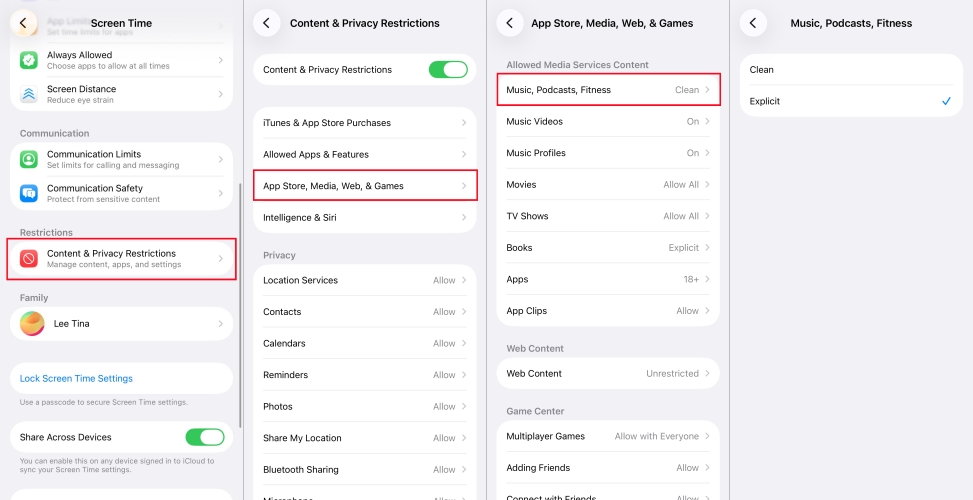
Step 1. Navigate to Settings > Screen Time > Content & Privacy Restrictions.
Step 2. Tap App Store, Media, Web, Siri & Game.
Step 3. Select Music, Podcasts, Fitness and set it to Explicit.
On Android
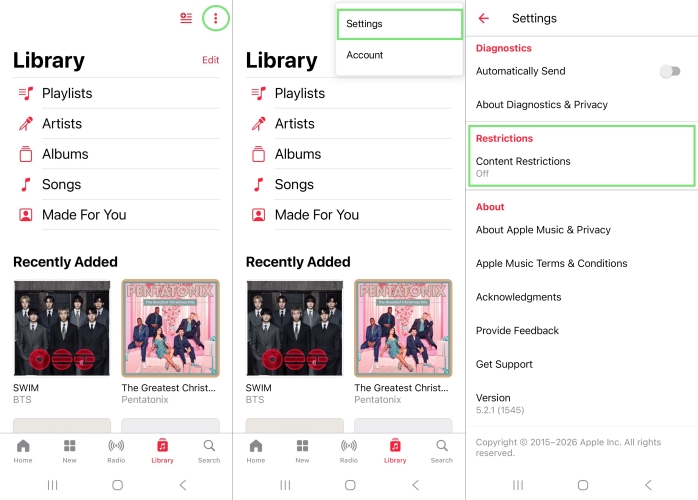
Step 1. In the Apple Music app, tap the three-dot icon at the top right corner.
Step 2. From the drop-down list, select Settings.
Step 3. Tap Restrictions and choose Content Restrictions.
Step 4. Toggle Content Restrictions to the Off position.
On Windows PC
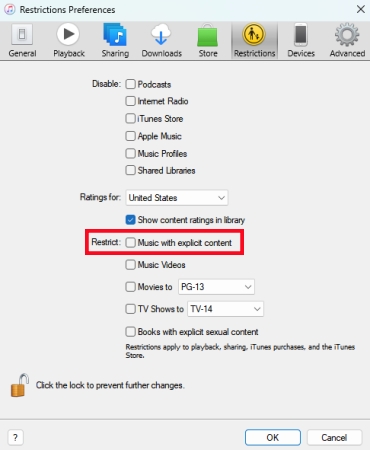
Step 1. Launch the Apple Music and click your profile image.
Step 2. Select the Settings menu and go to Restrictions.
Step 3. Check the box next to Allow Explicit Content.
On Mac
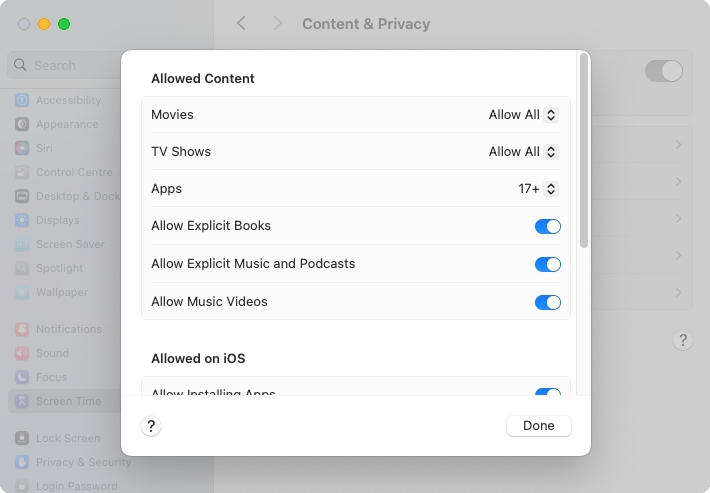
Step 1. Go to System Settings > Screen Time > > Content & Privacy.
Step 2. Select Store Restrictions and find Music, Podcasts, Fitness.
Step 3. Turn on Allow Explicit Music and Podcasts.
Part 3. Advanced Fixes to Apple Music Add to Library Not Working
If songs still won't add to your Apple Music library after attempting the solutions above, you may be hitting a system boundary or restriction. To fix Apple Music Add to Library not working, try these advanced options.
- Delete and Reinstall Apple Music: Uninstall Apple Music entirely from your device, restart, and download the latest version from the App Store or Google Play Store.
- Reset Network Settings: Network configuration corruption can block Apple's sync servers. Go to the Settings app on your device and try to reset network settings.
- Check the 100,000 Song Limit: Apple Music caps personal cloud libraries at 100,000 tracks. If you reach this limit, new songs will not add and no explicit error message will pop up.
- Contact Apple Support: If your Cloud Library database has experienced server-side corruption, reach out to Apple Support directly to clear server flags on your account.
Ultimate Workaround: Convert Streaming Tracks to Local Files via TunesMake
When persistent cloud sync bugs, region restrictions, or account errors prevent specific Apple Music catalog tracks from staying in your library, converting the music into local audio files offers an effective alternative. TunesMake Apple Music Converter can download and save Apple Music tracks as local files such as MP3, M4A, or FLAC on your computer.
Once saved locally, you can import these audio files directly into your desktop Apple Music library using File > Import. Because they become standard personal audio files, they bypass streaming cloud sync checks and remain accessible on your computer and secondary devices without relying on Apple's cloud server authorization.

Streaming Audio Recorder –
Download Apple Music tracks for playing anytime
- Download songs, albums, and playlists from Apple Music
- Convert Apple Music to MP3, M4A, M4B, WAV, FLAC, and AIFF
- Remove DRM protection from Apple Music completely and safely
- Preserve the original audio quality and ID3 tags for management
- Support downloading music from 10 popular streaming platforms
Security Verified. 100% Clean & Safe.
Part 4. Conclusion
Having Apple Music fail to save songs, albums, or playlists to your library is usually caused by a temporary cloud sync failure, expired background login credentials, or conflicting library settings. By running through basic quick checks, you can resolve the vast majority of issues within a few minutes. For persistent glitches, signing out of Apple Music or converting troublesome tracks for local backup will ensure your music collection stays safe and synced across all your devices.
Related Articles


A passionate writer specialized in creating engaging content about music and entertainment, covering everything from the latest music trends and entertainment news to practical tutorials.
- 1
- 2
- 3
- 4
- 5
- 6
- 7
 Leave Your Comment
(0)
Leave Your Comment
(0)

 Download Center

