








 Store
Store


Enjoying your favorite playlists, albums, and live synchronized lyrics directly on a bigger display with room-filling sound is simple once you know the proper setup for your specific television. Whether you have a brand-new QLED model or an older Samsung television, this ultimate guide breaks down how to get Apple Music on Samsung TV setups working seamlessly across all model generations. Let's explore how to play Apple Music on Samsung Smart TV now.
Part 1. Differences between Remove Download vs Delete From Library
Apple handles music storage in two distinct ways: local downloads stored directly on your device and your iCloud Sync Library stored in the cloud across all your connected Apple ID devices. Understanding the distinction between these two options will prevent you from accidentally wiping your music collection.
- Remove Download: Only deletes the downloads stored on your device to free up storage. The song remains in your library with a cloud icon next to it, ready to stream to re-download anytime.
- Delete from Library: Removes the track entirely from your iCloud Sync Library. This action syncs across every Apple device like iPhone, iPad, Mac, and Apple Watch logged into your Apple ID.
After clearing out the differences between Remove Download and Delete From Library, you can take action depending on which goal you want to achieve.
| Your Primary Goal | What You Need to Do | Does it effect other devices? |
|---|---|---|
| Free up device storage space | Remove offline downloads only | No. Your songs remain saved in the cloud music library. |
| Wipe your entire music collection | Delete tracks permanently from your Sync Library | Yes. The songs will be deleted across all synced devices. |
Pro Tip: Backup Your Music Before Wiping Your Library
If you plan to permanently delete your entire library but worry about losing rare tracks or custom playlists you've built over the years, consider backing them up first. Because Apple Music tracks are DRM-protected streaming files, simply copying them to a hard drive won't work once your subscription ends or tracks are deleted from the cloud.
TunesMake Apple Music Converter allows you to export and convert your Apple Music songs or playlists into common MP3 or FLAC files on your computer, while keeping the original audio quality and ID3 metadata. This lets you store a local, permanent copy of your favorite music on an external drive before executing all full library wipe.

Streaming Audio Recorder –
Bakc up Apple Music tracks for playing anytime
- Download songs, albums, and playlists from Apple Music
- Convert Apple Music to MP3, M4A, M4B, WAV, FLAC, and AIFF
- Remove DRM protection from Apple Music completely and safely
- Preserve the original audio quality and ID3 tags for management
- Support downloading music from 10 popular streaming platforms
Security Verified. 100% Clean & Safe.
Part 2. How to Remove All Downloads from Apple Music
If your goal is purely to reclaim gigabytes of storage space on your device without losing your curated saved tracks or playlists in your Library, you should remove the downloaded audio files. Here's how to remove all downloads from Apple Music on all devices.
How to Delete Downloads in Apple Music on iPhone & iPad
Option 1. Clear All Downloads via the Settings App
This is the quickest way to mass-delete every downloaded audio file from your iPhone or iPad in just a few taps.
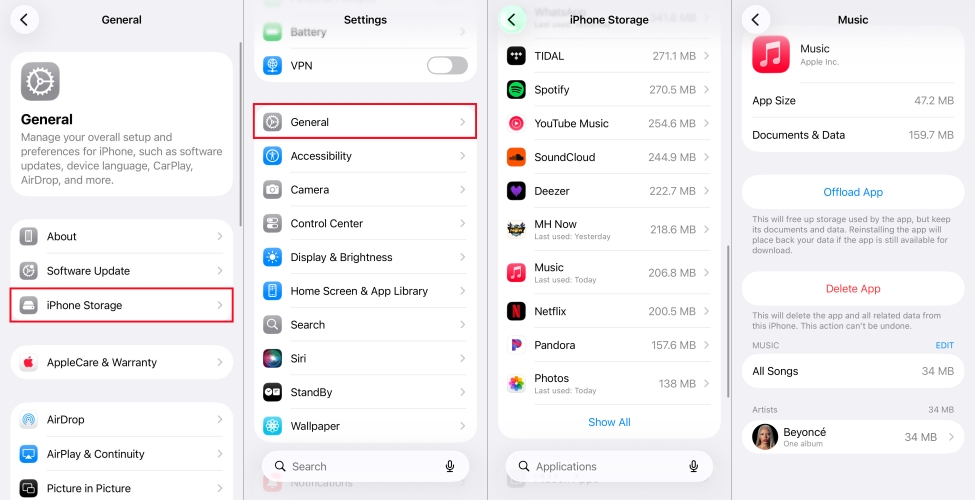
Step 1. Open the Settings app on your iPhone.
Step 2. Tap General, then select iPhone Storage.
Step 3. Scroll down the list of apps and tap Music.
Step 4. Look under the All Songs section.
Step 5. Tap Edit, then tap the red minus button.
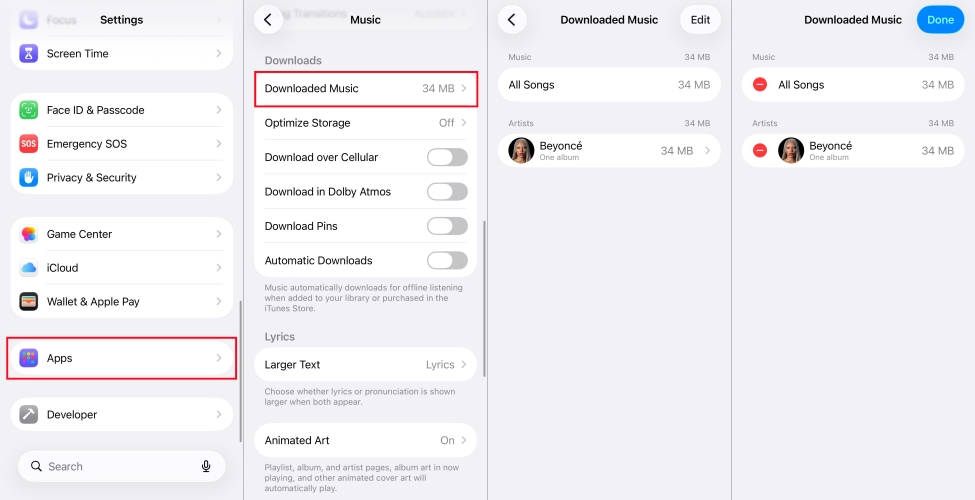
Step 1. Go to Settings > Apps on your iPhone.
Step 2. From the list of apps, find Music.
Step 3. Scroll down to tap Downloaded Music.
Step 4. Tap Edit, then start to remove the downloads.
Option 2. Delete Downloads in the Apple Music App
If you prefer to remove downloads album-by-album or playlist-by-playlist, you can delete the downloads in the app.
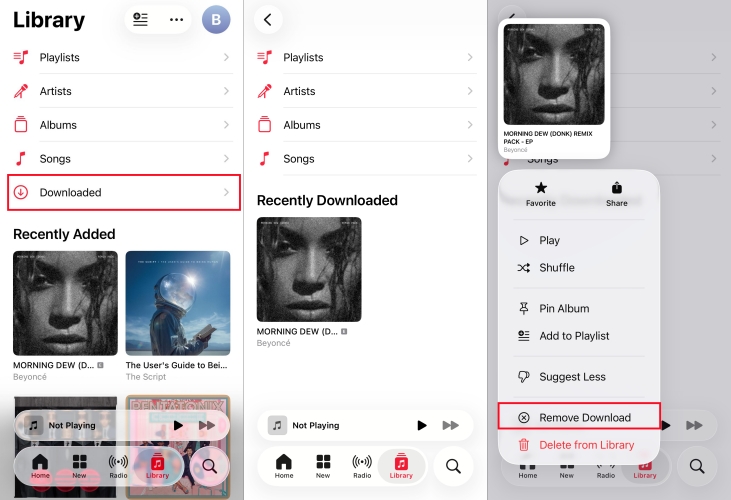
Step 1. Launch the Apple Music app.
Step 2. Tap the Library tab at the bottom, then tap Downloaded.
Step 3. Select Songs, Albums, or Playlists.
Step 4. Touch and hold the item you wish to remove.
Step 5. Tap Remove Download from the pop-up menu.
How to Delete Downloads in Apple Music on Android
If you use Apple Music on an Android device, clearing offline Apple Music downloads is pretty straightforward.
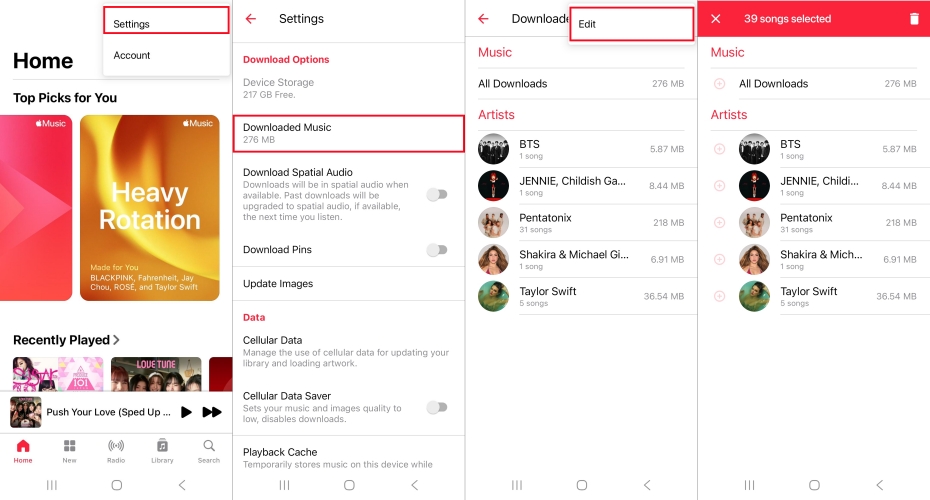
Step 1. Open the Apple Music app on your Android device.
Step 2. Tap the three-dot menu icon in the upper right corner.
Step 3. Choose Settings, then tap Downloaded Music.
Step 4. Tap the three-dot menu icon in the upper right corner.
Step 5. Tap Edit and select All Downloads to clear offline files.
How to Delete Downloads in Apple Music on Windows PC & Mac
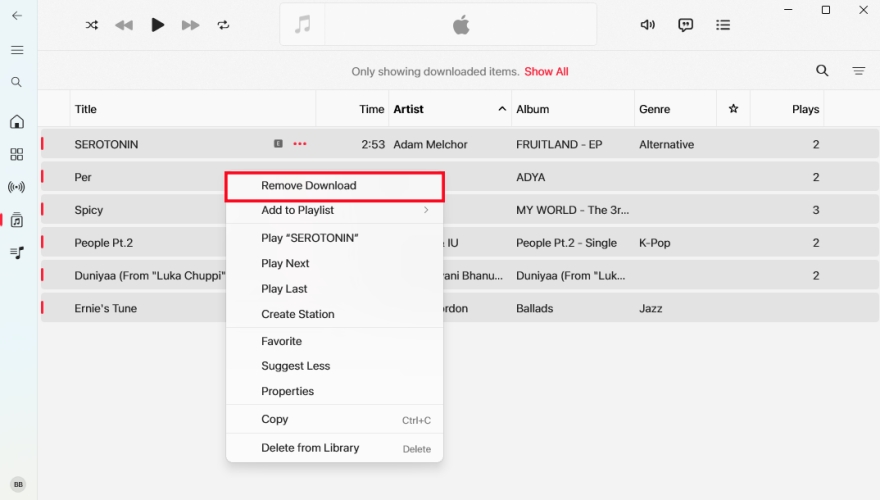
Step 1. Open iTunes on your Windows PC or Apple Music on your Mac.
Step 2. Navigate to the Library section and click Songs to browse all downloads.
Step 3. Select all downloads by clicking any track and pressing Ctrl + A or Command + A.
Step 4. Right-click and choose Remove Download to delete all downloaded songs.
Part 3. How to Delete All Songs from Apple Music
If you want a complete reset to rebuild your music tastes from scratch, removing tracks one-by-one on an iPhone or Android phone is extremely tedious. Because the Apple Music app for mobile does not feature a Select All button, the fastest way to wipe your entire library is by using a Mac or Windows PC. Here's how to delete all music from Apple Music on all devices.
How to Delete All Songs in Apple Music for Mac & Windows PC
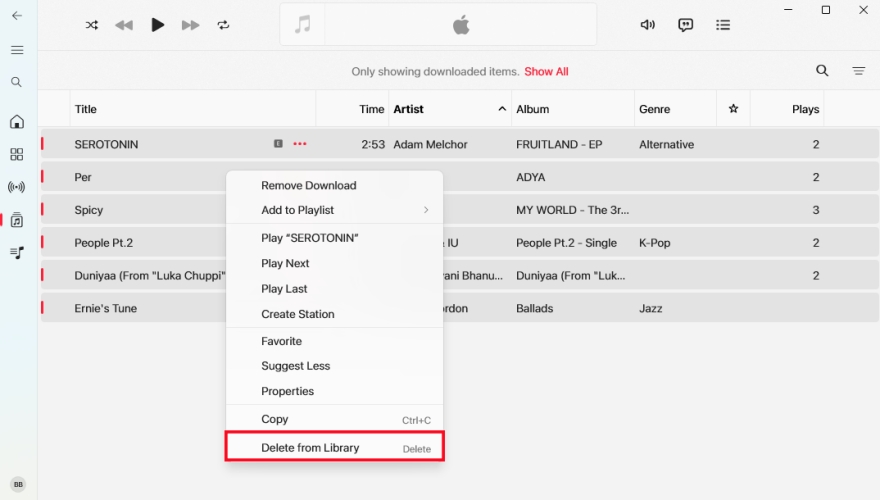
Step 1. Open the Apple Music app on your Mac or iTunes on your Windows PC.
Step 2. In the left sidebar, click on Songs under the Library header.
Step 3. Click on any single track in the list.
Step 4. Press Cmd + A or Ctrl + A on your keyboard to highlight every song in your library.
Step 5. Right-click any highlighted song or press the Delete key.
Step 6. Select Delete from Library and confirm your choice.
How to Delete Multiple Songs from Apple Music on iPhone & Android
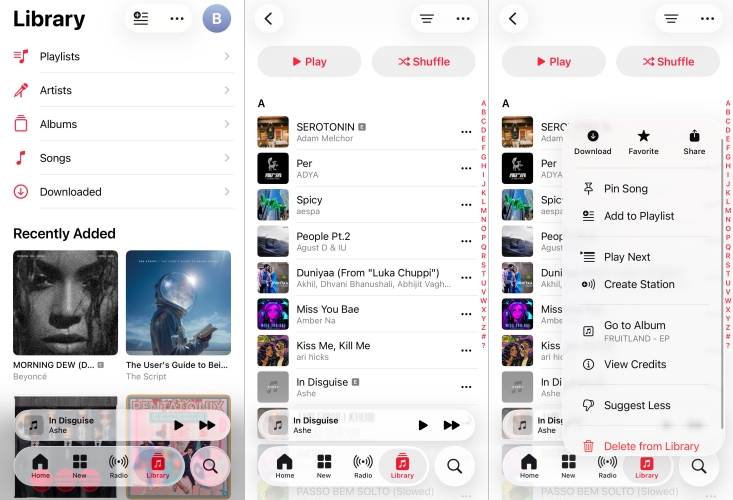
Step 1. Launch the Apple Music app on your iPhone or Android phone.
Step 2. Go to Library and tap Songs to browse all the item you've added.
Step 3. Select any track and tap the three-dot icon at the rear of the track.
Step 4. Tap Delete from Library, then tap it again to confirm.
Part 4. FAQs about Deleting All Apple Music Songs
Will I lose songs I purchased from the iTunes Store if I delete them?
No. Deleting purchased tracks removes them from your active library view, but your purchases are permanently tied to your Apple ID. You can re-download them anytime by going to Account Settings > Purchased in the iTunes Store or Apple Music app.
How do I reset my Apple Music recommendations and taste profile?
Simply deleting songs from your library won't instantly reset your algorithmic recommendations in the Home tab. To re-train Apple Music, go to Settings > Music on your iPhone and toggle off Use Listening History. Manually Love or Dislike new songs or artists you listen to so the system learns your new preferences.
Why are deleted songs still showing up on my iPhone?
If songs reappear after deletion, ensure that Sync Library is enabled in Settings > Music so cloud updates take effect. If you have Automatic Downloads turned on, songs added on other devices may continue downloading automatically to your device.
Part 5. Conclusion
Clearing out your Apple Music collection doesn't have to be a frustrating experience. Whether you choose to remove offline downloads to free up physical space on your device or execute a complete cloud library reset, knowing the difference between "Remove Download" and "Delete from Library" protects you from accidental data loss. Always remember to back up your favorite tracks or export custom playlists using TunesMake Apple Music Converter before initiating a complete library wipe. With your storage reclaimed or a fresh slate ready, you can go back to enjoying music on your own terms.
Related Articles

A passionate writer specialized in creating engaging content about music and entertainment, covering everything from the latest music trends and entertainment news to practical tutorials.
- 1
- 2
- 3
- 4
- 5
- 6
- 7
 Leave Your Comment
(0)
Leave Your Comment
(0)

 Download Center

