








 Store
Store


Are you tired of the loading period every time you want to stream your favorite songs on Apple Music? Are you on a trip where a network connection is not always available? Or do you just want to save your mobile data? If you’re in these cases, the best way is to download Apple Music for listening offline. Whatever you are doing, downloading Apple Music songs offline ensures you have an uninterrupted and consistent listening experience. As the leading music streaming service, Apple Music do granted its users the ability to listen to music tracks offline. If you are eager to how to listen to Apple Music offline on your devices, don’t miss this complete guide.

Part 1. Can You Listen to Apple Music Offline?
When it comes to the question: Is it possible to play Apple Music offline? Of course, you can! As I said in the beginning, Apple Music has offered a download feature for its premium users to download songs for listening offline. As long as you have subscribed to Apple Music, you can download Apple Music for offline playback.
But there is only one thing that needs to be made clear: the songs you download on Apple Music are not forever available. They might be greyed out and not playable soon, or not, depending on your subscription period, which means you’ll need to stay subscribed to Apple Music constantly. Well, I know that not all people can afford monthly fees for a long time. So, the sad truth is that you can’t listen to them offline even though they have been downloaded after the subscription is over.
Therefore, offline listening is restricted to some extent. To listen to Apple Music offline forever with a Premium subscription, we have a great tool that can help. If you take a great interest in this, you can jump to Part 4 to check.
Part 2. How Do You Listen to Apple Music Offline on Mobile Phones
To play Apple Music offline, Apple Music subscribers can make use of the download function to download Apple Music for offline playback. Please make sure that your Apple Music subscription is valid and available, and then follow the steps below to download Apple songs to your iOS or Android devices.
For Streaming Music:
If you subscribe to Apple Music, you can add music from the Apple catalog to your music library. After then, it’s easy to download them for listening offline.
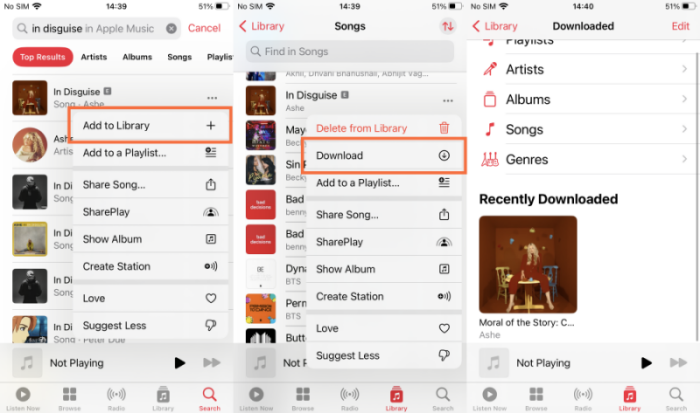
Step 1. Open the Apple Music app on your smartphone.
Step 2. Browse and hold the song you want to download.
Step 3. In the drop-down menu, tap Add to library.
Step 4. Go to your Music library, then touch and hold the song or playlist that you want to listen to offline.
Step 5. Tap the Download option to download Apple Music offline.
For Purchased Music:
If you don’t have an Apple Music subscription, you can purchase the songs you like and download them to listen to Apple Music offline. Here’s how to listen to these purchased Apple songs offline on your mobile devices:
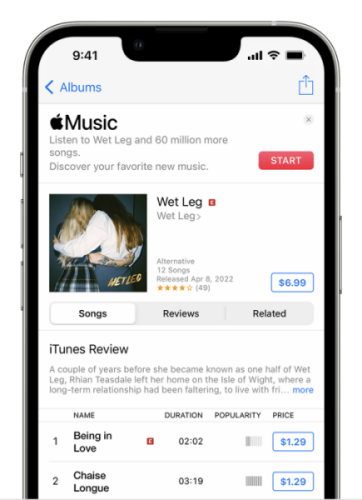
Step 1. Open the iTunes Store on your device and tap the Music section at the bottom.
Step 2. Search for the song or album that you’d like to make a purchase of and tap the price beside to buy it.
Step 3. Log into your Apple ID and password.
Step 4. Now go to the Apple Music app on your mobile device, then go to Library > Downloaded to check and download the songs for listening offline.
Part 3. How to Listen to Apple Music Offline on Desktop
Whether you are using a Mac or a Windows computer, Apple Music provides a seamless experience with its dedicated apps. You can download the songs you like and listen to them offline. Here’s how to:
For Streaming Music:
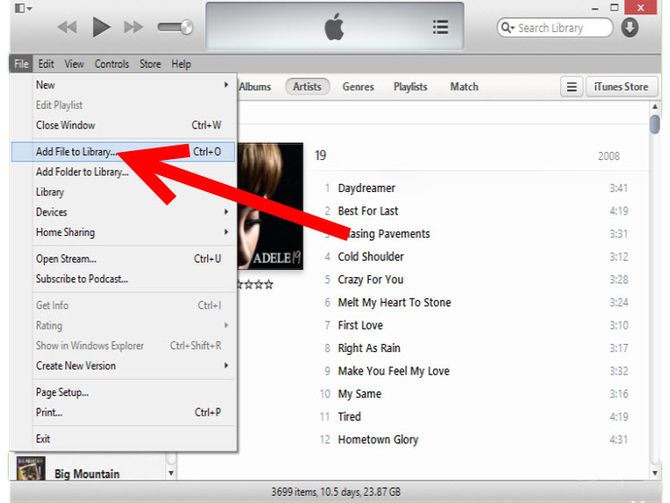
Step 1. Open the Apple Music app or iTunes app on your Mac or PC.
Step 2. Browse and find the song you want to listen to offline.
Step 3. Select the Add button + or click + Add to add a song or album to your music library.
Step 4. In your music library, touch and hold the song or album.
Step 5. On your Mac, select the downward-arrow button; on your PC, click the Download button ↓ to download the songs offline.

For Purchased Music:
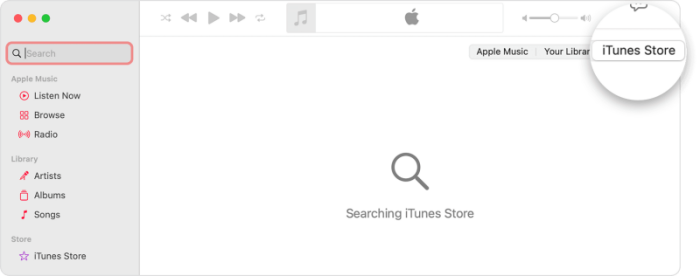
Step 1. Launch the iTunes app on your Windows computer, then navigate to the Music section from the upper window.
Step 2. Go to the iTunes Store section, then select Purchased > Music to see all your purchased songs.
Step 3. Here you can download all your purchased audio files by clicking the Download button.
Part 4. How to Listen to Apple Music Offline Without Limits
With the above steps, you can enjoy Apple Music offline without problems. What needs to be mentioned is the availability of these Apple songs. Please keep in mind that these downloads are not playable or available forever. Due to the DRM restrictions, Apple Music encrypted its music songs with special codes that prevent them from playing on other unsupported devices. Once your subscription is over, you can’t access them anymore. Thus, these downloads are only cache files, not real files on your device.
In order to remove the DRM limit on Apple Music and save the real files of your favorite songs, you will need the help of TunesMake Streaming Audio Recorder. TunesMake Streaming Audio Recorder is designed specially for this goal. It is a professional yet easy-to-use audio handler. It can help you download songs, playlists, albums, and podcasts from Apple Music to MP3, M4A, M4B, WAV, FLAC, or AIFF format. It makes it possible and easy to stream Apple songs on multiple devices as you want. The best thing is that it retains the original sound quality and ID3 tags to ensure your offline enjoyment. Follow the simple 3 steps below, and you can listen to Apple Music offline anywhere, anytime you want.

Streaming Audio Recorder –
Download Streaming Music to MP3 on PC and Mac
- Unlimitedly download streaming music songs, playlists, and podcasts
- Losslessly convert streaming music to MP3, M4A, M4B, WAV, FLAC, and AIFF
- Remove DRM protection from many streaming music platforms
- Convert streaming songs with original sound quality and ID3 tags kept
Security Verified. 100% Clean & Safe.
Step 1
Import Apple Music to TunesMake Program
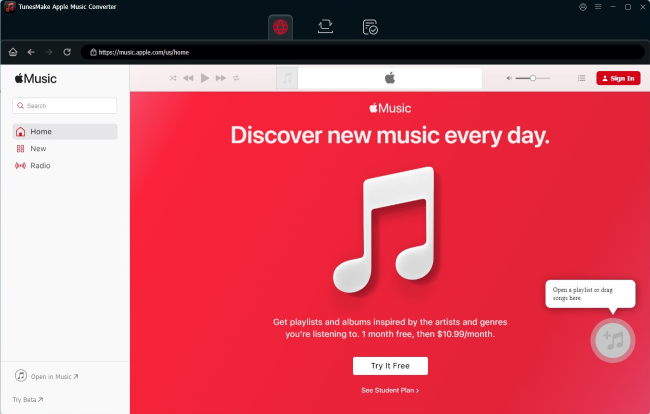
To get started, launch TunesMake Streaming Audio Recorder on your computer and sign in to your Apple Music account on its interface. Now, you can select any playlist or album that you want to listen to offline. Enter its detailed page, and then click the lower Add icon > Add to List so that you can load all your favorite songs from Apple Music to the TunesMake program.
Step 2
Adjust the Output Audio Parameters
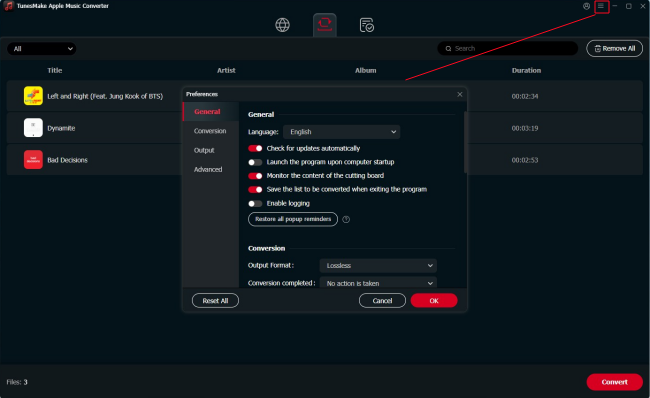
After loading the songs you like, it’s time to adjust the output audio settings according to your needs. Move your cursor to the top, and then click the Menu icon. Next, select Preferences > Conversion. In this tab, you can pick the output audio formats and other parameters, including the output storage folder, sample rate, bit rate, channel, and so on. When you finish, don’t forget to click the OK button to save your changes.
Step 3
Convert Apple Music to MP3
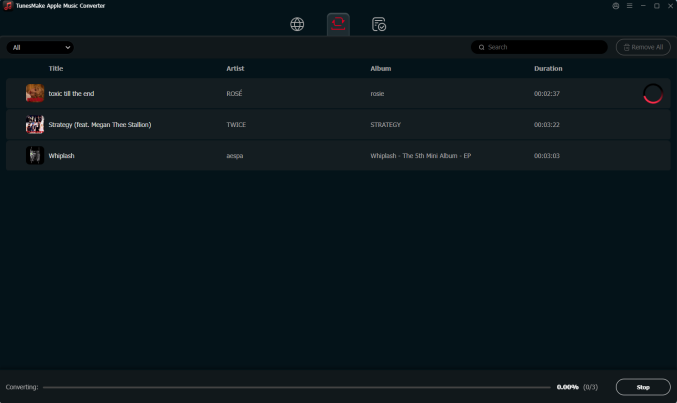
Now click the Convert button to download and convert songs from Apple Music to MP3 or other formats. Just wait for a while, and you can get all the converted music tracks. Once the conversion is complete, click the Converted icon at the top of the converter to navigate to the folder where you saved these songs. Then, you can listen to Apple songs offline on multiple devices you want.
Part 5. Conclusion
Apple Music offline listening is easily obtained once you have subscribed to Apple Music Premium. For some songs, you can download them as offline playback, while for some other songs, you may need to make a purchase before downloading. To listen to Apple Music offline forever without premium, you shouldn’t miss this great tool: TunesMake Streaming Audio Recorder.
Related Articles


A senior editor from TunesMake, dedicated to sharing professional tutorials and solutions of software, movies, and music.
- 1
- 2
- 3
- 4
- 5
- 6
- 7
 Leave Your Comment
(0)
Leave Your Comment
(0)

 Download Center

