








 Store
Store


Listening to your favorite playlists, albums, and radio stations on an Amazon Echo speaker is straightforward, even if your primary streaming service is Apple Music rather than Amazon Music. Thanks to official integration support between Apple Music and Amazon Echo, you can seamlessly link your Apple Music account to Alexa and control playback using standard voice commands. Whether you are setting up your smart speaker for the first time or trying to fix a playback issue, this guide covers everything you need to know to play Apple Music on Amazon Echo quickly and reliably.
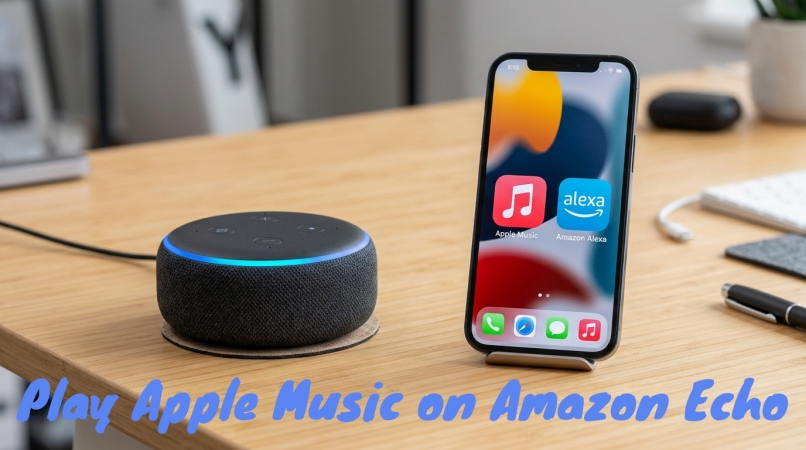
Part 1. Can Amazon Echo Play Apple Music?
Yes, Apple Music works directly with Amazon Echo devices. You can play your Apple Music library, playlists, and radio stations on an Echo speaker using three primary methods.
| Feature | Alexa Skill | Bluetooth Connection | Audio Converter |
|---|---|---|---|
| Primary Advantage | Direct hands-free voice control directly through Alexa | Work without linking accounts or logging into Alexa | Play offline Apple Music tracks without streaming issues or active subscriptions |
| Voice Command Control | Full Support | Limited | Full Support |
| Subscription Requirement | Active Apple Music subscription required | Active Apple Music subscription required | No active subscription required after tracks are converted to local audio files |
| Setup Effort | Low | Very low | Moderate |
| Internet Dependency | Require active Wi-Fi and internet connection | Require active network connection on host phone | No internet required |
| Multi-Room Audio | Supported | Not Supported | Supported |
| Best For | Daily home listening, smart home automation, and hands-free convenience | Guests, quick setup, offline phone playback, or non-subscribers | Users with large offline libraries, travel setups, or region-restricted accounts |
Part 2. How to Connect Apple Music to Amazon Echo
Connecting your Apple account to your smart speaker takes under two minutes through the mobile app. But before attempting to link your accounts, make sure you have the following prerequisites ready. This setup works for all Echo models, including the Echo Dot, Echo Show, and Echo Studio.
What You'll Need:
-
An active Apple Music subscription
-
An Amazon Echo device connected to Wi-Fi
-
The Amazon Alexa app installed on your mobile device
-
Your Apple ID credentials
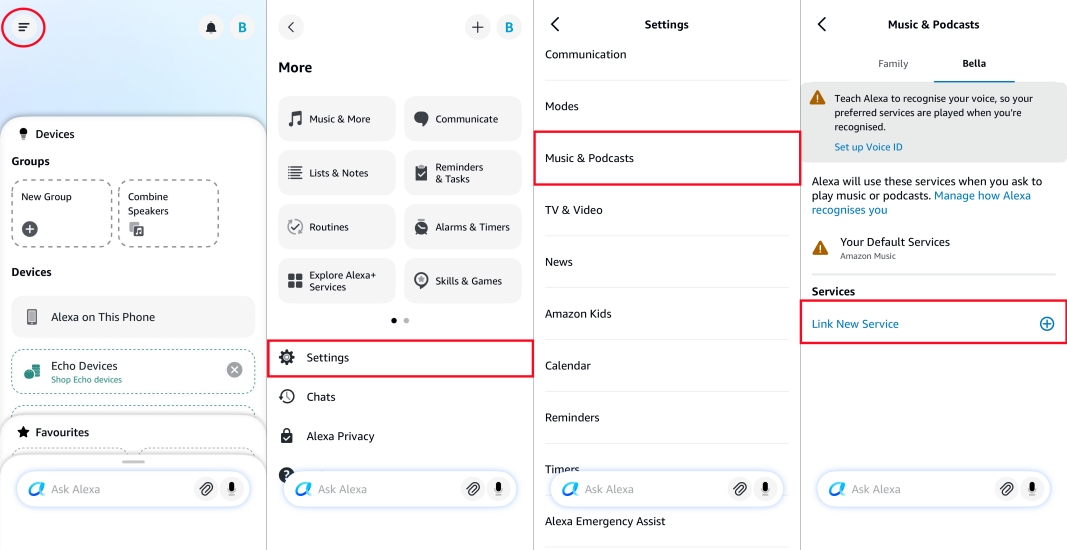
Step 1. Open the Amazon Alexa app on your iPhone, iPad, or Android phone.
Step 2. Tap the More tab in the top left corner of the screen.
Step 3. Select Settings, then tap Music & Podcasts.
Step 4. Tap Link New Service.
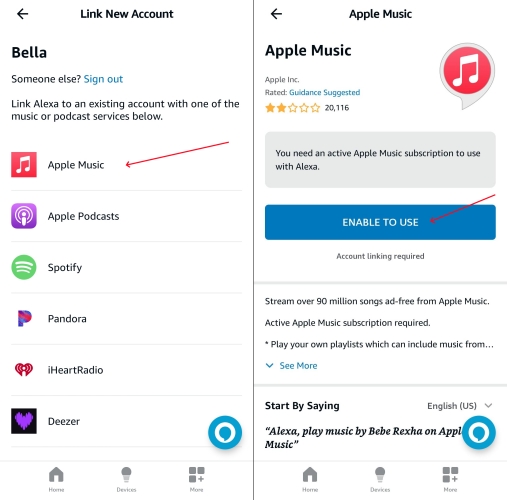
Step 5. Select Apple Music from the list of available providers.
Step 6. Tap Enable to Use.
Step 7. Enter your Apple ID and password to complete the authorization.
Once authorized, a confirmation message will indicate that your Apple Music account is linked to your Alexa profile.
How to Set Apple Music as Your Default Music Service
By default, Alexa often prioritizes Amazon Music or Spotify. If you do not change your default music provider, you will need to say "on Apple Music" at the end of every voice prompt. Setting Apple Music as your default provider eliminates this extra step.
Step 1. Open the Amazon Alexa app.
Step 2. Tap More > Settings > Music & Podcasts.
Step 3. Tap Default Services.
Step 4. Under the Music heading, tap Change.
Step 5. Select Apple Music and save your changes.
Now, simply saying "Alexa, play my favorite songs" will automatically stream music directly from your Apple Music account.
| Action | Voice Command |
|---|---|
| Play Specific Song | "Alexa, play [Song Name] by [Artist]" |
| Play Album | "Alexa, play the album [Album Title]" |
| Play Personal Playlists | "Alexa, play my [Playlist Name] playlist" |
| Stream Live Radio | "Alexa, play Apple Music 1" |
| Control Playback | "Alexa, pause" / "Alexa, next song" / "Alexa, shuffle" |
| Adjust Volume | "Alexa, turn the volume to level 6" |
Part 3. 2 Alternative Ways to Play Apple Music on Amazon Echo
While linking Apple Music directly to your Alexa app is the most seamless method for voice commands, it might not always be the ideal solution for every situation. For instance, you might encounter skill regional restrictions, temporary syncing glitches, or simply prefer playing local audio files directly from your phone or computer.
If direct account linking isn't working for you or you want more control over your audio playback, there are two reliable alternative methods you can use: streaming via Bluetooth and converting Apple Music tracks locally using TunesMake Apple Music Converter. Here is a breakdown of how both alternative solutions work.
Method 1. Stream Apple Music to Amazon Echo via Bluetooth
If you do not want to link your Apple ID directly to the Alexa app, or if you want to stream offline downloads from your device, you can use your Echo speaker as a standard Bluetooth speaker.
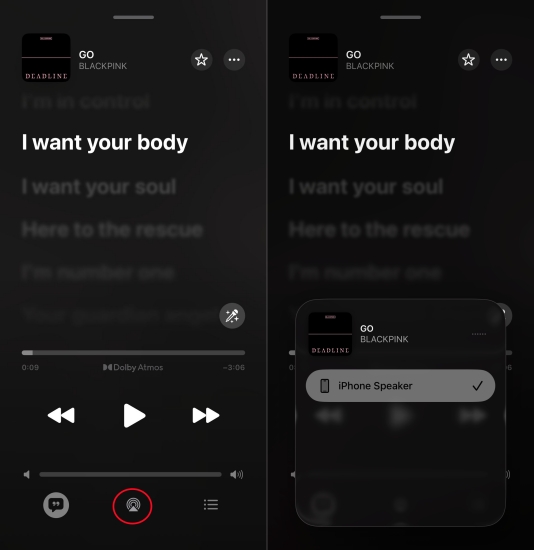
Step 1. Stand near your Echo device and say, "Alexa, pair."
Step 2. Alexa will respond indicating that the Echo is in pairing mode.
Step 3. On your phone, tablet, or computer, go to Settings > Bluetooth.
Step 4. Select your Amazon Echo device from the list of available devices to connect.
Step 5. Open the Apple Music app on your phone and press play. Audio will route through your Echo speaker.
To disconnect your Apple Music playback at any time, simply say, "Alexa, disconnect Bluetooth."
Method 2. Play Apple Music Tracks Locally via Audio Conversion
While streaming directly through Alexa is convenient, official account linking occasionally encounters regional restrictions, account syncing errors, or playback glitches. Additionally, standard streaming requires an active subscription and internet connectivity.
For users who want to keep local backups of their purchased or liked audio tracks and play them on Amazon Echo without relying on active cloud authorization, TunesMake Apple Music Converter offers a practical workaround. By using TunesMake, you can convert and save Apple Music tracks as local audio files, then play them via Bluetooth or local media servers at anytime, even without an active Apple Music subscription.

Streaming Audio Recorder –
Download Apple Music tracks for playing anytime
- Download songs, albums, and playlists from Apple Music
- Convert Apple Music to MP3, M4A, M4B, WAV, FLAC, and AIFF
- Remove DRM protection from Apple Music completely and safely
- Preserve the original audio quality and ID3 tags for management
- Support downloading music from 10 popular streaming platforms
Security Verified. 100% Clean & Safe.
Step 1 Select Apple Music Tracks to Download
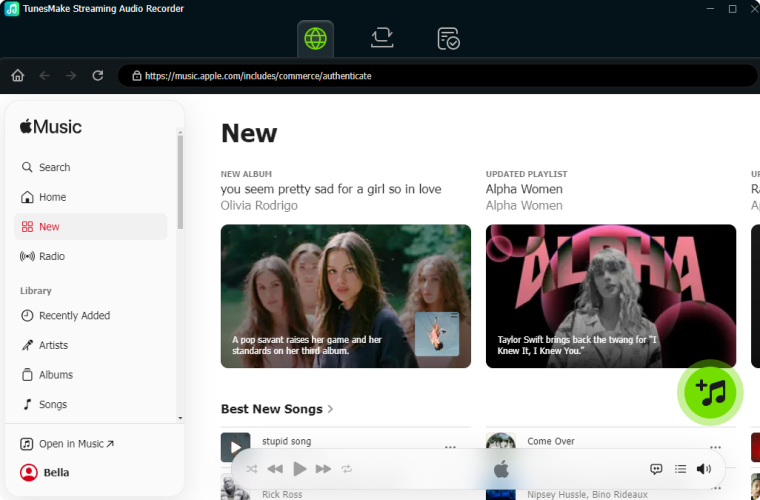
First, download and install TunesMake Streaming Audio Recorder on your computer, then launch it and choose Apple Music on the main interface. Go to log into the built-in Apple Music web player, select any music track, album, or playlist to download and convert. Simply click the + button to add your liked content into the conversion list.
Step 2 Configure the Output Audio Parameters
Click the Settings button at the bottom left corner and choose MP3 as the output audio format for Apple Music. Also, you can set the bit rate, sample rate, and channel. For better management, you can select the output folder and how you would want your local audio files organized. Don't forget to save your changes by clicking the OK button.

Step 3 Save Apple Music as Local Audio Files
To download and save your selected Apple Music content as local audio files, click the Convert button at the lower right corner to start the task. Once completed, go to browse the converted tracks by clicking the History button at the left column. You can then locate the converted folder to find all the local music files.

Step 4 Stream Apple Music to Amazon Echo
Once your Apple Music files are saved locally, air your computer or smartphone with your Echo speaker and play your local audio files using any standard media player. Or use Alexa-compatible media server skills such as Plex or My Media for Alexa to index your converted local music directory and stream your songs across Echo devices using voice commands.
Part 4. Troubleshooting Apple Music Not Working on Echo Dot
If your Apple Music playback suddenly stops on your Amazon Echo or Alexa fails to recognize your requests, try these common fixes to restore your stream.
Fix 1. Unlink and Relink the Apple Music Skill
If Alexa acknowledges your request but no audio plays, the authentication token between Apple and Amazon may have expired and need to be refreshed.
Step 1. Open the Alexa app > Settings > Music & Podcasts.
Step 2. Select Apple Music and tap Disable Skill.
Step 3. Restart the Alexa app and and sign in with your Apple ID again.
Fix 2. Songs Skipped Due to Alexa's Profanity Filter
If explicit tracks in your Apple Music library fail to play or skip automatically on your smart speaker, you can check the Alexa's Profanity Filter.
Step 1. Open the Alexa app.
Step 2. Go to Settings > Music & Podcasts.
Step 3. Select Profanity Filter and toggle it off to allow explicit audio streaming.
Fix 3. Restart and Update Echo Devices
If Apple Music stops playing across group speakers or your Amazon Echo becomes unresponsive, go to unplug your speaker to soft reset and update it.
Step 1. Ensure all Echo devices are connected to the same Wi-Fi network frequency.
Step 2. Unplug your Echo devices for 15 seconds, then reconnect the power cord.
Step 3. Say, "Alexa, check for software updates" to make sure your device is running the latest firmware.
Part 5. FAQs about Apple Music with Amazon Echo
Can I play Apple Music on Echo without a subscription?
No. Playing Apple Music on Amazon Echo devices via voice commands or Bluetooth requires an active Apple Music individual, family, or student subscription.
Does Apple Music work with Alexa Multi-Room Music?
Yes. Once Apple Music is set as your music service, you can create a Multi-Room Music group in the Alexa app and stream Apple Music simultaneously on multiple Echo speakers in your home.
Why does Alexa say "Apple Music is not supported in your region"?
The Apple Music Alexa skill availability depends on region settings. Ensure both your Amazon account region and Apple ID country match a supported region such as the United States, Canada, United Kingdom, Australia, and various other supported countries.
Part 6. Conclusion
Streaming Apple Music on Amazon Echo devices allows you to enjoy your curated music library, live radio stations, and personal playlists with simple voice controls. By linking your Apple ID through the Alexa app and setting Apple Music as your default provider, you can create a seamless, hands-free smart home audio experience.
If you ever run into account sync errors, regional restrictions, or offline playback needs, alternative solutions such as Bluetooth pairing or converting tracks for local media playback ensure you never miss a beat. Pick the setup method that best fits your listening routine and enjoy your favorite tracks on any Echo speaker.
Related Articles

A professional writer at TunesMake, crafts in-depth tutorials, practical tips and expert advice focusing on streaming music, technology, and more.
- 1
- 2
- 3
- 4
- 5
- 6
- 7
 Leave Your Comment
(0)
Leave Your Comment
(0)

 Download Center

