








 Store
Store


As of now, Spotify has 751 million monthly active users globally, which attests that Spotify is still the leading on-demand music streaming service worldwide. Due to its vast music library that contains over 100 million songs and diverse playlists, you can experience whatever music you like. Whether on the go or at home, Spotify’s catalog is readily available as long as you own a Spotify-supported device like an Amazon Echo. You can request Alexa to play some songs, playlists, or music genres from Spotify. Let’s now focus on how to connect Spotify to Alexa for playing music without limits in 3 ways.
Part 1. How to Use Spotify with Alexa (Official Tips)
Can you play Spotify music on Alexa devices? Yes! There is an official integration between Spotify and Alexa. You can easily do so within the Amazon Alexa app. But before diving into the detailed steps, it’s essential to make sure that your environment meets the necessary criteria for a stable connection.
Device and Account Requirements:
- A valid Spotify Free or Premium account
- A Spotify-supported Alexa device (such as Amazon Echo, Amazon Echo Dot, Amazon Echo Spot, Amazon Echo Show, Amazon Tap, and Amazon Fire TV Cube)
- The latest version of the Amazon Alexa app installed on your phone
- A stable Internet connection
If you have met all the requirements above, you should follow the steps below to link Spotify to Alexa:
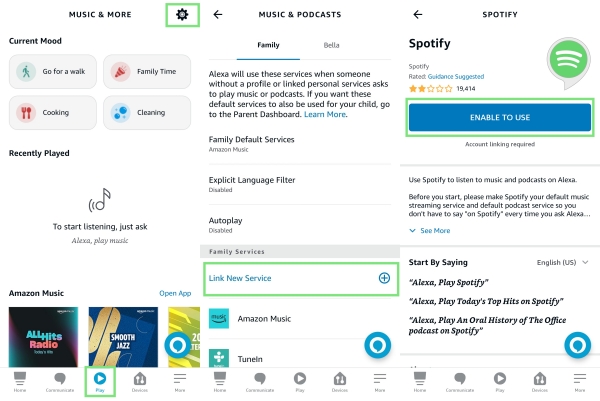
Step 1. Install the Amazon Alexa app from Play Store or App Store.
Step 2. On the Alexa app, head to the Play tab from the bottom.
Step 3. Tap the Settings icon and select Link New Service > Spotify.
Step 4. Tap Enable to Use and Alexa will open the browser to let you link your Spotify account.
Once connected, Alexa can access your Spotify library and playlists.
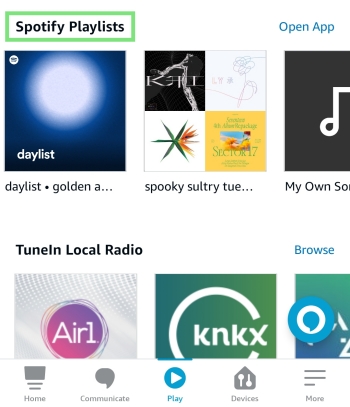
How to Use Alexa Spotify Commands to Play Spotify
After linking, it’s easy to play your preferred Spotify songs and playlists on your Alexa device. Since voice commands take the main advantage, you can try these useful commands:
- “Alexa, play [Song/Playlist/Album/Artist Name] on Spotify.“
- “Alexa, play music for [Activity] on Spotify.“
- “Alexa, play [Mood] music on Spotify.“
- “Alexa, play Discover Weekly on Spotify.“
- “Alexa, turn this off in [time].“
- “Alexa, skip/restart/previous/shuffle song.“
- “Alexa, what song/album is this?“
- “Alexa, volume up/volume down.“
How to Set Spotify as Default Music Service on Alexa
To make sure Alexa plays music from Spotify every time you ask for it, it’s necessary to set Spotify as the default music service on your device. Once done, you don’t need to say “on Spotify” at the end of every sentence.
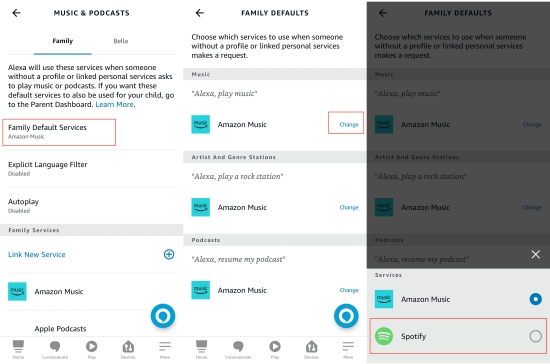
Step 1. Go to the Settings section in the Alexa app.
Step 2. Find and tap Music & Podcasts > Default Services.
Step 3. Tap Change next to the default service and set Spotify here.
How to Disconnect Spotify from Alexa
If you need to unlink the Spotify account from Alexa, here are the steps:
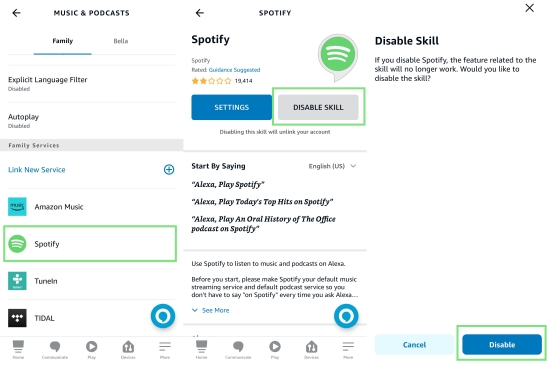
Step 1. Open the Alexa app and go to the More tab.
Step 2. Select Setting > Music & Podcast.
Step 3. Tap on Spotify under the linked services.
Step 4. Touch DISABLE SKILL to remove Spotify from Alexa.
How to Change Spotify Account on Alexa
To change the Spotify account on Alexa, you have to perform the above steps to unlink Spotify from Alexa first. Then take the steps below:
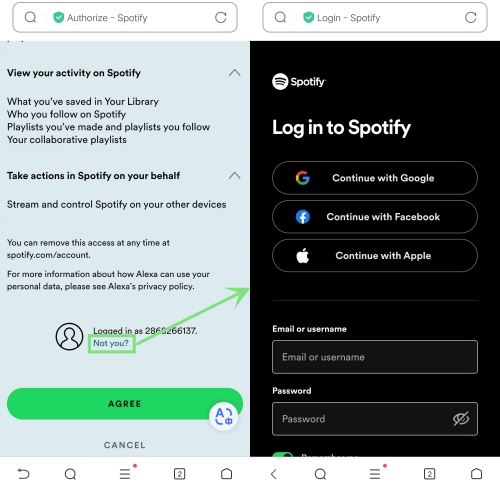
Step 1. On the Play tab of Alexa, go to Link New Service and choose Spotify.
Step 2. After Alexa opens a browser to access your Spotify info, you have to select Not you under your Profile.
Step 3. Then choose another Spotify account to sign in and connect to Alexa.
Part 2. How to Connect Spotify to Alexa via Spotify Connect
Besides the official method to make a connection within the Alexa app, there’s another flexible option - Spotify Connect. It’s one of the easiest ways to get Spotify on Alexa, allowing you to control playback across devices directly from the Spotify app, which is especially useful if you prefer using your phone instead of voice commands.
It’s an easier and more reliable method to find and stream specific or newly created playlists that Alexa might not have indexed yet. Plus, this method is often more reliable for finding specific, newly created playlists that Alexa might not have indexed yet.
Make sure your smartphone/desktop and your Alexa device are connected to the same Wi-Fi.
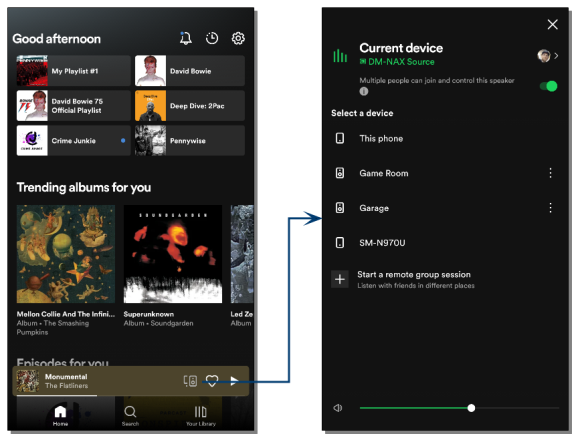
Step 1. Launch the Spotify app whether on your smartphone or desktop.
Step 2. Pick any content to play and hit on the Device icon at the bottom player.
Step 3. From the available devices list, choose the Alexa device you want to play on.
Step 4. After that, Spotify will be played through your connected device. And you can control the Alexa Spotify playback from your smartphone or desktop.
Note
You can also utilize the Bluetooth functionality or the Airplay feature to cast Spotify to Alexa for playing.
Part 3. How to Play Spotify on Alexa Without Premium
To get ad-free listening on Alexa with the above ways, you have to subscribe to Spotify Premium. But here we are going to share the best way to play Spotify on Alexa without Premium. That is to download your favorite songs to local files and play them on Alexa devices without limits. To do so, a dedicated Spotify music downloader that can help you remove DRM protection is indispensable. Here, we recommend the TunesMake Spotify Music Converter.
TunesMake Spotify Music Converter is designed to help both Free and Premium users download and convert music from Spotify to MP3, M4A, M4B, WAV, FLAC, or AIFF audio files. In the process of conversion, TunesMake cracks all limitations so you can directly put Spotify songs on Alexa or any other device for offline playback. Additionally, the TunesMake tool’s cutting-edge technology ensures all Spotify songs are saved with lossless quality and original ID3 tags.

TunesMake Spotify Music Converter –
Best Spotify to Amazon Echo Downloader and Converter
- Unlimitedly download Spotify songs, playlists, and podcasts
- Losslessly convert Spotify music to MP3, FLAC, WAV, AIFF, etc.
- Remove ads from Spotify music tracks even with Free accounts
- Convert Spotify songs at 12X faster speed with ID3 tags kept
Security Verified. 100% Clean & Safe.
Step 1
Drag Spotify music to TunesMake Spotify Music Converter

According to the operating system of your computer, you can install the Windows or Mac version of the TunesMake Spotify Music Converter. When the installation is finished, you can launch it and visit the Spotify web player on its interface. Sign in to your Spotify account and find the track you want to play on Alexa device. Directly add it to the conversion list by dragging and dropping it to the lower Add icon. If you need to download multiple songs at once, you should select one playlist or album, and then click the Add icon > Add to List.
Step 2
Choose the output audio format and preferences

Once your selected Spotify songs are added, you can start setting the audio output format for your Alexa by clicking the menu bar, selecting the Preferences option, and finally clicking the Conversion icon. For better audio quality, you can change other parameters like audio channel, bit rate, and sample rate.
Step 3
Start to download Spotify playlist to your computer

Click the Convert icon to download and convert Spotify to the output format you need. Then, TunesMake Spotify Music Converter will download Spotify music to your specific folder where you want to save your Spotify music. After conversion, you can find the downloaded music tracks in your local folder by clicking the search icon on the Converted history list.
Step 4
Add Spotify to Alexa for listening
After getting Spotify local files, you need an application called My Media to add Spotify to Alexa. My Media lets you ask Alexa devices to play music from your existing media collection.
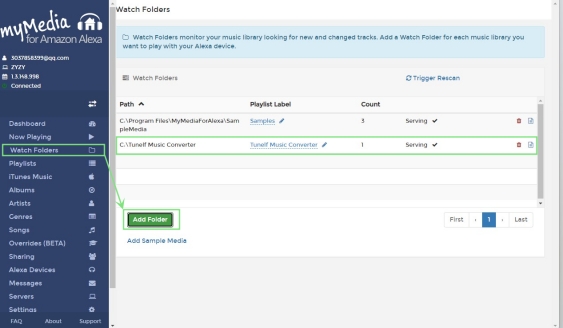
- Install My Media for Alexa from its website.
- Launch My Media on your computer and log into your Amazon account.
- From the left panel, choose Watch Folders.
- Hit Add Folder and navigate to the folder containing all converted Spotify songs.
- Then give the voice command “Alexa, ask My Media to play music by [The Folder Name]“.
Part 4. Troubleshoot: Alexa Not Playing Spotify
After setup Spotify on Alexa, issues can still happen. If you are bothered by the issue of Alexa not playing Spotify, don’t worry. It can be fixed with the following helpful solutions. When your Alexa says “I’m having trouble playing music right now” or ignores your voice commands, follow these steps:
1. Check the network
Make sure that your network connection is stable and fast. Also, your mobile device and Alexa device should be connected to the same Wi-Fi.
2. Check your subscription status
Make sure your Premium subscription is still available. Also, it’s better to double-check your login credentials.
3. Update and restart the Spotify App
To make sure of a smooth performance, you should use the latest Spotify app. So, update the app and reboot it to fix the issue.
4. Unplug Alexa device
Besides restarting the Spotify app, rebooting your Alexa devices is also helpful. You can unplug your device for 30 seconds and plug it in again.
5. Reconnect Spotify to Alexa
Another practical solution is to disconnect Spotify from Alexa, and then reconnect it.
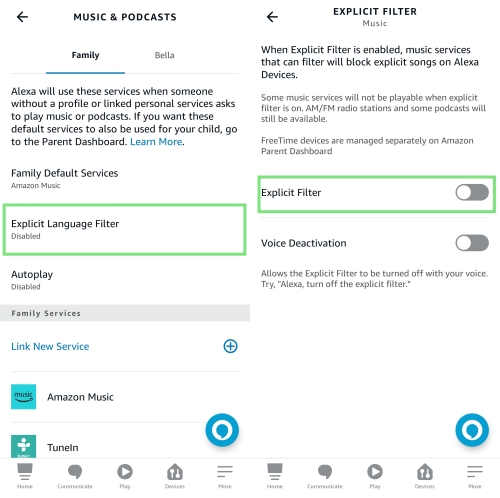
6. Disable the explicit filter within Alexa
Sometimes, Alexa blocks your commands because of the Explicit Filter. You can disable it by heading to the Alexa app, and select Settings > Explicit Language Filter > Disable.
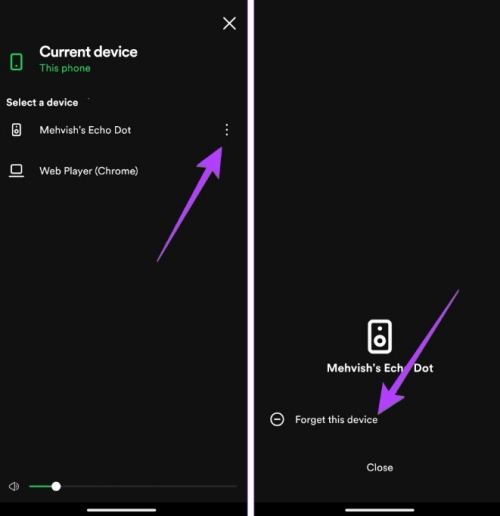
7. Forget the Alexa device on Spotify
On Spotify, head to Settings > Connect to a device > 3 dots > Forget this device. Then, connect your Spotify account to your device again to see if the issue is fixed.
Part 5. FAQs about Spotify Alexa
Can I use Spotify Free with Alexa?
Yes, both Spotify Free and Premium accounts work with Alexa. However, the music experience isn’t as smooth and flexible an experience as Premium. You will experience shuffle-only playback and ads.
How do I play Spotify on multiple Alexa devices at once?
You can use Alexa’s multi-room music feature to play Spotify on multiple devices at once. Just go to Devices in the Alexa app. Then, tap the add icon and select Combine Speakers. Choose multi-room music and create a speaker group. Next, you can say “Alexa, play Spotify on the [group name]”.
Can I connect multiple Spotify accounts to Alexa?
Technically, one Alexa account can only be linked to one Spotify account. But you can reach it using Amazon Household accounts or switching between different profiles manually. If you find this account-switching cumbersome, you can also try to consolidate songs from various family accounts into a single local music library via TunesMake Spotify Music Converter.
Conclusion
Once connecting Spotify to Alexa, you can play Spotify music on Amazon Echo and use Alexa Spotify commands to control your tunes. However, there are limitations on the playback of Spotify. But with the assistance of TunesMake Spotify Music Converter, you can listen to Spotify on Alexa without Premium even offline. You also can enjoy Spotify songs on any other device without limitation.
Related Articles

A senior editor from TunesMake, dedicated to sharing professional tutorials and solutions of software, movies, and music.
- 1
- 2
- 3
- 4
- 5
- 6
- 7
 Leave Your Comment
(0)
Leave Your Comment
(0)

 Download Center

