









 Store
Store


Listening to audiobooks on Audible is a great experience to enjoy literature on the go, but its proprietary AAX and AAXC file formats with DRM restrictions can limit where and how you listen. Whether you want to play your purchased audiobooks o generic MP3 player, transfer them to a car stereo system, or keep a local backup for offline archiving, using an Audible converter is the most effective solution. In this guide, we evaluate and rank top Audible converters based on conversion speed, audio quality, chapter retention, ease of use, and cost.
Part 1. Quick Comparison of Top Audible Converter
Thanks to an Audible converter, you can convert your purchased Audible books from AA or AAX to plain audio formats with ease. There are many options for you, but not all are suitable for you. The best Audible converter can make the conversion process seamless and quick for users rather than frustrating and time-consuming. We have rounded up both free and commercial Audible audiobook converters below.
| Tools | License Type | Output Formats | Conversion Speed | Batch Download |
|---|---|---|---|---|
| Libation | Free | M4B, MP3 | Moderate | ❌ |
| AAX Audio Converter | Free | MP3, M4A, M4B | Moderate | ✔️ |
| inAudible | Free | M4B, MP3 | Moderate | ❌ |
| AAX to M4B Converter | Free | MP3, M4A, FLAC | Moderate | ❌ |
| AAXtoMP3 | Free | MP3, M4A, M4B, FLAC, OPUS | Low | ❌ |
| aax2mp3_easy | Free | MP3 | Low | ❌ |
| FFmpeg | Free | MP3 | Low | ❌ |
| TunesMake Audible Converter | $10.95 | MP3, FLAC, WAV, AIFF, M4A, M4B | Fast | ✔️ |
| Epubor Audible Converter | $29.99 | MP3, M4B, MP4 | Fast | ✔️ |
| Any Audible Converter | $44.95 | MP3, M4B, M4A, FLAC, WAV, OGG | Fast | ✔️ |
| OpenAudible | $21.95 | MP4, M4B, M4A | Moderate | ❌ |
| BookFab Audible Converter | $49.99 | MP3, M4A, FLAC, OPUS | Moderate | ✔️ |
How We Test and Select a Professional Audible Converter
To determine the best Audible converter, we evaluate each tool against five essential criteria:
1️⃣ Conversion Speed:: Terrific performance during batch processing of converting large audiobook libraries.
2️⃣ Audio Quality Retention: Capability to output lossless audio without degrading sound fidelity.
3️⃣ Chapter Preservation: Ability to retain original chapter markers or split large audiobooks into smaller sections.
4️⃣ Metadata Accuracy: Retention of ID3 tags, including book title, author name, narrator, release date, and cover art.
5️⃣ System Safety: Clean installation without bundled adware, malware, or intrusive background processes.
Part 2. Best Free & Open-Source Audible Converters
For users who want full control over their audiobook library without paying recurring subscription fees or hitting trial limits, free and open-source Audible converters are the gold standard. Below, we review the top free and open-source converters available across Windows, macOS, Linux, and web browsers.
No.1 Libation
| Compatibility: Windows, macOS, Linux | Software License: Free | Recommendation: ⭐⭐⭐⭐ |
|---|
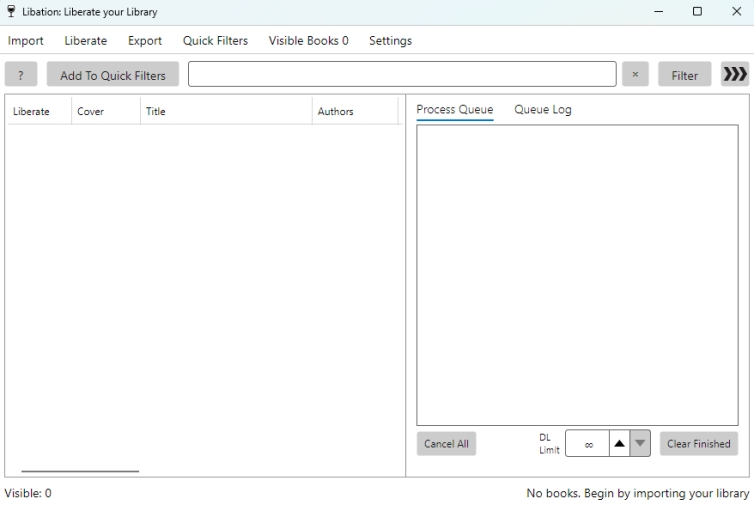
Libation is a free, open-source application designed to give you complete control over your Audible library on Windows, Mac, and Linux. By connecting your Audible account, it downloads and convert your purchased audiobooks into open formats like MP3 or M4B. This allows you to back up your collection, listen offline, and play your books on any device or media player without relying on the official Audible app.
Step 1. Head over to the official GitHub repository or getlibation.com.
Step 2. Download the installer matching your operating system.
Step 3. Run the setup wizard and launch the application.
Step 4. Open Libation and go to Settings > Accounts.
Step 5. Enter your Audible account and select your Audible region.
Step 6. Click the Import button at the top menu, then click the Scan Library button to pull your purchased catalog.
Step 7. Click the Settings button, select the Settings option, and locate the Audio File Settings tab in the pop-up window.
Step 8. Select Download my books in the original audio format (Lossless) or Download my books as MP3 files (transcode if necessary).
Step 9. Right-click a single title and choose Download split by chapters.
Step 10. Once converted, click on the book entry to open its destination folder on your computer.
😀 Pros
- No hidden paywalls, subscription, or trial limits
- Available for Windows, macOS, and Linux
- Active community development and support
- Retain chapters and spatial audio tracks
☹️ Cons
- Technical interface for non-experienced users
- Require syncing directly with an Audible account
- A slightly technical for casual users to operate

No.2 AAX Audio Converter
| Compatibility: Windows | Software License: Free | Recommendation: ⭐⭐⭐⭐ |
|---|
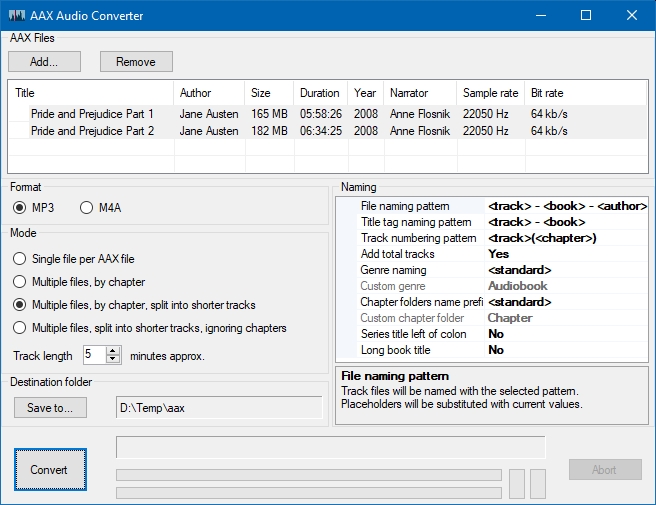
AAX Audio Converter is a free, lightweight utility for Windows users who want to convert Audible audiobook files from AAX or AAXC into unencrypted, widely supported formats like MP3, M4A, and M4B. Developed by audiamus on GitHub, it operates entirely offline on your computer, utilizing FFmpeg for fast, multi-threaded audio processing while stripping DRM restrictions from your legally owned audiobooks.
Step 1. Visit the official AAX Audio Converter page and download the latest installer.
Step 2. Complete the setup wizard and launch the application.
Step 3. Log in to Audible and download your audiobooks as local files to your computer.
Step 4. Click Add or drag and drop your audiobook files directly into AAX Audio Converter.
Step 5. Select your preferred output format at the bottom of the interface.
Step 6. Choose to keep the entire book as one audio file or split by chapter.
Step 7. Click the Convert button to begin processing.
😀 Pros
- 100% free and open-source
- Fast batch converting
- Not require an Audible account credentials
- Offer control over chapter management
☹️ Cons
- Only available for Windows
- Require manual download
- Need a personal Audible activation code
No.3 inAudible
| Compatibility: Windows | Software License: Free | Recommendation: ⭐⭐⭐ |
|---|
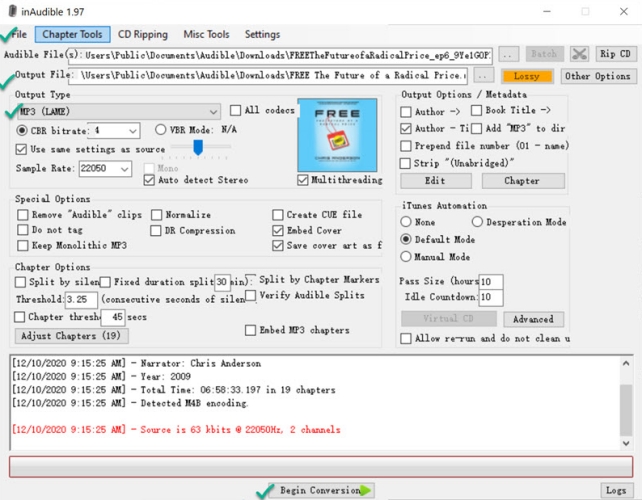
inAudible is a long-standing, classic tool created by the audiobook archiving community to decrypt Audible AA and AAX files. It strips DRM restrictions and converts files into standard, DRM-free audio formats like MP3, M4B, AAC, and FLAC. Renowned among audiobook enthusiasts for its detailed bit-rate adjustment and manual chapter-splitting controls, inAudible remains a staple tool for audiophiles seeking granular command over their output settings.
Step 1. Download the latest release of inAudible and install it on your computer.
Step 2. Launch inAudible and click File > Open to import your downloaded Audible files.
Step 3. Ensure your Audible activation bytes is loaded in the program settings.
Step 4. Select your desired output format like MP3 or M4B.
Step 5. Choose the splitting configuration and set the destination folder.
Step 6. Click Begin Conversion to start converting Audible audiobooks.
😀 Pros
- Completely free to download and use
- Offer control over audio quality parameters
- Support a wide selection of audio formats
- Not require account integration inside the app
☹️ Cons
- Feature a dated, utility-focused user interface
- No active software updates and official support
- Need Audible activation key or table file to set up
No.4 AAX to M4B Converter
| Compatibility: Windows, macOS, Linux | Software License: Free | Recommendation: ⭐⭐⭐ |
|---|
AAX to M4B Converter, also named audible-tools, is hosted entirely in the browser using Web-Assembly technology. It processes AAX files locally within your client browser. This ensures your personal audio files are never uploaded to a third-party server. Although it doesn’t need to install any third-party application, this online Audible converter lacks of many features like not supporting large audiobook file and not retaining chapter markers.
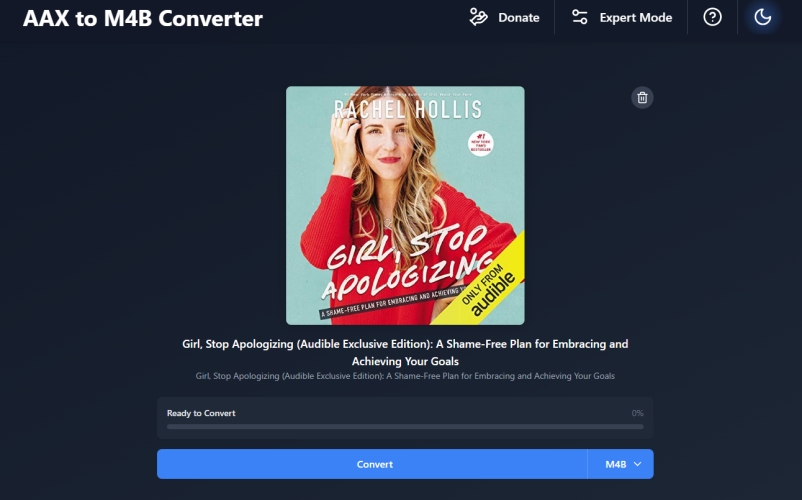
Step 1. Navigate to the website of AAX to M4B Converter.
Step 2. Drag and drop Audible audiobook files or click to select.
Step 3. Choose the output audio format and click the Convert button.
😀 Pros
- No installation needed
- Run on any operating system
- Not leak any personal data
☹️ Cons
- Slower for lager audiobooks
- Rely on browser memory limits
- Not able to retain chapter data
- Fail to convert large files sometimes
No.5 AAXtoMP3
| Compatibility: Windows, macOS, Linux | Software License: Free | Recommendation: ⭐⭐ |
|---|
AAXtoMP3, originally created by KrumpetPirate on GitHub, is an open-source, command-line bash script that acts as a light frontend for FFmpeg. It converts Audible AAX and AAXC audiobook files into widely supported audio formats like MP3, M4A, M4B, FLAC, and OPUS. Operating completely via terminal environments, AAXtoMP3 utilizes your personal Audible authentication code to decrypt files locally without uploading data to external servers.
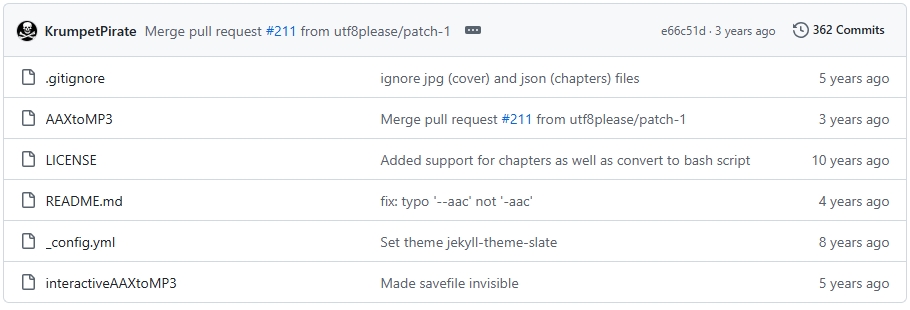
Step 1. Install bash, ffmpeg, jq, and mediainfo on your computer.
Step 2. Clone or download the script from a community mirror or repository.
git clone https://github.com/KrumpetPirate/AAXtoMP3.git
cd AAXtoMP3
chmod +x AAXtoMP3
Step 3. Obtain your Audible authcode via helper tools like audible-cli or rcrack.
Step 4. Run the script by supplying your authcode and target AAX file.
To output as a single MP3 file:
./AAXtoMP3 -A YOUR_AUTHCODE -e:mp3 /path/to/audiobook.aax
To output as an M4B file split by chapters:
./AAXtoMP3 -A YOUR_AUTHCODE -e:m4b --chaptered /path/to/audiobook.aax
😀 Pros
- Completely free with zero ads
- Extremely lightweight with no graphical interface
- Highly automatic audiobook processing
- Wide output audio formats selection
☹️ Cons
- No graphical user interface
- Require manual installation
- A bit complicated to operate
No.6 aax2mp3_easy
| Compatibility: Linux, macOS | Software License: Free | Recommendation: ⭐⭐ |
|---|
aax2mp3_easy, created by paladini on GitHub, is an open-source bash script utility designed to automate the multi-step process of converting Audible AAX files to unprotected MP3 files. It combines automated authentication key retrieval via a fork of audible-activator with conversion processing via AAXtoMP3 and FFmpeg, allowing users to convert downloaded audiobooks using a single terminal command.
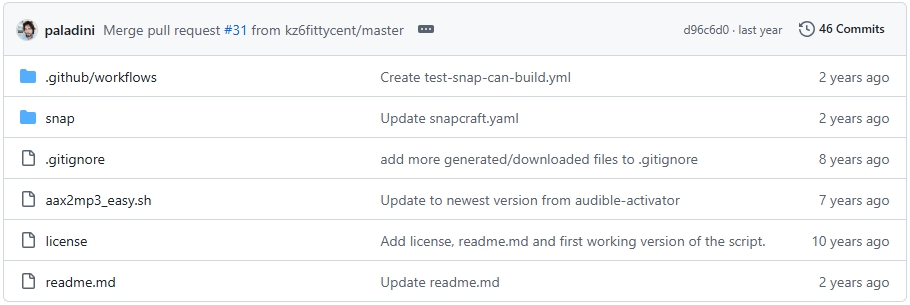
Step 1. Open your terminal and clone the repository, then make the script executable.
wget https://github.com/paladini/aax2mp3-easy/archive/master.zip
unzip master.zip
cd aax2mp3-easy-master/
chmod +x aax2mp3_easy.sh
Step 2. Run the script by passing your Audible account credentials and the target .aax file path:
./aax2mp3_easy.sh your_email@example.com YourPassword /path/to/audiobook.aax
Step 3. Wait to complete the process of converting Audible audiobook files to MP3.
Step 4. Once converted, open the Audiobooks/ directory located inside the aax2mp3-easy folder to find your converted MP3 file.
😀 Pros
- Zero cost or feature restrictions
- Need to manually parse log files
- Highly automatic process
☹️ Cons
- No graphical user interface
- Mainly built for Linux and macOS
- Potential login breakage
No.7 FFmpeg
| Compatibility: Windows, macOS, Linux | Software License: Free | Recommendation: ⭐⭐ |
|---|
FFmpeg is a leading, free, open-source multimedia framework designed to handle audio, video, and subtitle processing. Powered by a collection of libraries and command-line tools, FFmpeg allows users to decode, encode, transcode, filter, stream, and play almost any media format ever created. It serves as the underlying audio processing engine for thousands of popular software applications, including VLC, Audacity, HandBrake, and YouTube's backend infrastructure.
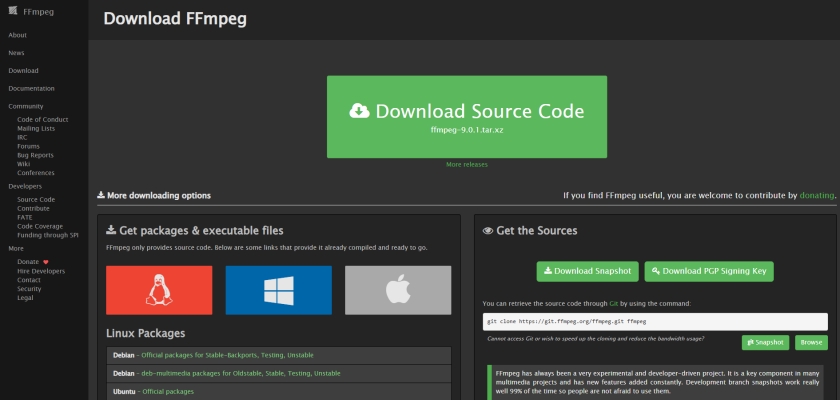
Step 1. Visit the official website at ffmpeg.org and install FFmpeg.
Step 2. Open your terminal or Command Prompt and run ffmpeg -version.
Step 3. Get the checksum of the AAX file by running the following command.
ffprobe.exe input_file.aax
Step 4. Based on checksum, calculate activation_bytes with rcrack.
Step 5. Enter the following command to convert Audible audiobooks to MP3.
ffmpeg.exe -activation_bytes 02...09 -i input_file.aax -c copy output_file.mp4
😀 Pros
- Zero cost, ads, or usage limits
- Compatible with multiple platforms
- Support batch conversion
- Extremely resource efficient
☹️ Cons
- No built-in GUI
- Steep learning curve
- Complex error messages
Part 3. Best Commercial & Professional Audible Converters
While open-source utilities offer fantastic free functionality, commercial and professional Audible converters cater to users looking for a plug-and-play experience. Designed with sleek interfaces and streamlined workflows, these paid applications eliminate complex setup steps and technical configurations. Below, we review the top professional Audible converters on the market.
No.1 TunesMake Audible Converter
| Compatibility: Windows, macOS, Linux | Software License: $10.95 | Recommendation: ⭐⭐⭐⭐⭐ |
|---|
TunesMake Audible Converter is a paid audio converting tool designed to decrypt and convert Audible audiobooks from AAX and AA formats into widely-supported audio formats such as MP3, FLAC, WAV, AIFF, M4A, and M4B. It allows users to download purchased audiobooks and podcasts to local storage, removing DRM restrictions so content can be played on non-Audible supported devices, MP3 players, and custom media servers.
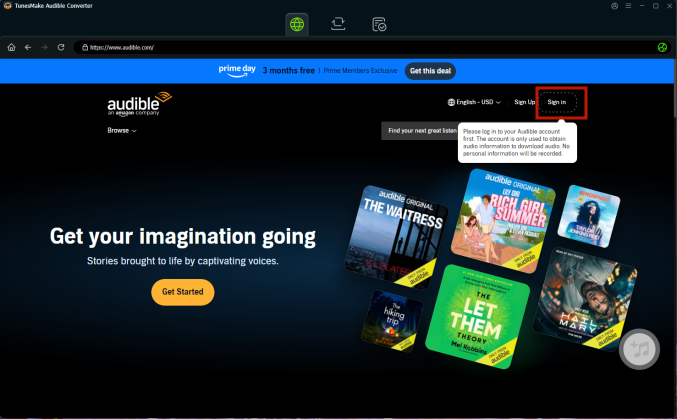
Step 1. Download and install from the official TunesMake website.
Step 2. Launch TunesMake and log into with your Audible account credentials.
Step 3. Go to Library and add your purchased audiobooks to the conversion list.
Step 4. Click the Settings menu and select the Preferences option from the drop-down menu.
Step 5. In the settings window, select your preferred output format.
Step 6. Go back to the main interface and click the Convert button to start processing.
😀 Pros
- User-friendly interface for all users
- Support wide formats like MP3 and FLAC
- Available for both Windows and macOS systems
- Keep chapter markers intact and original sound
- Offer many features like ID3 tag editor and audio player
☹️ Cons
- Not free for use
- Need to log into an Audible account
No.2 Epubor Audible Converter
| Compatibility: Windows, macOS | Software License: $29.99 | Recommendation: ⭐⭐⭐⭐ |
|---|
Epubor Audible Converter is a straightforward user interface that supports drag-and-drop conversion as well as direct Audible account syncing. It can convert Audible AAX and AA audiobooks into open formats such as MP3, M4B, and MP4. Featuring built-in Audible account synchronization, it allows users to download and decrypt their legally purchased audiobook libraries directly for playing on non-Amazon MP3 players or alternative media players.
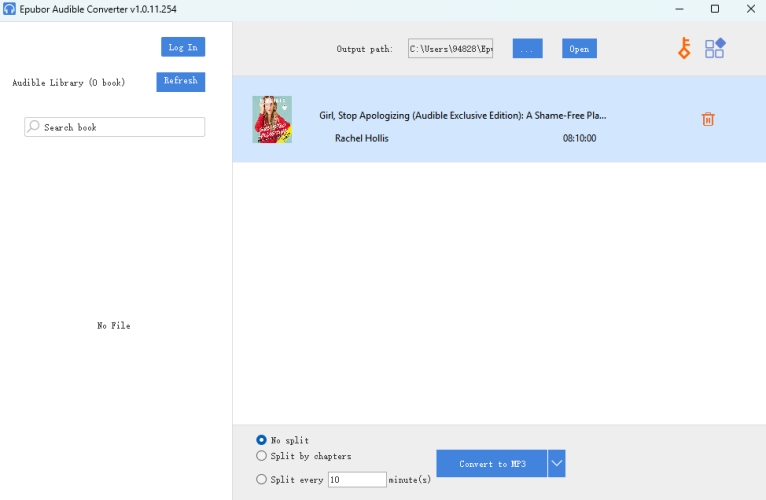
Step 1. Go to download and install Epubor Audible Converter.
Step 2. Open it, then directly drag and drop your Audible audiobook files.
Step 3. Click the Convert button to start the conversion process.
😀 Pros
- Extremely easy to use
- Direct Audible integration
- Fast batch conversion
- Keep internal chapters
☹️ Cons
- Paid commercial license
- Limited output format
No.3 Any Audible Converter
| Compatibility: Windows | Software License: $44.95 | Recommendation: ⭐⭐⭐⭐ |
|---|
Any Audible Converter is a dedicated Audible audiobook converter developed by Anvsoft, helping users to convert Audible AAX and AA audiobook into unprotected formats such as MP3, M4B, M4A, FLAC, WAV, and OGG. It enables listeners to back up their purchased Audible collections locally and enjoy them across any media player, smart speakers, or offline car stereo without format and device restrictions.
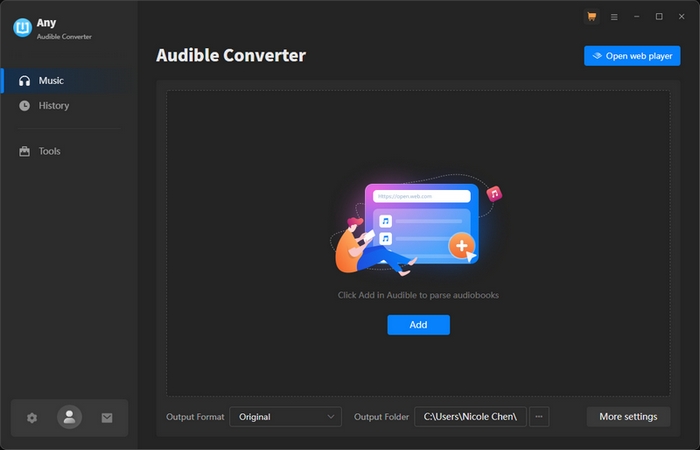
Step 1. Download the installer from the official Anvsoft website.
Step 2. Complete the installation and run it on your computer.
Step 3. Click Add Files to browse and select your downloaded Audible audiobook files.
Step 4. Click the Settings gear icon in the top right corner.
Step 5. Select your target Output Format and set your desired output audio quality.
Step 6. Return to the main screen and click the Convert button.
😀 Pros
- Drag-and-drop interface suitable for beginners
- Broad output format variety
- Lossless audio quality
- Retain internal M4B chapters
☹️ Cons
- A bit expensive to buy a license
- Lack mobile apps
No.4 OpenAudible
| Compatibility: Windows, macOS, Linux | Software License: $21.95 | Recommendation: ⭐⭐⭐ |
|---|
OpenAudibl is a cross-platform Audible library converter and manager that can download, back up, organize, and convert Audible audiobooks. Available for Windows, macOS, and Linux, OpenAudible connects directly to your Audible account to aggregate your purchased audiobooks into a central catalog. It allows users to remove DRM restrictions and export audiobooks into standard audio formats like MP4, M4B, and M4A for playback on any device.
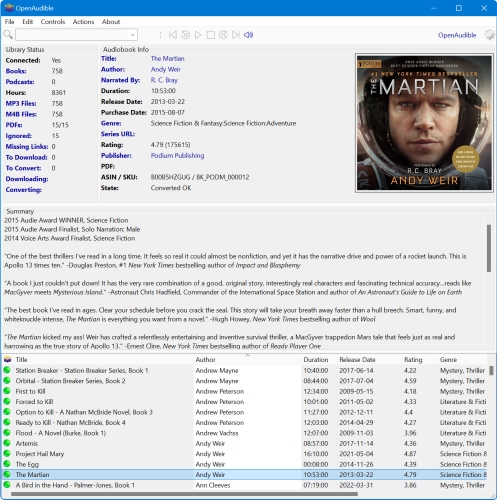
Step 1. Visit the official website at openaudible.org and install OpenAudible.
Step 2. Navigate to Controls > Connect to Audible in the main menu bar.
Step 3. Select your Audible region from the dropdown menu.
Step 4. Complete the secure login prompt inside the built-in browser window to link your library.
Step 5. Click Sync to pull your complete Audible purchase history.
Step 6. Select an audiobook from the library and click Download to pull the source files locally.
Step 7. Select the audiobook you wish to convert in the main table.
Step 8. Click Convert to MP3 or Convert to M4B to start the conversion.
😀 Pros
- Full Audible library management
- Cross-platform support
- Clean and intuitive interface
☹️ Cons
- Paid license for conversion
- Not have many features
No.5 BookFab Audible Converter
| Compatibility: Windows, macOS | Software License: $49.99 | Recommendation: ⭐⭐⭐ |
|---|
BookFab Audible Converter is a commercial Audible AAX to MP3 converter optimized for heavy batch conversion tasks. It can decrypt and convert Audible audiobooks into DRM-free audio formats like M4A, MP3, FLAC, and OPUS. Featuring an integrated in-app browser and a multi-codec engine, BookFab allows users to download purchased Audible audiobooks directly and export them for playback anywhere.
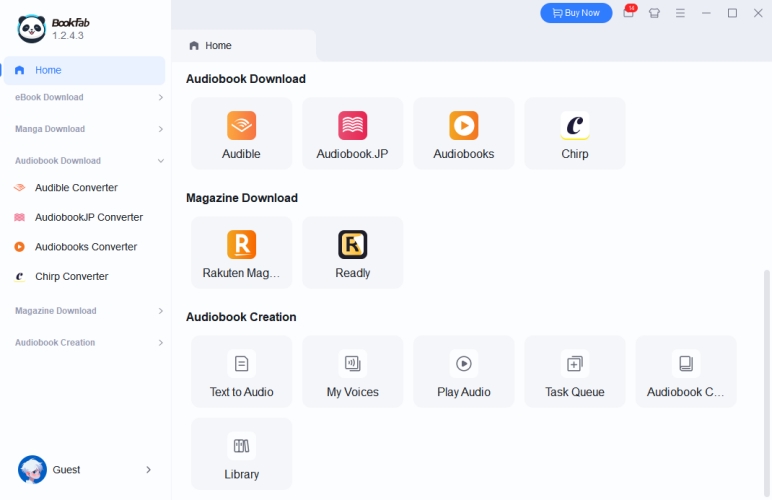
Step 1. Download and install BookFab Audible Converter, then run it.
Step 2. Select the Audible Converter module from the main software menu.
Step 3. Choose your Audible regional marketplace.
Step 4. Use the integrated browser window to sign into your Audible account.
Step 5. Navigate to your library inside the built-in browser.
Step 6. Click on the audiobook detail page you want to convert.
Step 7. Open Settings panel to select your target output format and chapter splitting preferences.
Step 8. Click Download to add titles to your queue.
😀 Pros
- Preserve internal chapters
- Integrated browser download
- Diverse format choices
- Clean task management
☹️ Cons
- Paid commercial software
- Require higher storage
- Need Audible account credentials
Part 4. Frequently Asked Questions about Audible Converter
Is it legal to convert Audible audiobooks for personal backup?
In many regions, creating a backup copy of media you legally purchased for personal, non-commercial use falls under fair use principles. However, redistributing or sharing converted audio files is illegal. Always verify local copyright regulations.
Do free Audible converters retain chapter markers?
Yes. Tools like Libation Audible Converter and AAX Audio Converter preserve original chapter markers when converting to M4B format. If you choose to convert Audible audiobooks to MP3, those free Audible converters may not be able to retain internal chapters.
Why do commercial software trials limit conversion length?
Most commercial trial versions cap output length to allow users to verify speed, sound quality, and system compatibility before purchasing a full license.
Part 5. Conclusion
Converting your Audible catalog into DRM-free formats is the most effective way to protect your audiobook purchases, ensure multi-device playback, and build a permanent local media archive. Whether you prefer a free, open-source setup like Libation or a polished commercial app like TunesMake Audible Converter, extracting your audiobooks into standard M4B or MP3 files gives you complete ownership over your personal library.
Related Articles

A professional writer at TunesMake, crafts in-depth tutorials, practical tips and expert advice focusing on streaming music, technology, and more.
- 1
- 2
- 3
- 4
- 5
- 6
- 7
 Leave Your Comment
(0)
Leave Your Comment
(0)

 Download Center

