








 Store
Store


Smart speakers are only as good as the music pumping through them. If you are a Deezer user, integrating your account with your Google Home ecosystem is one of the best ways to enjoy hands-free, high-fidelity audio. Whether you want to blast your personalized "Flow" playlist while cooking or stream high-quality FLAC audio in your living room, setting up this connection is quick and seamless. Here is exactly how to add Deezer to Google Home for playing, along with how to fix Deezer not working on Google Home.
Part 1. Is Deezer Compatible with Google Home?
Yes, Deezer is compatible with Google Home and Google Nest devices. You can connect your accounts and control your Deezer music using voice commands. Here are a few important things to know if you want to use Google Home with Deezer.
-
Subscription Requirement: You generally need a paid subscription like Deezer Premium or Deezer Family to use voice commands via Google Assistant. Deezer Free users cannot control playback via voice commands but can still stream music to the speaker.
-
Regional Availability: The direct iGoogle Home integration for Deezer is supported in specific countries, including the United States, United Kingdom, Canada, Australia, France, Germany, Italy, Spain, and Mexico.
-
Audio Quality: If you have a compatible Google Home device and a paid Deezer tier, you can stream high-fidelity FLAC audio.
Part 2. How to Add Deezer to Google Home (3-Minute Setup)
Ready to connect your Deezer music? Follow these simple, step-by-step instructions to link your Deezer account directly to your Google Home ecosystem.
Step 1 Open Your Google Home App
Launch the Google Home app on your mobile device. Ensure your phone or tablet is connected to the exact same Wi-Fi network as your Google Nest speaker.
Step 2 Navigate to Music Services
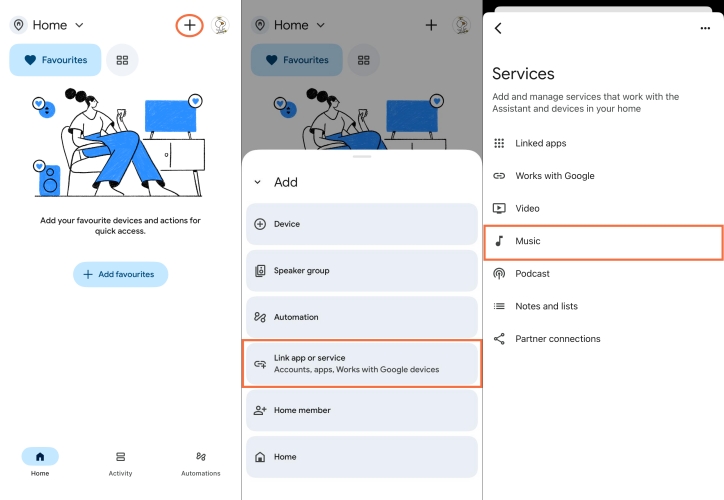
Depending on your app's layout version, tap the + icon in the top right corner or tap Settings, then scroll down and select Music under the Services sub-menu.
Step 3 Select and Link Deezer
Scroll through the list of available music providers until you see Deezer. Tap the Link icon right next to Deezer to connect your account.
Step 4 Authorize Your Account
A pop-up window will ask you to confirm. Tap Link Account. You will be redirected to a login page. Enter your credentials and tap Log In to authorize Google Assistant to access your music profile.
How to Set Deezer as Your Default Music Service
By default, Google Assistant might still try to look for music on other platforms like YouTube Music or Spotify. To avoid having to say "...on Deezer" at the end of every single voice command, you need to set Deezer as your default music provider.
Step 1. Go back to the Music menu inside your Google Home app.
Step 2. Look at your linked services and tap the radio button next to Deezer to set it as your primary provider.
Now, whenever you request a song, artist, or genre, your Google Home speaker will automatically pull it straight from Deezer.
Useful Google Assistant Commands for Deezer
Once your account is successfully linked, your voice becomes the remote control. Because Deezer premium streams in high-quality audio formats, you can experience crisp sound completely hands-free. Try out these essential voice commands.
General Playback
-
"Hey Google, play my Flow."
-
"Hey Google, play some rock music."
-
"Hey Google, play [Artist Name] or [Album Name]."
Advanced Control & Interaction
-
"Hey Google, shuffle this playlist."
-
"Hey Google, skip this song."
-
"Hey Google, who is singing?"
-
"Hey Google, I like this song."
Part 3. Alternative Ways to Play Deezer on Google Home
Are you using a Deezer Free account? Don't worry! You don't have to miss out on using your smart speaker. While you cannot use the Google Assistant voice linking method described above, you have two excellent backup options.
Option 1. Use a Music Converter for Local Playback
If you want to completely bypass streaming restrictions and account errors, using a tool like TunesMake Deezer Music Converter can be highly effective. This tool allows you to download your favorite Deezer tracks, playlists, or albums locally onto your computer into universal formats like MP3 or FLAC. Once saved, you can easily cast these local audio files straight to your Google Home using Google Chrome or play them through your computer speakers.

Streaming Audio Converter -
Download music from Deezer as FLAC Formats
- Download tracks, albums, playlists, and artists from Deezer
- Convert Deezer music to MP3, M4A, FLAC, AIFF, WAV, and M4B
- Preserve the original audio quality and ID3 tags for management
- Remove DRM from Deezer without compressing audio quality
- Support downloading music from over 10 popular streaming platforms
Security Verified. 100% Clean & Safe.
Step 1 Run TunesMake and Log Into Deezer
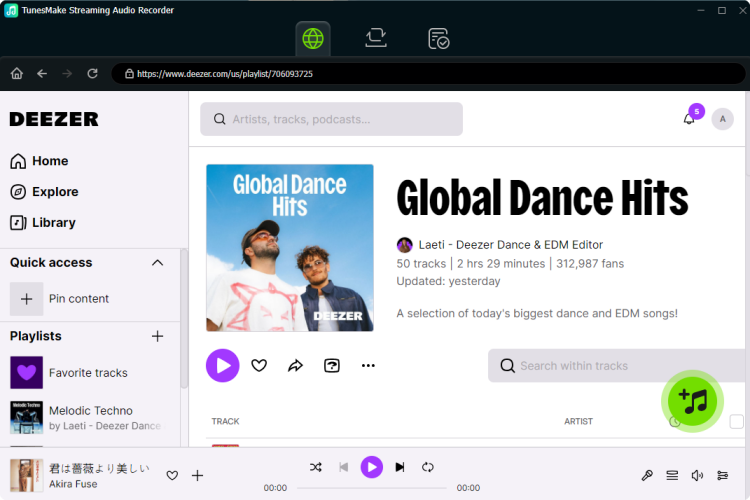
Launch TunesMake Streaming Audio Recorder on your computer, and select Deezer from the main interface. Then you will be redirected to the built-in Deezer web player. Here you need to enter your Deezer account and password to log into. Now go to select the music track or playlist you want to download and click the + button to add them to the conversion list.
Step 2 Set up the Output Audio Parameters
For better audio quality, you can set the output parameters by clicking the Settings button and switching to the Conversion tab. Now you can set the output format, bit rate, sample rate, and channel. TunesMake supports the output formats, including MP3, AIFF, M4A, M4B, WAV, and FLAC. You can choose one that is compatible with your Google Home speaker.

Step 3 Download and Convert Deezer Music
After that, go to the Converting tab at the top of the software and then click the Convert button at the bottom right corner. TunesMake will immediately download Deezer music tracks and save them as your required format files. Once downloaded, you can click the History tab at the left column and browse all the downloaded music files.

Step 4 Cast Local Deezer Music to Google Home
Now you can cast your local Deezer music files through the Chrome browser to your Google Home speaker. Simply open the Google Chrome browser, click the three dots in the top right corner, and select Cast. Then select your Google Home speaker. After linking your speaker, open your Deezer music files to play and they will play through your speaker.
Option 2. Use Bluetooth Pairing for Playing Deezer
Alternatively, you can use your Google Home speaker as a direct wireless player. By pairing via Bluetooth, you can stream Deezer free to your Google Home speaker even though you lose the ability to use native voice commands like "Hey Google, play my Flow."
Step 1. Stand near your smart speaker and say: "Hey Google, pair Bluetooth."
Step 2. Your speaker will enter pairing mode and its lights will blink.
Step 3. Open the Settings menu on your smartphone or computer and go to Bluetooth.
Step 4. Select your Google Home speaker from the list of available devices.
Step 5. Open your Deezer app and press play on any song or playlist. The audio will stream perfectly through your speaker.
Part 4. Solutions to Deezer Not Working on Google Home
In the process of playing Deezer on Google Home, you may come across the issue of Deezer not working on Google Home. For example, you found that your voice command is not available for Google Home when asking it to play Deezer music. In fact, there is no official answer to the issue. Don't be upset! You can try the following solutions to fix the issue with Deezer and Google Home.
Solution 1. Power Cycle Your Google Home Speaker: Unplug your Google Home speaker from the wall outlet, wait approximately 60 seconds, and plug it back in to force a fresh local system reboot. Then try playing music from Deezer on your Google Home.
Solution 2. Unlink and Relink Your Account: Open the Google Home app and navigate to Settings > Music. Select your Deezer account and tap Unlink. Quit the app, reopen it, return to the music settings, and select Deezer to re-enter your login credentials.
Solution 3. Set Deezer as Default: To make sure Google always defaults to Deezer without you having to say "on Deezer" at the end of every sentence, select the radio button next to Deezer in your Music settings to set it as your primary provider.
Solution 4. Verify Wi-Fi Configuration: Confirm that both your mobile device running the Deezer app and the Google Home speaker are actively connected to the exact same Wi-Fi network and frequency band.
Solution 5. Check Linked Devices: The limitation of Deezer only allows you to use a Deezer account on several devices at the same time. If you have linked your Deezer account to multiple devices, try to remove your Deezer account from other devices.
Solution 6. Clear the Cache on Deezer: When you listen to music in Deezer for a long time, there will be lots of cache files. To solve the issue with Deezer and Google Home, you can clear the cache in Deezer on your mobile device.
Part 5. Conclusion
After reading the whole post, you have known how to play Deezer on Google Home in three ways. If you have a Premium account, you can directly access Deezer's catalog on your Google Home using Google Voice Assistant. Or with a Free account, you can use TunesMake Deezer Music Converter or Bluetooth to stream Deezer free to your Google Home speaker.
Related Articles

A senior editor from TunesMake, dedicated to sharing professional tutorials and solutions of software, movies, and music.
- 1
- 2
- 3
- 4
- 5
- 6
- 7
 Leave Your Comment
(0)
Leave Your Comment
(0)

 Download Center

