








 Store
Store


As Spotify has established a cooperation with Google Home, there is a chance for you to link your Spotify account to Google Home for playing music and podcasts. Once adding Spotify to Google Home, you will be able to control your favorite music from Spotify on Google Home and Google Nest. In this post, we will walk you through how to connect Spotify to Google Home and play your favorite music. Also, you’ll find some tips about using Spotify with Google Home.
Part 1. How to Link Spotify to Google Home
It’s easy to connect Spotify to Google Home for playing music and podcasts. Whether you have a free Spotify account or subscribe to any Spotify Premium plan, you can set up Spotify on your Google Home. But there are some differences. With a Spotify Premium account, you can play content on demand through Google Home. If you don’t have a Spotify Premium account, you’ll get a station of songs inspired by the song, album, artist, or personal playlists you asked for. To link Spotify to Google Home, just follow the steps below and begin to cast Spotify to Google Home.
Step 1. Make sure your mobile device is connected to the same WiFi as your Google Home speaker.
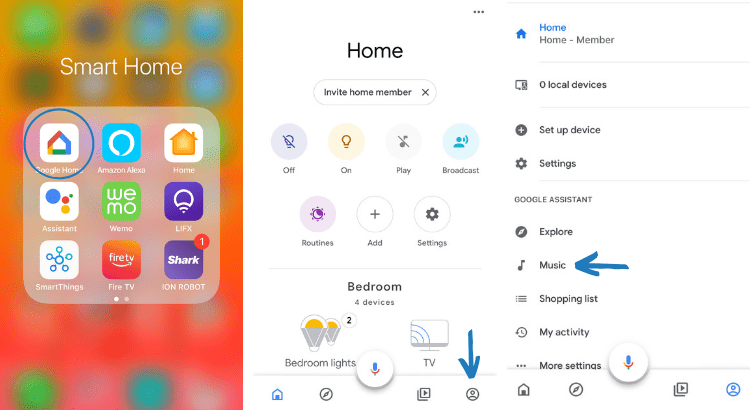
Step 2. Open the Google Home app on your device and tap Account in the top-right.
Step 3. Verify that the Google Account shown is the one linked to your Google Home speaker.
Step 4. Go back to the home screen, tap Settings at the bottom right corner, then select Music.
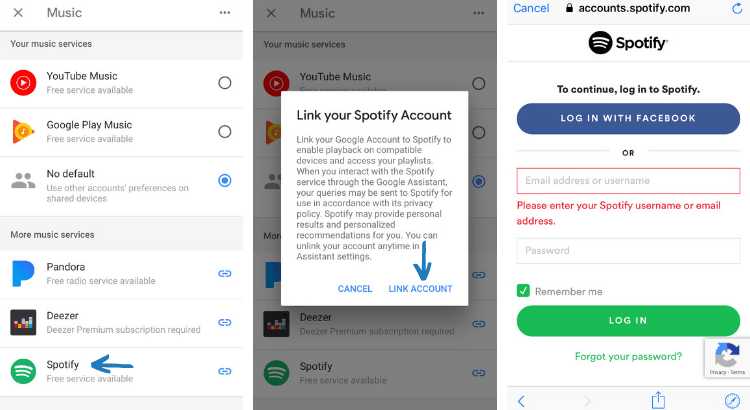
Step 5. Select Spotify and tap Link Account, then confirm to link your Spotify account by tapping OK.
Step 6. Read the terms and conditions, then tap Agree to complete the connection.
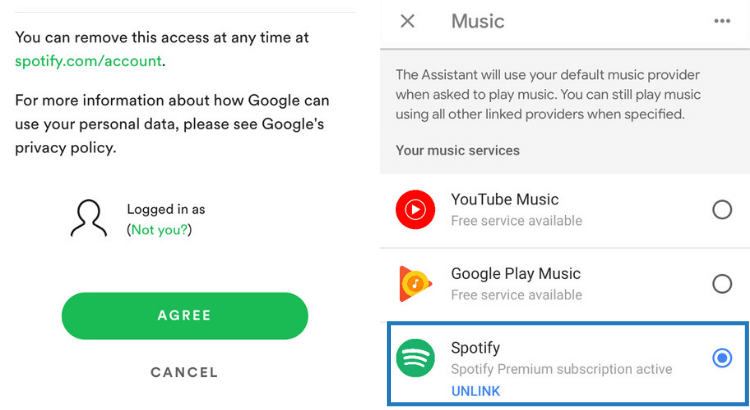
Once you’ve linked your Spotify account to Google Home, you can ask it to play your favorite music and playlists through Google Home. Now you can control the playback of Spotify on Google Home using voice commands. Just say “Hey Google,” and then
“Play my Discover Weekly on Spotify.”
“Turn up the volume on Spotify.”
“Play some rock music on Spotify.”
“Pause this song on Spotify.”
Part 2. Best Alternative to Play Spotify on Google Home Unlimitedly
With the above steps, you can cast Spotify to Google Home from your mobile device with ease. However, sometimes, you may encounter some problems, such as Spotify not working on Google Home or Spotify not connecting to Google Home when you try playing Spotify on Google Home. For this reason, we explore another way to help you listen to Spotify across all Google smart devices without connecting to Spotify. That is to download your Spotify playlists to local files, so that they can be saved forever and transferred to other media players and devices for unlimited playback, including Google Home.
To do so, you will need the assistance of a dedicated tool - TunesMake Spotify Music Converter. It is a professional and versatile music downloader designed for both Spotify Free and Premium users, helping you to download your favorite songs, playlists, albums, and podcasts to diverse audio formats, such as MP3, M4A, M4B, WAV, FLAC, and AIFF. The whole download process won’t cause any quality loss. Once done, you can listen to Spotify music on any device or through any media player anytime, even without an internet connection.

TunesMake Spotify Music Converter –
Best Spotify to Google Home Downloader
- Unlimitedly download Spotify songs, playlists, and podcasts
- Losslessly convert Spotify music to MP3, FLAC, WAV, AIFF, etc.
- Remove ads from Spotify music tracks even with Free accounts
- Convert Spotify songs at 12X faster speed with ID3 tags kept
Security Verified. 100% Clean & Safe.
Step 1
Select Your Favorite Tunes on Spotify

Launch TunesMake Spotify Music Converter and it will automatically load Spotify on the interface. Then, you can navigate to your music library and select the playlist you like. After that, click the Add icon > Add to List. Therefore, all included songs will be loaded to TunesMake’s conversion list successfully.
Step 2
Set up the Output Parameter for Spotify

Next, go to set the output audio parameter by clicking the Menu bar > Preferences. In the Conversion window, you can choose the output format as MP3 or the other five audio formats. For better audio quality, you need to continue to adjust the bit rate, sample rate, and channel. Remember to save the settings by clicking OK.
Step 3
Download Spotify Music to Your Computer

To download Spotify music, you just need to click the Convert button and the playlist will start to download, but keep in mind that it may take a little while depending on the size of the playlist and the speed of your internet connection. Once saved, the playlist will be accessible from your computer. Just click the top Converted icon and you can see them.
Step 4
Stream Spotify from YouTube Music on Google Home
Now all the music tracks you required have been converted to a playable format compatible with YouTube Music. And you can upload those converted Spotify music files to YouTube Music and start to play them on your Google Home. You can then listen to Spotify music you request on your Google Home without connecting your Spotify account.
Part 3. Other Tips about Adding Spotify to Google Home
In addition to playing Spotify music on Google Home, you can create a more organized and personalized smart home with Google Home. Here are some tips about using Spotify with Google Home. Continue to read and find some useful tips for using Spotify on Google Home.
3.1 How to Add Multiple Spotify Accounts to Google Home
Google Home is configured for multiple users, so you can add multiple Spotify accounts to Google Home. This can help in sharing music and enjoying personalized music tastes. Here you can use Google Voice Match to add more Google accounts to your device, then you can link to more Spotify accounts.
3.2 How to Make Spotify Default Music Player on Google Home
As Google Home is compatible with several streaming music services, you can set Spotify as the default music player. Then you don’t have to say “on Spotify” at the end of your voice commands when you ask Google Play to play your liked music in Spotify. Here’s how to set Spotify as default music player on Google Home manually.
Step 1. Tap Settings at the bottom right corner of the Google Home app.
Step 2. Select Music and proceed to set Spotify as the default music player for your Google Home.
3.3 How to Disconnect Spotify from Google Home
When your Google Home is connected to multiple Spotify accounts, you can remove others’ Spotify accounts from Google Home. Or if you want to switch to another Spotify account, you have to disconnect your current Spotify account. The following are the steps to get it done.
Step 1. In the Google Home app, tap Settings > Music.
Step 2. Under Music, find Spotify and tap Unlink.
3.4 How to Fix Spotify Not Connecting to Google Home

I select my Google Nest speaker in the connected devices. The speaker plays the “connected” chime sound however Spotify sits at connecting and the music doesn’t play on the speaker. Does anyone know of a permanent fix?”
— From the community of SpotifySolution 1. Reboot your Google Home speaker. If your Spotify is constantly not connected to your Google Home speaker, you can power off your speaker and restart it.
Solution 2. Check the network connection on your Google Home speaker. Make sure that your Google Home speaker is under the same network as your device.
Solution 3. Factory reset your Google Home speaker. Performing a factory reset on your Google Home can troubleshoot errors and glitches.
Solution 4. Update both the Google Home and Spotify app. When your Google Home app and Spotify are not updated to the latest version, you can download and install the latest version.
Solution 5. Perform a clean reinstall of Spotify. You can go to delete the Spotify app on your device, then try to reinstall the Spotify app again.
Part 4. Summary
To initiate the playback of Spotify on Google Home, you just need to follow the above steps. You can control your Spotify music on Google Home using your voice – and you even don’t need the premium version of the music service. If you want to freely listen to Spotify on your Google Home, TunesMake Spotify Music Converter could be a good option for you.
Related Articles


A senior editor from TunesMake, dedicated to sharing professional tutorials and solutions of software, movies, and music.
- 1
- 2
- 3
- 4
- 5
- 6
- 7
 Leave Your Comment
(0)
Leave Your Comment
(0)

 Download Center

