








 Store
Store


As the world’s largest open audio platform, SoundCloud offers millions of underground tracks, DJ mixes, and more audio content. If you want to create the ultimate audio experience, one of the best options is to combine SoundCloud with the high-fidelity sound of a Sonos system. Do you want to know how to get the SoundCloud Sonos integration but have no idea how to do so? No worries. This post gets your back. We will break down how to play SoundCloud on Sonos. You can learn the best three methods to clear your mind of all worries. Plus, you can find the ultimate way to enjoy your favorite SoundCloud songs on Sonos and other devices without limits. Without further ado, let’s explore them together.

Part 1. How to Add SoundCloud on Sonos [Official Way]
With regard to playing SoundCloud on Sonos, the most common and straightforward method is adding SoundCloud as a music service within the Sonos app. This official integration allows you to find new music, listen to your liked songs/playlists, and search tracks directly from the Sonos controller. Also, you can control playback across multiple rooms from one central hub. The whole process takes just a few minutes and works flawlessly on both mobile and desktop devices.
On iOS or Android:
Step 1. Open the Sonos app installed on your iOS or Android device.
Step 2. Then, visit the Settings page. Select Services & Voice.
Step 3. Under the Music & Content section, you should tap the Add a Service option.
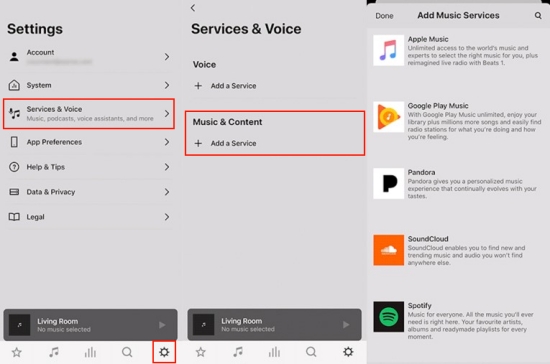
Step 4. After that, you can select SoundCloud from all the available services. Tap Add to Sonos.
Step 5. Next, you can follow the on-screen instructions to log in to your SoundCloud account and begin streaming the music you like.
On Mac or PC:
Step 1. Launch the Sonos app on your desktop.
Step 2. Then, hover over the Select a Music Source section and click the Add Music Services.
Step 3. When all the available music services are listed, you can choose SoundCloud.
Step 4. Then, you can sign in to your SoundCloud account and follow the on-screen instructions for authorization.
Step 5. Once added, you can easily play your favorite songs and playlists for streaming on Sonos.
Part 2. How to Listen to SoundCloud with Sonos Wirelessly
Except for the official method, you can connect SoundCloud to Sonos via a wireless connection, like AirPlay and Bluetooth. This is especially helpful for users who prefer using the SoundCloud app interface and having the original user experience. Plus, streaming SoundCloud from your mobile phone directly is often a much smoother experience.
Option 1. Utilize Apple AirPlay
Step 1. Go to the SoundCloud app on your iPhone or iPad and play any track you like.
Step 2. Then, swipe down from the top right corner of your screen to access Control Center.
Step 3. In the audio widget section, you need to find and tap the AirPlay icon. Next, select your compatible Sonos speaker from the available devices.
Step 4. Once done, your music will instantly stream to your Sonos speaker.
Option 2. Utilize Bluetooth
Step 1. If your Sonos model supports Bluetooth, you can press and hold the Bluetooth button on the back of it to enable the Bluetooth feature.
Step 2. When you hear the pairing chime, you can open Bluetooth on your mobile phone and pair it to your Sonos speaker.
Step 3. Once done, open the SoundCloud app and begin playing your favorite song, which will be played through your wireless speaker.
Part 3. How to Play SoundCloud on Sonos Offline Unlimitedly
While streaming SoundCloud music on Sonos is convenient, you may experience unexpected network drops, especially when you play high-quality audio. Also, some tracks may be restricted by region or suddenly become unavailable due to licensing changes. In these cases, downloading and playing your SoundCloud songs locally is the ultimate solution. However, if you want to download SoundCloud songs to local music files, you will need a professional tool - TunesMake Streaming Audio Recorder.
TunesMake Streaming Audio Recorder is a robust tool that can help you remove the DRM protection of SoundCloud songs and convert them into universally playable formats, including MP3, M4A, M4B, WAV, FLAC, and AIFF. After converting, you can save your favorite music tunes to local files, which can be uploaded to your Sonos device for unlimited offline playback. The best thing about the TunesMake tool is that it smartly retains original sound quality and ID3 tags to ensure your listening experience. If you wish, you can even set the output audio parameters to have a personalized music experience.

Streaming Audio Recorder –
Best SoundCloud to Sonos Downloader
- Unlimitedly download streaming music songs, playlists, and podcasts
- Losslessly convert streaming music to MP3, M4A, M4B, WAV, FLAC, and AIFF
- Remove DRM protection from many streaming music platforms
- Convert streaming songs with original sound quality and ID3 tags kept
Security Verified. 100% Clean & Safe.
Step 1
Change the Audio Output Settings
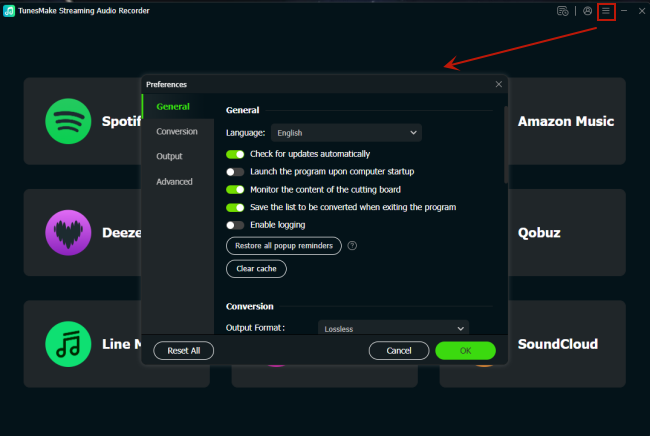
Click the Free Download button above, and the TunesMake Streaming Audio Recorder can be installed on your desktop. Launch it, and then you can set the output settings by clicking the top Menu icon. Then, choose Preferences > Conversion. In this tab, you need to select one output format. MP3 is recommended due to its wide compatibility. You can also change other settings, like channel, bit rate, sample rate, and so on. When you finish, you should click the OK button to save your changes.
Step 2
Sign in to Your SoundCloud Account
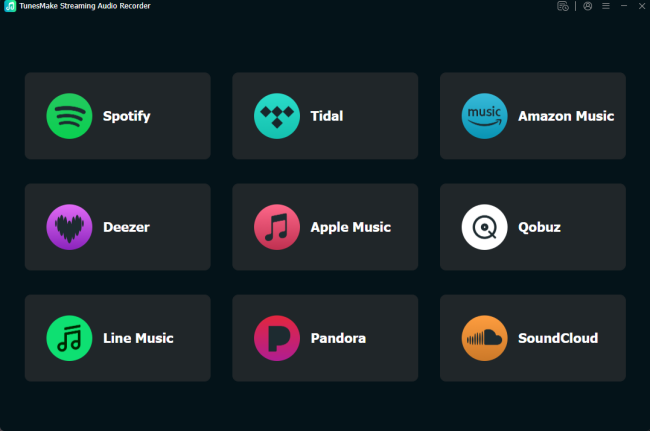
Now, go back to the interface of the TunesMake tool. Click the SoundCloud icon and head to the official SoundCloud web player. Here, you should enter your account credentials.
Step 3
Find and Load Your Target SoundCloud Songs
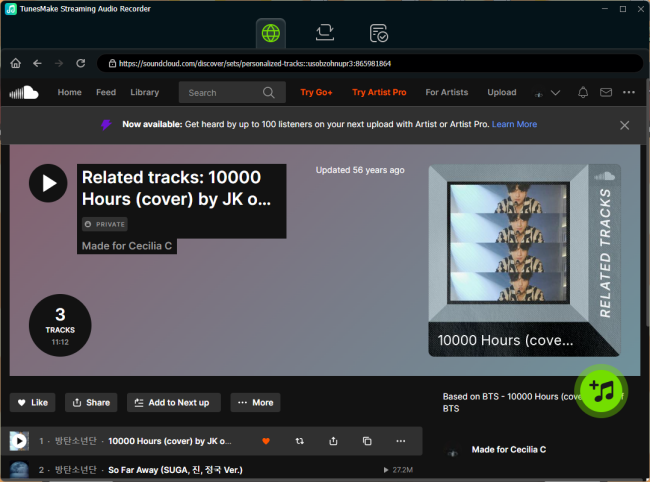
The next step is to find your target SoundCloud content. Just select the playlist or album you want to enjoy on your Sonos speaker. Then, choose the lower Add icon > Add to List. Thus, all the songs will be loaded to the conversion list successfully.
Step 4
Download and Convert SoundCloud Content Locally
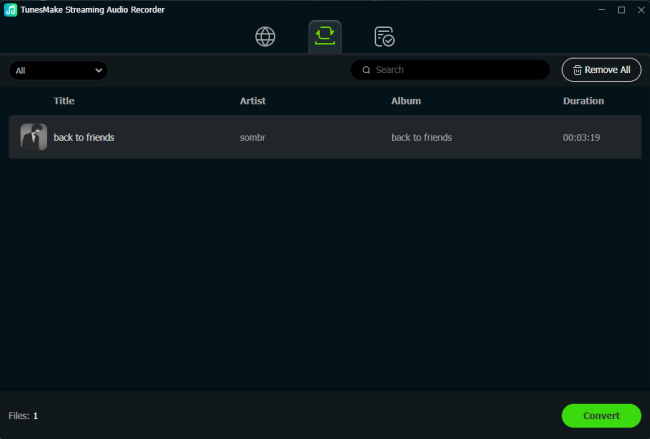
When you are ready, you can begin downloading these SoundCloud songs via the Convert button. Thanks to its fast conversion speed, you can get all the local music files in no time. When the process is finished, you can browse all the local files by clicking the top Converted icon.
Step 5
Upload SoundCloud Files to Sonos for Offline Playback
Now that you have the SoundCloud local files, you can add them to your Sonos music library via its desktop app. Once done, you can play the SoundCloud tunes on your Sonos device without limits.
Part 4. FAQs about SoundCloud Sonos
Can I use a free SoundCloud account on Sonos?
Yes, you can. Free accounts are compatible with the official SoundCloud Sonos integration. However, you may experience occasional ads. Also, some Premium tracks may not be accessible.
Is SoundCloud Go+ available worldwide on Sonos?
No, the Go+ premium integration is geo-restricted. It is currently only available to users located in specific regions like the US, New Zealand, Canada, France, Germany, and Australia.
Why are some of my liked tracks missing?
If you find that some of your SoundCloud songs are missing after connecting, you should first check the regional restrictions. Because the artist may have restricted the track in your current region. You can also try to fix this issue by removing the SoundCloud service and re-adding it to Sonos again. This refreshes the API token and fixes most sync issues.
Conclusion
How to play SoundCloud on Sonos? This post offers all the fantastic way to give your assistance. You can add SoundCloud to Sonos as the music service or connect SoundCloud to Sonos wirelessly via AirPlay or Bluetooth. But if you want full control and unlimited playback, the best solution is downloading SoundCloud content to local files via the TunesMake Streaming Audio Recorder and playing them on Sonos without limits.
Related Articles



A senior editor from TunesMake, dedicated to sharing professional tutorials and solutions of software, movies, and music.
- 1
- 2
- 3
- 4
- 5
- 6
- 7
 Leave Your Comment
(0)
Leave Your Comment
(0)

 Download Center

