








 Store
Store


Music consumption has changed a lot since the rise of streaming music services. There are diverse music streaming platforms in the market. They have different functional focuses, so it’s quite normal to switch between different platforms. For example, if you have been using SoundCloud for a while, you probably want to change to experience other music platforms, such as Spotify. In this case, the most essential thing is how to deal with your carefully curated playlists. If you have the same concern about how to transfer SoundCloud playlist to Spotify, you are in the right place. In this full guide, we will break down three easy-to-use yet efficient methods that help you transfer your SoundCloud playlists without hassles, no matter what device you are using.

Method 1. Transfer SoundCloud Playlist to Spotify via Web Sync
Web-based synchronization services are the most common and popular way for moving playlists from SoundCloud to Spotify. This method is highly convenient for users with mainstream tastes and who don’t want to install additional apps. However, you should know that this method inevitably skips some tracks due to catalog differences.
-
😀 Pros
- Easy to use
- Don’t require installation
- Compatible with multiple platforms
-
☹️ Cons
- Some songs may be lost during transfer
- Limited transfer for free users
- Require account authorization
- Metadata mismatches can occur
Option 1. TuneMyMusic
If you are looking for a quick transfer, TuneMyMusic is one of the most popular choices due to its official partnerships with several streaming giants. Its clear interface and easy operation steps make it a great starting point. You can access it in almost all browser apps on your device.
Step 1. Open any browser on your device and visit the TuneMyMusic website. Then, click Let’s start.

Step 2. You should now select SoundCloud as the source. Click the SoundCloud option from all the music services.
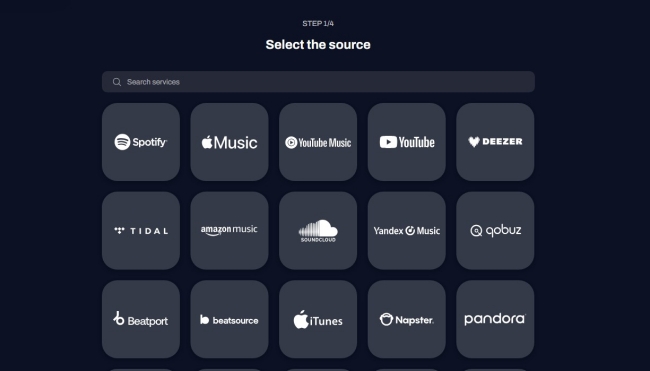
Step 3. When it prompts, you need to enter your account credentials for authorization.
Step 4. After that, you can select Spotify as the destination and log in to your Spotify account as well.
Step 5. Next, you need to select the target playlists and start the transfer.
Option 2. Soundiiz
Another web-based tool designed for playlist transfer and management is Soundiiz. It is also a great choice for transferring playlists from SoundCloud to Spotify. Plus, it is suitable for users who need advanced music library management, such as merging playlists.
Step 1. First of all, you should visit the Soundiiz SoundCloud to Spotify web and click the Start for free button.

Step 2. Then, you need to sign in to your Soundiiz account. If you don’t have one, you should create a new account first.
Step 3. Now, you will be led to the interface. If it prompts a new window, you should click the Connect SoundCloud and Connect Spotify buttons to sign in to these platforms, respectively.
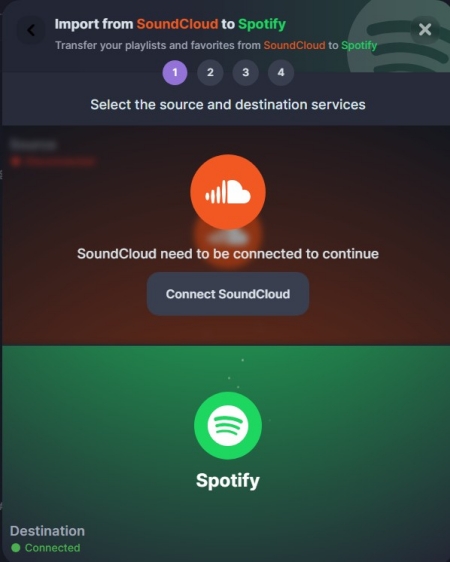
Step 4. Once finished, click the Start button in the middle.
Step 5. Next, you can click the little pen icon under the Playlists section to choose the playlists you want to transfer. After selecting, click Confirm my selection.
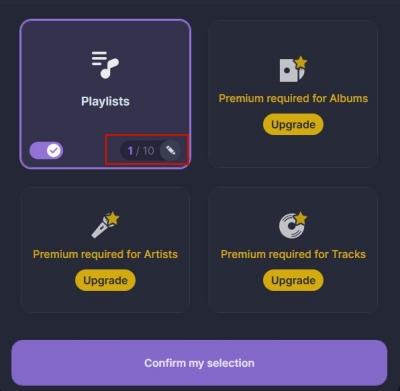
Step 6. Click Confirm to begin the transfer process.
Method 2. Download Songs from SoundCloud to Spotify [No Songs Lost]
Online transfer tools offer a convenient approach to transferring your playlists across devices. However, you should know that these tools work by searching for and adding songs to your playlist on the new platform. If you have a library full of underground DJ sets, mashups, or unreleased indie tracks, online tools will leave you empty-handed. To make sure you can keep your carefully curated music 100% on any platform, downloading it locally is the ultimate solution. To do so, you will need the help of a dedicated SoundCloud music downloader - TunesMake Streaming Audio Recorder.
TunesMake Streaming Audio Recorder is the best choice for music lovers who want to keep their playlists and play them anywhere. With its decryption technology, you can easily download and convert SoundCloud songs, playlists, albums, and even podcasts to normal audio formats, such as MP3, M4A, M4B, WAV, FLAC, and AIFF. What’s more, this software captures the original, high-quality audio directly from your computer, bypassing all catalog restrictions. After downloading, you can easily upload your local SoundCloud music files to Spotify for unlimited playback. It guarantees that every single song makes the jump.
-
😀 Pros
- Zero song loss
- Permanent music ownership
- Support multiple music platforms
- Supports diverse audio formats
- Allows you to personalize the output settings
- Offline playback support
- Lossless audio quality
- Full ID3 tags retention
-
☹️ Cons
- Limited features for the free version

Streaming Audio Recorder –
Download SoundCloud Playlists Locally for Transfer
- Unlimitedly download streaming music songs, playlists, and podcasts
- Losslessly convert streaming music to MP3, M4A, M4B, WAV, FLAC, and AIFF
- Remove DRM protection from many streaming music platforms
- Convert streaming songs with original sound quality and ID3 tags kept
Security Verified. 100% Clean & Safe.
Step 1
Configure the Audio Settings
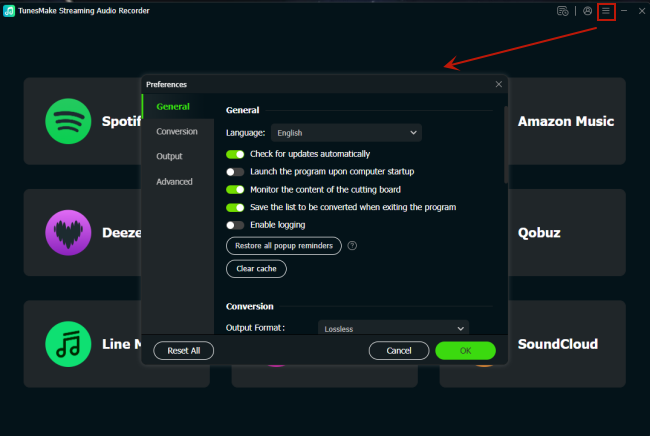
TunesMake Streaming Audio Recorder allows you to personalize all audio settings according to your demands. After installing and launching this software, click the top Menu icon and select Preferences. In the settings window, switch to the Conversion tab and select one output format you like. For better audio quality, you can choose FLAC. You can also change other parameters if you need, including channel, bit rate, sample rate, and more. When you finish, don’t forget to click OK so that your changes can be saved.
Step 2
Visit SoundCloud and Sign in to Your Account
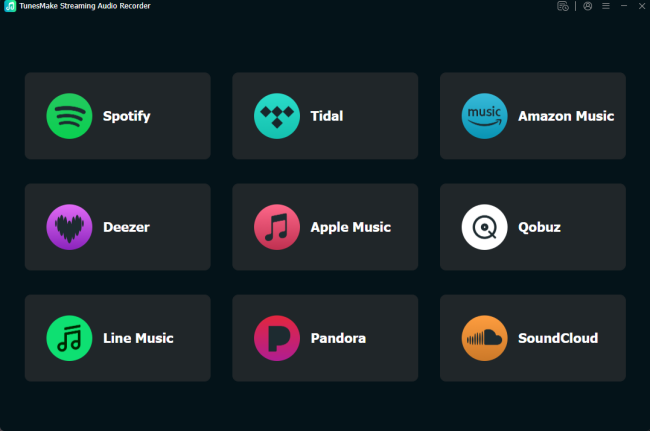
Go back to the interface of the TunesMake software. Here, you should click the SoundCloud icon. Then, you will be led to the official SoundCloud web player. Simply sign in to your account.
Step 3
Browse SoundCloud Library to Find Target Playlists
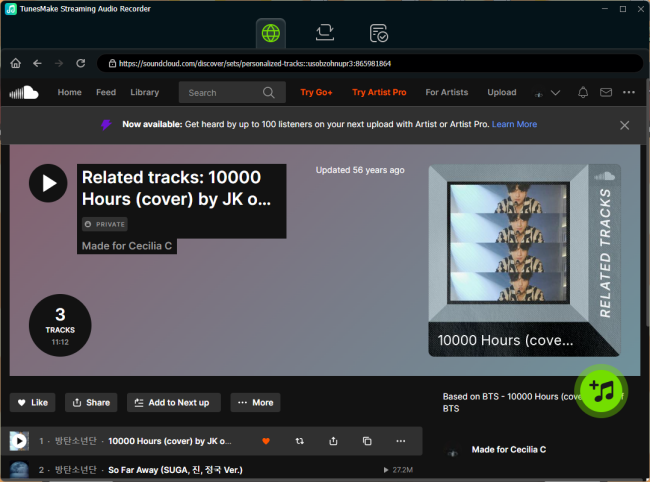
Now, you can browse the SoundCloud music library to find the playlists you want to transfer to Spotify. Select the playlist and click the lower-corner Add icon. Then, the TunesMake software will analyze this playlist automatically and list all its songs. You can then load all the songs to the conversion list by clicking the Add to List 0ption. You can repeat this step until you add all your playlists.
Step 4
Download SoundCloud Playlists for Transferring
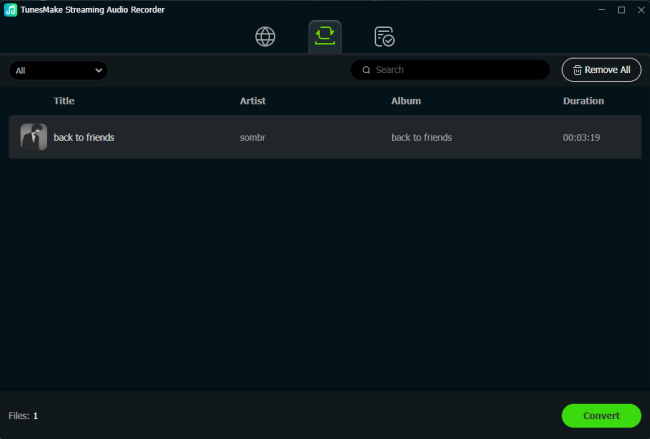
Now everything is ready. The last step is to click the Convert button to begin downloading your SoundCloud songs to local files. The TunesMake tool works at a 22X fast speed, so you just need to wait for a while. When it is finished, you can find them by clicking the top Converted icon. To ensure their exact location on your local folder, click the folder icon next to each song.
Step 5
Transfer Downloaded SoundCloud Playlists to Spotify
Now that you have your comprehensive offline backup, integrating it into your Spotify library is a breeze. Spotify's desktop application allows you to import your files seamlessly.
1. Launch the Spotify app installed on your computer and head to the Settings section by clicking your profile icon.
2. Scroll down to find the Local Files section. Toggle on the Show Local Files button.
3. Click the Add a Source button. Then, you can select the folder on your computer where you saved the downloaded SoundCloud playlists.
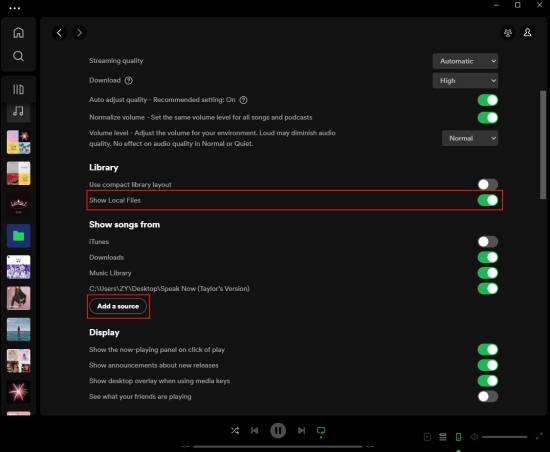
4. Once done, you can navigate to your library and enjoy these SoundCloud songs in the Local Files folder.
Method 3. Get SoundCloud to Spotify Transfer via Mobile App
Some users prefer managing their music collection on a mobile phone. Is there a method to transfer SoundCloud playlists to Spotify on an iPhone or Android phone directly? Luckily, the answer is yes. There are some apps designed for quick transfers without a computer. You can find these tools on the application store on your mobile phone.
Option 1. Upload Downloaded SoundCloud Playlists to Spotify on Phone
If you have already downloaded your SoundCloud songs via the TunesMake Streaming Audio Recorder, you can upload them to your Spotify library on your mobile phone directly.
Step 1. Sync your downloaded SoundCloud playlists from your computer to your mobile phone via a compatible USB cable.
Step 2. Then, open the Spotify app on your phone and go to the Settings and privacy section.
Step 3. Find and tap Apps and devices > Local audio files.
Step 4. Then, go back to your music library. All the local SoundCloud files are now in Local Files.
Option 2. Transfer Playlists from SoundCloud to Spotify via FreeYourMusic
For users who want flexibility and convenience, there are some available transfer apps that can be used on both iOS and Android devices. FreeYourMusic is one of the most popular ones. This cross-platform app can handle large migrations from one music platform to another. It even offers a Smart Sync feature, which can automatically update your Spotify playlist whenever you add a new song on SoundCloud.
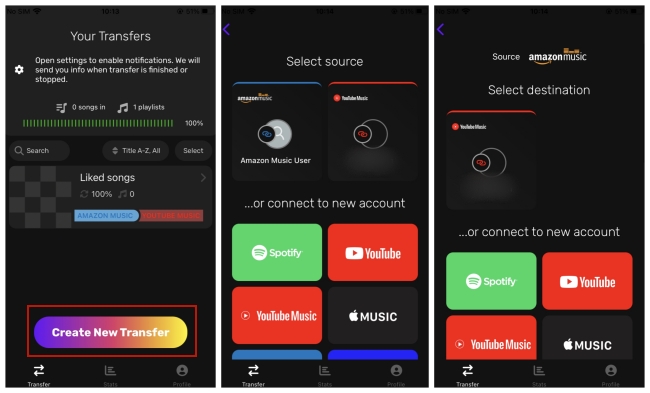
Step 1. Install and open the FreeYourMusic app on your iPhone or Android phone. Tap Create New Transfer on the interface.
Step 2. Then, you can select SoundCloud as the source and Spotify as the destination. Log in to your music accounts on these two platforms.
Step 3. Once done, select the playlists you want to transfer.
Step 4. Click the BEGIN button and the transfer begins automatically.
FAQs about SoundCloud to Spotify
Can I transfer playlists for free?
Yes, most online transfer tools are free of charge, but many of them has playlist size restrictions. So, if you have a large library and want to transfer your playlists without losing any tracks, the best approach is to download your playlists locally via the TunesMake Streaming Audio Recorder.
Will I lose audio quality when transferring my playlist?
This basically depends on what tool you use. If you use a web sync tool, the quality depends entirely on Spotify's streaming bitrate settings. But with a SoundCloud music downloader, like TunesMake Streaming Audio Recorder, you can preserve the original quality.
Why are some tracks missing after transferring?
This is because of the catalog differences between SoundCloud and Spotify. In short, these tracks are not available on Spotify. If you still want to listen to them on Spotify, the solution is to download them via a dedicated SoundCloud music downloader and then upload them to the Spotify app for streaming.
Is it possible to sync playlists automatically?
Yes, some tools like Soundiiz and FreeYourMusic offer the automatic synchronization feature. After enabling it, every time you add a track to your SoundCloud playlist, it will eventually appear on your Spotify playlist. Just notice that this feature is often available for Premium users only.
Conclusion
Many users are still bothered by the problem of how to transfer SoundCloud playlist to Spotify. No worries. Through the three effective methods above, you can get a rapid and effortless migration without much effort. If your library consists mostly of mainstream hits, automated web services like TuneMyMusic and Soundiiz offer convenient transfer. However, if your playlists are packed with exclusive remixes, using a reliable music downloader - TunesMake Streaming Audio Recorder is the only way to guarantee a complete transfer.
Related Articles





A senior editor from TunesMake, dedicated to sharing professional tutorials and solutions of software, movies, and music.
- 1
- 2
- 3
- 4
- 5
- 6
- 7
 Leave Your Comment
(0)
Leave Your Comment
(0)

 Download Center

