








 Store
Store


PowerPoint is by far the best presentation software for group training, corporate meetings, and industry talks. It allows users to embed music and video into multiple slides, enhancing the viewer’s experience and concentration. Fortunately, the market is awash with plenty of streaming music services, and Spotify stands out as a giant with a vast collection of tracks from every genre, making it a perfect resource for finding the right music for your presentation. So, can you add Spotify music to PowerPoint? Yes! Here we will tell you how to add music to PowerPoint from Spotify.
Part 1. Can You Add Music from Spotify to a PowerPoint?
The short answer is yes. There are many available methods allows you to stream Spotify music in the background during your presentation. But how it reaches depends on two questions - how much control you want over the playback and whether you will have a stable Internet connection.
If you have a stable Internet connection and don’t mind controlling the music playback manually, you can directly insert the music link into your slides and stream it by clicking its link. But if you are in a place that doesn’t have a network connection, or you want the music to play in the background automatically, inserting Spotify songs as local audio files should be your choice.
| Method | Best For | Offline Support | Seamless Flow |
|---|---|---|---|
| Local Audio | Professional events, weddings | Yes | Maximum |
| Hyperlink | Quick setup, casual talks | No | High |
Part 2. How to Add Spotify Music to PowerPoint (Professional& Offline)
For professional presenters, relying on a venue's Wi-Fi is a high-risk move. The best approach to ensure a seamless and uninterrupted music playback is to add Spotify tunes to PPT using local files. By having the Spotify local audio files directly on your computer, you barely encounter issues like buffering, login prompts, and the 404 not found error. What’s more, this method ensures music can play automatically across slides with zero latency.
However, we all know that Spotify applies encryption to its music, making it impossible to play or store Spotify content on other platforms, even if you have downloaded the music. This is where a dedicated Spotify music converter becomes helpful. Here, we’d like to recommend a popular and professional tool - TunesMake Spotify Music Converter.

TunesMake Spotify Music Converter –
Best Spotify to PowerPoint Downloader
- Unlimitedly download Spotify songs, playlists, and podcasts
- Losslessly convert Spotify music to MP3, FLAC, WAV, AIFF, etc.
- Remove ads from Spotify music tracks even with Free accounts
- Convert Spotify songs at 12X faster speed with ID3 tags kept
Security Verified. 100% Clean & Safe.
2.1 Download Spotify Songs as Local Audio Files
TunesMake Spotify Music Converter is designed for all Spotify users, helping you download and convert music from Spotify to universal audio formats, such as MP3, M4A, M4B, WAV, FLAC, and AIFF. The best thing is that there is no quality loss during the conversion process. Besides, the TunesMake software allows you to set the audio settings, so you can have a personalized music experience. With this tool, you can easily convert Spotify songs, playlists, or albums to unprotected audio files and freely add them to PowerPoint on your device.
Note
Before diving into the official conversion, you should figure out what audio formats are PowerPoint-supported.
| Spotify | PowerPoint (Windows) | PowerPoint (Mac) | |
|---|---|---|---|
| Supported Audio Formats | Ogg Vorbis | AAC, MP3, WAV | AIFF, AU, MP3, WAV, AAC, MP2, AA, AAX, M4A, M4R, AC3 |
Step 1
Add Spotify Songs to TunesMake Software
Install and launch TunesMake Spotify Music Converter on your computer, then the Spotify web player will be opened automatically. Now you can browse Spotify to find your target tracks. You can drag and drop the song to the lower Add icon directly. If you need to download multiple songs at once, you should select a playlist or album, and then choose the Add icon > Add to List. Therefore, all the songs will be loaded to the conversion list.

Step 2
Configure the Output Audio Preferences
Once you have added your target Spotify songs, it’s now time to specify the output audio parameters. Go to the menu bar, choose the Preferences option, and switch to the Conversion tab. In this window, you can select the output format you need. Also, you can change other parameters like output quality, channel, bit rate, sample rate, and so on. When you finish, don’t forget to save your changes by clicking OK.

Step 3
Start to Download Spotify Songs to Local Files
Confirm that you have the right preferences, then click the Convert button at the bottom right corner. TunesMake software will begin to download and convert Spotify music to a playable audio format. To find the converted music, click the Converted icon, then go to the history conversion list on the converter.

2.2 Add Music to PowerPoint from Spotify
After conversion, you can now freely add music to PowerPoint from Spotify as background music.
Step 1. In PowerPoint, click File > Open to open a presentation to add the background music.
Step 2. Switch to the Insert tab and click the Audio button to choose Audio on My PC.
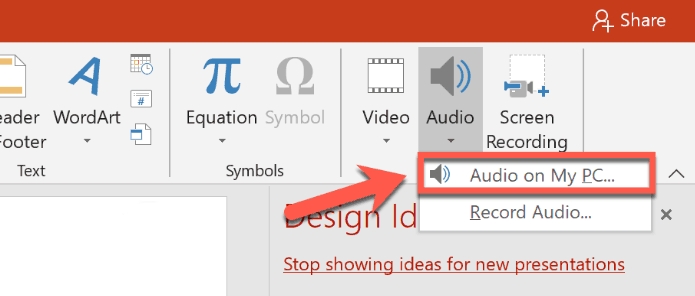
Step 3. In the Insert Audio dialog box, browse and select the audio file you want to add.
Step 4. Click the Insert button to set Spotify music as background music.
Part 3. How to Embed Spotify Song in PowerPoint (Fastest & Online)
TunesMake Spotify Music Converter offers full control over your Spotify tunes, enabling you to add Spotify music to PowerPoint with ease and play it even if you don’t have a network. But if you are looking for a quick method and don’t mind relying on the Internet, embedding a Spotify link is the fastest way. This method doesn’t require any third-party tools, but you will need to manually click the link when you reach the slide. Besides, you will often be prompted to log in if you haven't recently authenticated your browser on that specific machine.
Step 1
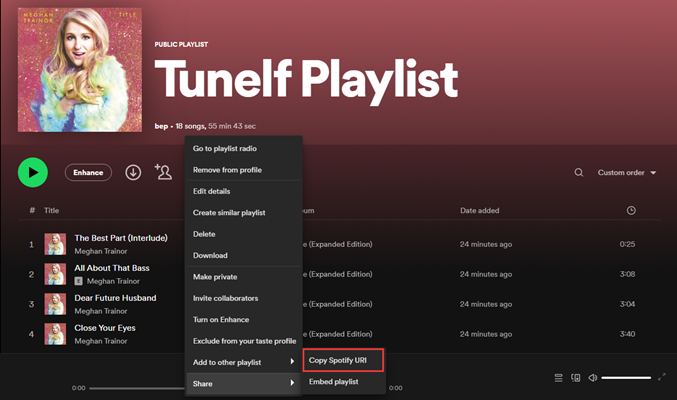
Copy the Song Link
Navigate to Spotify or open the desktop version of Spotify on your computer. Then search for the song you want to add and right-click the song to select Copy Song Link.
Step 2
Create a Button Shape
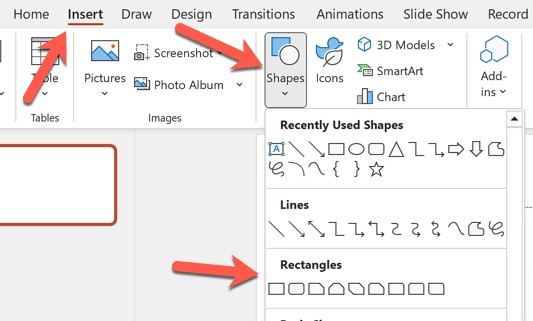
Open PowerPoint and go to the slide where you want to add the music. Proceed to click Insert > Shapes and select a button shape like an oval or rectangle.
Step 3
Choose to Add Hyperlink
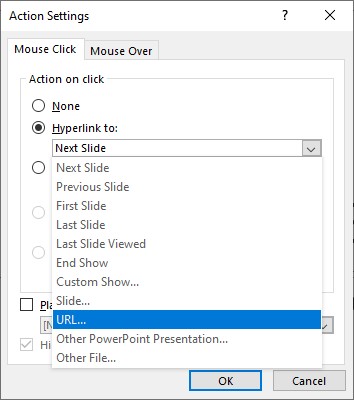
Place the shape on the slide to show the play button, then click Hyperlink. In the Action Settings dialog box, tick the Hyperlink to box and select URL from the drop-down menu.
Step 4
Embed into PowerPoint
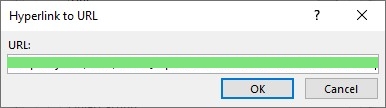
In the Hyperlink to URL dialog box, paste the Spotify music link, then click the OK button to create the hyperlink. Now you can click the Play button to ensure that you have added it successfully.
Part 4. FAQs about Adding Spotify Music to PowerPoint
Is it legal to use Spotify music in a PowerPoint?
It depends how you use it. For personal or educational use, it is generally acceptable. However, for public or commercial use may require proper licensing. It’s better to check copyright guidelines if your presentation is shared publicly.
Can I play Spotify music across all slides?
Yes. It is possible when you add Spotify music to your slides as local audio. Thus, you will need to convert your Spotify tracks locally via the TunesMake Spotify Music Converter first. Then, you can head to the Playback tab on PowerPoint and enable Play Across Slides.
Why is my Spotify link not opening during the presentation?
This happens usually for these reasons: there is no Internet connection, the browser opens behind the PowerPoint show, and you need to find it manually, or Spotify requires you to log in to the web player before it allows playback.
How to play Spotify music in PowerPoint automatically?
You can get Spotify music to play automatically on PowerPoint when a certain slide appears during a slide show. But this feature only works well for adding Spotify local music files to PowerPoint. Simply click the audio icon on the slide, then go to the Playback tab. Continue to click Automatically in the Start list.
Part 6. Conclusion
Presentations don’t have to be boring anymore. Embedding Spotify music into a PowerPoint presentation has been made easy with this guide. Your presentation will definitely get value after adding Spotify music to PowerPoint. If you are on the verge of an important presentation, look no further than incorporating the recommended tool. TunesMake software lets you scale high by enabling you to add background music for an engaging and entertaining piece. Now you’ll drag along your favorite Spotify tracks to that much-awaited presentation for optimum quality.
Related Articles



A senior editor from TunesMake, dedicated to sharing professional tutorials and solutions of software, movies, and music.
- 1
- 2
- 3
- 4
- 5
- 6
- 7
 Leave Your Comment
(0)
Leave Your Comment
(0)

 Download Center

