








 Store
Store


Finding the perfect song can completely change the vibe of your video edits. If you use Spotify to discover music, you have likely wanted to pull your favorite tracks straight into your video timeline. While there isn't direct connection between the apps, you can easily use your playlist favorites with the right workflow. This ultimate guide will break down how to add music to CapCut from Spotify on both desktop and mobile platforms seamlessly.
Part 1. Can You Add Spotify Music to CapCut?
No, you cannot add music from Spotify to CapCut directly. If you have tried searching for a Spotify plugin inside CapCut, you have probably noticed it doesn't exist. This comes down to two main factors: Digital Rights Management (DRM) and file formats.
-
DRM Protection: Spotify is a streaming service. The music you download for offline listening is encrypted so it can only play inside the official Spotify app.
-
Format Incompatibility: Spotify streams music using the protect OGG Vorbis format. CapCut, on the other hand, requires standard local audio files like MP3, WAV, FLAC, AAC, or WMA.
To get your soundtrack working, you must first convert your selected Spotify tracks into an unprotected MP3 file on your local storage before importing them into your video timeline.
Part 2. How to Download Spotify Music for CapCut
Before opening CapCut to add music on your device, you need to prepare your audio files. You can use a reputable third-party music converter like TunesMake Spotify Music Converter to download and convert your playlist safely.
2.1 Tool for Converting Spotify Music to CapCut Supported Formats
Tools like TunesMake Spotify Music Converter solve this core compatibility issue by letting you add Spotify tracks, playlists, or albums into the conversion list. It decodes the encrypted the stream and outputs standard local files like MP3 or WAV while preserving the original ID3 tags and audio quality, making it a viable solution for preparing your video background tracks.

TunesMake Spotify Music Converter –
Download music from Spotify without premium
- Download Spotify songs, albums, playlists, audiobooks, and podcasts
- Losslessly convert Spotify music to MP3, FLAC, WAV, AIFF, and more
- Remove ads from Spotify music tracks even with a Free account
- Convert Spotify music at 15× faster speed in batch with ID3 tags kept
Security Verified. 100% Clean & Safe.
2.2 Steps to Download and Convert Spotify Music as Local Files
With the help of TunesMake Spotify Music Converter, you can download and convert Spotify music to MP3 and other audio formats that are compatible with CapCut. Once done, there is nothing easier than using Spotify music on CapCut as the background music of your video. Go to install TunesMake Spotify Music Converter, then follow the steps below to save music files locally.
Step 1 Select Spotify Songs to Download

Fire up TunesMake Spotify Music Converter on your computer, then it will automatically load the built-in Spotify web player. Go to select songs you want from Spotify and add them to the conversion list. As with adding to the conversion list, you can directly click the + button.
Step 2 Set Audio Parameters for Spotify

Click the menu tab, select the Preferences option, and a window will pop up. Here you can select MP3 or other CapCut supported audio formats from the drop-down menu. If you are looking to provide the best audio for your streams, you could set the bit rate, sample rate, and channel.
Step 3 Download Spotify Music as Local Files

Go back to the main home of the converter and click the Convert button located at the bottom right corner of the interface. It will immediately download and convert your preferred songs. To browse the converted songs, you can click the Converted icon next to the Convert button.
Part 3. How to Add Music to CapCut from Spotify
Once your Spotify music files are saved locally on your computer, bring them into your video project is incredibly straightforward.
Method 1. Add Spotify Music to CapCut on Desktop (Windows & Mac)
If you prefer editing on a larger screen, the CapCut desktop app makes managing local media assets effortless. Here is how to import music to CapCut from Spotify on a Windows PC or Mac.
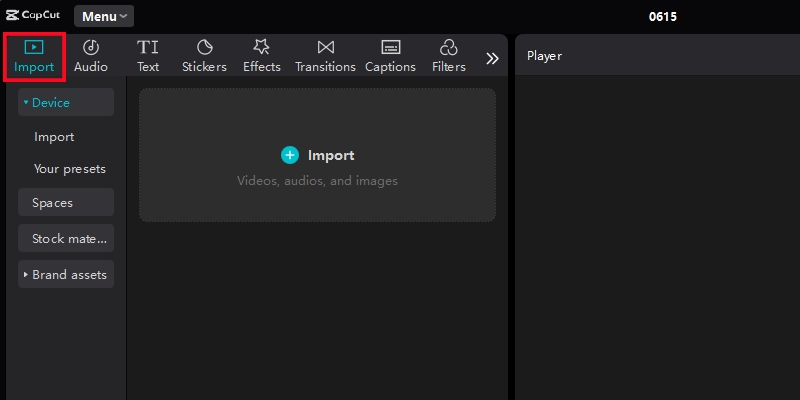
Step 1. Open CapCut and start a new project or open an existing one.
Step 2. In the top-left media panel, ensure you are on the Import tab and click Device.
Step 3. Click the + Import icon.
Step 4. Navigate to the folder where you saved your converted MP3 file, select it, and click open.
Step 5. Drag and drop the audio file from the media asset window down into your video editing timeline.
Method 2. Add Spotify Music to CapCut on Mobile (iOS & Android)
For creators editing on the go, you will need to transfer the converted Spotify MP3 file to your iPhone's storage using iTunes or your Android's storage using a USB cable. Here is how to add music to CapCut from Spotify on iPhone or Android phones.
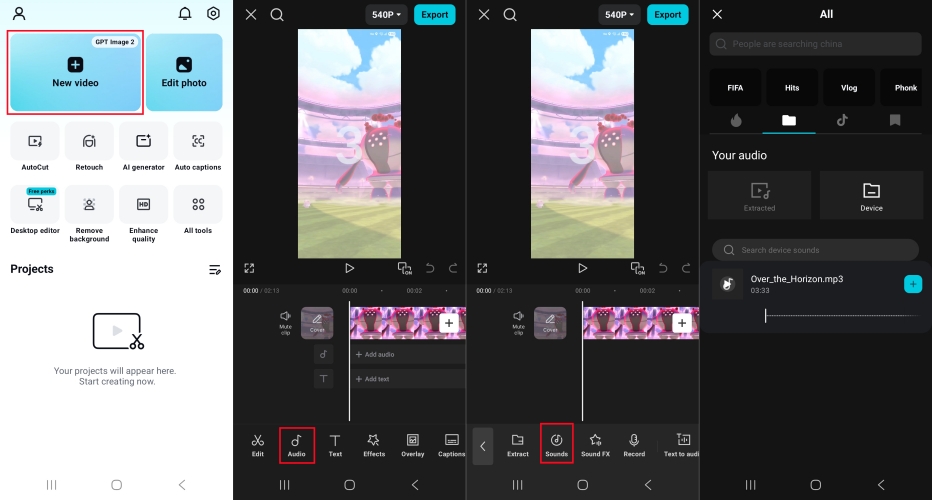
Step 1. Open CapCut and tap on your project.
Step 2. Tap the Audio menu icon on the bottom toolbar, then select Sounds.
Step 3. Tap the Folder icon next to the search bar.
Step 4. Select the From Device option to see all compatible audio files stored locally.
Step 5. Find your track, tap the + icon next to it, and it will snap perfectly into your timeline.
Part 4. Conclusion
The issue of adding Spotify music to CapCut has been solved by TunesMake Spotify Music Converter. With the help of TunesMake Spotify Music Converter, you can easily save Spotify music to a playable format like MP3 or WAV. Then you can freely add music from Spotify to video in CapCut without limits. Also, you can add Spotify music to Instagram videos using CapCut.
Related Articles





A senior editor from TunesMake, dedicated to sharing professional tutorials and solutions of software, movies, and music.
- 1
- 2
- 3
- 4
- 5
- 6
- 7
 Leave Your Comment
(0)
Leave Your Comment
(0)

 Download Center

