








 Store
Store


I just spotted something about a limit of 10,000 tracks offline. Is this true? And if so, can you explain why? I realize as you need to resync updated tracks for all sorts of reasons, if someone has thousands of tracks offline then they could be resyncing forever – but I have sort of got into the habit of offline ever since the problems we had with BT throttling Spotify.”
– From Spotify CommunityIt’s great having a streaming service for music discovery at this point, and Spotify is one of the great services for you to access music from around the world. Although Spotify offers millions of music tracks and multiple features to ensure your music enjoyment, it’s not perfect. Users have been complaining about the Spotify download limit for over 10 years. Once you hit the download limit, you can’t download any more songs for offline listening. If you run into this restriction, don’t worry. This comprehensive post will help you understand why it happens and how to bypass it. With the useful solutions in this post, you can keep your favorite Spotify songs available anytime, anywhere. Keep reading to unblock the unlimited access to your Spotify music.
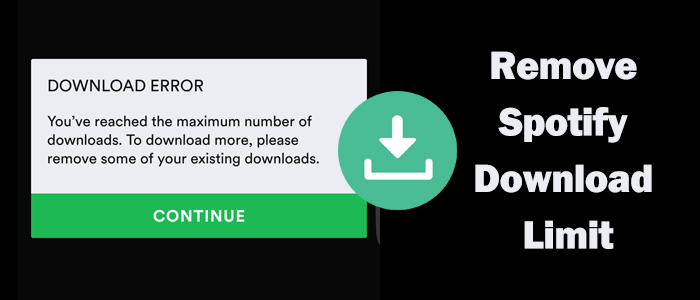
Part 1. What is Spotify Download Limit?
It is basic knowledge that Spotify allows Premium subscribers to download music tracks for offline playback. However, there are some limitations with this downloading feature. It’s essential to figure out the download limit details, especially for users who are hesitant about subscriptions.
- You can only download no more than 10,000 songs on one device (For Spotify on Apple Watch, the limit is 100 songs)
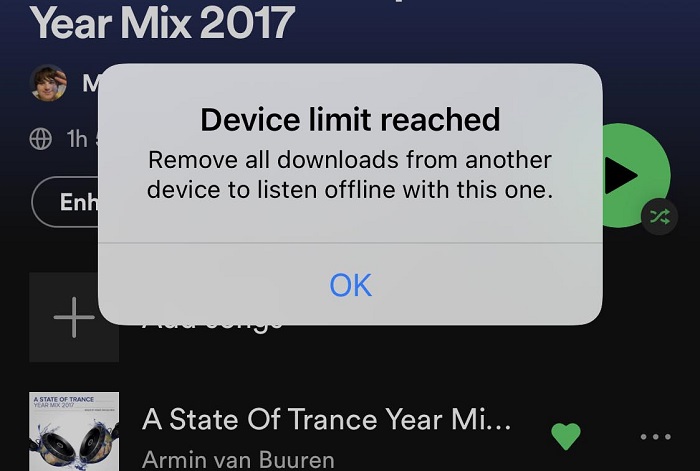
- You can only download Spotify songs on up to 5 different devices
- You can only listen to the downloaded songs in the Spotify app
- The downloaded songs will expire once your Premium subscription ends
- You must go online at least once every 30 days to keep your downloads
Part 2. How to Bypass Spotify Download Limit
Now that you already know all the Spotify download limits, you may wonder how to bypass them. You should first confirm which limit is stopping you from downloading more music tracks. Then, you can utilize the methods below to get around the limit effectively.
Method 1. Remove Spotify Downloads
The most common culprit that prevents you from downloading Spotify songs is that you already downloaded more than 10,000 songs on your current device. In this case, the easiest method is to remove all your downloads or delete some of the downloaded songs.
Step 1. Go to the Spotify app on your iOS or Android device.
Step 2. Then, tap your profile picture at the top and select Settings and privacy.
Step 3. Scroll down to tap Data-saving and offline. Under the Storage section, tap Remove all downloads.
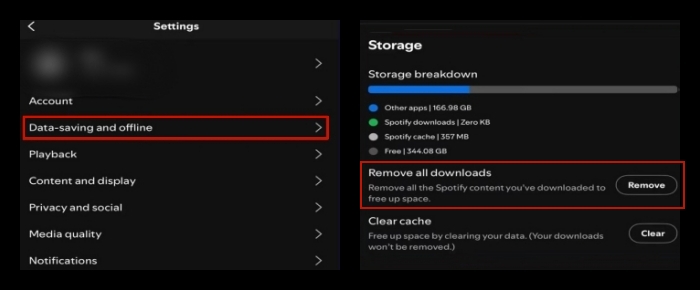
Step 4. If you only want to delete partial downloads, head to Your Library > Downloaded. Then, find the downloaded song you want to delete and select Remove.
Method 2. Sign out Everywhere
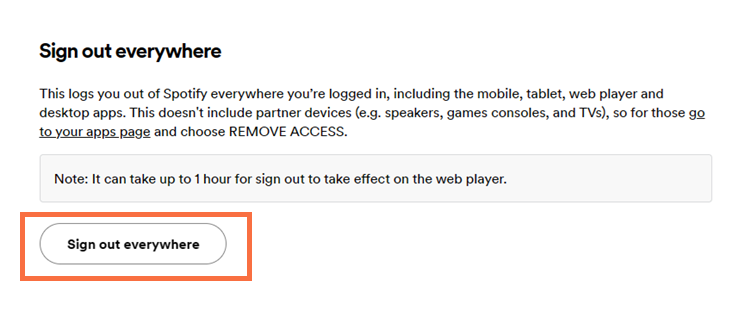
Spotify counts downloads across all devices linked to your account. If the linked device number exceeds 5, you can not download songs to a new device. Sometimes, you may forget that you logged into Spotify on old phones, tablets, or computers. Therefore, you should sign out of your Spotify account on these inactive devices. In case you don’t remember which devices you have logged in to, just utilize the Sign out everywhere feature.
Step 1. Sign in to your Spotify account on its official website.
Step 2. Then, head to your Account page.
Step 3. Scroll down to the Security and privacy section, and click Sign out everywhere.
Method 3. Save Spotify Songs Locally for Unlimited Access
If you are tired of all the Spotify limits and want to break them once and for all, the ultimate method is to remove Spotify’s DRM protection and save your Spotify songs as local files. By doing so, you can have unlimited access to your Spotify downloads. This is where the TunesMake Spotify Music Converter comes to help.
| Spotify Premium | TunesMake Spotify Music Converter | |
| Spotify Download Limit | 10,000 songs | Unlimited without Premium |
| Spotify Device Limit |
Cannot stream Spotify on more than one device simultaneously; Cannot access Spotify on non-Spotify-supported devices |
Easily listen to Spotify on multiple devices offline after downloading; Simply play Spotify on any device and players like MP3 players or others |
| Spotify Playlist Limit | 10,000 songs | Unlimited with the built-in player |
| Spotify Queue Limit | 81 songs | Unlimited with the built-in player |
| Spotify Downloads Limit | Downloads are only playable on Spotify during subscription due to DRM | Downloads are unprotected and playable local files even without Premium or the Spotify player |
TunesMake Spotify Music Converter is adopting advanced decryption technology, which can remove Spotify DRM protection and download Spotify music to MP3, M4A, M4B, WAV, FLAC, and AIFF. Besides, it smartly keeps the original sound quality of Spotify music, ensuring your offline listening experience. If you want to have a better experience, you can even customize the audio settings as you wish. The best thing is that the TunesMake program works perfectly for both Free and Premium users. You can save your favorite songs forever, even if you only have a Spotify Free account.

TunesMake Spotify Music Converter –
Best Spotify to Local Files Downloader
- Unlimitedly download Spotify songs, playlists, and podcasts
- Losslessly convert Spotify music to MP3, FLAC, WAV, AIFF, etc.
- Remove ads from Spotify music tracks even with Free accounts
- Convert Spotify songs at 12X faster speed with ID3 tags kept
Security Verified. 100% Clean & Safe.
Click the Free Download button to download the software on your computer. Once the installer has downloaded, run it to get the app installed on your computer. Then perform the following steps to download music from Spotify.
Step 1
Select Spotify Music or Playlist to TunesMake

Run TunesMake Spotify Music Converter on your computer, and then you will find that the Spotify web player automatically loads on its interface. Just go to your library on Spotify and select any playlist or album you want to download. You can add and download more than 10,000 songs with TunesMake. To load them to the conversion list, just click the lower-right Add icon > Add to List.
Step 2
Customize the Output Audio Settings

After loading all the target tracks to TunesMake’s conversion list, you need to set the output audio parameters. Just click the top Menu icon in the upper right corner. Then, select Preferences > Conversion. In this window, you can choose the output format and quality. To adjust the sound quality, you can change other parameters like bit rate, sample rate, and channel.
Step 3
Download and Convert Spotify to MP3

Go back to the main interface and download Spotify music by clicking the Convert button at the bottom right corner of the program. Later, TunesMake Spotify Music Converter will start to save your required tracks to your computer. Once finishing the download, click the Converted icon and go to browse the downloaded songs in the history list. Or you can click the file icon next to each song to locate those Spotify downloads in the local folder for listening.
Part 3. What Other Limits Does Spotify Have?
In addition to the Spotify Premium download limit, there are other limits for Premium users you should know.
Spotify Device Limit
You can only stream on a single Spotify account from one device at a time. If you try to use the same Spotify account on more than one device simultaneously, then they will pause so that the only one can play.
Spotify Playlist Limit
Spotify restricts the songs in a playlist to 10,000. That is you can only add around 10,000 songs to your Spotify playlist. When you want to add more songs to a playlist, a box will pop up to tell you ‘You’ve filled this playlist to the max. Impressive. Start a new one now to keep collecting.‘ This time, you can create a new playlist to start your new journey.
Spotify Queue Limit
Previously, Spotify limiting the queue display to 50 items prevented reordering. In late 2021, Spotify updated the queue from displaying 50 tracks to 81. So when you press the Add to Queue button on Spotify, you can only see and arrange the first 81 songs in the queue.
Having a Spotify Premium doesn’t mean you can fully control your favorite Spotify tunes. You will encounter all kinds of limits. If you want to remove the above limits at a time, your best choice is to download Spotify tracks to local files. To do so, you can utilize the TunesMake Spotify Music Converter - a professional and effective music downloader for all Spotify users, including Premium and Free.
Part 4. Summary
Spotify users have been begging for the limit to be removed from their library for years now, and now the service has listened to the opinion of its users. However, the number of allowed offline devices and the 10,000 songs download limit for Spotify remain in place. But with the help of TunesMake Spotify Music Converter, you can not only remove the Spotify download limit but also get rid of other Spotify Premium limits. Since then, you can download unlimited songs or playlists for offline listening on any device and keep your downloaded content forever.
Related Articles

A senior editor from TunesMake, dedicated to sharing professional tutorials and solutions of software, movies, and music.
- 1
- 2
- 3
- 4
- 5
- 6
- 7
 Leave Your Comment
(0)
Leave Your Comment
(0)

 Download Center

