








 Store
Store


As a music streaming platform, Spotify is striving to provide great service for its users. There are 50,000+ hours of content uploaded to Spotify every day. So you can find various genres of music from all over the world. For music lovers, Spotify is home to a variety of tracks for mixing and DJing. The good news is that Spotify has finally added an official integration with DJ platforms, which means you can access your Spotify music library on your DJ software directly. In this guide, we will break down how to DJ with Spotify music on professional DJ software and alternative ways to mix Spotify tracks freely. Whether you have a Spotify Premium account or not, you can find an available method in the following content.
Part 1. FAQs about Spotify for DJ
What is Spotify AI DJ Mode?
Spotify AI DJ is a specific feature. What you should pay attention to is that this feature is not the same thing as DJing with Spotify music. The AI DJ or the DJ Mode aims to enhance your user experience by offering personalized analysis and recommendations based on your music taste. Enabling this feature means that the Spotify app will play songs that you might like seamlessly. If you need music for you house party or small events, this feature is enough. But you can neither mix the music as you want nor add effects on it.
Can you use Spotify with DJ software?
Yes. As of 2026, Spotify has restored native integrations with several major DJ platforms. The integration allows you to browse and access the Spotify library directly in the DJ platform.
What DJ software works with Spotify?
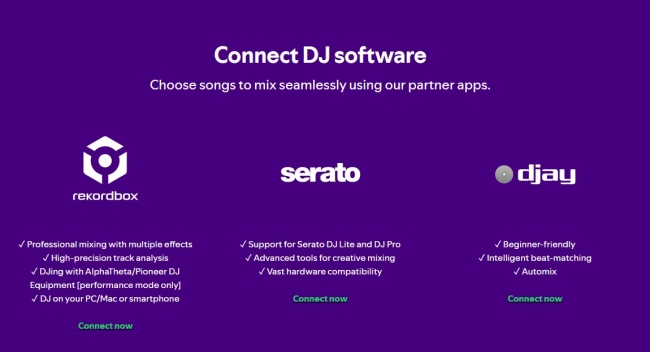
Currently, the supporters of official Spotify integration include djay, rekordbox, and Serato DJ.
Is it legal to DJ with Spotify?
Spotify is licensed for the official integration. This means you can legally use the compatible DJ platforms for mixing Spotify music at home, house parties, or private events. However, if you want to DJ Spotify music on any DJ platforms via the TunesMake tool (more detailed information in Part 4), you can only get Spotify music for personal, non-commercial use.
Part 2. How to Use Spotify AI DJ [For Non-DJs]
Sometimes maybe you just want some music to start a party with your friends and family, or you just want to enjoy continuous music while you’re alone at home. If so, the Spotify AI DJ feature is your best choice.
As a personalized virtual DJ, this feature can create a continuous mix of songs and play them smoothly together. With a Spotify Premium subscription, there is nothing easier than accessing it in the Spotify app. Now just try the following steps to get an uninterrupted music experience.
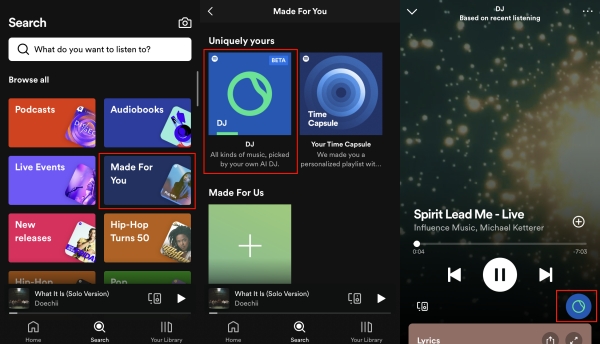
1) Open the Spotify app on your device and log in to your Premium account.
2) Switch to the Search tab by hitting its icon on the main screen.
3) Select Made For You from all available sections. Then you can find the DJ feature under Uniquely yours.
Spotify AI DJ is a great feature to get a personalized music experience. This post introduces this feature in detail and teaches you how to use Spotify AI DJ.
Part 3. How to Use Spotify to DJ via Official Integrations [For DJs]
For DJs who are looking for a method to mix Spotify music using actual DJ hardware and software, the Spotify updates have brought it back to the forefront. This is the point where Spotify transforms from a simple streaming platform into a practical tool for hands-on DJing. Keep reading to learn how to make a connection between Spotify and compatible DJ software.
Require:
- An active Spotify Premium
- The latest version of your DJ software
- A compatible iOS (16.1 or above), Android (Android OS 7.0 or above), Mac (OS X 12.0 or above), or Windows (Windows 10/11/above) device.
How to Start Mixing Spotify Music
Step 1. Open your DJ software.
Step 2. Log in to your Spotify account within the DJ software.
Step 3. Once done, you can add tracks from your playlists in Your Library or the Spotify catalog. Please note that you can mix up to 4 tracks simultaneously.
Step 4. Feel free to mix using your DJ software’s built-in tools.
Alternatively, you can visit the Spotify DJ integration page and click the Connect now link under each platform. Then, follow the on-screen instructions to finish the connection.
Option 1. djay
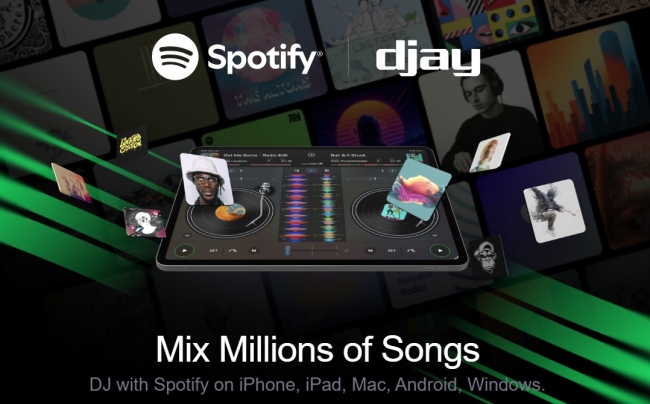
When talking about DJing with Spotify, Algoriddim’s djay offers the most seamless experience, whether you are an experienced DJ or just starting out. With the Spotify djay integration, you can not only access millions of songs but also manage your playlists directly. Add, remove, reorder tracks, and even pin your favorites - all changes sync back to your Spotify account. Since djay supports various of DJ controllers, you can mix your Spotify songs with tactile control seamlessly.
Currently, Spotify djay integration is available across mobile and desktop with djay version 5.6. Even if you only have the free version of djay, you are allowed to access the full Spotify library. But if you want to unlock more features, like Automix and FX add-ons, a djay Pro subscription is needed.
Option 2. rekordbox
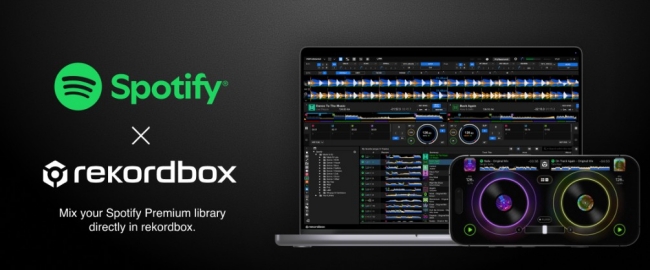
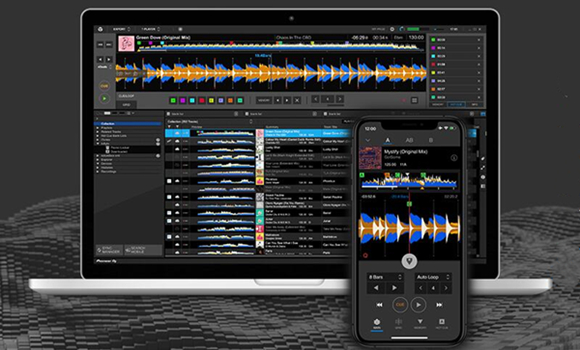
Spotify has announced the official cooperation with rekordbox in late 2025. Update your rekordbox to the latest version, and you can access Spotify’s vast catalog of licensed music and playlists directly from rekordbox for iOS/Android/Windows/Mac. After loading your favorite tracks from Spotify straight into rekordbox, you can mix them using your smartphone, tablet alone, or in combination with compatible equipment, such as the DDJ-FLX2, DDJ-FLX4, or DDJ-GRV6. Just notice that the availablility is subject to change. To get the latest information on supported countries and regions, refer to the official Spotify website.
Option 3. Serato DJ
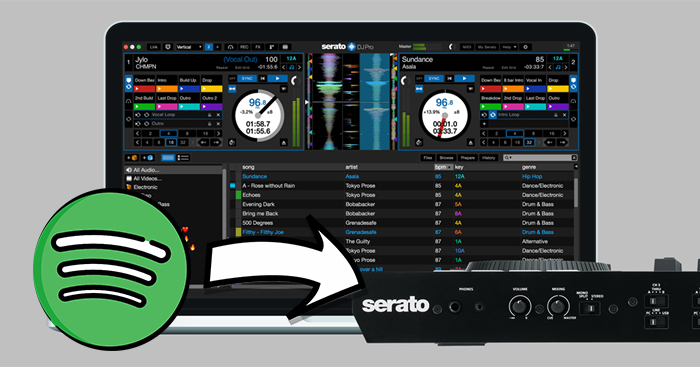
Another available option to DJ Spotify music is its integration with Serato DJ Pro and Lite. As of the recent Serato DJ update, the connection between these two platforms has gone beyond simple streaming. You can have full control and manage your playlist within Serato. Besides, you can drag and drop Spotify tracks directly into your local Serato Crates and mix your streaming content with your locally stored MP3s in the same folder, making your workflow much more flexible.
Part 4. How to Get Spotify on Any DJ Software
You are able to DJ with Spotify music easily in the official app, but the features are only valid for Premium users. For Spotify Free users or uses who want to mix Spotify music on other DJ apps that don’t support Spotify, an alternative method is needed. The most convenient and useful method is to download your Spotify playlists to local MP3 files, and then transfer them to the DJ software you like for DJing and mixing.
4.1 Download Spotify Music Locally
The reason why you cannot directly apply Spotify music to other DJ platforms is that Spotify is a subscription-based service, which applies encrypted formats. Both Premium and Free users are only allowed to listen to Spotify music within its app and mix Spotify tunes via its partner DJ apps. Therefore, to reach the goal of DJing Spotify on other platforms, you will need to remove DRM from Spotify and download music to a playable format. TunesMake Spotify Music Converter is your best helper.
As a powerful music downloader and converter, TunesMake Spotify Music Converter can help both Free and Premium users download Spotify songs, playlists, albums, and podcasts to normal music files in diverse formats, including MP3, M4A, M4B, WAV, FLAC, and AIFF. During the downloading process, the TunesMake program automatically retains original sound quality and ID3 tags to ensure your DJ experience.

TunesMake Spotify Music Converter –
Best Spotify to DJ Downloader
- Unlimitedly download Spotify songs, playlists, and podcasts
- Losslessly convert Spotify music to MP3, FLAC, WAV, AIFF, etc.
- Remove ads from Spotify music tracks even with Free accounts
- Convert Spotify songs at 12X faster speed with ID3 tags kept
Security Verified. 100% Clean & Safe.
Step 1
Drag your chosen Spotify songs to TunesMake interface

Launch TunesMake Spotify Music Converter on your computer, and then the Spotify web player will automatically open. Navigate to the Music Library on Spotify and select the playlist you want to use with your DJ software. Then, click the lower Add icon > Add to List. All the songs in this playlist will be loaded to TunesMake’s conversion list.
Step 2
Set the output parameter depending on DJ software

Once you’ve added your desired songs to the tool, you can go to set the output parameter by clicking the menu bar > Preference. In the Conversion window, you can choose the output format and quality. To avoid compatibility issue, MP3 is recommended. Furthermore, you cna customize other parameters, like bit rate, sample rate, and channel.
Step 3
Download and convert Spotify music to DJ software

After you save the settings, you can click the Convert button in the bottom right corner. When the download and conversion process finishes, your Spotify music files will be available for you to use. By clicking the top Converted icon, you can go to browse the converted songs in the conversion list and locate the folder where you save those converted tracks.
4.2 Import Spotify Music to Any DJ Software for Mixing
Now the Spotify tracks are saved as MP3 files on your computer. Feel free to import them to the DJ app you like, so that you can mix them according to your preferences. Since there are a variety of DJ apps in the market and the ways to add local music files are different, here we will take Traktor DJ as an example.
1) Launch the Traktor DJ app on your desktop and log in.
2) Click File > Import Music Files or Import Folder. Then, you should find the converted Spotify music files in the pop-up window.
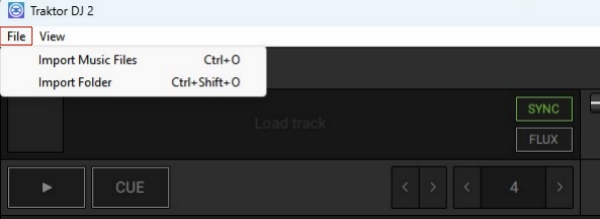
3) Once you find the files, click the Open option and the files can be added to the Traktor DJ library.
4) Alternatively, you can choose the Playlists or Tracks section on the left and then drag and drop the music files to it.
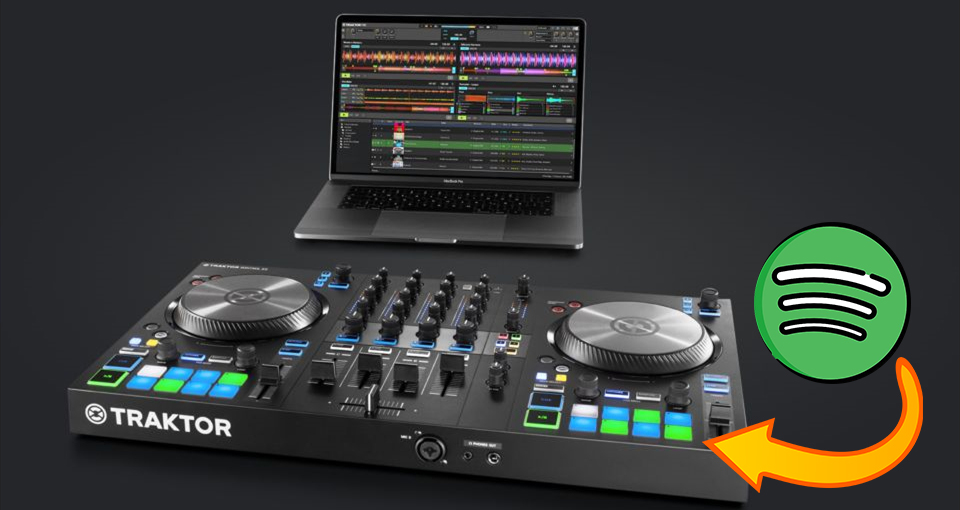
How to use Spotify with Traktor DJ? This question may bother you for a long time. Today, this post will teach you the best method to do so.
Part 5. Summary
How to DJ with Spotify music? The problem won’t bother you anymore after reading this post. In 2026, Spotify has evolved into a versatile ecosystem. You can utilize the the official integration of it and DJ platforms to mix and blend your favorite tracks without hassles. However, for the ultimate reliability and access to all platforms freely, downloading your Spotify library remains the gold standard. Using a dedicated downloader like TunesMake Spotify Music Converter is your best choice.
Related Articles

A senior editor from TunesMake, dedicated to sharing professional tutorials and solutions of software, movies, and music.
- 1
- 2
- 3
- 4
- 5
- 6
- 7
 Leave Your Comment
(0)
Leave Your Comment
(0)

 Download Center

