








 Store
Store


With regard to streaming music platforms, what’s the first name that comes to your mind? I believe most users would say Spotify. That is because Spotify not only provides millions of tracks but also a more personal, intelligent listening experience, like Discover Weekly and the annual Wrapped campaign. Among so many unique features, AI DJ is the most noteworthy one. But what exactly is Spotify AI DJ? How to use Spotify AI DJ? And why do some users still can’t find the AI DJ feature in their Spotify app?
If you have the same questions, this post has your back. In the following content, we will walk you through everything you want to know about Spotify AI DJ, from how it works to how to find it on your mobile phone or computer. Plus, we have prepared some troubleshooting tips in case Spotify AI DJ is not showing up on your Spotify app. Keep reading to get what you want.
Part 1. What Is Spotify AI DJ?
AI DJ is a feature Spotify released in 2023. In short, this feature is like your personal radio host inside the Spotify app. It delivers a curated line up of music tracks or playlists in real time according to your listening history, music taste, and recent activity. The tracks it offers include the latest music that you may like, some of your old favorites, and so on. What counts most is that it can be refreshed and updated based on your feedback. You can perceive it as an all-in-one tool of a smart DJ, a personalized playlist, and a music discovery tool. The more you listen and tell the DJ what you like (or don’t like), the better recommendations you can get.
How our AI DJ works
What many music lovers care are: DJ AI can truly recommend music that suits users’ taste, and how does it ensure the accuracy of recommendations? To figure them out, you should know how AI DJ works. Currently, AI DJ combines several advanced technologies to create a highly personalized listening experience:
- Spotify’s personalization technology: Spotify analyzes your past listening behavior and gives recommendations based on what you already liked.
- General AI: Spotify also use Open AI technology to provide you with insightful facts about the music, artists, or genres you’re listening to.
- Music experts: Spotify has experts in genres who know music and culture. They can scale their knowledge and give more personalized recommendations with the help of generative AI tooling.
- AI voice commentary: A dynamic AI voice platform from Spotify’s Sonantic acquisition that brings the AI DJ to speak to you with natural-sounding narration.
Part 2. How to Use Spotify AI DJ on Mobile/Desktop
As long as you have a valid Premium subscription, you can easily access Spotify AI DJ on your device. Now, let’s move to the most practical part - how to actually use Spotify AI DJ on your mobile phone or computer. Follow the steps below and you can start enjoying AI-powered music recommendations.
Note
To ensure a smooth process of using Spotify AI DJ, you’d better update the Spotify app installed on your device to the latest version in advance.
How to use Spotify AI DJ on iPhone/Android
On Spotify Android or iOS apps, it is quite simple to access the DJ feature powered by Artificial intelligence. Here’s how to find it on your mobile devices.
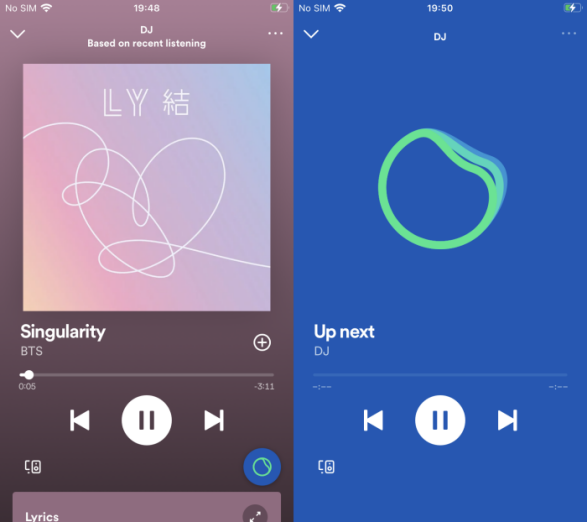
Step 1. To use Spotify AI DJ, launch the Spotify mobile app and go to the Music Feed on the Home tab.
Step 2. Find the DJ Card and press to play. You’ll hear the picks by Spotify AI with a mix of your favorite songs or personalized music recommendations.
Step 3. If you don’t like the taste that the DJ had picked for you, just tap the DJ button again to change. Then you’ll hear a completely new playlist with a new genre, mood, or artist.
Note
Sometimes, you may not see AI DJ on your Spotify Home tab. You can try to find it in the Made for You hub within the Search tab. Or, just search for AI DJ to get your personal playlist directly. To do so, you should type in AI DJ and select the playlist curated by Spotify with the same name.
How to use Spotify AI DJ on PC/MAC
It is a pity that the AI DJ feature is only available on the Spotify mobile app currently. But that does not mean you can’t enjoy DJ mixing on PC. You can take the below tip as an alternative way.
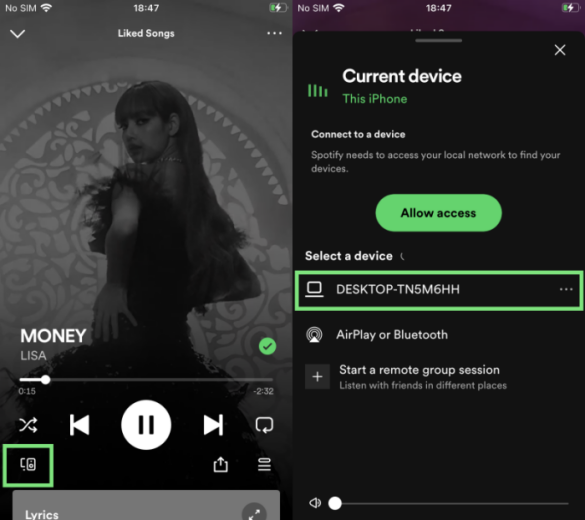
Don’t forget! We can play Spotify music on mobile and desktop apps using the same account and switch between them with a simple click. Just launch Spotify on your Android phone or iPhone and locate the DJ Card to play. Then choose your computer from the connected devices to stream Spotify audio on it. You can find the option in the bottom-left corner. In this way, you can access Spotify AI DJ on PC right now.
Part 3. How to Fix Spotify AI DJ Not Showing up
Since its first day of release, the DJ powered by AI on Spotify has grabbed many people’s attention; however, there are many of us who couldn’t enjoy this feature right now. They have encountered the Spotify AI DJ not showing up issue due to various reasons. Most of them are asking, Why don’t I have Spotify AI DJ on my device? Well, this is what I’m going to explain now. In common cases, it is the Spotify app error to blame or something wrong with your Spotify account status. To solve this, we offer you a comprehensive guide below as a reference.
Check Your Current Area or Region Availability
By now, Spotify AI DJ is available in 50 countries and regions. However, it still needs time for Spotify to roll out more versions so that people in other parts of the world can enjoy Spotify DJ. So, if you want to get the AI DJ feature on your phone, you need to make sure where you stay supports it. Another thing that needs to say is that Changing the location on the Spotify app won’t do anything to your account status. You should be in the supported countries to get and use it.
Make Sure to Subscribe to Spotify Premium
Obviously, this useful feature is bringing Spotify to a new high level and Spotify has only granted this feature to its subscribers, please make sure that you have a valid and active premium account of Spotify.
Update Spotify App to the Latest Version
Since this function is just initialed right several months ago, and it is a beta version, you’ll have to check and get the latest version of Spotify so as to access the DJ feature on Spotify. You can see the notice that asks you to update your apps. Click the notifying icon to update Spotify. Or you can go to Google Play Store or App Store to get Spotify updated.
Restart or Reinstall the Spotify App
Sometimes, your Spotify app is just stuck on the loading screen or does not respond. This may be caused by some errors or glitches within the app. Simply a restart or a clean reinstall can resolve 90% of these mistakes.
Try Joining Spotify Beta Program
This is applicable to some users in America and Canada who still can’t see the DJ feature on Spotify. If you do live in America or Canada and do have a premium membership, you may need to sign up for the Spotify Beta program manually to get the beta Spotify DJ feature. No matter whether you’re an Android or iPhone user, this guide can help you sign up and enroll in the beta program.
Part 4. Bonus: How to DJ with Spotify Music Without Limits
While Spotify AI DJ offers a fun and personalized listening experience. It still comes with limitations. The biggest one is that it only works for Premium users. Additionally, Spotify tracks are all DRM-protected, which means you can not listen to them out of the Spotify app, even if they are downloaded. If you want to DJ with Spotify music freely or mix Spotify tracks on other DJ applications, you will need a third-party solution like the TunesMake Spotify Music Converter.
TunesMake Spotify Music Converter is a powerful and versatile music downloader, aiming to bring people happiness and convenience while enjoying Spotify songs. With its advanced decryption technology, you can easily download content from Spotify to MP3, M4A, M4B, WAV, FLAC, or AIFF files, including songs, playlists, albums, and podcasts. When the download process is finished, you can import them to other devices for unlimited offline playback or other DJ applications for mixing and blending. Furthermore, the TunesMake program also gives you a personalized experience by allowing you to adjust the audio settings.

TunesMake Spotify Music Converter –
Best Downloader to Save Spotify Songs as Local Files
- Unlimitedly download Spotify songs, playlists, and podcasts
- Losslessly convert Spotify music to MP3, FLAC, WAV, AIFF, etc.
- Remove ads from Spotify music tracks even with Free accounts
- Convert Spotify songs at 12X faster speed with ID3 tags kept
Security Verified. 100% Clean & Safe.
Step 1
Load songs from Spotify to the TunesMake tool
Whether you are using a Windows or Mac computer, just click the Free Download button above and you can install the TunesMake Spotify Music Converter on your desktop successfully. Then, launch it and log in to your Spotify account in its interface. Now, feel free to pick the playlists or albums you like. Select any of them, and then click the Add icon in the lower right corner > Add to List. Therefore, all the songs will be loaded to the conversion list.

Step 2
Personalize the audio output settings
As we mentioned above, you can freely set the output settings according to your personal demands. Just click the top Menu icon > Preferences, and then switch to the Conversion tab. Here, you are able to choose an output format. You can also change other settings like output quality, bit rate, sample rate, and channel. When you finish, don’t forget to save your changes by clicking the OK button.

Step 3
Download Spotify songs locally for free access
Whenever you are ready, just click the Convert button, and the TunesMake tool will do all the things for you. You just need to wait for a while. Then, you can click the top Converted icon to browse all the downloaded Spotify songs. If you want to locate their exact location on your computer, just click the little menu icon next to each song.

Bottom Line
How to use Spotify AI DJ? That’s very easy! We have illustrated the steps with the details above. If you don’t have Spotify Premium or stay in a country where Spotify AI DJ feature is not available, don’t worry, you can take TunesMake Spotify Music Converter as an alternative way to mix Spotify music with any DJ software.
Related Articles

A senior editor from TunesMake, dedicated to sharing professional tutorials and solutions of software, movies, and music.
- 1
- 2
- 3
- 4
- 5
- 6
- 7
 Leave Your Comment
(0)
Leave Your Comment
(0)

 Download Center

