








 Store
Store


Streaming your favorite playlists, discovering new releases, and tuning into daily podcasts make Spotify an essential daily companion. However, if you are on a tiered mobile plan, traveling abroad on a limited eSIM, or noticing unexpected data overages, you might wonder: how much data does Spotify use?
The short answer: Spotify uses anywhere from 10 MB to 150 MB of data per hour for music streaming, depending on your selected audio quality. However, features like video podcasts and looping visuals can burn through over 1 GB per hour. In this comprehensive guide, we break down Spotify's exact data usage and show you step-by-step how to minimize mobile data consumption without sacrificing your listening experience.
Part 1. How Much Data Does Spotify Use?
To quickly know Spotify data usage, here is how much mobile data Spotify consumes across its audio quality. Let's see how much data Spotify take on your device.
| Audio Quality Setting | Bitrate | Data Used Per Song | Data Used Per Hour | Data Used Per 8-Hour Workday |
|---|---|---|---|---|
| Low | 24 kbps | ~0.6 MB | ~10.8 MB | ~86.4 MB |
| Normal | 96 kbps | ~2.5 MB | ~43.2 MB | ~345.6 MB |
| High | 160 kbps | ~4.2 MB | ~72.0 MB | ~576.0 MB |
| Very High | 320 kbps | ~8.4 MB | ~144.0 MB | ~1.15 GB |
| Lossless | Up to 1411 kbps | ~37.0 MB | ~635.0 MB | ~5.08 GB |
How Much Data Does Spotify Use per Hour?
Spotify offers five distinct streaming quality levels, including Lossless FLAC. The amount of mobile data Spotify uses directly correlates with the bitrate assigned to each tier. You can check how much data Spotify use per hour when setting to different streaming quality.
Low Quality (24 kbps)
Best for: Users with minimal data limits or poor cellular connectivity.
-
Data per hour: ~10.8 MB
-
Data per song: ~0.6 MB
At 24 kbps, audio compression is noticeable, particularly on higher-end headphones, but it consumes a negligible amount of data.
Normal Quality (96 kbps)
Best for: Everyday casual streaming on standard mobile plans.
-
Data per hour: ~43.2 MB
-
Data per song: ~2.5 MB
This is the default setting for most free and premium mobile accounts. It strikes a reliable balance between acceptable sound quality and moderate cellular consumption.
High Quality (160 kbps)
Best for: Listeners using decent earbuds or car Bluetooth setups who want crisp audio.
-
Data per hour: ~72.0 MB
-
Data per song: ~4.2 MB
High Quality offers noticeably richer bass and treble responses, making it ideal for standard earbuds or car speakers while remaining well under 100 MB per hour.
Very High Quality (320 kbps)
Best for: Audiophiles with unlimited data plans or Wi-Fi connections.
-
Data per hour: ~144.0 MB
-
Data per song: ~8.4 MB
Available exclusively to Spotify Premium users, this setting delivers maximum clarity using Ogg Vorbis or AAC encoding at 320 kbps. However, it doubles the data consumption of the High tier.
Lossless / HiFi Tier (Up to 1411 kbps)
Best for: Critical listening on high-fidelity audio equipment over Wi-Fi.
-
Data per hour: ~600 MB – 1 GB
-
Data per song: ~35 – 40 MB
Streaming uncompressed CD-quality audio requires substantially more bandwidth. Streaming Lossless music over a cellular network can consume 1 GB of data in under two hours.
How Far Does 1 GB of Mobile Data Last on Spotify?
If your mobile plan offers a fixed monthly allowance, such as 1 GB, 5 GB, or 10 GB, here is a breakdown of how many hours of continuous Spotify music playback each allowance provides.
| Data Allowance | Low Quality (24kbps) | Normal Quality (96kbps) | High Quality (160kbps) | Very High Quality (320kbps) | Lossless Quality (Up to 1411 kbps) |
|---|---|---|---|---|---|
| 1 GB | ~92 Hours | ~23 Hours | ~14 Hours | ~7 Hours | ~1 Hour |
| 5 GB | ~460 Hours | ~115 Hours | ~70 Hours | ~35 Hours | ~5 Hours |
| 10 GB | ~920 Hours | ~230 Hours | ~140 Hours | ~70 Hours | ~10 Hours |
Does Using Spotify Use a Lot of Data?
The data usage of Spotify varies on different streaming quality and listening hours. To help you manage your monthly phone bill, let's translate Spotify's bitrates into real-world usage habits.
-
Daily Commuter (1 Hour per Day): Streaming on Normal Quality during a 30-minute commute to and from work consumes approximately 1.3 GB of data per month.
-
Background Worker (8 Hours per Day): Streaming background music during a full workday on Very High Quality consumes approximately 1.15 GB per day, or over 25 GB per month on mobile data alone.
Part 2. How to Check Spotify Data Usage
You can monitor exactly how much data Spotify has used over a given period directly through your phone's operating system settings.
On iPhone:
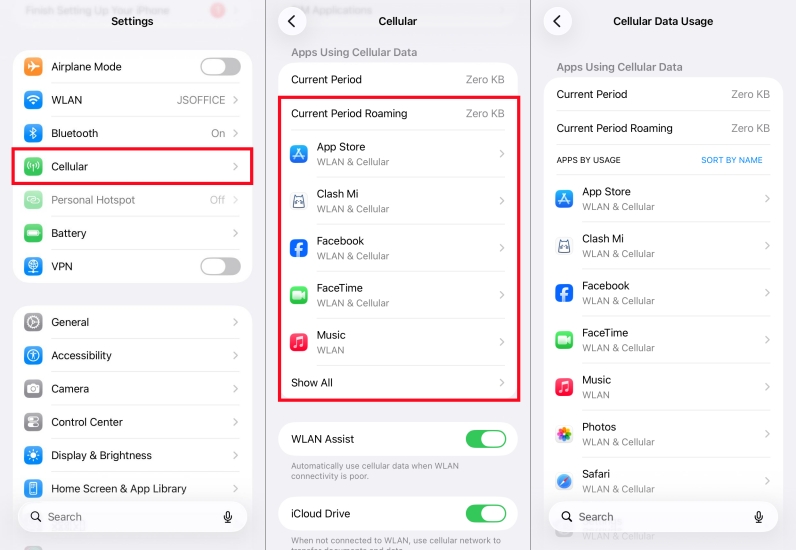
Step 1. Open Settings on your iPhone.
Step 2. Tap Cellular or Mobile Data.
Step 3. Scroll down to Apps Using Cellular Data.
Step 4. Check the data metric listed beneath Spotify.
On Android:
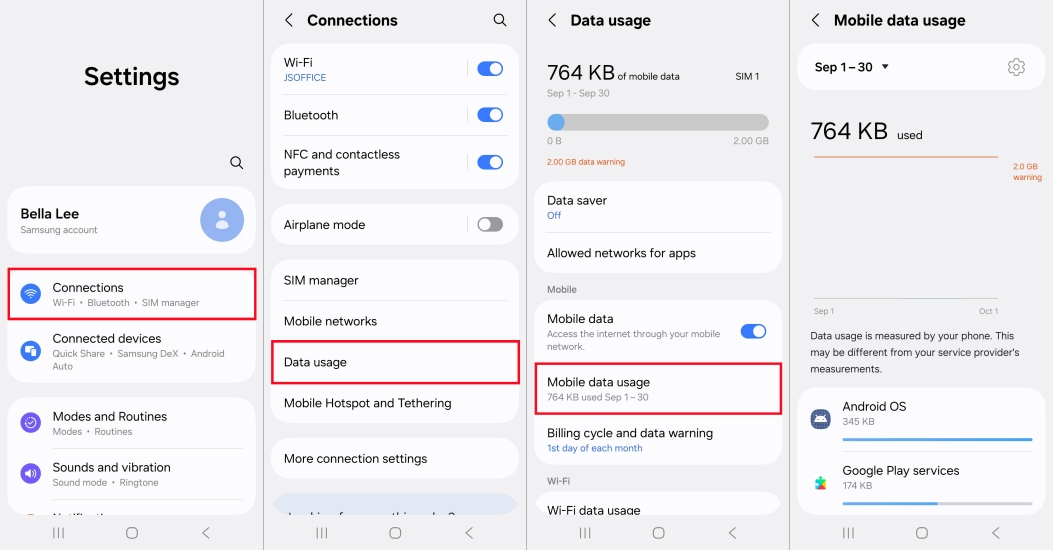
Step 1. Open Settings on your Android device.
Step 2. Tap Connections > Data usage.
Step 3. Tap Mobile data usage.
Step 4. Select Spotify to view total data consumption.
Part 3. How to Save Data on Spotify
Even if your audio quality is set to Normal, certain non-audio features inside the Spotify app can quietly exhaust your mobile data plan. If you want to lower your Spotify data consumption immediately, apply these optimized settings in the Spotify app for Android or iOS.
Method 1. Enable Data Saver in Spotify
Enabling Data Saver caps streaming audio quality to Low (24 kbps) and automatically disables video components when you stream over cellular networks.
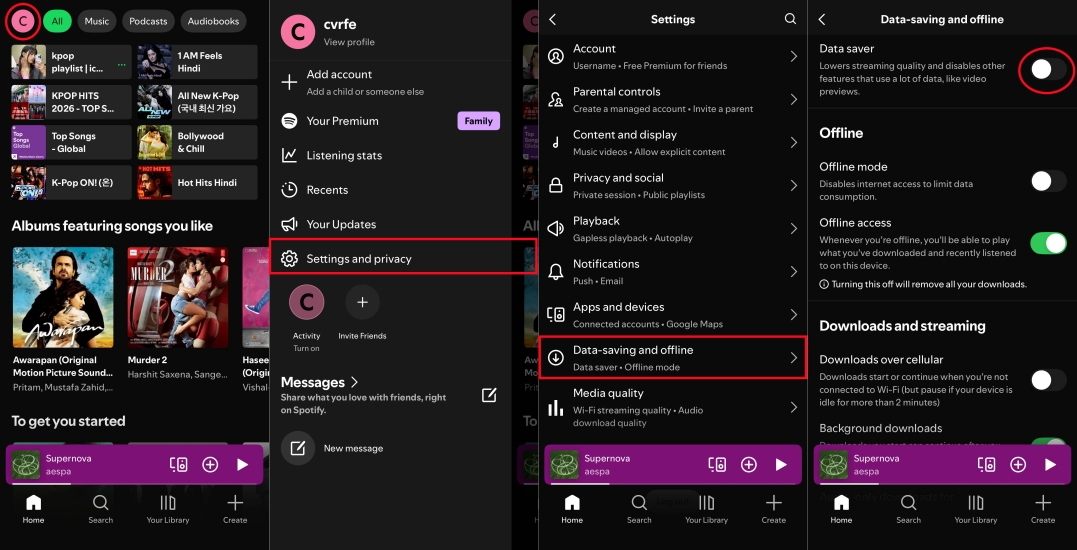
Step 1. Open the Spotify app and tap your Profile picture in the top left corner.
Step 2. Tap Settings and privacy, then select Data Saver.
Step 3. Toggle Data Saver to On.
Method 2. Set Audio Quality for Cellular
You do not have to lower your audio quality when connected to Wi-Fi just to save data on cellular connections. Spotify allows you to set separate parameters for each.
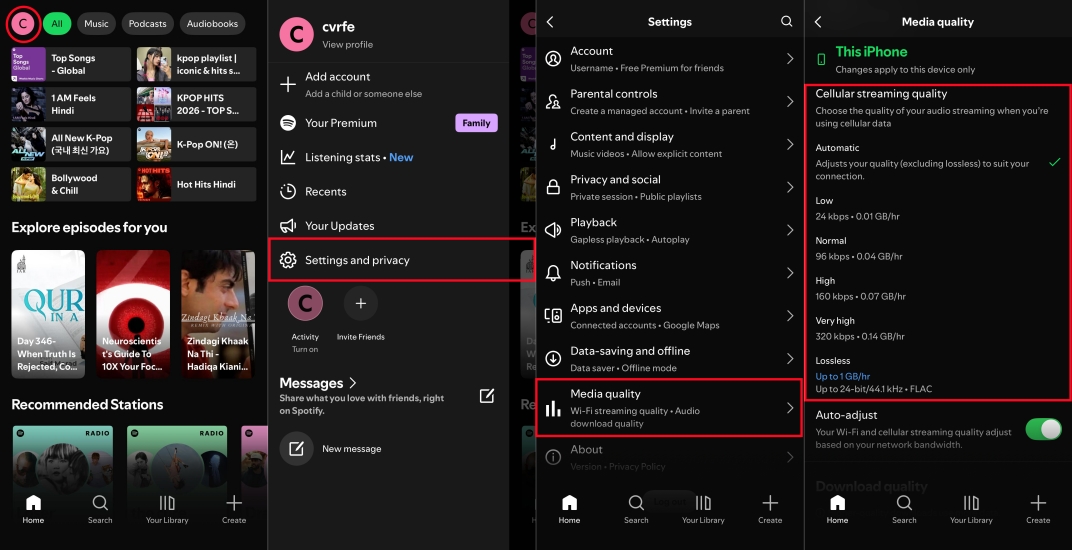
Step 1. Tap your Profile picture in the top left corner of Spotify.
Step 2. Go to Settings and privacy > Media quality.
Step 3. Under Cellular streaming quality, select Low or Normal.
Step 4. Under Wi-Fi streaming quality, select Very high.
Method 3. Turn off Spotify Canvas
Spotify Canvas plays short, 8-second video loops during track playback. These video loops download continuously in the background and can increase overall data usage by up to 30%.
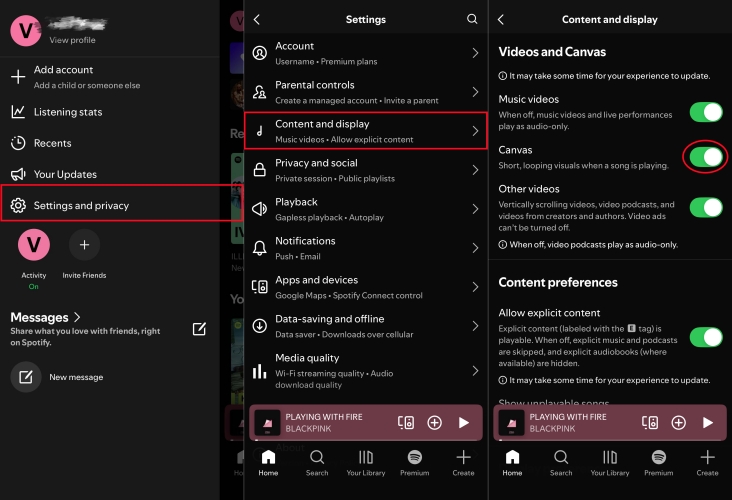
Step 1. Navigate to Settings and privacy > Content and display.
Step 2. Scroll down to Canvas.
Step 3. Toggle the switch to Off.
Method 4. Restrict Podcasts to Audio Only
Many popular podcasts on Spotify include full HD video feeds that stream automatically, burning through 300 MB to 1.2 GB per hour.
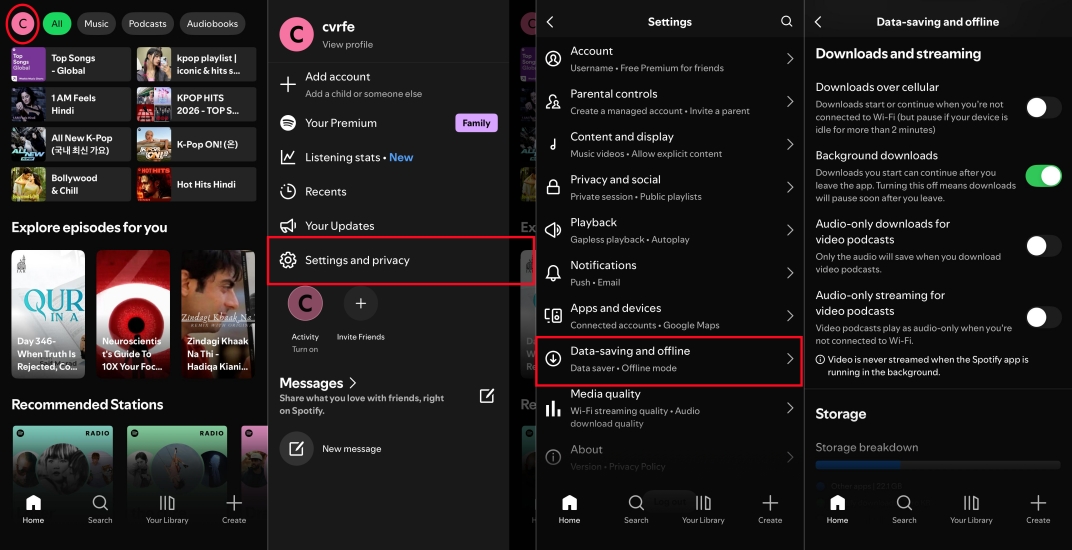
Step 1. Go to Settings and privacy > Data-saving and offline.
Step 2. Enable Download audio only and Stream audio only for podcasts.
Method 5. Disable Autoplay in Spotify
Autoplay keeps playing similar songs endlessly after your playlist or album ends. Turning it off prevents Spotify from streaming unwanted music when you aren't actively listening.
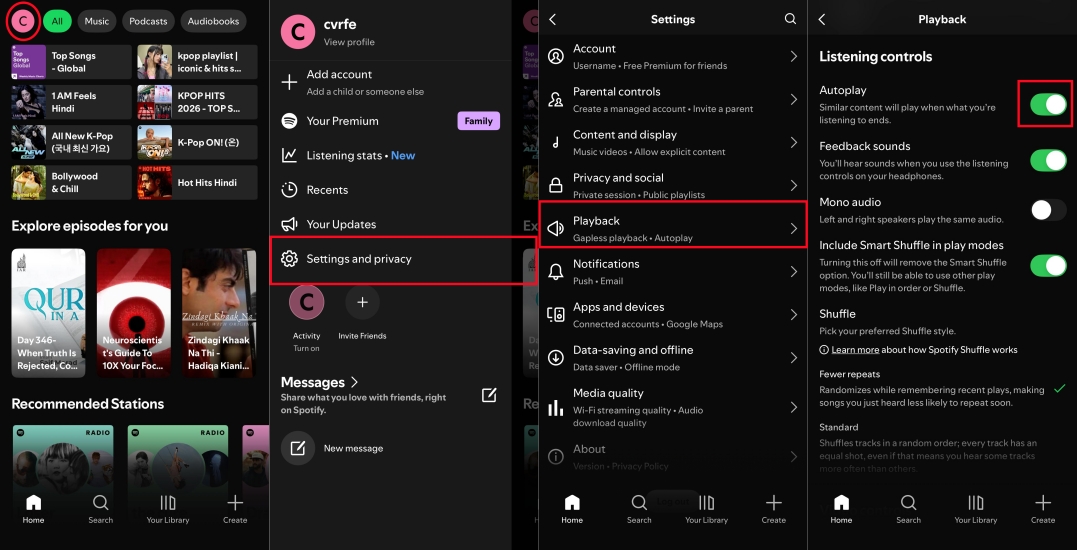
Step 1. Open Settings and privacy, then select Playback.
Step 2. Toggle off Autoplay similar content.
Method 6. Download Playlists for Offline Listening
Downloading your frequently played playlists, albums, and podcasts over home or office Wi-Fi eliminates cellular streaming entirely. While Spotify Premium allows downloading tracks within the app, users on Free accounts or those looking to store tracks permanently on local storage or external media players can use a Spotify downloader like TunesMake Spotify Music Converter.
TunesMake Spotify Music Converter allows both Spotify Free and Premium users to download playlists, albums, and podcasts on a Mac or PC. By converting Spotify content into common audio formats like MP3 or WAV while retaining ID3 tags and original bitrates up to 320kbps, you can transfer the files directly to your phone, MP3 player, or car USB drive. Playing local audio files offline bypasses the Spotify app's network requests, completely removing cellular data usage.

TunesMake Spotify Music Converter –
Download music from Spotify without premium
- Download Spotify songs, albums, playlists, audiobooks, and podcasts
- Losslessly convert Spotify music to MP3, FLAC, WAV, AIFF, and more
- Remove ads from Spotify music tracks even with a Free account
- Convert Spotify music at 15× faster speed in batch with ID3 tags kept
Security Verified. 100% Clean & Safe.
Part 4. FAQs about Spotify Data Usage
Does Spotify use data when playing downloaded songs?
No. If a playlist or podcast is fully downloaded to your local device storage, Spotify plays the file directly from memory without using mobile data. However, ensure that Offline Mode is enabled or that cellular downloads are turned off in settings to prevent background refreshes.
Does Spotify Canvas use a lot of data?
Yes, relative to pure audio. Spotify Canvas streams short video loops that can increase cellular data consumption by 20% to 30%. Disabling Canvas in playback settings helps conserve data on cellular plans.
Does Spotify Free use more data than Spotify Premium?
Spotify Free generally uses less or equal data compared to Premium for basic music streaming, as Free accounts are capped at High Quality and cannot access Very High Quality. However, Spotify Free does stream audio and visual ads, which consume small amounts of additional data.
Part 5. Conclusion
Managing your Spotify mobile data consumption comes down to knowing which settings control your playback stream. While standard audio listening on Normal or High quality consumes a manageable amount of data, background features like Spotify Canvas, continuous Autoplay, and high-definition Video Podcasts can quickly drain monthly cellular allowances.
By tweaking your Spotify playback settings, you can maintain an exceptional music experience while keeping data overages at bay. For zero mobile data usage on the go, pre-caching playlists over Wi-Fi in the app or downloading tracks locally with TunesMake Spotify Music Converter ensures your favorite music is always ready for completely offline listening.
Related Articles


An experienced freelance writer at TunesMake, specializes in using various streaming services from Spotify, Apple Music, to Amazon Music, and more other platforms.
- 1
- 2
- 3
- 4
- 5
- 6
- 7
 Leave Your Comment
(0)
Leave Your Comment
(0)

 Download Center

