








 Store
Store


Thanks to Spotify’s rich resources, users can access and stream millions of songs and lots of curated playlists. Many music lovers are curious about their Spotify listening stats after streaming on Spotify for a long time. In fact, Spotify Wrapped does offer a good way to see, but it usually comes out at the end of one year, which is not as convenient as we’d prefer. Now Spotify receipts provide you with another simple way to get the compiled data earlier. I guess you won’t refuse to see your Spotify music receipts. So, how to get Spotify receipts? In the following parts, we will illustrate the methods of seeing your Spotify receipts and downloading your favorite songs on the receipts.
Part 1. What Is Spotify Receipts?
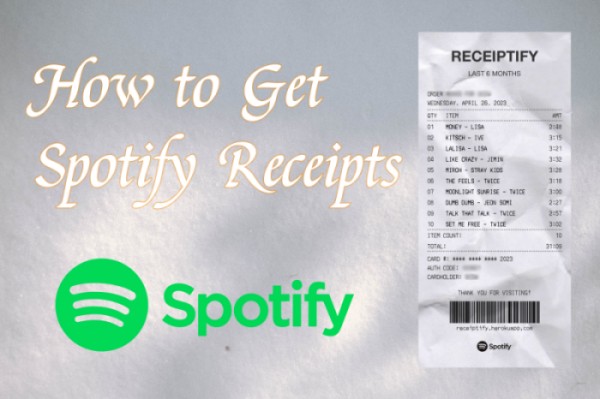
A Spotify receipt is a visual summary of your listening activity, designed to look like a store receipt. It typically includes your top songs, your most-played artists, your listening time, and so on. Currently, most receipts are generated from Receiptify, a website and app made by Michelle Lui.
It is the top track generator that can collect all the information about the music you have listened to on Spotify in the last six months and compile the stats. This tool gives you a fresh look at your listening stats and gauges your streaming habits to create your personal receipts. Receiptify is now the pop and fun way to get third-party music streaming data.
How Does Receiptify Work?
Receiptify creates your Spotify receipts by using Spotify’s public API (Application Programming Interface). First of all, you need to log in to your Spotify account on the tool and grant it permission to access your listening data over specific timeframes. Then, the tool will collect, analyze, and retrieve your top songs or artists. Lastly, it formats the data into a receipt-style image.
Requirements for 2026:
- A valid Spotify account: Both Free and Premium users can generate their own receipts.
- API permissions: You must grant permissions to the generating tool to view your listening history.
- A stable network connection: Make sure your Wi-Fi is fast and stable so the generating process won’t be disrupted.
Part 2. How to Get Your Spotify Receipt
To see your Spotify music receipts, you should have a Spotify account first and make sure you have listened to Spotify songs for at least one month, then you can follow the steps below to get started.
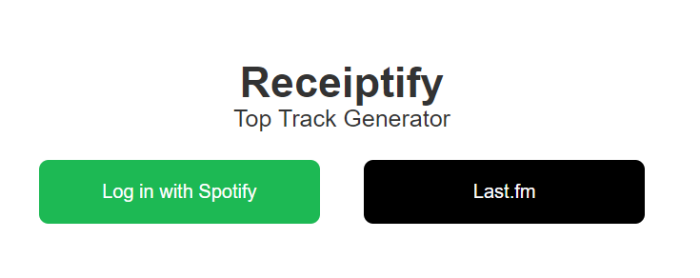
Step 1. On your browser, go to the https://receiptify.herokuapp.com/ webpage to access the Receiptify tool.
Step 2. Go to the Receiptify Spotify Login page, and select the login with Spotify option to sign in to your Spotify account.
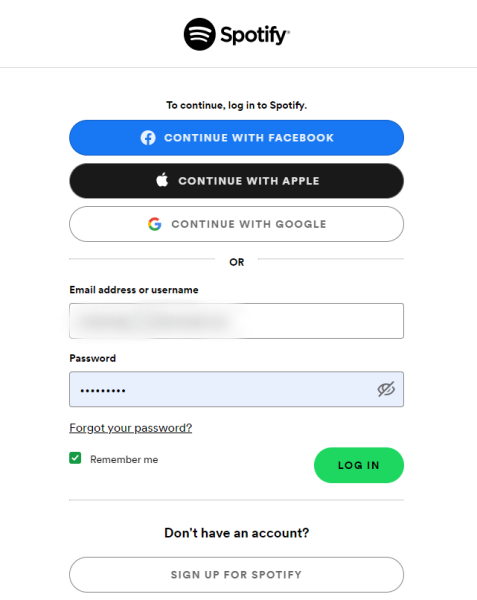
Step 3. In the next view, you can enter and confirm your Spotify account credentials. Click Log In.
Step 4. Here you can choose to see your Spotify stats receipts with the time you preferred, including Last Month, Last Six Months, and All Time. Moreover, there are options to access your top tracks and top artists.
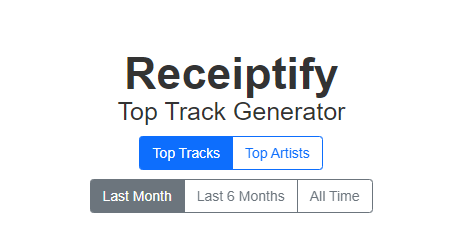
Step 5. Choose the above options as you like and a customized Spotify receipt will be produced and shown below right after your choice.
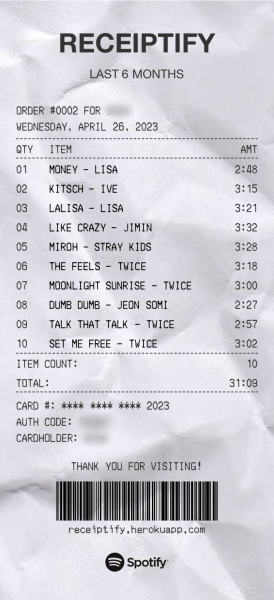
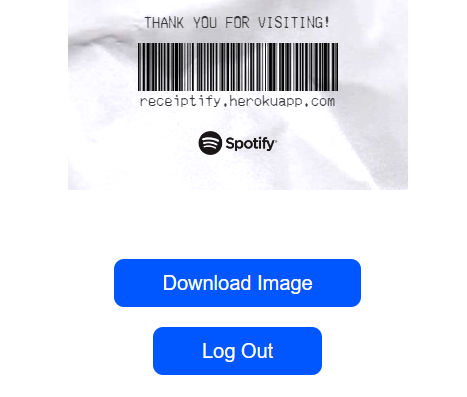
Step 6. Below the receipt, you can choose the Download Image option to save the picture locally, then you can share it with your friends or on social media.
Why is my receipt not loading?
Receiptify is a useful tool and easy to use as well. However, there are times when Receiptify does not work or cannot load your listening data on other third-party music services. And you have no idea why this happens, don’t fret! Next, I’m going to show you some powerful methods to fix this issue.
Fix 1. Reopen the website and re-login. If your network connection is not stable or valid, you may run into such problems. In this case, reloading the site and logging in can solve.
Fix 2. Allow Pop-ups on your browser. This is essential, please check and ensure you have allowed pop-ups on your browsers. On Google Chrome, go to Settings > Privacy & Security > Site Settings > Pop-ups and then redirect, ensure to enable Pop-ups.
Fix 3. Open Receiptify on another browser. If Receiptify has an issue with the connection, you can try to visit the website from another browser. It may help.
Fix 4. Use a different device to use Receiptify. You can access this tool on both your mobile and desktop devices; switch to the other device if one of them is not working.
Fix 5. Clear browser cache files. Cache files keep producing in the background whenever you use the browser; therefore, it’s better to clean up these unnecessary files from time to time.
Part 3. FAQs about Spotify Receipt
Do Spotify Receipts work for free Spotify users?
Yes. Both Spotify Free and Premium users can generate Spotify receipts.
What’s the difference between Spotify Receipt and Spotify Wrapped?
Spotify Wrapped is an official, once-a-year event produced by Spotify, while Spotify Receipts (Receiptify) are unofficial and available year-round. Spotify Wrapped includes detailed stats and visuals, but Spotify Receipts only focuses on simple summaries.
Does Spotify Receipt show private listening data?
No. Spotify receipts only display basic listening stats. They don’t reveal your private playlists, account credentials, or any personal information.
Is it safe to give Receiptify access to my Spotify?
Generally, yes. Receiptify is an open-source project that uses the official Spotify API. It only sees the data Spotify shares with it, and your login credentials or other private content are not included.
Does Spotify Receipts cost anything?
No, generating Spotify receipts by Receiptify is completely free.
Part 4. Bonus: How to Download Your Top Songs on Spotify Receipt
Surprise! This is a special gift for all Spotify users who would like to enjoy these favorite songs forever. You can see your top tracks from the Spotify receipts, and without question, they are your favorite ones on Spotify. Though Spotify Premium enables you to download them as offline playback, it is not allowed to keep them offline playable forever. As these songs are protected by DRM encoded format to ensure their copyright safety, the songs you downloaded are not real files, but only cache files. They won’t be available once your subscription expired.
Therefore, if you want to keep your top songs forever and listen to them without limits, you will need the TunesMake Spotify Music Converter. As a professional and powerful music downloader and converter, TunesMake Spotify Music Converter can help all Free and Premium users to remove Spotify DRM and convert any songs, playlists, albums, or podcasts to common audio formats, including MP3, M4A, M4B, WAV, FLAC, and AIFF. In addition, the original sound quality and ID3 tags will be 100% preserved. In this way, you can enjoy a streaming experience which no less than on the Spotify app. After conversion, the downloaded Spotify music files will be kept locally forever and can be played on multiple players or platforms without hassle.

TunesMake Spotify Music Converter –
Download Songs from Spotify Receipts and Keep Them Forever
- Unlimitedly download Spotify songs, playlists, and podcasts
- Losslessly convert Spotify music to MP3, FLAC, WAV, AIFF, etc.
- Remove ads from Spotify music tracks even with Free accounts
- Convert Spotify songs at 12X faster speed with ID3 tags kept
Security Verified. 100% Clean & Safe.
Step 1
Select Spotify music to import
Firstly, you should click the Free Download button above to install the TunesMake Spotify Music on your desktop. Then, you can launch it and visit the official Spotify web player on its interface. After logging in, simply drag and drop your favorite song to the lower Add icon so that it can be added to the conversion list. If you need to download songs in batch, you can select a playlist/album, and then click the Add icon > Add to List.

Step 2
Customize the output settings
To set the output format, you can go to the menu icon on the top right of the interface, then select Preferences > Conversion to customize your settings. We’ve set MP3 as the default output format and we also suggest you set so. Here you’re allowed to adjust other audio parameters as well.

Step 3
Download Spotify Top Songs Offline
Now confirm your settings and click the Convert button to start your conversion. Just have a cup of tea before the conversion is done. Then you can locate the converted Spotify music from the Converted panel and check your converted history here. After that, you can enjoy Spotify songs on multiple devices offline without limits.

In Conclusion
Spotify receipts are a good way to access and see your listening habits. If you’re eager to know how to get Spotify receipts, this article shows you how with the above guide. In addition to that, we also offer you a great chance to listen to Spotify music offline on multiple devices. Just use TunesMake Spotify Music Converter to download DRM-free audio files for streaming with ease.
Related Articles

A senior editor from TunesMake, dedicated to sharing professional tutorials and solutions of software, movies, and music.
- 1
- 2
- 3
- 4
- 5
- 6
- 7
 Leave Your Comment
(0)
Leave Your Comment
(0)

 Download Center

