








 Store
Store


When your social feeds fill up with colorful colorful top-artist cards and listening stats, missing out on your annual summary feels frustrating. The culprit of Spotify Wrapped not showing up is usually a temporary app glitch, an outdated software, cached data conflicts, or specific account eligibility limitations. Instead of trying random fixes, this step-by-step diagnostic guide will help you pinpoint the exact cause of the issue and walk you through targeted solutions to get your Spotify Wrapped back on screen.
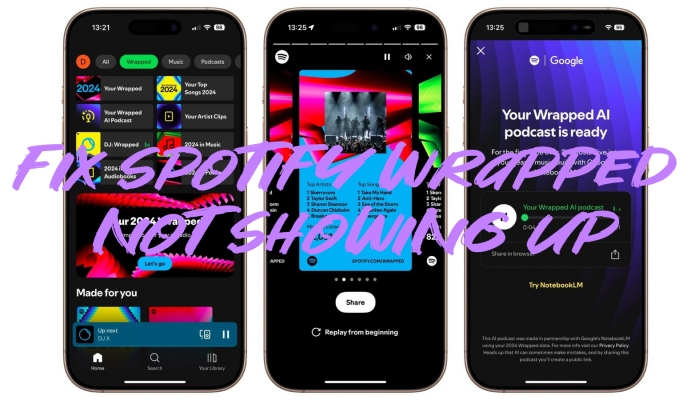
Part 1. Why Is Spotify Wrapped Not Showing up?
When Spotify launches its annual event, millions of users ping their servers simultaneously. This massive spike in traffic can lead to several temporary issues. The issue of Spotify Wrapped not showing up can be caused by the following reasons.
1️⃣ Staged System Rollouts: Spotify releases Wrapped features in server waves across regions rather than pushing updates to every user simultaneously.
2️⃣ Corrupted App Cache: Temporary files stored during daily listening can conflict with newly pushed interactive story assets.
3️⃣ Outdated App Build: The multi-media interactive format used for Wrapped requires modern rendering engines present only in recent software updates.
4️⃣ Account Misconfiguration: Account switches, inactive subscriptions, or strict privacy features can disconnect your listening history from the backend aggregation pipeline.
Part 2. How to Access When Spotify Wrapped Not Working
Before troubleshooting your Spotify app or device, verify whether your account qualifies for Wrapped and ensure Spotify's servers are functioning properly. You then have the option to access Spotify Wrapped in other ways when it is not showing up.
Step 1: Check Server Status and Regional Rollout Schedules
Spotify Wrapped rolls out in staged server waves across different regions. During peak launch hours, high traffic volume can cause temporary server slowdowns or UI display delays.
- Check official status channels such as Spotify Status on X or DownDetector to confirm if Spotify is experiencing a global outage.
- If servers are overloaded, wait 15–30 minutes before re-opening the Spotify app to allow the backend to process your request.
Step 2: Verify Account Eligibility Requirements
If your app is working fine but Wrapped remains absent, your account may not meet the minimum backend criteria. Make sure your account meets the requirements below.
- Minimum Tracks Streamed: Your account must stream at least 30 distinct tracks for longer than 30 seconds each during the annual tracking window.
- Minimum Unique Artists: You must have listened to at least 5 unique artists.
- Excluded Private Listening: Tracks played while Private Session is turned on do not count toward your total play counts or artist metrics.
- Excluded Taste Profiles: Any playlists marked with "Exclude from your taste profile" are stripped from your listening stats.
- Account Age: Accounts created near the tail end of the listening logging period may lack sufficient data to generate a slideshow.
Step 3: Immediate Access to Spotify Wrapped
If your account is eligible and servers are operational, but the Wrapped banner still isn't visible on your Home screen, use these shortcuts to trigger the feature directly.
Trigger the Direct Web Link
If the banner fails to load inside your app, force your device to trigger the interactive experience using Spotify's official deep link.
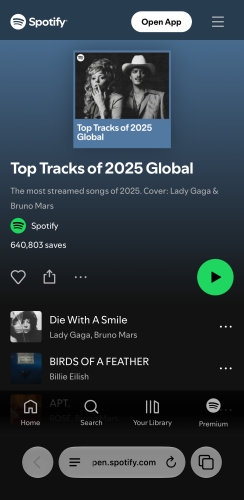
Step 1. Open your mobile web browser like Safari, Chrome, or Firefox.
Step 2. Navigate directly to spotify.com/wrapped.
Step 3. Tap Download Spotify or Listen Free. If the Spotify app is already installed, your phone will automatically trigger the in-app Wrapped presentation.
Execute Direct Search Commands In-App
Spotify includes built-in search keywords designed to pull up event hubs even when banners fail to render.
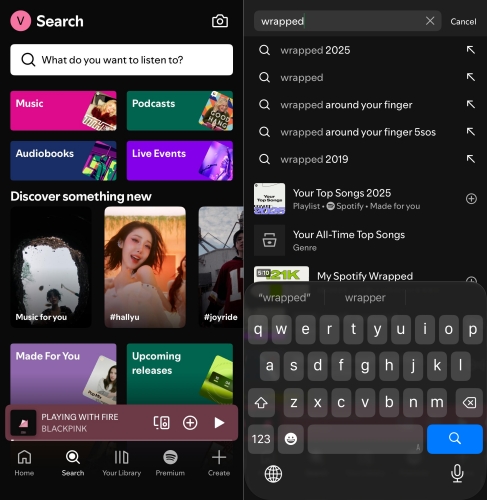
Step 1. Open the Spotify mobile app.
Step 2. Tap the Search icon in the bottom navigation bar.
Step 3. Type Wrapped or spotify:datastories:wrapped into the search bar and hit search.
Step 4. Tap the official top result or banner genre tile labeled "2026 Wrapped".
Part 3. How to Fix Spotify Wrapped Not Showing up
If direct shortcuts do not open your annual recap, follow these step-by-step troubleshooting procedures ranked by technical effectiveness.
Fix 1. Update and Force Quit Spotify
Running an outdated build of Spotify is the leading cause of missing or crashing Wrapped stories.
On iPhone
Step 1. Open the App Store and tap your profile icon in the top right.
Step 2. Scroll to Spotify and tap Update.
Afterward, swipe up from the bottom of your screen to bring up the App Switcher, swipe Spotify off the top of the screen to force close it, and relaunch.
On Android
Step 1. Open the Google Play Store and tap your profile icon.
Step 2. Go to Manage apps & device and update Spotify.
Subsequently, open the Settings app on your Android phone, go to Apps > Spotify, and tap Force Stop. Then launch the Spotify app again.
Fix 2. Clear Local App Cache
Clearing temporary app storage clears out corrupt layout files without deleting your saved playlists or downloaded music files.
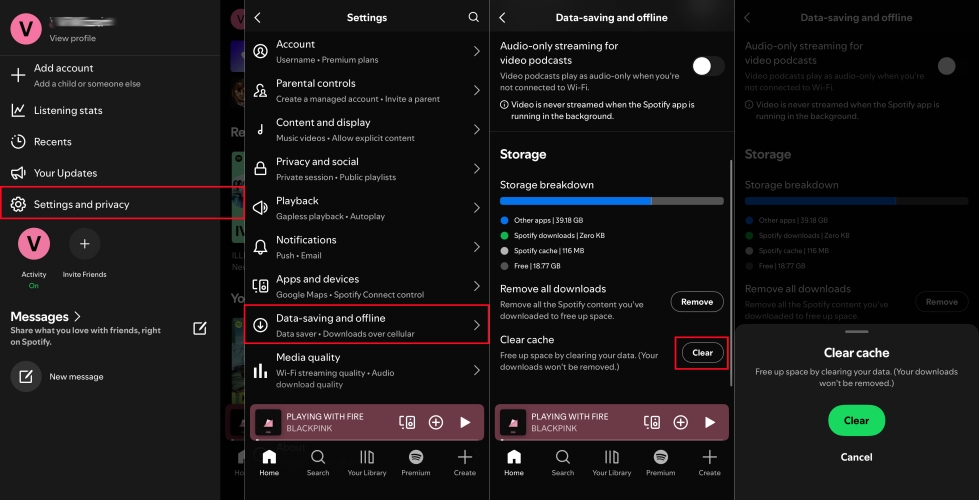
Step 1. Open Spotify and tap your Profile Picture in the top menu.
Step 2. Go to Settings and privacy > Data-saving and storage.
Step 3. Select Clear Cache.
Step 4. Confirm your selection, fully close the app, and reopen it.
Fix 3. Log Out and Log Back In
Refreshing your account's authentication token forces Spotify's servers to re-verify your account features.
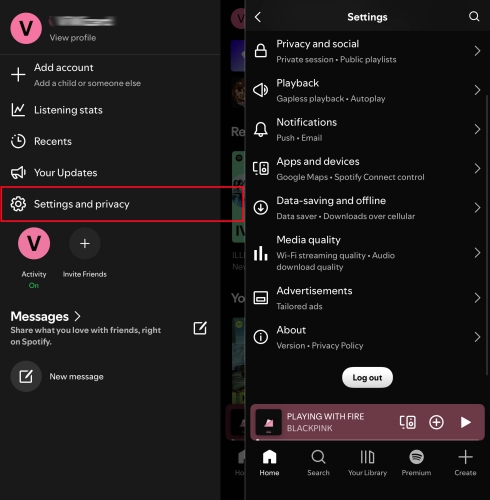
Step 1. Navigate to Spotify's Settings and privacy menu.
Step 2. Scroll to the bottom and select Log out.
Step 3. Turn off your smartphone completely, wait 30 seconds, and turn it back on.
Step 4. Open Spotify, enter your login credentials, and inspect the Home tab.
Fix 4. Disable VPN and Reset Network
VPNs alter your IP address, causing server location mismatches between your account's registered country and your active session location.
Step 1. Turn off any active VPN apps.
Step 2. Toggle your mobile device's Airplane Mode on for 10 seconds.
Step 3. Turn it off to reset your cellular and Wi-Fi IP connections.
Fix 5. Manually Locate the "Your Top Songs" Playlist
If the visual slideshow fails to render due to graphics hardware issues on older devices, your annual music collection is still available via a dedicated playlist.
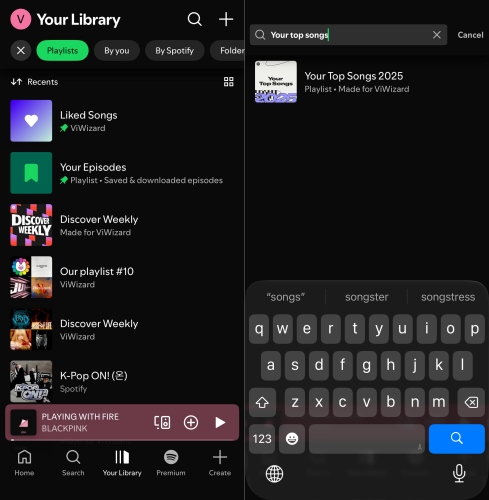
Step 1. Open Spotify and tap Your Library at the bottom of the screen.
Step 2. Tap the Playlists filter at the top.
Step 3. Use the internal library search to type "Your Top Songs 2026".
Step 4. Open the playlist created by Spotify's official account to view your top streamed music.
Fix 6. Enable Permissions for Spotify
Different operating systems handle app permissions and background data differently. Use these targeted steps for your specific platform.
On iPhone
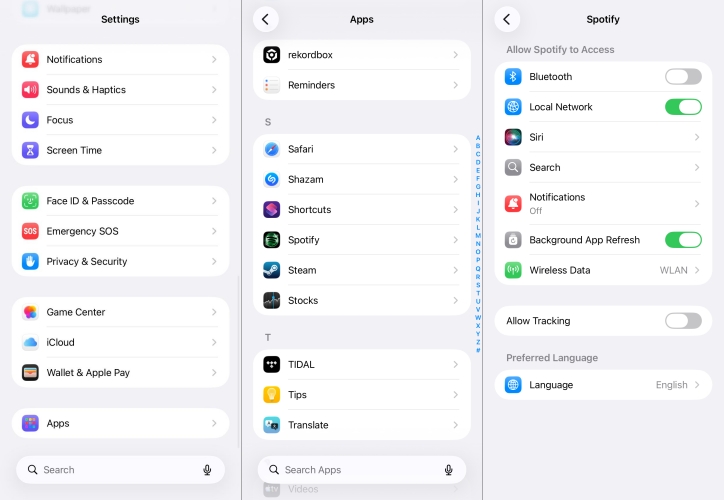
Step 1. Go to Settings > Apps and select Spotify.
Step 2. Ensure Background App Refresh is toggled ON.
On Android
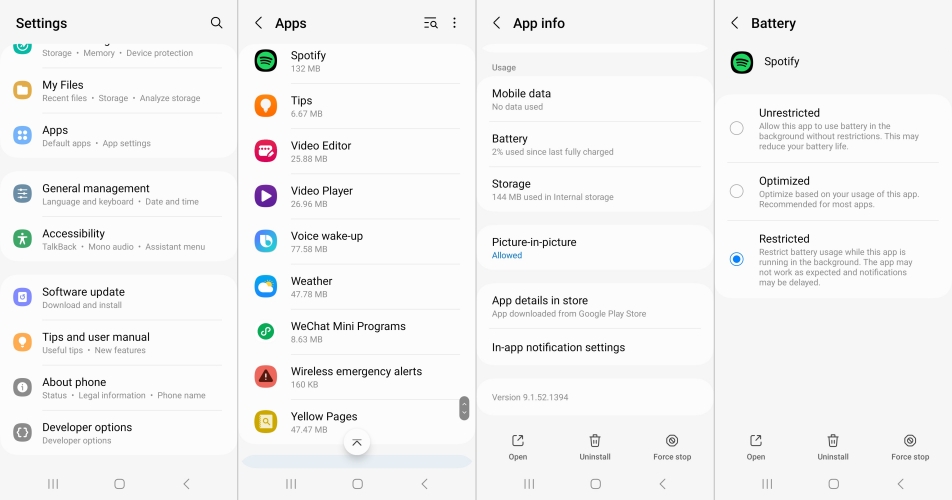
Step 1. Navigate to Settings > Apps and tap Spotify.
Step 2. Tap Battery and switch to Optimized or Unrestricted.
Fix 7. Perform a Clean Reinstall of Spotify
If underlying app files are corrupted beyond what a cache clear can fix, perform a complete re-installation.
On iPhone
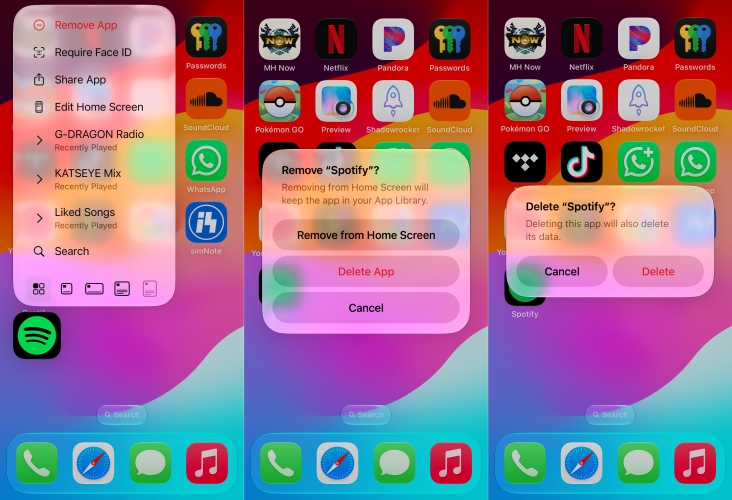
Step 1. Touch and hold the Spotify icon, then tap Remove App.
Step 2. Select Delete App and tap Delete to confirm.
Step 3. Re-download Spotify from the App Store.
On Android
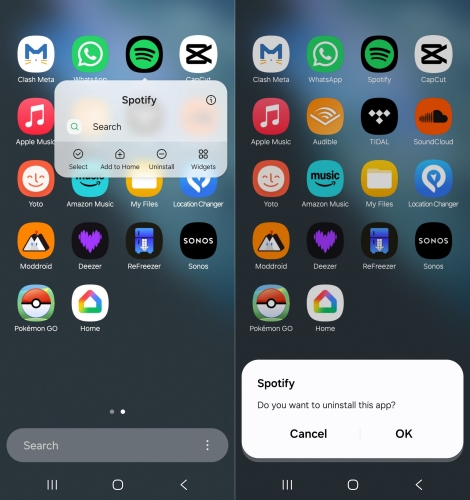
Step 1. Touch and hold the Spotify icon, then tap App Info.
Step 2. Select Uninstall and tap OK to confirm.
Step 3. Open Google Play Store and re-download.
Part 4. Bonus Tip: Download Your Top Songs 2026 Locally
If continuous app crashes prevent you from playing your annual summary playlist on your phone, accessing your account from a computer provides a reliable fallback. For users who want to save a local backup of their "Your Top Songs 2026" playlist without depending on Spotify's mobile app rendering engine, TunesMake Spotify Music Converter can assist.
TunesMake Spotify Music Converter allows you to download your annual playlist and save all the tracks into standard formats like MP3 or FLAC while preserving original quality and track metadata. This ensures you retain access to your year's top tracks even if local app glitches persist. Furthermore, you can listen to your annual playlist on any device you want.

TunesMake Spotify Music Converter –
Download music from Spotify without premium
- Download Spotify songs, albums, playlists, audiobooks, and podcasts
- Losslessly convert Spotify music to MP3, FLAC, WAV, AIFF, and more
- Remove ads from Spotify music tracks even with a Free account
- Convert Spotify music at 15× faster speed in batch with ID3 tags kept
Security Verified. 100% Clean & Safe.
Step 1 Add Spotify Wrapped Playlist to Download
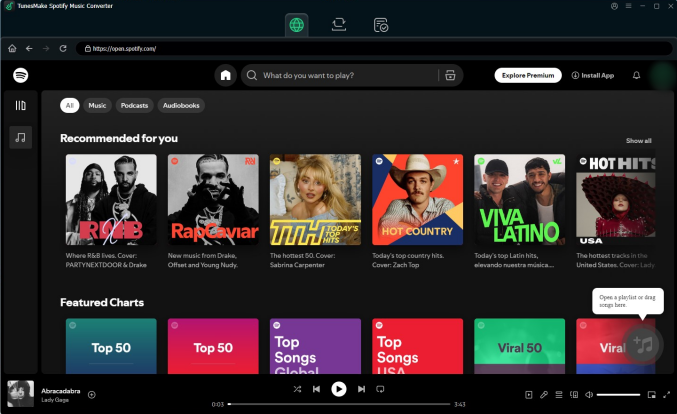
Launch TunesMake Spotify Music Converter, and then the built-in Spotify Web Player will open at the same time. Log into your Spotify account and find your Wrapped playlist. Open the playlist, click the + button to load, and select any music track to download.
Step 2 Customize the Parameters for Spotify Music
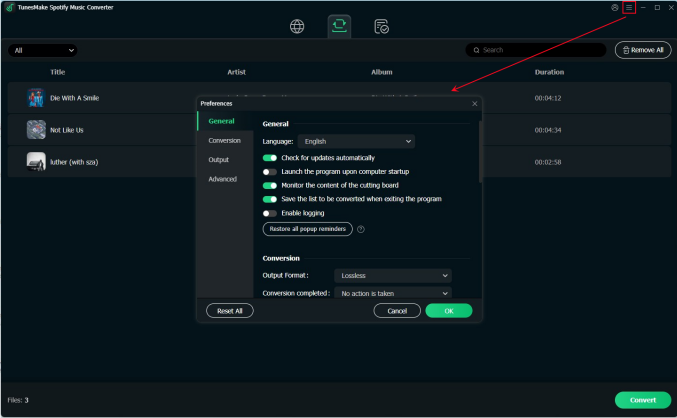
By clicking the three-line menu at the top right of the interface, you can see the Preferences option. Then there will pop up the settings window, and you need to switch to the Conversion button. Here you can choose the output format and set other audio parameters like the bit rate, sample rate, and channel. After setting the output parameters, click the OK button to save.
Step 3 Start to Download Spotify Wrapped Playlist
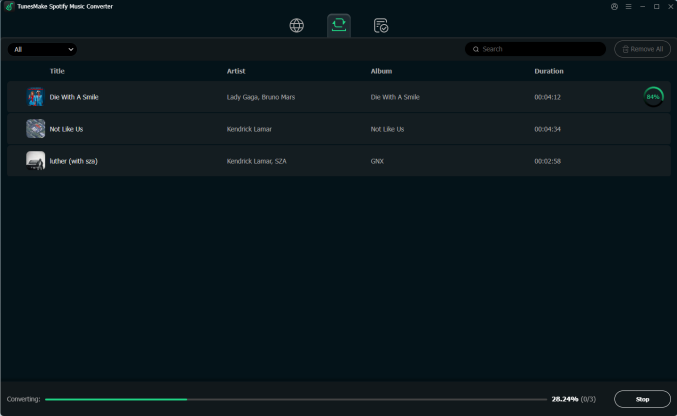
Go back to the interface and click the Convert button to start downloading and converting Spotify Wrapped playlist. Once the conversion is completed, you can view the downloaded music in the history list by clicking the Converted panel at the bottom of the screen. If you cannot find the converted folder where you store the downloaded music, you can click the Search icon.
Part 5. FAQs about Spotify Wrapped
Can I view the full interactive Spotify Wrapped on a computer?
While desktop users can search for and listen to their auto-generated "Your Top Songs" playlist, the full story slideshow experience with shareable cards is optimized exclusively for the iOS and Android mobile apps.
Why does my Spotify Wrapped say "Not Enough Data"?
This message appears when an account has not met the minimum listening thresholds, such as 30 tracks played for over 30 seconds or when listening activity primarily occurred during Private Sessions.
Does Spotify Free include Spotify Wrapped?
Yes. Both Spotify Free and Spotify Premium users receive a personalized Wrapped summary, provided their accounts meet the baseline listening requirements and run on supported app versions.
Can I view my Wrapped summaries from previous years?
Yes. While the interactive story cards are only active during the current season, you can access your past top song playlists anytime by searching "Your Top Songs 2025", "Your Top Songs 2024", and so on directly in the Spotify search bar.
Part 6. Conclusion
Missing out on your Spotify Wrapped usually comes down to outdated app files, local cached data conflicts, and more. By verifying your account eligibility, checking Spotify’s official server status, and leveraging direct deep links, you can access your Spotify Wrapped summary without delay. When the issue persists, try all troubleshooting steps and restore your missing Spotify Wrapped experience.
Related Articles


A senior editor from TunesMake, dedicated to sharing professional tutorials and solutions of software, movies, and music.
- 1
- 2
- 3
- 4
- 5
- 6
- 7
 Leave Your Comment
(0)
Leave Your Comment
(0)

 Download Center

