








 Store
Store


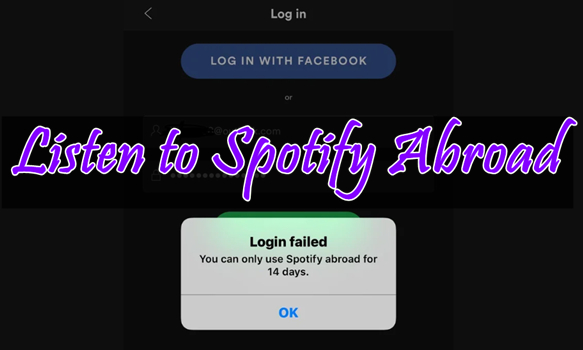
Spotify is an excellent music streaming platform for us to enjoy millions of songs and thousands of podcasts online. You can even enjoy Spotify music without a Premium subscription, but you have to tolerate unlimited ads during the process. Anyway, Spotify has become one of our daily lives so we cannot leave it. While you use Spotify abroad, you will receive a message – “you can only use Spotify abroad for 14 days“. Well, it may trouble many of you who are heading for a different country or region. How to use Spotify abroad after 14 days? If you’re looking for the answer, you can read the post carefully to check it out.
Part 1. Why Can You Only Use Spotify Abroad for 14 Days?
Spotify abroad refers to using Spotify outside of your home country or the region where your account is registered. When you travel or temporarily stay in a different country, you may receive a message showing that you can only use Spotify abroad for 14 days. This is because using Spotify in a country other than your own can have limitations and restrictions based on licensing agreements, geographical location, and regional availability of content. These restrictions often lead to a 14-day access window.
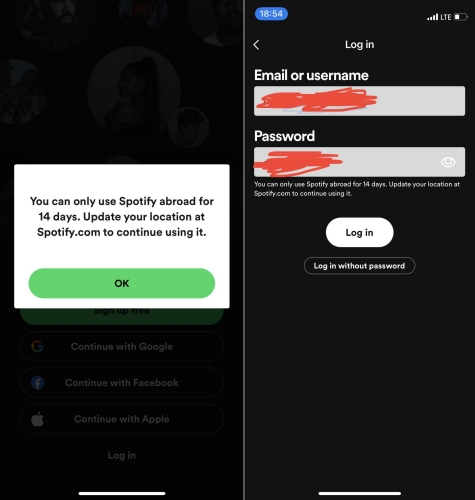
When you travel to a new country, you are technically accessing Spotify’s service in a region where they might have different licensing agreements. To comply with these legal and contractual obligations, Spotify limits the time you can use the service outside your home country. The 14-day limit is a way to balance providing some access to your music while traveling and adhering to the licensing terms that govern the distribution of the content. After this period, Spotify encourages users to switch their country settings.
Does Spotify Premium Work Abroad?
Yes, Spotify Premium works abroad. Spotify Premium allows you to use the service while traveling or temporarily staying in a different country for more than 14 days without restrictions.
What Happens If I Exceed the 14-day Limit Using Spotify Abroad?
You may face limitations in accessing certain songs and features until you return to your home country.
Part 2. How to Fix You Can Only Use Spotify Abroad for 14 Days
Many people wonder how to use Spotify abroad for more than 14 days. Luckily, there are two official ways to help you use Spotify in another country or region. Regardless of using a free account or subscribing to a Premium, you can access Spotify when you are not in your home country. Here’s how to.
Method 1. Change Your Country or Region Settings
For Free Users
All free users can only use Spotify in a different country or region for up to 14 days because of licensing restrictions. If you are a Spotify free user and want to stream Spotify abroad without 14-day restrictions, then you need to change your account settings. In the account settings page, you can update your location to prolong Spotify service. The process is pretty simple, and you can follow the below steps.
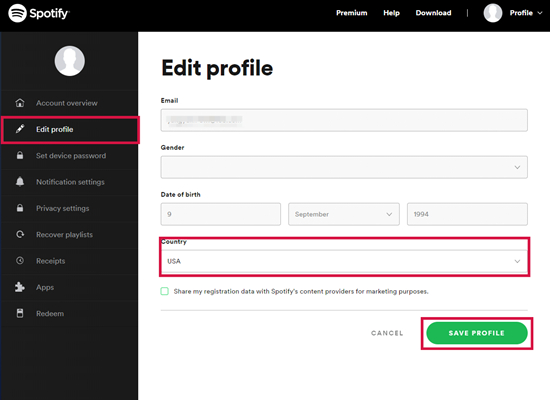
Step 1. Head to the Spotify Account page and log in to your Spotify account.
Step 2. Click Edit Profile, then scroll down to Country.
Step 3. Select the country or region you’re now in and click Save Profile.
Note
If you log in to Spotify with Facebook or Apple ID, you also need to change your country or region settings with those services.
For Premium Subscribers
With a Premium subscription, you don’t have to change your account settings as Spotify allows all Premium subscribers to listen to music anywhere. To have a better listening experience, you download Spotify music in advance and then use Offline Mode in Spotify. But you can also change your country or region by updating your payment method, which can help you avoid some unnecessary troubles.
Step 1. Open the Spotify Account page, then log in to your Premium account.
Step 2. Under Account, click Update next to your payment method.
Step 3. Select a new payment method that was issued in your new country or region.
Method 2. Use a VPN to Mask Your Actual Location
VPN services are a vital tool to bypass geographic restrictions. By connecting to a server in a country where Spotify is available, you can trick Spotify into thinking you’re accessing it from within that region. Then you can use Spotify abroad though you don’t update your location.
Step 1. Find a reliable VPN provider with a vast network of servers globally.
Step 2. Install the VPN app on your device and connect to the VPN.
Step 3. Choose the server located in the country you specified during the registration process.
Step 4. Open Spotify on your device and start browsing your music library.
Method 3. Create a New IP Address Using Proxy Servers
Proxy servers act as intermediaries between your device and Spotify’s servers, masking your actual location and granting access to the platform. In addition to using a VPN app, you can also create a new IP address by using proxy servers. Then you can access Spotify abroad.
Step 1. Select a reliable proxy provider.
Step 2. Enter the domain of Spotify music service.
Step 3. Choose an IP address location and tap Enter.
Step 4. Open Spotify on your device and start accessing Spotify abroad.
Part 3. Ultimate Fix: Download Spotify Songs Locally for Unlimited Play
One of the primary challenges of using Spotify abroad is the difference in available content. Licensing agreements and regional restrictions limit the songs and albums you can access. In addition to updating your location or upgrading to Premium, there is an ultimate method to get Spotify unblocked when you’re abroad. That is to use a dedicated Spotify music downloader to download Spotify music locally in advance, and then you can listen to them anywhere and anytime, even without the Spotify app.
TunesMake Spotify Music Converter is one of the most popular and professional Spotify music converters. It is designed to remove encrypted audio formats on Spotify and convert Spotify music to MP3 and other common audio formats. Once downloaded, you can transfer the local Spotify files to other devices for listening abroad with no limitations. You don't need to worry about your listening experience since the TunesMake program smartly retains original sound quality.

TunesMake Spotify Music Converter –
Download Spotify Music Locally for Listening Abroad
- Unlimitedly download Spotify songs, playlists, and podcasts
- Losslessly convert Spotify music to MP3, FLAC, WAV, AIFF, etc.
- Remove ads from Spotify music tracks even with Free accounts
- Convert Spotify songs at 12X faster speed with ID3 tags kept
Security Verified. 100% Clean & Safe.
Step 1
Select Spotify Songs to Download
First, you need to download and install TunesMake Spotify Music Converter on your computer. Once you launch it, the Spotify web player will be opened as well. You can sign in to your account and find a playlist to download. Simply select one playlist/album, and then click the Add icon at the bottom right. When the new window that lists all the songs pops up, you can load the songs you like to the TunesMake program via the Add to List option.

Step 2
Set the Output Format for Spotify
Once loading Spotify music into the converter, you can select the output audio format you want. You can set MP3 as the output format and change other audio parameters like the bit rate, sample rate, and channel. Simply go the menu bar at the top right corner of the interface and click Preferences > Conversion to set up. Then, you can set the output audio parameters.

Step 3
Download Spotify Music to MP3
Now, you can click the Convert button and start your downloading and conversion of Spotify music. When it is finished, you can locate the converted music files in your storage folder of your computer. By clicking the top Converted icon, you can open the history list and find the storage folder. Now, you can play Spotify music abroad without any hassles.

Part 4. Conclusion
When you are told that you can only use Spotify abroad for 14 days, don’t worry! The above methods can help you easily resolve the issue. However, the most direct yet powerful way is to download Spotify music with TunesMake Spotify Music Converter. Later, you can listen to Spotify music abroad, on a plane, or anywhere with no internet connection. If you have some suggestions, feel free to contact us. And you can also share more tips about accessing Spotify abroad in the comment area below.
Related Articles

A senior editor from TunesMake, dedicated to sharing professional tutorials and solutions of software, movies, and music.
- 1
- 2
- 3
- 4
- 5
- 6
- 7
 Leave Your Comment
(0)
Leave Your Comment
(0)

 Download Center

