








 Store
Store


It’s a great thing to enjoy your favorite playlist or podcast with friends and loved ones. With the evolving feature of Group Session on Spotify, you are able to listen to music from Spotify together with your friends in real time. Meanwhile, in a Group Session, everyone invited can control what plays. Since the Spotify Group Session feature was first released, it has attracted lots of users to use it. No matter the distance — whether six feet apart or a thousand miles away — you can initiate a remote listening party to enjoy music with the members of your squad. For now, get started with your Spotify Group Session with ease.
Part 1. What Is Spotify Group Session?
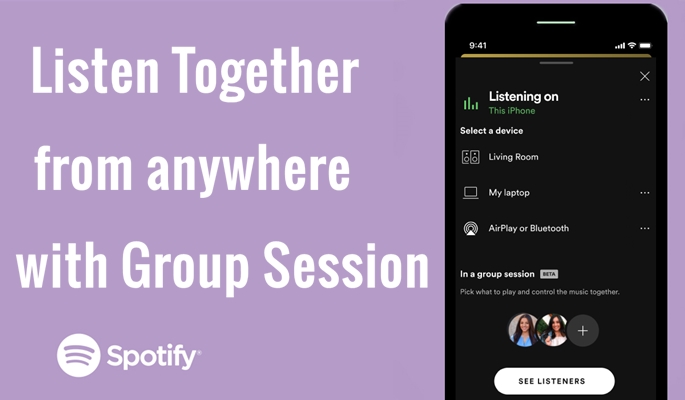
Spotify Group Session is a social listening feature Spotify provided for music lovers who enjoy listening to music with family and friends. It allows multiple users to play and control a shared music queue in real time.
One user starts the session as the host, and others can join via an invite link or QR code. Then, all users in this session can hear the same audio simultaneously and can control playback together. Additionally, everyone can contribute songs, see what others added, and receive recommendations based on the group’s collective taste. Whether you are hosting a house party or a long-distance session, Spotify Group Session ensures everyone has a say in the soundtrack.
Part 2. How to Do a Group Session on Spotify [Premium]
Spotify Group Session is available for all Spotify users, but only Premium users can start a Group Session and invite others to join the session. If you have a valid Spotify Premium subscription, you can see this feature on the Spotify mobile and tablet app. To start and host a Group Session, you can perform the steps below:
How to Start a Group Session on Spotify
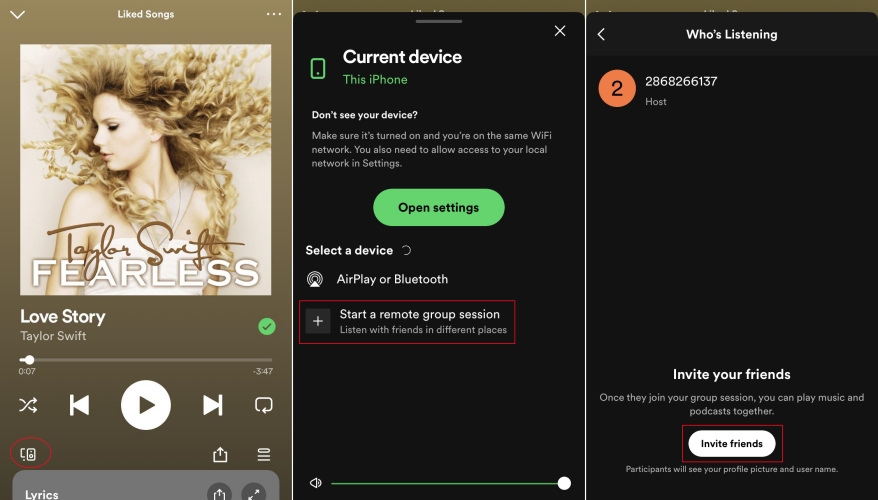
1) Open Spotify and play a song, podcast, or playlist you want to listen to.
2) In the Now Playing view, tap the Connect icon ( Available Devices icon) at the left-bottom of the screen.
3) Find and select the Start a remote group session option with a Plus (+) icon to host a group session.
4) In the next view, tap Invite friends and then share the invite link with your friends.
Once done, you can see the ongoing real-time group session via the Connect icon and the icon will turn to green showing the words “Group Session”.
How to Leave Spotify Group Session
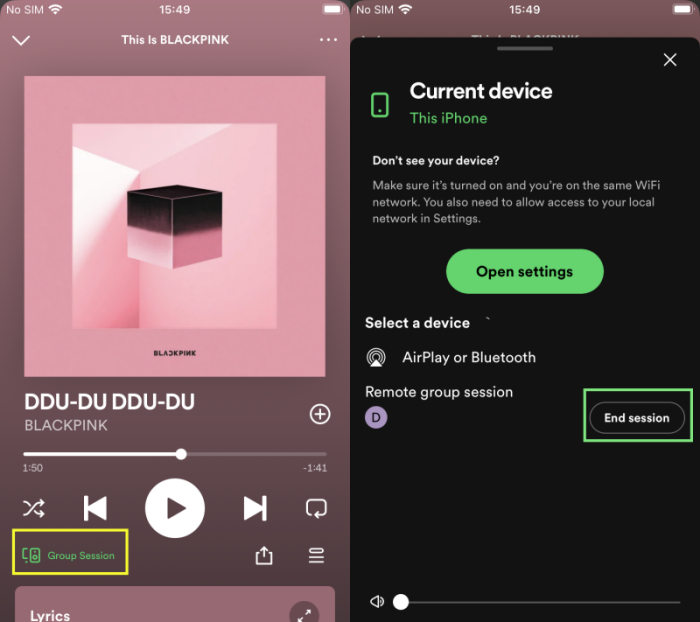
1) On your Spotify mobile app, tap the Now Playing view and you’ll see the Connect icon turned to green and displaying Group Session.
2) Tap the icon showing Group Session to enter the detail page.
3) Under the Remote group session, tap the End session button beside your profile name to leave the ongoing project.
Part 3. How to Listen to Spotify Together [Free& Premium]
Aforementioned, this brand-new functionality is only available for those Premium users now. It’s a great pity, but we don’t stop there. To share Spotify songs with your friends and listen together, there is another available method - downloading your favorite songs to your device locally. Once these songs as saved as normal audio files, you can easily share them with your friends for listening playback. How to get it done? Well, the answer is simple - TunesMake Spotify Music Converter.
TunesMake Spotify Music Converter is a top-rated music converter and downloader for all Spotify users. With this smart tool, you can download any music track, playlist, album, or podcast from Spotify and then save it into six popular audio formats, including MP3, M4A, M4B, WAV, FLAC, and AIFF. Furthermore, the TunesMake program automatically retains the original sound quality and ID3 tags of these Spotify songs. In other words, you can have the same high-fidelity listening experience as online. This TunesMake tool even supports personalizing the audio output settings as you wish. When all songs are downloaded, it’s a breeze to transfer them to any device or media player for playing without any hassle.

TunesMake Spotify Music Converter –
Download Spotify Songs Locally to Listen Together
- Unlimitedly download Spotify songs, playlists, and podcasts
- Losslessly save Spotify music to MP3, FLAC, WAV, AIFF, etc.
- Remove ads from Spotify music tracks even with Free accounts
- Convert Spotify songs at 12X faster speed with ID3 tags kept
Security Verified. 100% Clean & Safe.
Step 1
Load songs from Spotify library to TunesMake

Install and launch the TunesMake Spotify Music Converter on your computer, and then it will lead you to the Spotify web player. You should sign in to your account and select the playlist or album you want to share with your friends. After that, click the Add icon at the bottom to load all the songs included in this playlist/album. Pick the songs you like and load them to the conversion list by clicking the Add to List option.
Step 2
Set the output parameter for Spotify songs

Next, click the top menu bar and choose Preferences > Conversion to set the output parameters. Here, you could adjust the output format, bit rate, sample rate, channel, and more. When you finish, don’t forget to click the OK button to save your changes.
Step 3
Start to download music from Spotify to MP3

The converter will start to download and convert music from Spotify to the default folder or your specified folder by clicking the Convert button. After finishing the download of Spotify tracks, go to browse the converted Spotify songs. To locate the converted Spotify music files, just click the Converted icon, and the converted list will appear.
Part 4. FAQs about Group Session
How to fix Spotify Group Session not working?
If you can’t find the Spotify Group Session feature, you need to first confirm that your Premium subscription is still available and that you are using this feature on the Spotify mobile app instead of the PC version. After that, you can try some common solutions like restarting Spotify and your device, updating the app, clearing Spotify cache, and so on.
How many people can join a Spotify Group Session?
Spotify allows up to 5 listeners to join a single Group Session at the same time, including the host.
Can everyone control the music in a Group Session?
Yes, all participants can control playback in this Group Session, including play, pause, skip, and add songs. However, only the host has the power to disable guests’ control and end this session.
Can you use Spotify Group Session remotely?
Yes, Spotify Group Session works both in the same location and remotely. As long as you are in this session and have a valid Internet connection, you can listen together from different places around the world.
Conclusion
Following the below steps, you can easily start a Group Session on Spotify and listen to your favorite songs together with your friends or families. If without a Spotify Premium subscription, you could have a try of TunesMake Spotify Music Converter. With the help of TunesMake software, it would be easier to play Spotify music anywhere and anywhere.
Related Articles



A senior editor from TunesMake, dedicated to sharing professional tutorials and solutions of software, movies, and music.
- 1
- 2
- 3
- 4
- 5
- 6
- 7
 Leave Your Comment
(0)
Leave Your Comment
(0)

 Download Center

