








 Store
Store


Spotify's free tier brings millions of tracks to your fingertips, but mid-playlist audio interruptions and full-screen banner ads can derail your listening experience. While upgrading to Spotify Premium is the official solution, many listeners seek ways to streamline their music playback across desktop, mobile, and web devices. This comprehensive guide breaks down the safest, most effective methods to block Spotify ads or silence them automatically on PC, Mac, Android, and iOS. Let's explore how to get on ads on Spotify without Premium.
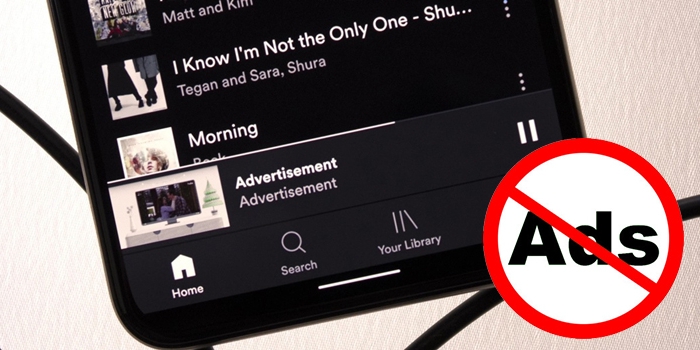
Part 1. Does Spotify Have Ads?
Yes, Spotify does have ads, but whether or not you hear them depends on your subscription plan and the type of content you are listening to. If you use the free version of Spotify, you will see visual banners and pop-up ads within the app. Also, audio ads play every 15 to 30 minutes between songs. Fortunately, there are some ways to remove or block ads on Spotify.
Part 2. Best Way to Listen to Spotify without Ads on Any Device
Rather than blocking ads during live streaming, which often requires background scripts or browser workarounds, a practical approach is downloading your favorite offline listening. TunesMake Spotify Music Converter allows both free and premium users to download Spotify tracks, albums, playlists, and podcasts into local audio formats like MP3, WAV, AIFF, or FLAC while preserving ID3 tag metadata.
Because TunesMake extracts the audio stream to local files, commercial ad breaks are completely filtered out during the conversion process. Once saved to your computer locally, you can transfer these files to any smartphone, MP3 player, or car stereo for 100% ad-free offline playback. This eliminates live streaming ad interruptions completely and allows you to keep tracks forever. With just three simple steps, you can get unprotected Spotify tracks and listen to them offline without the distraction of ads on diverse devices.

TunesMake Spotify Music Converter –
Download music from Spotify without premium
- Download Spotify songs, albums, playlists, audiobooks, and podcasts
- Losslessly convert Spotify music to MP3, FLAC, WAV, AIFF, and more
- Remove ads from Spotify music tracks even with a Free account
- Convert Spotify music at 15× faster speed in batch with ID3 tags kept
Security Verified. 100% Clean & Safe.
Step 1 Import Spotify Music to the Conversion List
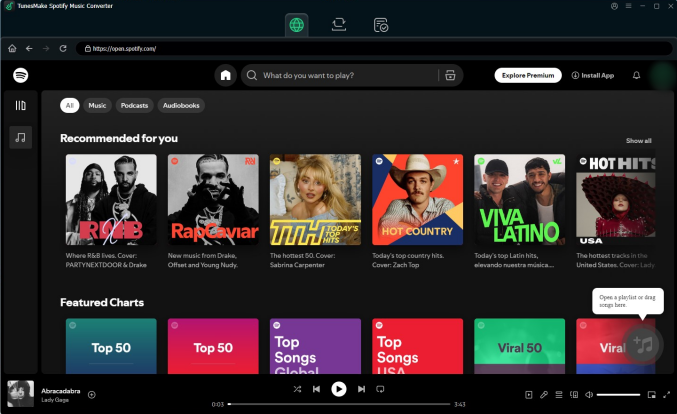
First of all, you will need to install and launch TunesMake Spotify Music Converter on your computer. Once opening it, you will see the built-in Spotify web player to automatically load. Then it's time for you to log into with your Spotify account and choose the music you want to download without ads. Next, click the + button to add target items into the conversion list.
Step 2 Preset the Output Audio Parameters
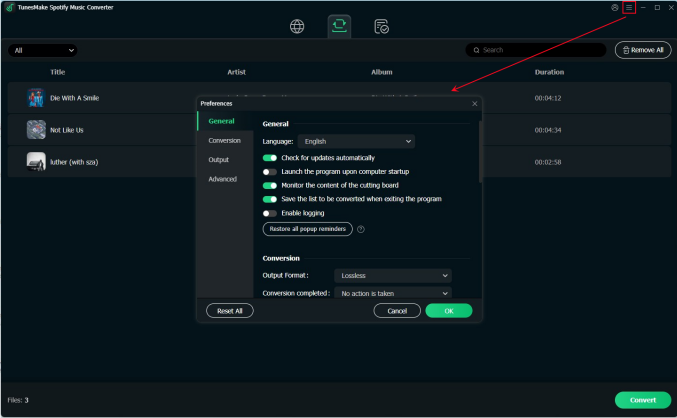
If you want to transfer Spotify music to other devices for offline playback, then you will need to set the output format before downloading and converting. Head to the interface of the program, then click the menu icon in the upper right corner and choose Preferences > Conversion. After that, you can change the output format and other parameters like channel and bit rate.
Step 3 Start to Download and Convert Spotify Music
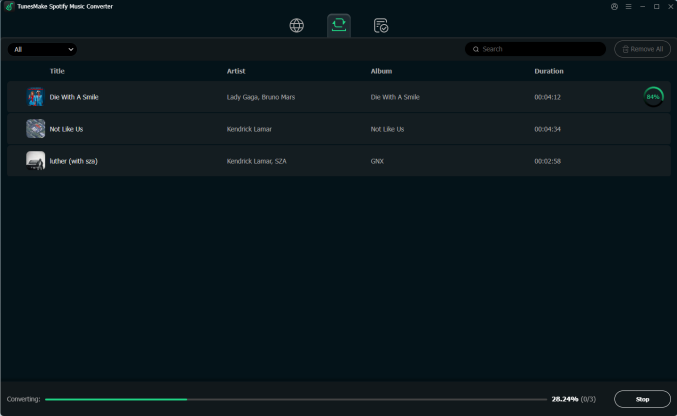
Once you are ready, you can click the Convert button at the bottom right to initiate the downloading process. TunesMake will smartly download the music you choose and remove the ads automatically. When it is finished, you can click the Converted icon to find downloads on your computer and start to listen to your music without any interruption.
Part 3. How to Block Ads on Spotify via Spotify Ad Blocker
Using a Spotify ad blocker is another helper if you want to get rid of Spotify ads. Many applications and extensions are designed especially for removing Spotify ads. Following are top Spotify ad blockers for Windows, Mac, Android, and iOS.
Block Spotify Ads on Web Browsers
If you want an ad-free Spotify experience without installing third-party tools, running the Spotify Web Player with a Spotify ad blocker extension is the single safest, most reliable solution.
| Extension | Supported Browsers | Safety | Primary Features |
|---|---|---|---|
| Blockify | Chrome, Edge, Brave, Opera | Very High | Skips ads cleanly without triggering player freezes. |
| Adblock for Spotify | Chrome, Edge | High | Mutes mid-roll commercial breaks in the Web Player. |
| SpotiAds | Chrome, FireFox | High | Blocks audio ads and pop-ups without installing third-party apps. |
| uBlock Origin | Chrome, Firefox, Edge | Very High | Blocks visual banners and ad requests. |
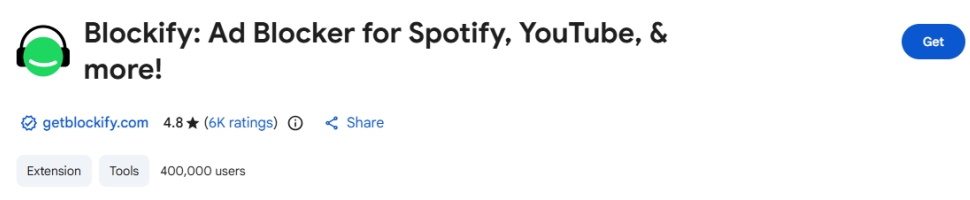
Step 1. Go to Chrome Web Store and find the above Spotify ad blocker extensions.
Step 2. Click Add to Chrome to install this extension, then launch the Spotify Web Player.
Step 3. All ads will be removed by the extension while playing music from the Spotify web player.
Block Spotify Ads on Desktop (Windows & Mac)
Desktop users who prefer the Spotify desktop application over web browsers also have several options to remove or mute ads on Windows PC and Mac.
Windows: Remove Ads with EZBlocker
Audio muting applications do not alter Spotify's code or intercept encrypted network packages. Instead, they run quietly in the background, detect when an ad is playing via Windows notification hooks, and mute your master volume until the music returns.
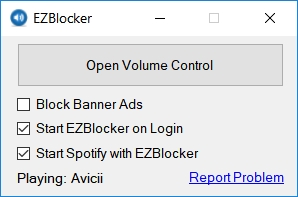
Step 1. Download EZBlocker from its official repository and launch it.
Step 2. Check the box for Start EZBlocker on Login and Mute Spotify Ads.
Step 3. Launch the Spotify app and start playing your loved songs on Spotify.
Mac: Block Ads with AdGuard
Unlike muting Spotify ads on a Windows PC, there is no app that works for removing ads on Spotify for Mac. But ad-blocking applications like AdGuard for Mac can use HTTPS network filtering to intercept ad domains across native applications. Here you can use AdGuard for Mac to remove ads in the Spotify Web Player.
Step 1. Install AdGuard for Mac.
Step 2. Enable HTTPS Filtering in the AdGuard Settings menu.
Step 3. Add spotify.com to the filtered app list to block banner and media servers network-wide.
Block Spotify Ads on Mobile (Android & iOS)
If you are seeking ways to block Spotify ads on your iPhone or Android device, several popular Spotify ad blockers like Mutify and StopAds help you remove ads while listening to music.
Android: Mute Ads with Mutify
On Android, the safest way to avoid listening to loud commercial breaks is using Mutify, a lightweight tool for silencing ads on Spotify. Whenever Mutify detects Spotify is playing ads, it turns down the music volume to zero, so that you can sit back and listen to your favorite music without worrying about those annoyingly loud ads.
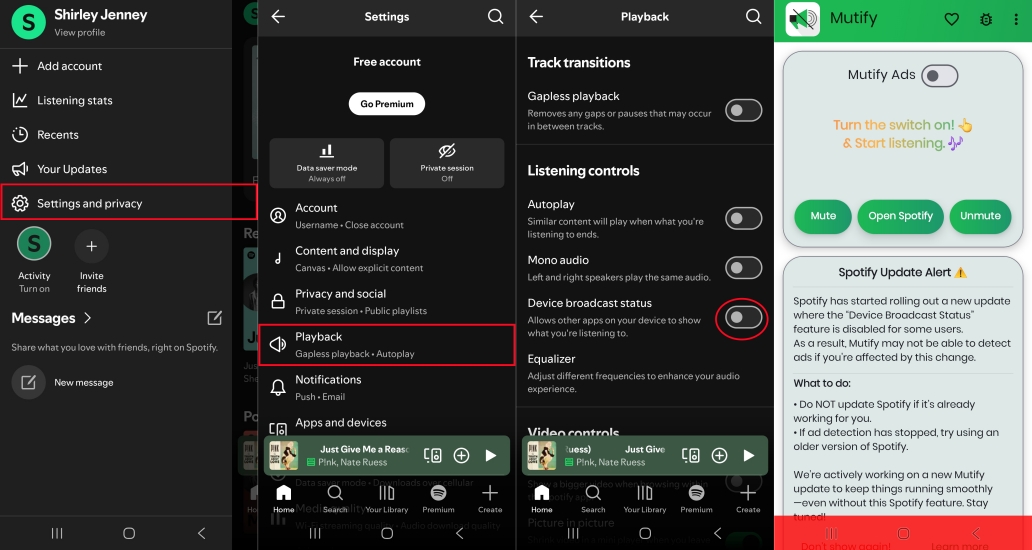
Step 1. Open the Spotify app on your Android device.
Step 2. Tap the profile picture in the top left corner and select Settings and privacy.
Step 3. Tap Playback and scroll down to turn on Device Broadcast Status.
Step 4. Download Mutify from the Google Play Store, then open it.
Step 5. Enable the Mutify Ads toggle on the main interface of the app.
Step 6. Go to Settings > Apps, tap Mutify in the apps list, and select Battery.
Step 7. Select Unrestricted to disable battery optimizations for Mutify.
iOS: Block Ads with SpotAds
Unlike Android devices, most ad blockers are not available for apps, including Spotify on iOS devices. But StopAds is a powerful ad blocker for stopping unwanted ads and speeding up your browsing experience. It can block all annoying ads and protect against some forms of malware. With this tool, you can block ads in the Spotify web player with your iPhone.
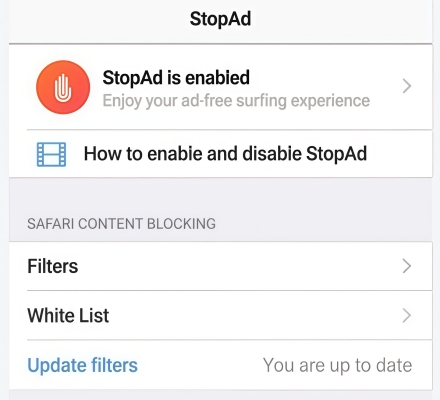
Step 1. Download and install StopAds from the App Store on your iPhone.
Step 2. Run StopAds on your device and navigate to Settings > Apps.
Step 3. Find and tap Safari, then tap Extensions and allow StopAds.
Part 4. How to Get No Ads on Spotify without Premium or Ad Blocker
Spotify ad blocker is easy to use, but it may affect your Spotify account as well. And some ad blockers may have potential security problems. If you don't want to take this kind of risk, you can try some alternative ways to block ads on Spotify. There is a very high probability that these methods will fail. As a result, using TunesMake Spotify Music Converter is more recommended.
Method 1. Modify the Hosts File (PC & Mac)
The system hosts file acts as a local domain directory that maps domain names to specific IP addresses before querying external DNS servers. By pointing known Spotify ad and telemetry server domains to a null IP address like 0.0.0.0 or 127.0.0.1, your computer blocks the Spotify app from reaching the servers that host audio and banner commercials.
On Windows:
Step 1. Quit the Spotify desktop application completely.
Step 2. Press the Windows Key, search for Notepad, right-click it, and select Run as administrator.
Step 3. In Notepad, go to File > Open and navigate to C:\Windows\System32\drivers\etc\.
Step 4. Change the file filter dropdown in the bottom-right corner from Text Documents (.txt)* to All Files (.).
Step 5. Select the hosts file and click Open.
Step 6. Scroll to the very bottom of the document and paste the ad-blocking entry mapping list.
Step 7. Save the file (Ctrl + S) and reopen Spotify.
On Mac:
Step 1. Quit Spotify by pressing Command + Q.
Step 2. Press Command + Space, type Terminal, and hit Enter to open Terminal.
Step 3. Type sudo nano /private/etc/hosts and press Enter.
Step 4. Type your Mac administrator password when prompted.
Step 5. Use your keyboard's arrow keys to scroll to the bottom and paste the entry list.
Step 6. Save the file by pressing Control + O, then Enter. Exit Nano by pressing Control + X.
Step 7. Run sudo dscacheutil -flushcache to clear your DNS cache.
Method 2. Turn on VPN Services (Windows, Mac, Android, iOS)
VPN stands for Virtual Private Network that can hide and change your IP address. You can use it to set your address on your device to a different country. Thereby, the ads may reduced while playing music in the Spotify app. This method is available on many devices, and you can get many VPN apps on your phone or computer.
Step 1. Download and launch a VPN app that is available on your device.
Step 2. Choose one service provider that is different from your current location and connect to it.
Step 3. When the connection is done, open the Spotify app and enjoy your ad-free music.
Method 3. Install a Spotify Premium APK (Android)
Modded APKs often distributed on third-party forums are altered Android package files where community developers reverse-engineer the Spotify app to unlock interface options, skip limiters, and disable ad requests directly within the app code. If you own an Android device, you can download and install a Spotify Premium APK to get no ads on Spotify without premium.
Step 1. Open Settings > Security on your phone and select your browser manager.
Step 2. Toggle Allow from this source or Install Unknown Apps to ON.
Step 3. Remove the official Spotify app from your device to prevent installation conflict errors.
Step 4. Download the .apk file from a verified open-source developer project or forum thread.
Step 5. Open your device's Downloads folder, tap the downloaded .apk file, and select Install.
Step 6. pen the app and log into your account.
Part 5. FAQs about Blocking Spotify Ads
Can I use Spotify on Virtual DJ without an internet connection?
No. Direct Spotify streaming within Virtual DJ requires an active internet connection to authenticate and buffer audio tracks. For offline performances, you must use local audio files imported into Virtual DJ's local browser.
Is Spotify integration available on the free version of Virtual DJ?
Virtual DJ Free supports basic streaming features for home practice on a computer without hardware controllers. However, using advanced DJ controllers or performing commercially requires a Virtual DJ Pro or Pro Subscriber license.
Can you download music from Spotify to Virtual DJ?
No, you cannot directly download music from Spotify into Virtual DJ. Spotify have an official integration with Virtual DJ, but only for online streaming. Even if you have a Spotify Premium subscription that allows offline downloads within the official Spotify app, those downloaded files are encrypted and cannot be read by Virtual DJ offline. If you want to download tracks from your Spotify playlists in Virtual DJ, you can use TunesMake to batch convert Spotify playlists into unprotected audio formats.
Part 6. Conclusion
It is hard to fault Spotify for its ads. After all, you can access unlimited music resources from Spotify for free. Spotify premium users don't hear ads by virtue of those special features. It doesn't matter, and with the above methods, you can also get a better Spotify experience, even if you are using the free version of Spotify.
Related Articles

A senior editor from TunesMake, dedicated to sharing professional tutorials and solutions of software, movies, and music.
- 1
- 2
- 3
- 4
- 5
- 6
- 7
 Leave Your Comment
(0)
Leave Your Comment
(0)

 Download Center

