








 Store
Store


Spotify is the streaming music platform with the largest number of active users. You must spend a lot of pleasant time on Spotify to enjoy music. When you find a song you love, you can like it if you miss it next time. Once you like the songs, you can easily reach them in your library. As a reliable app, Spotify can have some problems unavoidably. For example, many Spotify users are experiencing the Spotify liked songs not showing issue. So how can we fix it?
You’ve found the right passage. If you have encountered this problem, we are here to help you. First, we’ll figure out the causes of the problem. Then, according to the reasons, we’ll list several solutions to solve the problem effectively. Read this passage to find your way to get back your missed Spotify liked songs. You can even find the best way to get unlimited access to your liked songs.
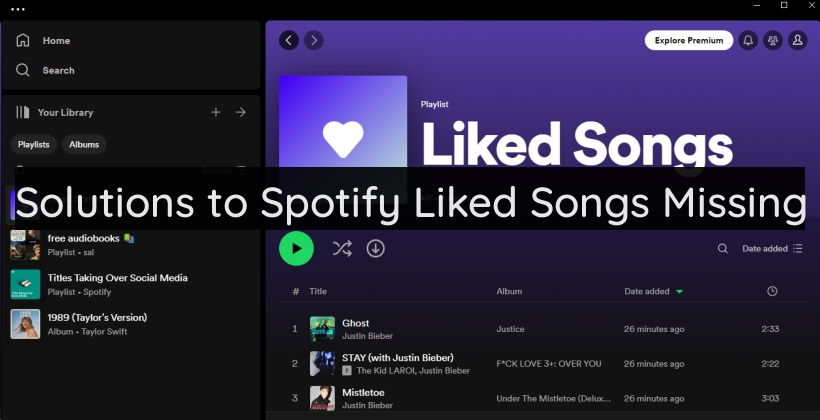
Part 1. Why Are My Liked Songs Not Showing on Spotify?
There could be a couple of reasons why your Spotify liked songs are not showing. These can range from temporary connectivity issues to deeper problems within the app. Let’s explore the most common reasons together below:
Remove or Unlike Accidentally
It is possible that you have deleted your liked songs by mistake. If so, these songs won’t show on your Liked Songs section.
Network Disconnection
A reliable and stable network connection is a precondition for using all apps. If you are using an unstable or unreliable internet connection, it might be the reason for your problem. A spotty internet connection might affect the way Spotify syncs your music data.
Wrong Spotify Account Settings or Filters
Sometimes, it’s easy to overlook several account settings or filters that may unintentionally hide some of your Liked Songs from view.
Spotify App Bugs or Glitches
If you haven’t updated the Spotify app in a while, there might be bugs and temporary glitches. These problems may cause issues and prevent Spotify from showing your Liked Songs properly.
Part 2. How to Fix Spotify Liked Songs Not Showing
Now that we’ve explored the potential reasons for this issue, let’s dive into how you can fix it. We listed some practical solutions that can help you get your Liked Songs back on track.
Solution 1. Check Your Internet Connection
As we said before, one of the most common reasons for the issue is the internet connection. To reduce that possibility, you should first check your network condition and ensure it is working properly. Make sure you are connected to a stable and reliable network. What’s more, you can run a speed test to test your connection speed. If the speed is not ideal, try turning on and off Airplane Mode.
Solution 2. Unselect All Filters
For users who are using Spotify on a mobile phone, one possible reason your liked songs are not showing is that you have selected the top filter. When you apply a filter, like Pop or Rap, Spotify will only show songs in this genre.
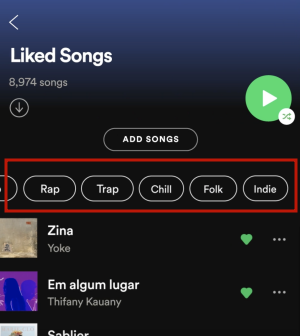
Step 1. Open Spotify on your mobile phone.
Step 2. Then, tap Your Library > Liked Songs.
Step 3. In the detailed page, you can see various genre filters at the top. Unselect all the filters by tapping the X icon in the far left.
Solution 3. Update Your Spotify App
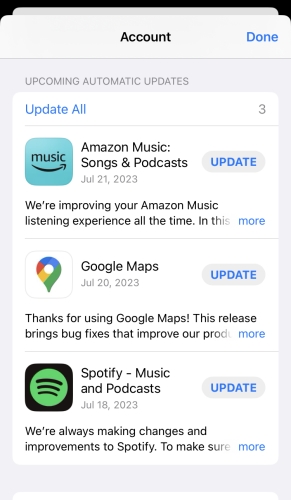
The outdated app may cause many unpredictable problems. So make sure your Spotify app is upgraded to the latest version. Open the app store on your phone, and search for Spotify. Tap the Upgrade button to update it to the latest version. By doing this, your Spotify app might work properly again.
Solution 4. Log out and Log Back in
If upgrading the Spotify app didn’t help, try signing out of the Spotify app and signing back in. This will help reconnect to the Spotify server, resolving Spotify being temporarily out of order. To sign out of the Spotify app, tap the Settings icon in the upper right corner and scroll down to tap on Log out. After a few seconds, sign back into your Spotify account and check if the issue still exists.
Solution 5. Clear the Cache of Spotify
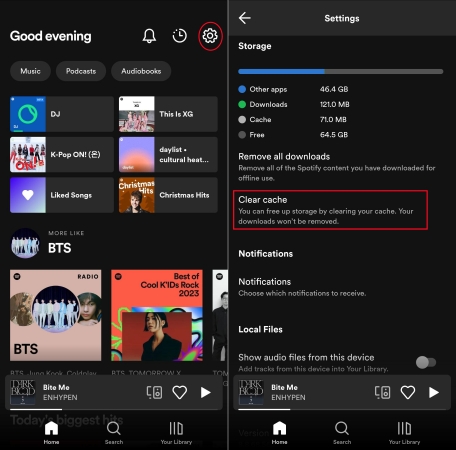
Sometimes, the data saved on your phone may be outdated or corrupted, which will cause the app to work incorrectly. In this case, you have to clear the cache data of Spotify to refresh the app. Once finished, reopen your Spotify to check if your liked song shows in your library.
Part 3. How to Fix Liked Songs Not Syncing Spotify
Beyond Liked Songs not showing up on Spotify, another issue often occurs - Spotify Liked Songs are not syncing across devices. For example, you liked a song on your desktop, it shows up on your desktop but not your mobile phone. If you are facing this issue, here are some fixes to get your songs to sync properly between your devices.
Fix 1. Confirm the Account You Signed in
One of the most common reasons for syncing issues is that you have logged into multiple accounts on different devices. So, you’d better make sure you are using the same Spotify account on all your devices to ensure correct syncing.
Step 1. Go to the Spotify account page on any browser.
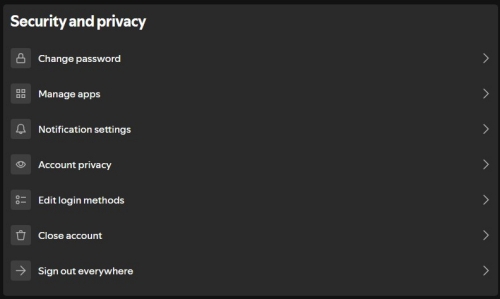
Step 2. Scroll down to the Security and privacy section, and then select Sign our everywhere.
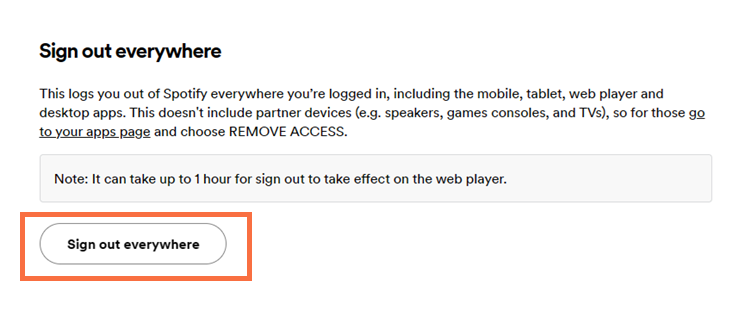
Step 3. Click the Sign out everywhere button. Then, you can sign back in to your Spotify account on your devices.
Fix 2. Disable Offline Mode on Spotify
If you have enabled the Offline Mode on your device, it won’t be able to update your music library or sync Liked Songs. Or, you can enable and disable this feature on your device to refresh and force a new sync cycle.
Step 1. If you liked a song on your Spotify desktop app, and it won’t show on your Spotify mobile app, you should open the Spotify mobile app.
Step 2. Then, head to Settings and privacy > Playback. Toggle the Offline Mode on.
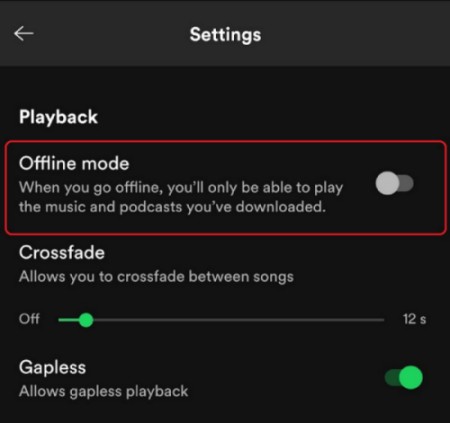
Step 3. Wait for at least 30 seconds, then you can turn Offline Mode off. Go back to your library and refresh the Liked Songs playlist to get your latest liked song.
Fix 3. Perform a Clean Reinstall
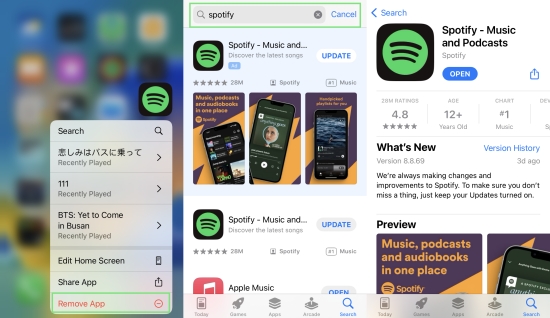
You have tried all the methods above, still do not work. Then maybe you can consider uninstalling and reinstalling the Spotify app. Uninstalling Spotify will delete all the previous data and settings of the app from your device. While reinstalling Spotify will allow you to start the app afresh.
Fix 4. Disable VPN Server
Using a VPN while streaming Spotify music can sometimes interfere with Spotify’s ability to locate and sync your library or show you a different catalog of regional music. Therefore, when you find your liked songs are not syncing between devices, you should disconnect from any active VPN server. Once done, you can restart the Spotify app and access your Liked Songs again to see if the syncing process resumes.
Fix 5. Restart Your Devices
If none of the above solutions work, then the issue may be related to your device. Try restarting your devices since it can make a force refresh. Make sure you have shut down your devices completely, instead of just putting them to sleep. Once shut down your device, you should leave it off for at least 60 seconds. Then, restart this device to resolve the lingering software conflicts that hinder app synchronization.
Part 4. Bonus: How to Keep Spotify Liked Songs Permanently
As we know, there are many limitations to accessing your Spotify liked songs playlist. To eliminate the mentioned possibility of causing Spotify liked songs missing, we would like to introduce you to a permanent solution to help you fix Spotify liked songs not showing – downloading your Liked Songs playlists to local files for unlimited playback. To reach it. You will need the help of the TunesMake Spotify Music Converter.
TunesMake Spotify Music Converter can help you download any Spotify songs, playlists, albums, and podcasts into diverse normal audio formats, including MP3, M4A, M4B, WAV, FLAC, and AIFF. After downloading, you can play them on any device without worrying about losing your Spotify Liked Songs. The best thing is that you can use this tool even if you don’t have a Premium account. Furthermore, the TunesMake tool smartly keeps high sound quality, ensuring your listening experience. Now, let’s see how to use this magic tool.

TunesMake Spotify Music Converter –
Download and Keep Spotify Liked Songs Forever
- Unlimitedly download Spotify songs, playlists, and podcasts
- Losslessly convert Spotify music to MP3, FLAC, WAV, AIFF, etc.
- Remove ads from Spotify music tracks even with Free accounts
- Convert Spotify songs at 12X faster speed with ID3 tags kept
Security Verified. 100% Clean & Safe.
Step 1
Import Spotify Liked Songs to TunesMake
First, install the TunesMake Spotify Music Converter on your computer via the Free Download button above. Then, launch it, and you will be navigated to the Spotify web player. Log in to your Spotify account, and then go to Your Library > Liked Songs. Next, you can click the Add icon in the lower right corner to load all your preferred songs. After picking up the songs you need to download, just click the Add to List.

Step 2
Set the Output Songs Format
Click on the Menu bar, and choose Preferences to customize the output parameters, which include format, channel, bit rate, and more. You can convert your songs to MP3, M4A, AIFF, M4B, WAV, and FLAC formats. Then click the OK button to preserve the parameter settings.

Step 3
Start Downloading Spotify Liked Songs
Once finished with the parameter settings, click on the Convert button to start downloading Spotify songs to your computer. This process should be very fast. In a few seconds, all the songs can be downloaded to your computer as local files. You can click on the Converted button to browse all converted songs. Then you can enjoy your favorite songs anytime, anywhere.

Part 5. FAQs about Spotify Liked Songs
Move on to this part to see if you have any other questions about Spotify liked songs. Here we listed some commonly asked questions about Spotify liked songs. Check if you can find your answer and dispel your doubts.
How to like songs on Spotify?
Well, it’s very easy. Just tap the heart symbol of the playing songs, that is exactly the Add to Like Songs button. Once you tap it and the heart symbol lights up, that means you successfully added it to your liked songs playlist.
How to share liked songs on Spotify?
You can share your Liked Songs by creating a new playlist. Just add your liked songs to a newly created playlist. Tap the three dots on the top of the playlist. Then select Share from the menu. You can share them on social media, via a link, or make them public on your profile.
How to remove all liked songs on Spotify?
If you are using Spotify on a mobile device, you can only remove liked songs one by one. But if you are using Spotify on a desktop, you can remove it all with one click. Just navigate to your Liked Songs playlist and open it. Use the Ctrl+A key to select all songs on your playlist, right-click, and choose Remove from Your Liked Songs. Then, your Liked Songs playlist will be empty.
How many songs can you like on Spotify?
As many as you like. Spotify has now canceled the 10000-song limit on liked songs.
Conclusion
By reading this passage, I guess you are now clear about the reason Spotify liked songs not showing or syncing. And there must be at least one way you can apply to fix this issue. A potent tool like the TunesMake Spotify Music Converter can help you save your Liked Songs as local files so that you can keep them forever and play them on any device you want. Hope all these solutions mentioned can help you verily.
Related Articles

A passionate writer specialized in creating engaging content about music and entertainment, covering everything from the latest music trends and entertainment news to practical tutorials.
- 1
- 2
- 3
- 4
- 5
- 6
- 7
 Leave Your Comment
(0)
Leave Your Comment
(0)

 Download Center

