








 Store
Store


Spotify has a listening feature called Recently Played that shows your listening history. This feature collects the songs or playlists you hear, as well as artists you’ve paid attention to. And Spotify relies on this feature to provide you with more specified and targeted songs that better suit your music preferences. However, it is frustrating that having an embarrassing song, a niche podcast, or an accidental sleep-time playlist constantly populates on your Spotify profile. Therefore, you may be interested in how to clear Recently Played on Spotify. Don’t worry about it, as I will discuss this topic with you in the following parts.
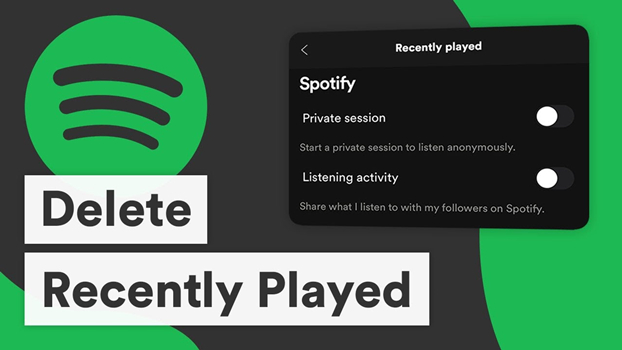
Part 1. Can You Clear Recently Played on Spotify?
When it comes to managing your Spotify listening history, you may wonder if it’s possible to clear your recently played history. The simple answer is no. Spotify never offers a “Clear All Listening History” option. They once allowed you to delete individual items on the history section, but this feature has been removed in recent updates. Only when you are using the old version of the Spotify app. You can clear your recently played by following the steps in Part 2.
How to Find Your Spotify Recently Played?
Spotify typically presents your listening history on the home screen. Just open the Spotify app installed on your device and select Home. Here, you can see the Recently Played section, which contains the songs, playlists, and podcasts you have listened to recently.
Can Reinstalling the Spotify App Clear My History?
Many users want to know whether reinstalling the Spotify app can clear their Recently Played. Unfortunately, deleting or reinstalling Spotify won’t remove your listening history since Spotify saves your statistics in the cloud. That is to say, your listening history is linked to your account instead of the local app on your device.
How Long Does Spotify Keep My Listening History?
Spotify keeps your entire playback history for as long as your account is still active. You can even download your personal data from Spotify. Just go to your Account Settings page and send a request, then you will receive a file containing years of listening history.
Can I See Spotify Listening History of Others?
No, you cannot see others’ listening history as Spotify does not allow this. However, as I mentioned before, you can still view the Recently Played list from someone else’s profile if they do not hide it. And you can also see what your followed friends are currently playing from the right sidebar in the desktop app.
Part 2. How to Clear Recently Played on Spotify
The above frequently asked questions should now clear your mind of all worries. Now, let’s explore how to clear or hide your recently played on Spotify.
Spotify used to allow you to delete a history item from your Recently Played section. However, this option is not available anymore. If you are using an old version of the Spotify app, you can still utilize this feature to clear your recently played on Spotify. If not, you can only hide your listening history on Spotify.
2.1 Delete Recently Played on Spotify [Old Version]
If you haven’t updated your Spotify app and are using the older version of the desktop Spotify app, you still have the option to remove songs from Recently Played on Spotify. However, this option can only allow you to delete songs manually one by one.
On Desktop:
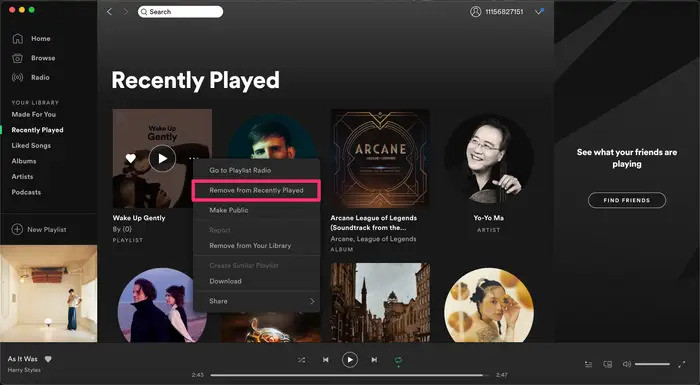
1. Launch the Spotify desktop app on your PC or Mac computer.
2. Scroll down to the Recently Played, and click See All to browse the whole list.
3. Find the song, playlist, podcast, or album that you’re likely to delete from your Recently Played list.
4. Hover your mouse over the cover of the target audio and click the three dots icon or just right-click on the cover.
5. In the pop-up menu, select Remove from Recently Played to remove something.
On Mobile Phone:
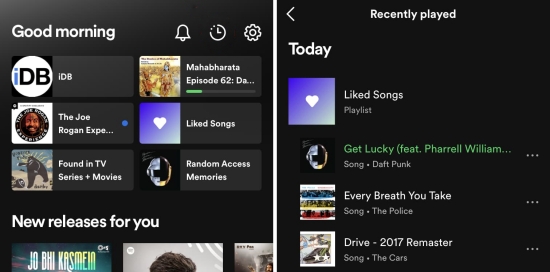
1. Open the Spotify app on your iPhone or Android phone. Then, find the Recently Played section on the home screen.
2. In the detailed page, you can see all your listening history.
3. Select the item you want to delete, and then tap the three dots icon > Remove from Recently Played.
2.2 Hide Your Spotify Listening History
When you can’t find the direct removal option on your Spotify app, the only choice left is hiding your listening history and activity from others. This is helpful if you don’t want others to see what you’ve been listening to. To hide your listening activity on your profile, you can do the following:
On Desktop:
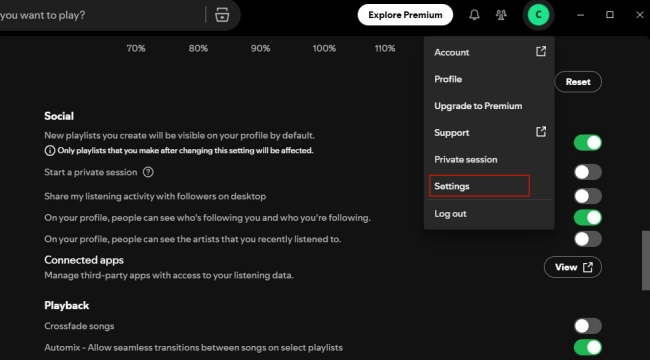
1. Open the Spotify desktop app on your PC or Mac computer.
2. Click on your profile and select Settings.
3. Scroll down to the Social section.
4. Disable the “Share my listening activity on Spotify” and the “On your profile, people can see the artists that you recently listened to” option.
5. Then, toggle on “Start a private session”. The music playing in a private session doesn’t influence your music recommendations.
On Mobile Phone:
1. Go to the Spotify app on your smartphone, and then tap your profile icon at the top right corner.
2. Then, select Settings and privacy.
3. Scroll down to the Social or Privacy & Social section, and disable the Listening activity and Recently played artists option.
4. Enable the Private session by tapping the switch.
Part 3. How to Listen to Spotify Without Creating History
Since it’s impossible to clear the items you listened to recently on the latest version of the Spotify app, you should consider using a better way to protect your personal privacy. The best alternative is to download your Spotify playlists locally and play them offline on other media players. In this case, you don’t need to worry about being noticed by others or leaking your personal information. The music you listen to and like is completely private. However, you should know that Spotify’s DRM agreement protects the music with special encryption codes and prevents you from playing Spotify music on other players except the Spotify app.
Therefore, you’re in great need of professional software that can complete these two tough tasks. Luckily, TunesMake Spotify Music Converter is just the third-party tool you want. TunesMake Spotify Music Converter is just the third-party tool you want. TunesMake Spotify Music Converter is designed to make it possible to stream Spotify music everywhere without limitations. You’re able to convert Spotify music to MP3 as well as five other popular audio formats. In addition, you’re allowed to customize other audio parameters like sample rate, bit rate, etc. You can set the bit rate to 320kbps, which is almost the same music quality as Spotify music. After conversion, you can freely enjoy your Spotify music everywhere.

TunesMake Spotify Music Converter –
Download Spotify Songs and Playlists to Local Files
- Unlimitedly download Spotify songs, playlists, and podcasts
- Losslessly convert Spotify music to MP3, FLAC, WAV, AIFF, etc.
- Remove ads from Spotify music tracks even with Free accounts
- Convert Spotify songs at 12X faster speed with ID3 tags kept
Security Verified. 100% Clean & Safe.
Step 1
Add Recently Played to TunesMake Software
Install and launch the TunesMake Spotify Music Converter on your Mac or PC computer. Then, you can sign in to your Spotify account and find your recently played songs or playlists. Select any playlist you want to download, and then you can click the lower Add icon. Whenever you finish selecting songs, click the Add to List option to load these songs from Spotify to the TunesMake software.

Step 2
Personalize the Output Audio Parameters
You’re supposed to set the output audio formats on the menu icon located at the top-right corner of the interface. And then go to Preferences > Conversion to choose the audio format from MP3, M4A, WAV, FLAC, AIFF, and M4B. Here you can also customize some audio parameters for personal needs, such as sample rate, bit rate, and channel.

Step 3
Start to Download Recently Played on Spotify
Now click the Convert button on the bottom right corner, and the TunesMake software will soon download and convert all the songs you load. Wait for a while, and you can check the downloaded songs in the Converted tab. If you need to check their exact folder where they store, you just need to click the little file icon next to each song.

Part 4. Summary
The sad truth is that you cannot remove Recently Played on Spotify due to the latest version had deleted this feature. It’s still possible for people who haven’t updated and use the older version to remove songs from the Recently Played section. Though it’s not available to remove this feature on Spotify, you still have the option to hide your listening history from being seen by other people. We’ve illustrated 2 ways above with this privacy-oriented theme. Besides protecting your listening history on Spotify, TunesMake Spotify Music Converter makes it easy to play Spotify music on multiple devices without any issues. I’d like to recommend this superior software, you can have a try.
Related Articles



A senior editor from TunesMake, dedicated to sharing professional tutorials and solutions of software, movies, and music.
- 1
- 2
- 3
- 4
- 5
- 6
- 7
 Leave Your Comment
(0)
Leave Your Comment
(0)

 Download Center

