








 Store
Store


Tune in to your body, and tone up with a smartwatch that can track it all and help you reach your health and fitness goals. A Garmin smartwatch could be a top option when buying one. With Garmin smartwatches, you can monitor your body and track your health throughout the day. In addition to those features for your sports and health, you could also enjoy your favorite songs from various music streaming services. Many music streaming services have teamed with Garmin devices. Many users wonder is Spotify one of them? Well, if you are also looking for a way to play Spotify on Garmin Watch, you have come to the right place.
Whether you are a Spotify Premium user or a Free user, you can find a practical method to get Spotify on your Garmin Watch and enjoy your favorite tunes without much effort. All the detailed steps and important information you want to know are listed below. Keep reading to clear your mind of all worries.
Part 1. Can I Get Spotify on My Garmin Watch?
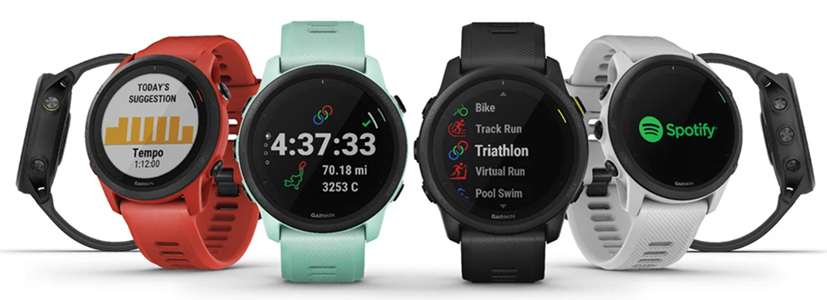
First of all, we will answer the question you care about the most: yes, you can get Spotify on a Garmin Watch. There is an official Spotify Garmin integration, which means you can stream Spotify music on a Garmin smartwatch via the official Spotify app. Since Garmin allows you to upload music files to your watch, it’s also possible for you to add downloaded songs to your wrist for offline playback.
Before delving into the official steps of playing Spotify on Garmin smartwatches, you need to make sure that you have met these requirements:
- An active Spotify Premium subscriber
- A Garmin Watch that supports Spotify
- You have installed the Garmin Connect app on your phone
- You have installed the Garmin Connect IQ app on your phone
- Your watch is set up to connect to a stable Wi-Fi network
Note
The Garmin watches that supports the Spotify app includes: Approach series: S50, S70; D2 Series: Delta Air/ Air X10/ Air X15, Delta/ Delta PX/ Delta S, March 1/ 1Pro/2; Forerunner Series: 745, 645 Music, 245 Music, 945, and more. To check the full list of supported devices, you can check the Compatible Devices section in this page.
If you don’t have a Premium subscription, then the Spotify app on the Garmin Watch isn’t available to use. But you don’t need to worry. We find the best alternative method and introduce it for you in Part 3. You can jump to this part for more detailed information.
Part 2. How to Get Spotify on Garmin Watch [Premium Users]
Spotify and Garmin smartwatches have teamed up to bring you the ultimate workout music experience. But not all Garmin smartwatches can be compatible with Spotify. So, if you want to want to listen to Spotify music on a Garmin watch, you should check out whether your Garmin device supports Spotify.
2.1 How to Install and Set up the Spotify App on Your Garmin Watch
Some compatible watches will come with the Spotify app already installed. Others will need you to install the app manually. Before starting, you should connect your mobile device and watch to the same Wi-Fi.
How to Install the Spotify App on Garmin Watch
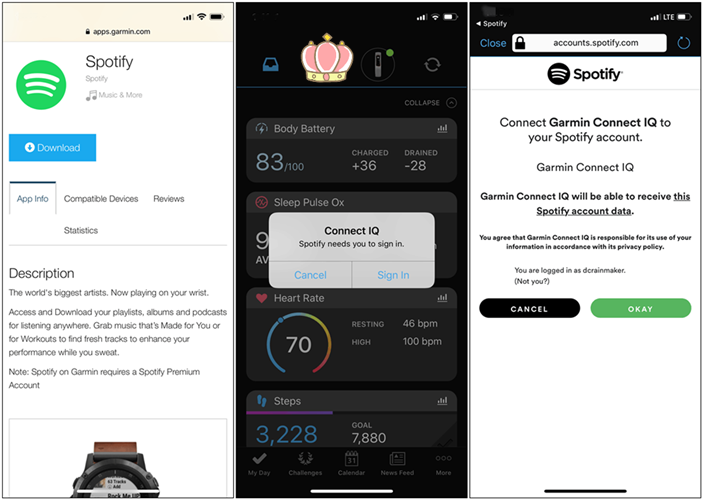
Step 1. Open the Connect IQ Store app on your mobile phone.
Step 2. Then, tap the top search box and search for Spotify.
Step 3. Find and select Spotify from the result list. You can then download the Spotify app on your watch by selecting Install.
Step 4. If it prompts and asks for app permissions, just select Allow.
How to Set up the Spotify App
Step 1. Once the installation is complete, you need to hold the Down button to access the Music widget.
Step 2. After that, hold the Up button to select Music Providers > Spotify.
Step 3. Next, you will be prompted to open the Garmin Connect app on your phone. You should enter your credentials and select Log in from the Garmin Connect app.
Step 4. Once finished, return to your Garmin Watch and select Get Started. So, you can access your Spotify library from your wrist.
Note
The content available to sync to your watch includes saved or created playlists, recently played, Made For You, and Podcasts.
2.2 How to Download Spotify Music and Podcasts on Garmin Watch
After connecting, the content available to sync to the watch will be listed under Your Library from your Spotify account. These include saved or created playlists, recently played, Made For You, and Podcasts. You can choose the content you want to download to your watch by performing the steps below.
Step 1. Fire up your Garmin watch and access the Music widget by holding the Down button.
Step 2. Then, hold the Up button to choose Music Provider > Spotify.
Step 3. Select Add Music & Podcasts to access your music library.
Step 4. Find anything you want to download on your watch, and tap Download.
Step 5. After that, tap Update Downloads under Your Library to refresh your downloaded playlists and podcasts.
2.3 How to Edit Spotify Downloads on Garmin Watch
Sometimes, you may want to remove a song or playlist from your watch. However, there is no way to delete a single song from the watch directly. You should remove the song from your Spotify playlist and sync the playlist again.
Step 1. Launch Spotify on your mobile phone or computer.
Step 2. Go to Your Library and find the song you want to remove.
Step 3. Select the three-dots icon next to it, and then select Remove from this playlist.
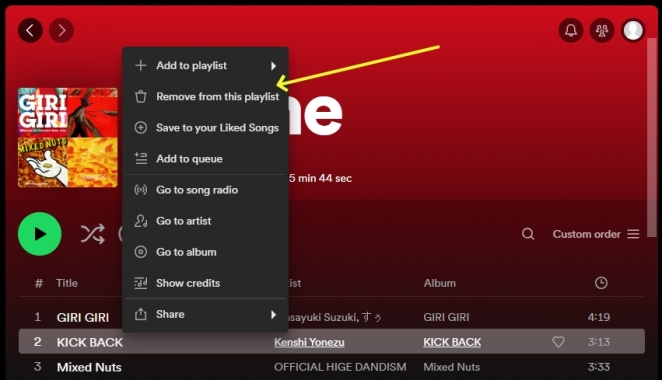
Once done, return to your watch and choose the Update Downloads option in Spotify.
Part 3. How to Add Spotify to Garmin Watch [Premium& Free Users]
By far most notably, Garmin users can now use Spotify, but only if you’re a Premium subscriber. With a Premium account, you can listen to Spotify songs on your Garmin smartwatch directly. However, those Garmin users holding a Spotify free account cannot enjoy the feature of listening to Spotify.
Fortunately, the Garmin watch allows you to upload local music files for playing. Thus, your best alternative is to download Spotify content locally and add it to your watch for playing. However, Spotify files are protected even if you have downloaded them. In other words, they can not be moved to other devices without removing the DRM designation. This is where you need the professional helper - TunesMake Spotify Music Converter.
TunesMake Spotify Music Converter is a special music downloader designed for all Spotify users. Whether you are a Premium user or a Free user, you can use it to download songs, playlists, albums, and podcasts from Spotify to MP3, M4A, M4B, WAV, FLAC, or AIFF files. There will be no loss in audio quality throughout the entire download process. Once done, you can easily import the downloaded files to your Garmin Watch and even other devices for offline playback without limits. Furthermore, the TunesMake tool supports personalizing the output audio settings to ensure your listening experience.

TunesMake Spotify Music Converter –
Best Spotify to Garmin Watch Downloader and Converter
- Unlimitedly download Spotify songs, playlists, and podcasts
- Losslessly convert Spotify music to MP3, FLAC, WAV, AIFF, etc.
- Remove ads from Spotify music tracks even with Free accounts
- Convert Spotify songs at 12X faster speed with ID3 tags kept
Security Verified. 100% Clean & Safe.
Download Music Tracks from Spotify
First, you should install the TunesMake Spotify Music Converter on your Windows or Mac computer by clicking the Free Download button above. Once done, you can follow the simple 3 steps below to get your favorite tracks locally.
Step 1
Select playlists, albums, or songs to download

Start by launching TunesMake Spotify Music Converter on your computer and signing in to your Spotify account on its interface. Then, you can choose any playlist or album you like. To add all your preferred items to the conversion list, click the Add icon > Add to List. Alternatively, you can add a single song by dragging and dropping it to the Add icon at the lower right corner.
Step 2
Set the output audio parameters for Spotify

After your required items have been added to the converter, you can go to adjust the output audio parameters for Spotify. Click the Menu bar, select the Preferences option, and switch to the Conversion window. Here you can select the output audio format, and for better audio quality, proceed to set the bit rate, sample rate, and channel.
Step 3
Start to download Spotify music to MP3

Once the settings are completed, note the Convert button at the bottom right and click that. Then the converter will immediately download and convert Spotify songs to your specified format. Now you can browse those converted music tracks by clicking the Converted icon and start to transfer them to your smartwatch.
Move Spotify Music to Garmin Watch
You can access the music files you’ve just converted from the folder on your computer. From there, you can transfer the converted files to your watch.
Step 1
Add your watch to Garmin Express
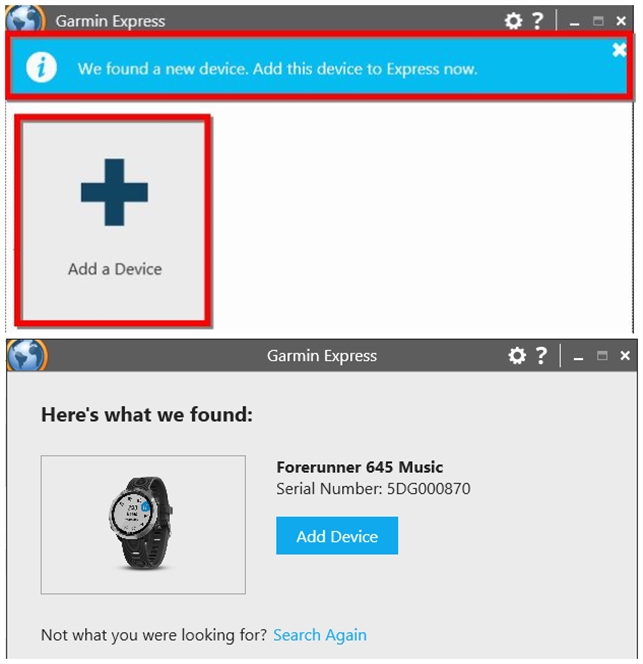
1) Connect your Garmin music device to the computer.
2) Open Garmin Express and select Add a Device.
3) When the device is found, select Add Device to add the device to Garmin Express.
Step 2
Add music to your watch with Garmin Express
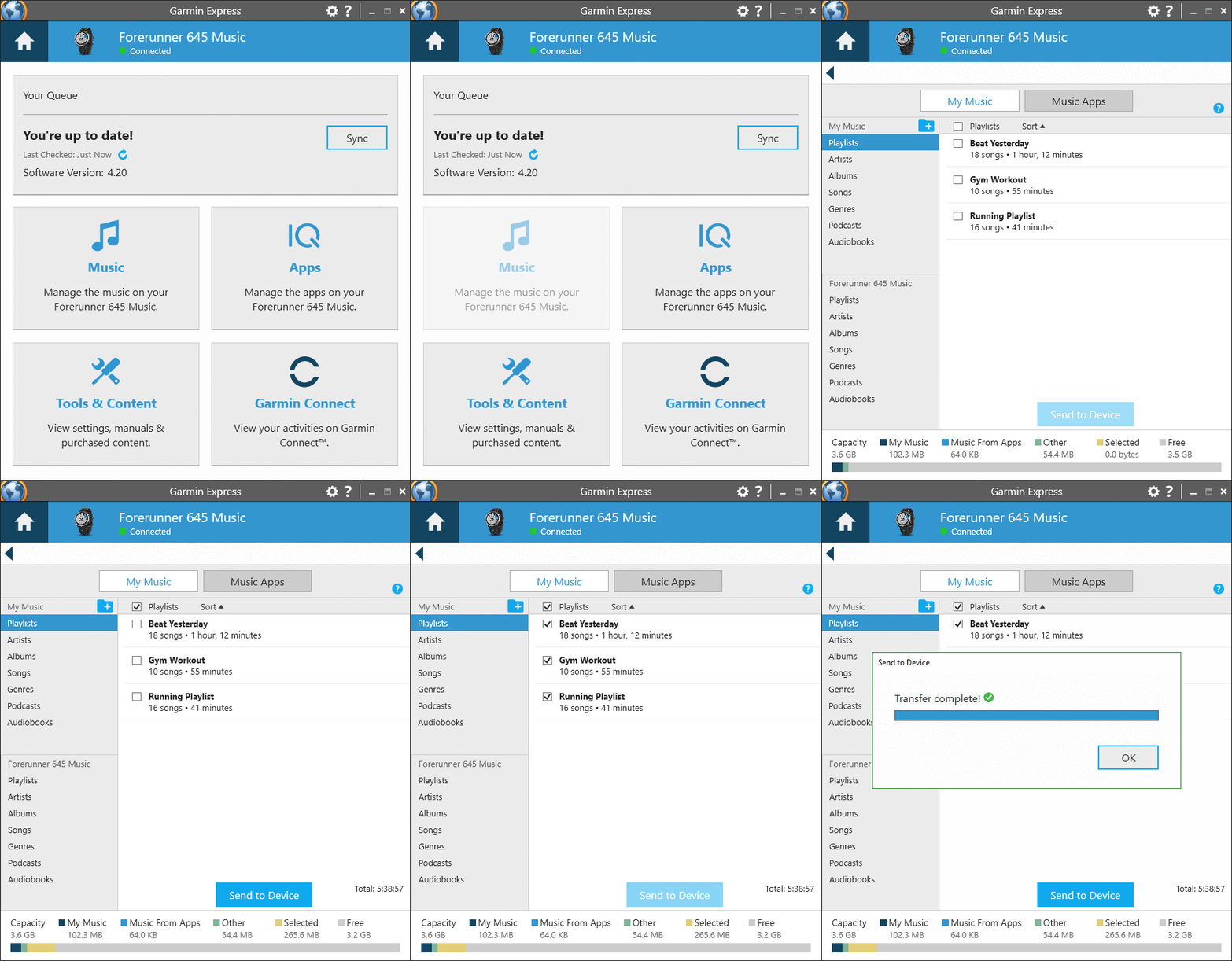
1) Connect your watch to the computer and open Garmin Express.
2) Click your watch and select Music.
3) Under My Music, select an audio file category, such as Songs, Playlists or Podcasts.
4) Click the checkboxes next to the Spotify music files and then click Send to Device.
Part 4. FAQs about Spotify on Garmin Watch
Can I listen to Spotify audiobooks on a Garmin Watch?
Unfortunately, the answer is negative. Audiobooks are not supported on Garmin devices through the Spotify app.
How many songs can I store on my Garmin Watch?
The amount of content from Spotify that can be stored on your watch will depend on the amount of memory you have available. In most cases, you should be able to sync several playlists and hundreds of songs.
Can I change the order of Spotify playlist on Garmin Watch?
You can not do so on your watch directly. The watch reflects the playlists in your Spotify account. If you want to change the order of your playlists, just change it on the Spotify app, and then update the playlist on the watch. So, it will reflect the changes you made in the app.
Why did my playlist disappear from my Garmin Watch?
There are several possible reasons that you won’t see your playlists on your Garmin Watch. For example, your Spotify subscription has expired, you have exceeded your limit of offline devices, or your watch hasn’t been synced over Wi-Fi through the Spotify app within the last 15 days.
Verdict
It’s easy to play Spotify on Garmin Watch with the above methods. With a subscription to Spotify Premium, you can set up Spotify on your Garmin watch and start listening to offline Spotify music on the watch. However, if you’re using a Spotify free account, you can go to proceed to part 3 to get some Spotify music to download to your watch. By using TunesMake Spotify Music Converter, you can download Spotify songs for listening anywhere.
Related Articles



A senior editor from TunesMake, dedicated to sharing professional tutorials and solutions of software, movies, and music.
- 1
- 2
- 3
- 4
- 5
- 6
- 7
 Leave Your Comment
(0)
Leave Your Comment
(0)

 Download Center

