








 Store
Store


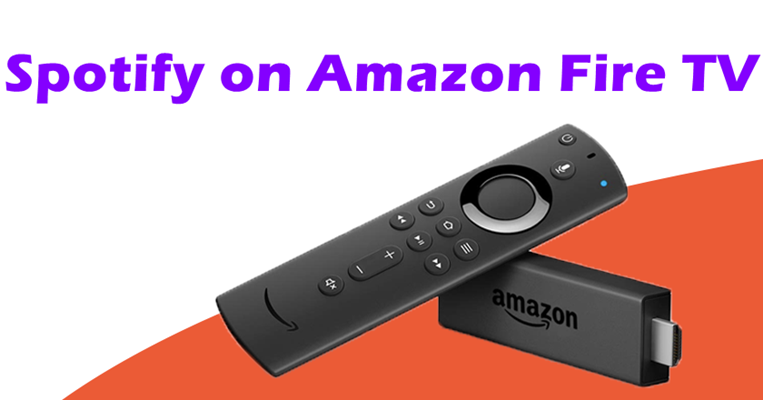
As one of the most popular streaming devices, Firestick plugs into your TV’s HDMI port and turns any screen into a smart entertainment center. With Amazon Firestick, you can access streaming content like Netflix, YouTube, and of course Spotify. If you have no idea how to play Spotify on Firestick, this post is your one-stop choice. It breaks down 3 best and most reliable methods to help you get Spotify on Firestick without much effort. Whether you prefer a native Spotify app experience, casting and controlling music playback from your phone, or keeping unlimited access to Spotify on your Firestick, you can find a step-by-step guide in this post. Plus, it provides some solutions to help you fix Spotify not working on Firestick.
Part 1. FAQs about Spotify on Firestick
Can I get Spotify on Firestick?
Yes. On an Amazon Firestick, you can directly access the Spotify app because it is available on the Amazon app store.
Do you need Spotify Premium to use Spotify on Firestick?
No. Both Spotify Free and Premium users can play Spotify on Firestick after linking to their Spotify accounts.
Can I download Spotify music for offline playback on Firestick?
No, you can not download Spotify songs on Firestick even if you are a Premium user, because the downloading feature isn’t available on Firestick devices. However, you can use an alternative method - save Spotify songs as local files via the TunesMake Spotify Music Converter. Once done, you can transfer the downloads to a USB drive and play them offline on your Firestick.
Part 2. How to Get the Spotify App on Firestick
Does Firestick have Spotify? Positive. On the Amazon app store of Firestick, you can directly access the Spotify app for Firestick. Hence, it is easy to download Spotify to Fire TV by following the steps below.
Download and Install the Spotify App on Firestick
1) Power on your Amazon Fire TV and go to the main menu.
2) With the remote, hit on the magnifying glass to open the search bar.
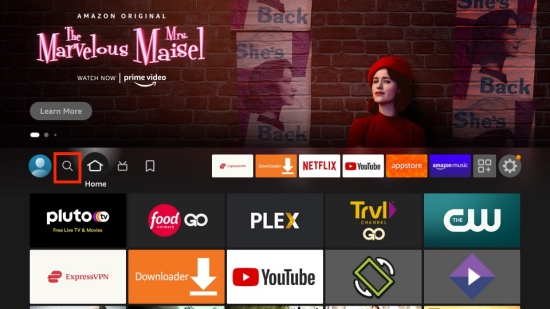
3) Enter Spotify and select Spotify from the search result.
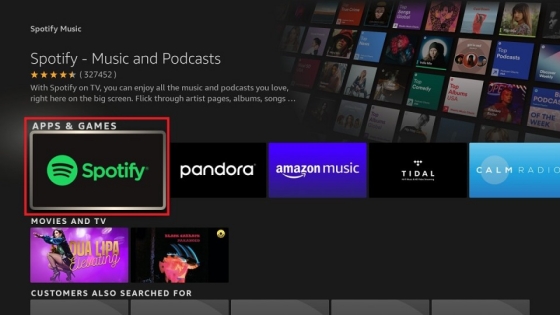
4) Select Get or Download to add it to your Fire TV Stick.
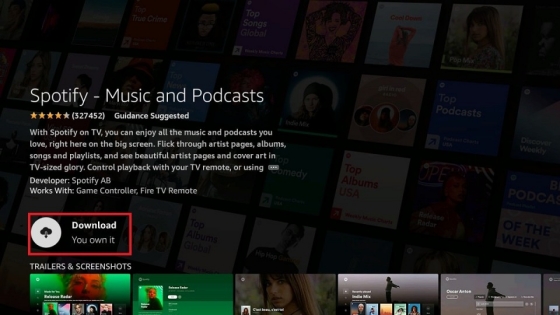
5) Once installed, you can directly click on Open to launch the Spotify Fire TV app.
Log in to Your Spotify Account on Firestick
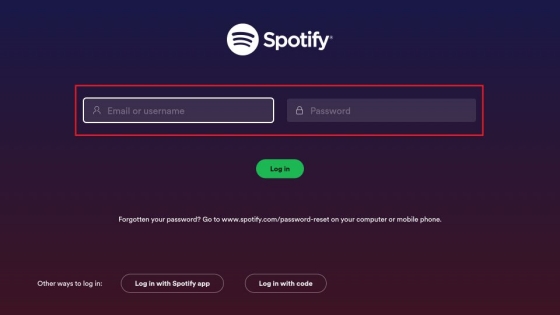
1) After opening Spotify on Fire TV, you will see two options displayed – Log in or Sign up for free.
2) Press on Log in and then select Log in with password.
3) Follow the on-screen instructions to enter your credentials and click Log in to proceed.
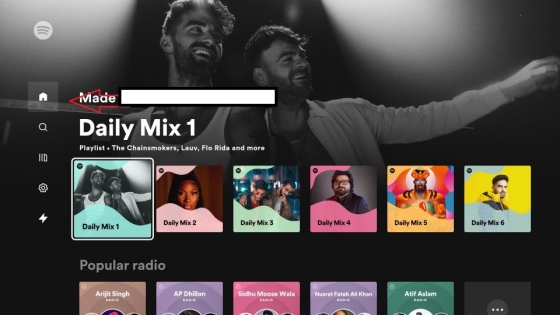
4) Then you can browse albums, playlists, and songs on Spotify and start playing.
Part 3. How to Cast Spotify Music to Firestick via Spotify Connect/AirPlay
Remember, you can also cast Spotify to Firestick from your mobile phone. Here are 2 functionalities you can utilize on your phone to connect Spotify to Firestick.
Cast Spotify to Firestick via Spotify Connect
Spotify Connect is a powerful built-in feature that unshackles your Spotify collection from your phone and plays it on most devices.
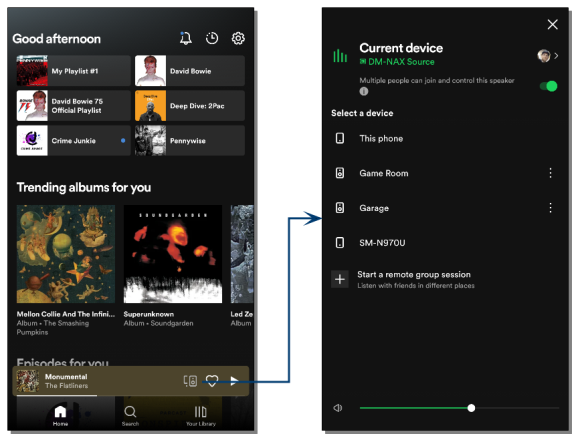
1) To begin, make sure that your Fire TV and your Spotify-enabled device are under the same WiFi network.
2) Then, fire up Spotify and select a playlist or album you wish to play.
3) Next, touch the Device icon and choose your Fire TV as the destination device.
4) After that, your TV will start playing Spotify music and you can use your device as the remote or ask Alexa to control the playback of Spotify on Fire TV.
Cast Spotify to Firestick via AirPlay (iOS)
If you own an iOS device, AirPlay lets you share videos, photos, music, and more with your home speakers and popular smart TVs including Fire TV.
1) On your Fire TV, go to Settings > Display and Sounds.
2) Head to AirPlay & HomeKit and then switch the AirPlay toggle On.
3) On your iOS device, start playing Spotify.
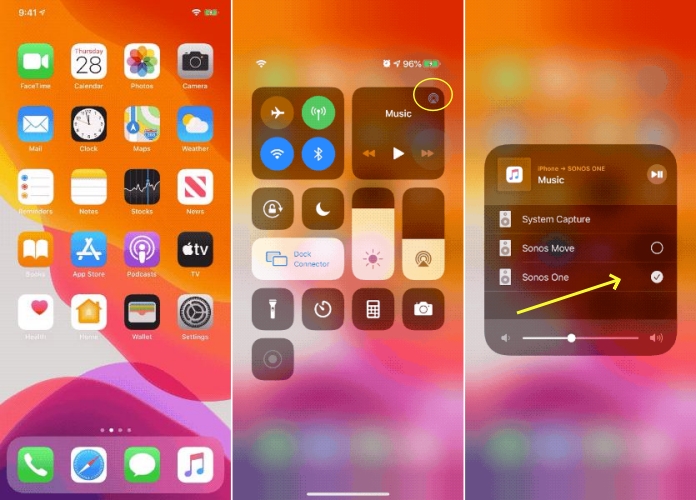
4) Opening Control Center by swiping down from the top screen.
5) Tap on the Music card and the AirPlay icon to access the available devices list.
6) Select the name of your Fire TV to build the connection. And then Spotify content from your mobile will be played through Firestick.
Part 4. How to Play Spotify Local Files on Firestick via USB
No matter which method above you choose to play Spotify music on Firestick, you will encounter some limitations. For example, the Spotify app may fail to work on Firestick sometimes, or you have to put up with unlimited ads if you only have a Free account. Therefore, we’d like you to use an alternative method that allows you to fully enjoy Spotify on Firestick and even any other device. That is to download your favorite Spotify songs to a USB drive. To do so, the TunesMake Spotify Music Converter is indispensable.
TunesMake Spotify Music Converter is a professional Spotify music downloader available for both Free and Premium users. You can use it to download songs, playlists, albums, and podcasts from Spotify to MP3, M4A, M4B, WAV, FLAC, or AIFF files without quality loss. It even supports you in customizing the audio parameters according to your personal demands. After downloading, you can keep the downloaded Spotify songs forever. More so, it’s easy for you to store them on a USB drive and play them on your Firestick offline. Now, just install TunesMake Spotify Music Converter on your desktop by clicking the Free Download button below to let it download Spotify songs automatically without Premium.

TunesMake Spotify Music Converter –
Best Spotify to Firestick Downloader and Converter
- Unlimitedly download Spotify songs, playlists, and podcasts
- Losslessly convert Spotify music to MP3, FLAC, WAV, AIFF, etc.
- Remove ads from Spotify music tracks even with Free accounts
- Convert Spotify songs at 12X faster speed with ID3 tags kept
Security Verified. 100% Clean & Safe.
Step 1
Select Spotify songs to download

First, launch TunesMake Spotify Music Converter on your PC or Mac. Spotify web player will then automatically open on its interface. Head to the Spotify Library and select the playlists or albums you want to download. Then, you can load them to the conversion list by clicking the Add icon > Add to List. If you only need to download one track, you can directly drag and drop it to the lower Add icon.
Step 2
Adjust the audio parameters

You can customize various parameters like the bit rate, sample rate, output format, and channel. Just click the top Menu icon, and then select Preferences > Conversion. Amazon Firestick supports audio formats like AAC, MP3, FLAC, Vorbis, WAV, and so on. To ensure compatibility, MP3 is recommended. If you want better audio quality, you can try FLAC. After customizing all the audio parameters, you need to click the OK button to save your changes.
Step 3
Start to download Spotify songs

The final step is to click the Convert button. Once done, the TunesMake program will begin downloading the songs you choose automatically. How long it takes depends on how many songs you choose. But it won’t take too long with its fast 12x conversion speed. When everything is done, you can see all downloads by clicking the top Converted icon. The little file icon next to each track can help you locate the downloads in your computer’s drive.
Step 4
Play Spotify on Firestick offline using USB
With your converted songs on your computer, you can now easily move them to a USB flash drive. Now it’s time to get down to our business – play Spotify on Fire TV Stick. Remember, you have the converted Spotify music on your USB flash drive.
- Use an OTG adapter to connect the USB flash drive containing your wanted Spotify songs to your Firestick.
- Next, launch a player on Fire TV like VLC to access the converted Spotify songs.
- Select any music for playback. Voila! You now have Spotify on Firestick.
Part 5. Troubleshoot: Spotify on Firestick Not Working
Sometimes, you may find the Spotify app isn’t working properly on your Firestick, such as crashing, stuttering, freezing, or failing to connect. Don’t worry. These issues are usually caused by poor internet connection, outdated app version, reached device limit, and more. Below are some helpful solutions you can try to get Spotify running smoothly again.
1. Check the Internet connection
Since Spotify requires a stable network to stream music on Firestick, you should make sure your Wi-Fi is stable and fast. You can check the network status on Settings > Network on your Firestick. If necessary, restart your router and reconnect the Firestick.
2. Update your TV’s system and the Spotify app
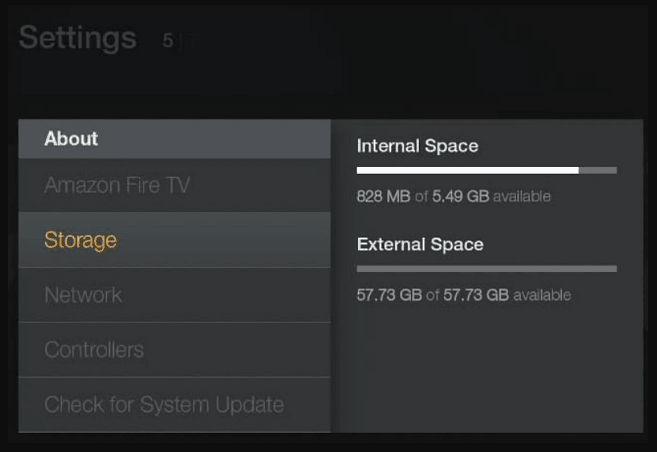
An outdated Fire OS version or the Spotify app version can cause compatibility issues. So, you’d better install the latest version of both of them. To update your TV’s operating system, head to Settings > My Fire TV or Device & Software > About > Check for System Update.
3. Reconnect Spotify on Firestick
If your music is still stuttering or the app won't load, the connection between the Spotify app and Firestick often does the trick. Sometimes the authentication token gets wrong in the Firestick’s local storage. In this case, you need to force a fresh connection.
4. Restart the Spotify app and your TV
Minor glitches or temporary sync issues can cause Spotify not work on Firestick. In this case, restarting both the Spotify app and your TV often helps, since this step refreshes the system. To fully stop Spotify on your Fire TV, you should go to Settings > Applications > Manage Installed Applications > Spotify > Force Stop.
5. Connect two devices to the same Wi-Fi
If you are playing Spotify music on Firestick via the Spotify Connect feature, you need to make sure that both your Firestick and phone are connected to the same Wi-Fi network. Otherwise, Spotify won’t be able to detect your Firestick device.
Wrap Up
Amazon Firestick is out and about for all the good reasons. This smart TV throws all the pleasures of getting quality media from streaming music services like Spotify. We have made it easier for you via the above three methods to get Spotify on Firestick. With TunesMake Spotify Music Converter, you can enjoy offline and ad-free listening on your TV even in a free mode.
Related Articles

A senior editor from TunesMake, dedicated to sharing professional tutorials and solutions of software, movies, and music.
- 1
- 2
- 3
- 4
- 5
- 6
- 7
 Leave Your Comment
(0)
Leave Your Comment
(0)

 Download Center

