








 Store
Store


Fitness watches have taken the market by storm. Lots of functions are available on fitness watches, helping you calculate various body-related statistics. You can get top-notch activity tracking, sleep tracking, and more. The Fitbit Versa smartwatch is one of the best on the market. Beyond the basic features, it also provides a feature that allows you to play Spotify on Fitbit Versa easily. If you have no idea how to do so, here is the most detailed guide you can get. Now, let’s explore the effective methods to reach your goal.
Part 1. Can You Get Spotify on Fitbit Versa?
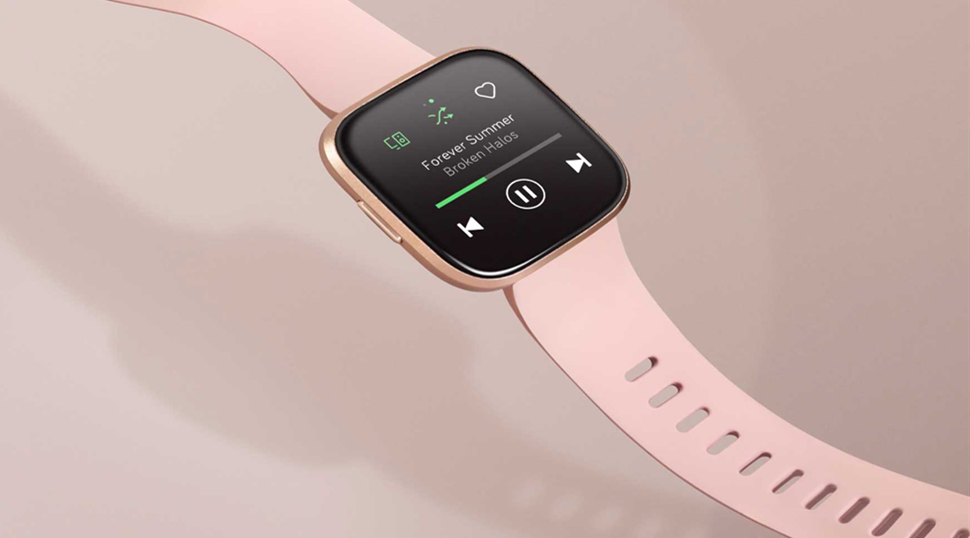
Let’s clear it: yes, you can get Spotify on your Fitbit Versa device, but not the Versa 4. With your Spotify Premium subscription, you can make a connection between your phone and Fitbit Versa. Then, you can easily use your Versa 1/2/3 to control your Spotify music playback from your wrist.
Do I Need Spotify Premium to Play Music on Fitbit Versa?
Yes, a Spotify Premium subscription is needed if you want to get the official Spotify app on your Fitbit Versa and control Spotify music playback on your phone.
Can I Listen to Spotify on Fitbit Versa Without a Phone?
Unfortunately, listening to Spotify on a Fitbit Versa without your phone is impossible. In fact, you can only control music from the Spotify app on your Fitbit device with a paired phone. Spotify doesn’t offer the standalone and offline playback feature to the Fitbit device now.
Part 2. How to Add Spotify to Fitbit Versa
As Spotify offers its service to Fitbit smartwatches, playing music from Spotify on Fitbit is now a reality. If you are a premium Spotify subscriber, you are able to play Spotify on Fitbit Versa. The below method has been taken from the official website of Fitbit Versa and offers step by step guide to listen to Spotify music on Fitbit Versa.
To use Spotify on Fitbit Versa, you need to install the Fitbit Versa Spotify app first. After the app has been installed, you can log in with your account or with your Facebook profile for accessing Spotify music on Fitbit Versa. Here’s how to. But note the following requirements:
1) A Spotify account subscribing to any premium plan;
2) Keep the paired phone nearby with the Fitbit app;
3) Connect the Fitbit Versa to an internet network.
How to Get Spotify to Fitbit Versa 2/3
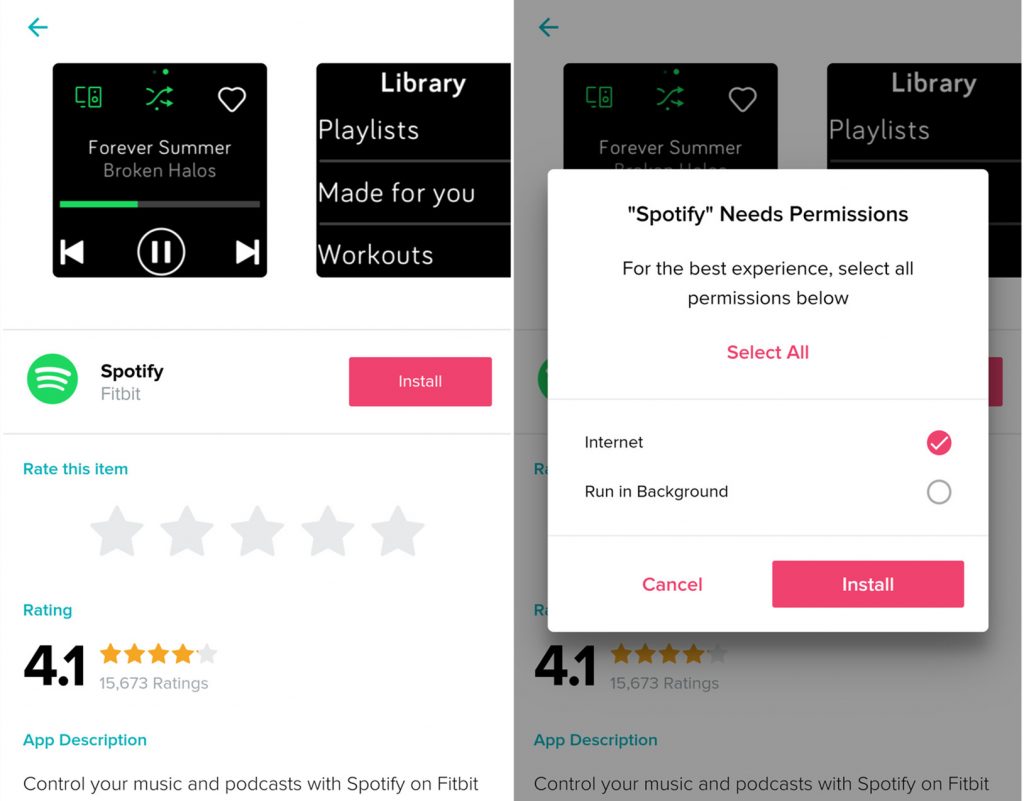
Step 1. Open the Fitbit app on your iOS or Android device.
Step 2. Tap your profile picture in the top-left corner and then the Fitbit Versa device is shown underneath.
Step 3. Select the Fitbit device and tap on the Apps icon to search for the Spotify app.
Step 4. Find the Spotify app under All Apps and install it on your Fitbit smartwatch.
Step 5. Go to My Apps and tap the gear symbol next to Spotify then complete the installation.
How to Use Spotify on Fitbit Versa 2/3
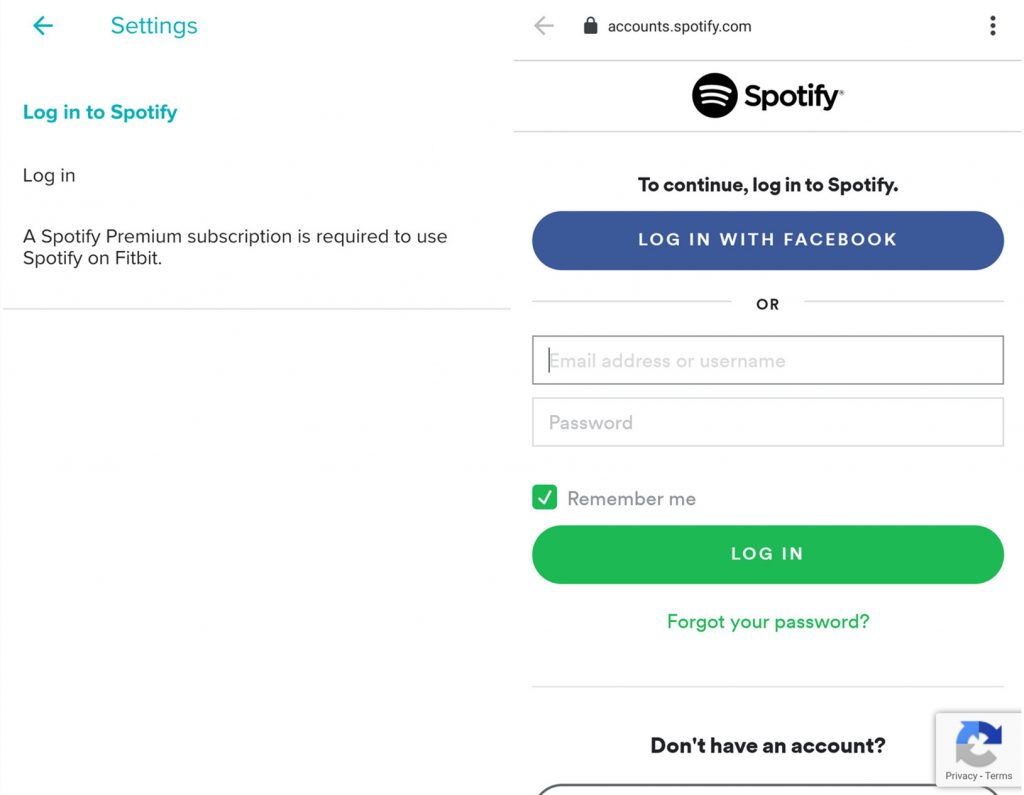
Step 1. In the Fitbit app, tap the Today tab > your profile picture > your device image > Gallery.
Step 2. Tap the gear icon next to Spotify and then tap Settings.
Step 3. Select Log in and log into your Spotify premium account by following the on-screen instructions.
Step 4. Launch Spotify on your device and select any album or playlist to play.
Step 5. Open Spotify on your Fitbit device to control the playback of Spotify.
Part 3. Best Way to Play Spotify on Fitbit Versa 2/3/4 Offline
For Spotify Premium users, it’s not difficult to play Spotify music on a Fitbit Versa. However, if you only have a Spotify Free account, doing so may be a little tricky for you. Don’t worry. TunesMake Spotify Music Converter can help you take advantage of the playback of Spotify on Fitbit Smartwatches, whether you have a subscription or not.
TunesMake Spotify Music Converter is hands down one of the best and the most reliable Spotify music downloader and converters. With the help of TunesMake, you can not only download songs, playlists, albums, and podcasts from Spotify without premium but also convert them to several popular audio formats like MP3. Once done, you could transfer Spotify songs to Fitbit Versa for unlimited offline listening, allowing you to leave your phone at home.

TunesMake Spotify Music Converter –
Best Spotify to Fitbit Versa Downloader
- Unlimitedly download Spotify songs, playlists, and podcasts
- Losslessly convert Spotify music to MP3, FLAC, WAV, AIFF, etc.
- Remove ads from Spotify music tracks even with Free accounts
- Convert Spotify songs at 12X faster speed with ID3 tags kept
Security Verified. 100% Clean & Safe.
Download Spotify Music Locally
The local audio files that can be transferred to your Fitbit watch include MP3, MP4 (with AAC audio), and WMA. So, the first thing is to download your favorite Spotify songs locally via the TunesMake Spotify Music Converter. This is a process that is simple to follow and does not require you to be a tech geek at all. Just download the TunesMake software by clicking the Free Download button above, and we can get started now.
Step 1
Import Spotify Music to the TunesMake Tool

Open TunesMake Spotify Music Converter on your computer and wait for the automatic loading of the Spotify web player. Once done, you can log in to your account and find the playlists or albums you want to listen to on your Fitbit Versa. Enter the detailed page of this playlist/album, and click the Add icon at the bottom. The TunesMake tool will then analyze and show all the songs included. You can now pick what you like and add them to TunesMake’s conversion list by clicking Add to List.
Step 2
Customize the Output Audio Parameters

After all your selected music is loaded from Spotify to the TunesMake tool, you can go to customize the output audio parameters according to your demand. Just click on the menu bar, then choose the Preference option. On the Conversion tab, set the audio format, bit rate, sample rate, and channel. There are six audio formats for you to choose from and you could select one as the output audio format.
Step 3
Start to Download and Convert Spotify Music

When you’ve made your audio setting, just click the Convert button in the lower right corner. Then, the TunesMake Spotify Music Converter will save Spotify songs to your specific folder. After the conversion is done, you can click the Converted icon to browse all the converted Spotify songs in the history folder. You could also click the file icon next to each song to locate the folder where you save it.
Transfer Spotify Music Files to Fitbit Versa
Now you are able to transfer DRM-free Spotify songs to Fitbit Versa for listening. If you don’t know how to transfer and download music from your computer to your Fitbit watch, then follow the below steps and choose your device.
For Mac:
Step 1. Connect your watch to Wi-Fin first and then install the Fitbit Connect app on your Mac.
Step 2. Go to https://www.fitbit.com/global/us/setup and double-click Install Fitbit Connect.pkg to open the installer then complete the installation.
Step 3. In the Fitbit Connect window, click Manage My Music and log in to your Fitbit account.
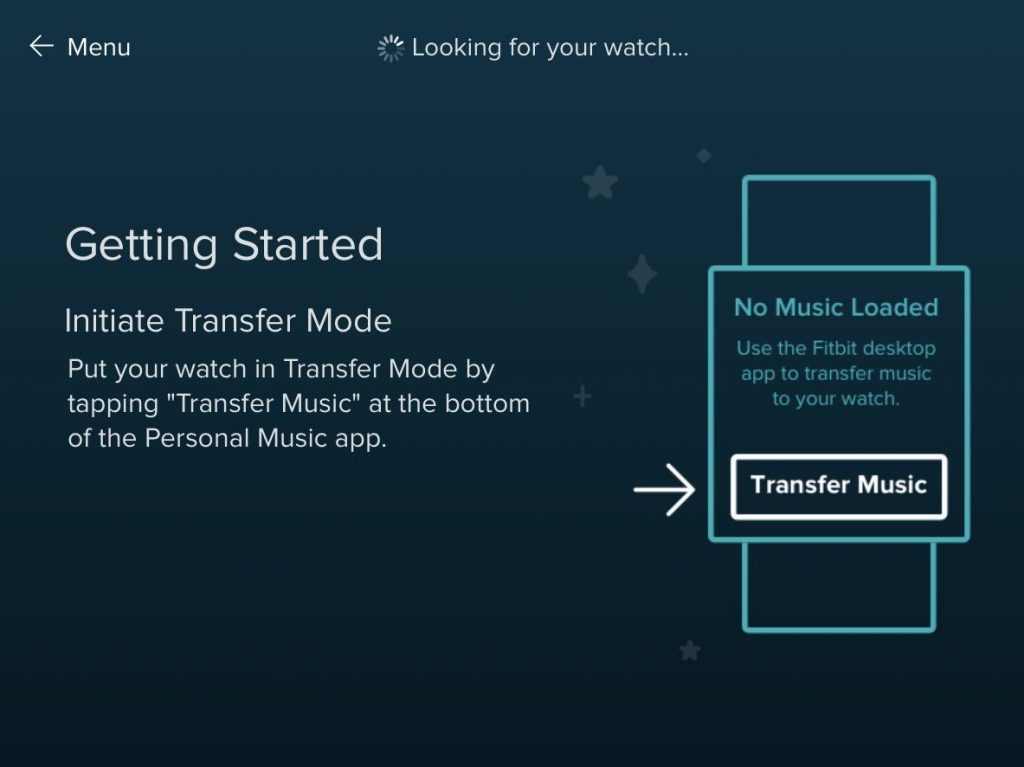
Step 4. On the watch, open the Music app and then scroll down to tap Transfer Music.
Step 5. Follow the on-screen instructions to choose the music files you want to move to the watch.
For Windows:
Step 1. Make sure that your watch is connecting to Wi-Fi and then install the Fitbit Connect app.
Step 2. Go to https://www.fitbit.com/global/us/setup and double-click Install Fitbit Connect.pkg then install it to your computer.
Step 3. Open Fitbit Connect and select Manage My Music then click Personal Music.
Step 4. Then on your Versa, go to the Music app and tap on the Transfer Music tab.
Step 5. Once connected, select Spotify songs you want to transfer to your Fitbit Versa.
Part 4. Conclusion
Can you use Spotify on Fitbit Versa? Yes, and it’s easy when you are a Spotify Premium subscriber. But if you don’t have a Premium account, TunesMake Spotify Music Converter is the best solution. It can help you download any song you like from Spotify and keep it as a local file forever, ensuring you enjoy your favorite songs on Fitbit Versa with ease and perfection.
Related Articles



A senior editor from TunesMake, dedicated to sharing professional tutorials and solutions of software, movies, and music.
- 1
- 2
- 3
- 4
- 5
- 6
- 7
 Leave Your Comment
(0)
Leave Your Comment
(0)

 Download Center

