








 Store
Store


It is a breeze to access over 100 million tracks and numerous exclusive playlists on Spotify. As the most popular music streaming service around the world, Spotify ensures your unrivalled music experience. However, every coin has two sides. Spotify is not perfect since it has been reported many bugs and problems. And the Spotify no internet connection error is one of them.
Recently, many users complained that Spotify keeps saying no internet connection and doesn't play music normally. If you are facing the same issue, you should read this comprehensive guide. It contains several solutions that can help resolve this error and clear your mind of all worries. Dive into the next parts, and you will be guided stepwise. Without further ado, let's get started!
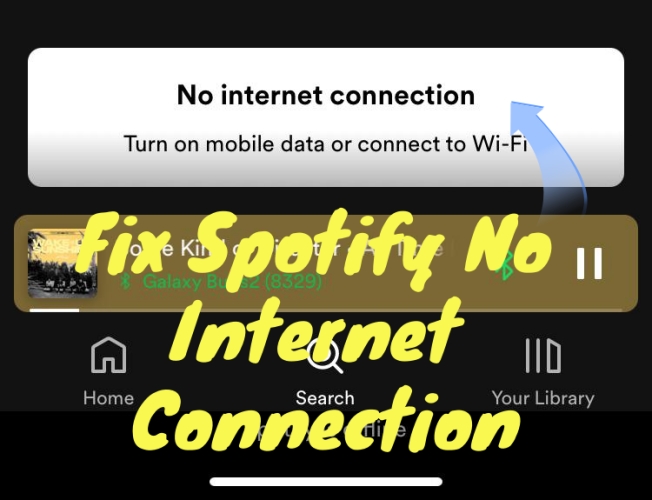
Part 1. Why Does Spotify Say No Internet Connection?
Spotify may display a false "no internet connection available" error even when your device is fully connected to the web. This glitch typically stems from application-layer bugs or device settings rather than an actual internet outage. Common reasons of Spotify saying no internet connection available include:
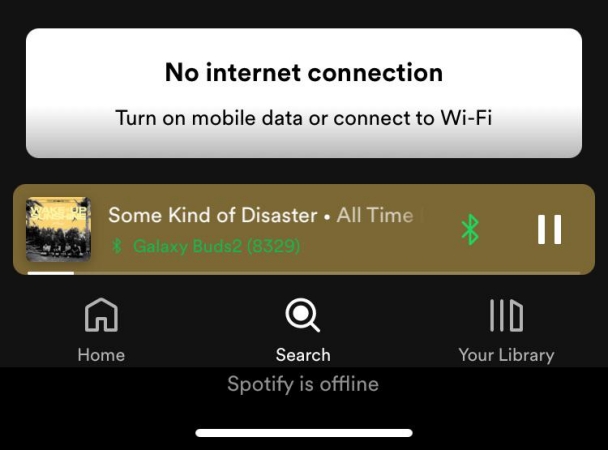
1. Background Restriction Policies: Aggressive battery savers or data saving settings block Spotify from pulling data in the background.
2. System Permission Access: A recent system update or accidental setting change may have revoked Spotify's access to use cellular data networks.
3. Authentication Cache Overload: Local temporary session files become corrupted, tricking the software into misinterpreting its server connection status.
4. Stuck Software Processes: Background glitches within the app or system lockscreen music controls can cause communication failures.
5. Accidental Offline Mode: The Spotify app may be locked in its internal "Offline" status, not allowing to access the internet for playing.
Part 2. Quick Fixes to Spotify No Internet Connection
Before diving into complex settings, try these high-success, rapid troubleshooting steps to force Spotify to reconnect to its servers.
Solution 1. Toggle Offline Mode On and Off
Manually switching Spotify to Offline Mode and back forces the app to refresh its network handshake.
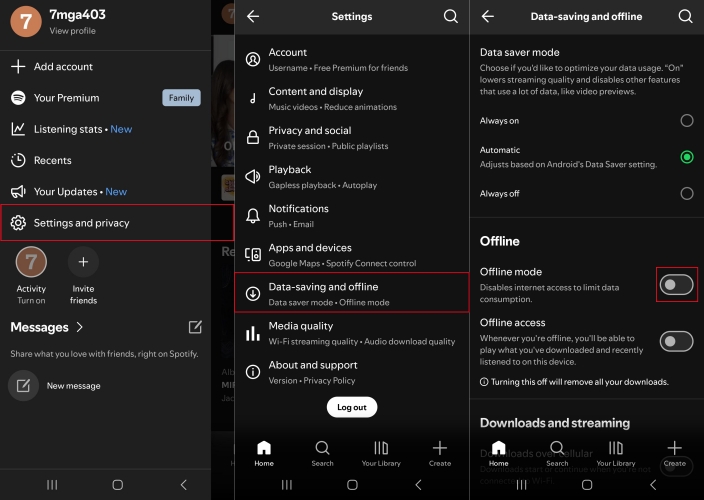
Step 1. Open Spotify and tap your profile picture at the top left corner.
Step 2. Tap Settings and privacy and scroll to Playback.
Step 3. Toggle Offline Mode on. Then wait 10 seconds and toggle it off.
Solution 2. Force Close and Relaunch the App
A stuck background process can trick Spotify into thinking it has no network access. Force closing terminates all active app instances.
On Mobile:
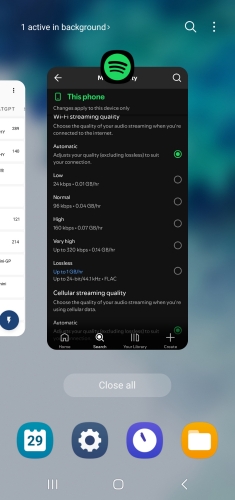
Swipe up from the bottom of your screen to open the app switcher, then swipe up on Spotify to close it completely.
On Desktop:
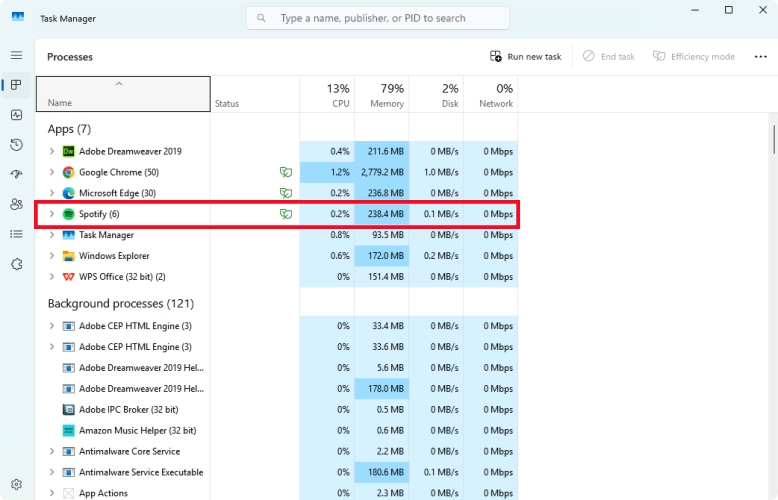
Press Ctrl + Shift + Esc (Windows) or Cmd + Option + Esc (Mac), select Spotify, and click End Task or Force Quit.
Solution 3. Check Spotify Server Status
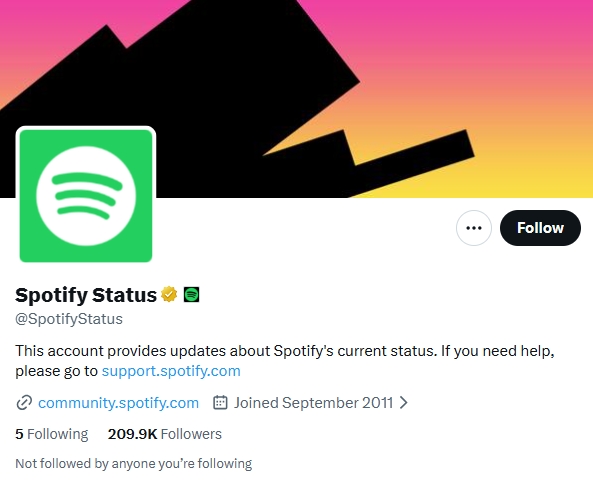
If Spotify's central servers are down, your app will report a connection error. Check the official @SpotifyStatus account on X or visit DownDetector to see if a widespread outage is occurring.
Part 3. How to Fix Spotify No Internet Connection Available
If the quick fixes failed, the underlying issue likely points to corrupted local database files or an expired session token. Here are some advanced solutions to fix Spotify keeps saying no internet connection on a mobile phone or a computer.
Solution 1. Clear Spotify App Cache
Over time, temporary files can become corrupted and disrupt network communication. Clearing the cache resets these files safely without deleting your downloaded songs.
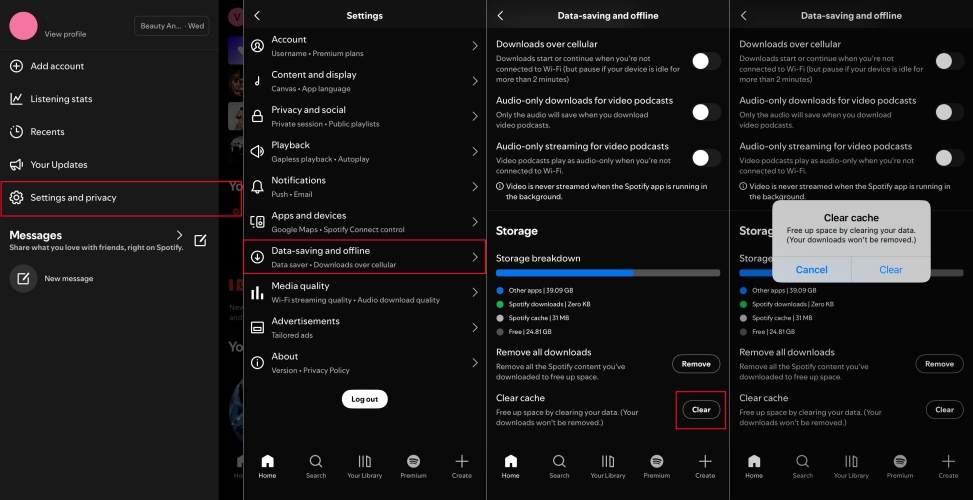
Step 1. In Spotify, tap your profile icon and go to Settings and privacy.
Step 2. Scroll down to the Storage section.
Step 3. Tap Clear cache and confirm your choice.
Solution 2. Try Sign Out Everywhere
When your account is authenticated across multiple devices simultaneously, security handshakes can fail, throwing a false connection error. Resetting your session tokens fixes this.
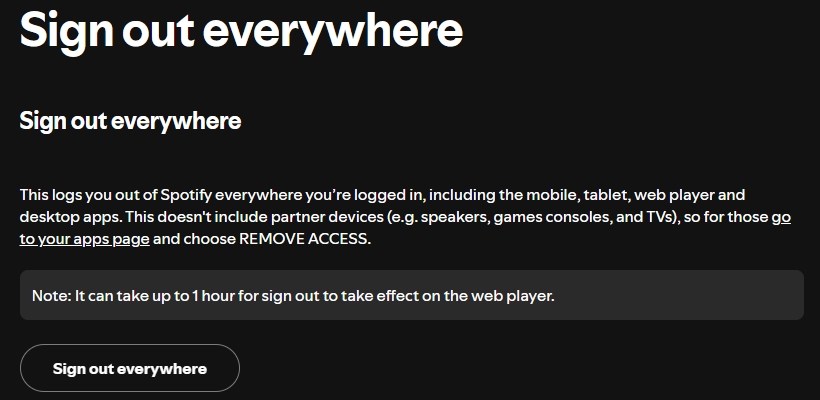
Step 1. Open a web browser and log into your account dashboard at spotify.com.
Step 2. Go to your Account Overview page.
Step 3. Scroll down to the bottom and click the Sign out everywhere button.
Step 4. Log back into your Spotify app.
Solution 3. Enable Cellular Data Permission (Mobile Only)
If your Spotify app functions perfectly over Wi-Fi but drops its connection the moment you switch to a mobile network, your device is likely blocking its mobile data access.
On iOS:
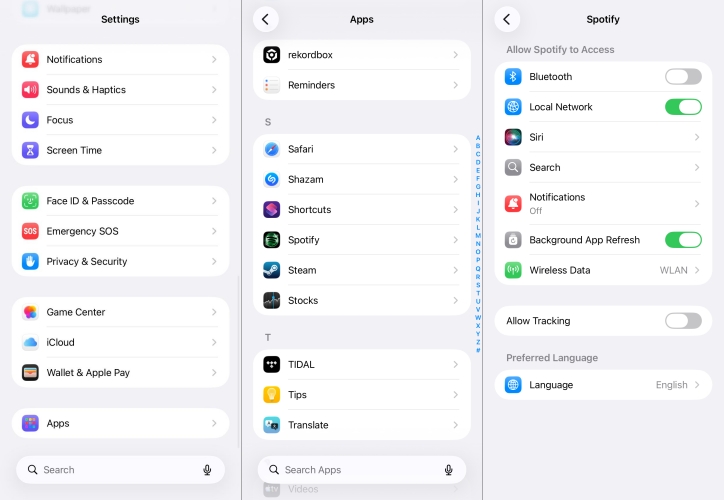
Step 1. Open the Settings app and tap Apps.
Step 2. Scroll down to locate Spotify.
Step 3. Ensure that the toggle next to Cellular Data is turned ON.
On Android:
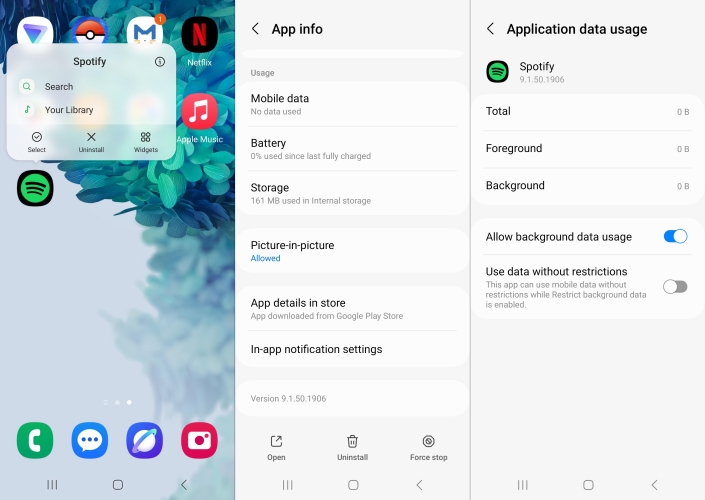
Step 1. Open the Settings app and tap Apps > Spotify > Mobile Data & Wi-Fi.
Step 2. Verify that Background data and Unrestricted data usage are both enabled.
Solution 4. Disable Low Power Mode (Mobile Only)
Aggressive battery-saving utilities conserve device power by freezing background connections, which directly tricks the Spotify client into assuming it is offline.
On iOS:
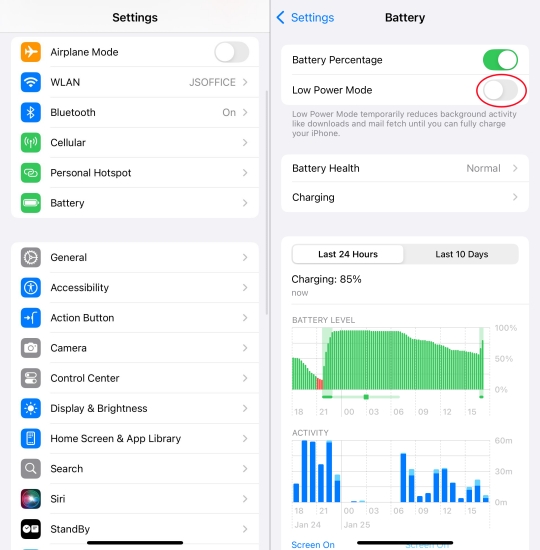
Step 1. Navigate to Settings > Battery.
Step 2. Switch off Low Power Mode.
On Android:
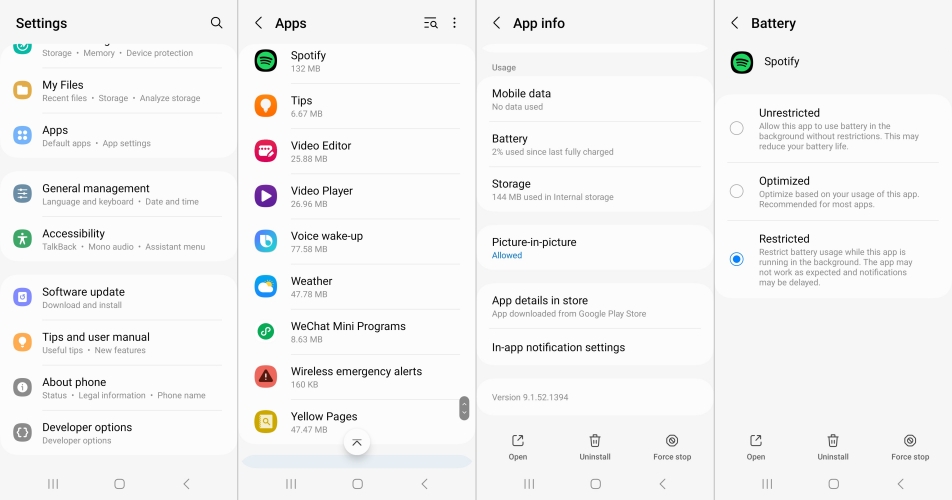
Step 1. Go to Settings > Apps > Spotify > Battery.
Step 2. Change the battery optimization management tier from Optimized or Restricted over to Unrestricted.
Solution 5. Disable VPN or DNS Services
According to one staff from the Spotify Community, the app will prompt you with no internet message if you are using a VPN or DNS service not supported by Spotify. Thus, you'd better check whether you have turned on VPN connections or set local DNS configurations. If VPN services are enabled or local DNS configurations are set, go to turn them off.
Solution 6. Update Firewall Exceptions (Desktop Only)
Local desktop firewalls occasionally mistake updated streaming client software connections for unauthorized data traffic, blocking incoming media feeds.
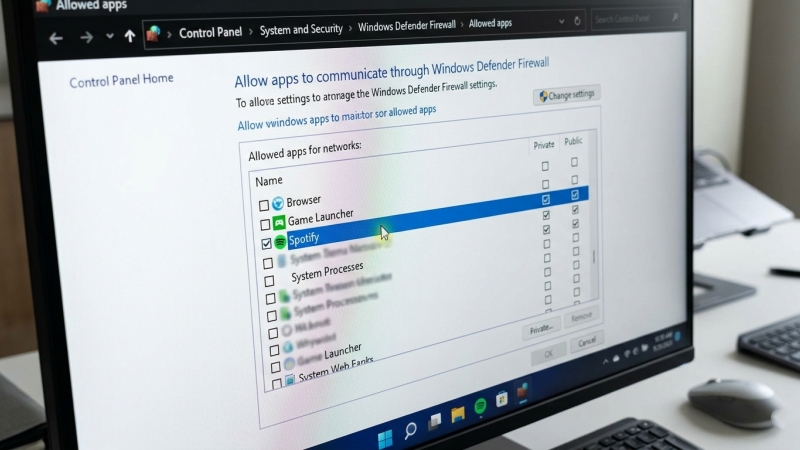
On Windows:
Step 1. Press Windows Key + R, type firewall.cpl, and hit Enter.
Step 2. Click Allow an app through Windows Defender Firewall.
Step 3. Locate Spotify.exe, then click Change Settings.
Step 4. Check both the Private and Public network access options.
On Mac:
Step 1. Go to System Settings > Network > Firewall, then select Options.
Step 2. Make sure Spotify is added to the list of allowed connections.
Solution 7. Update the Spotify App
Running an outdated version of Spotify can introduce server-side handshake communication failures. Developers push regular hotfixes to patch unexpected connection bugs.
Step 1. Launch the Apple App Store or Google Play Store on your mobile device.
Step 2. Search for Spotify in the primary query tab.
Step 3. Click the Update button to download and install the latest official software build.
Solution 8. Delete and Reinstall Spotify
When internal databases become corrupted, standard toggles may not work. Performing a clean reinstall purges bad cache paths and forces the system to assign fresh data structures.
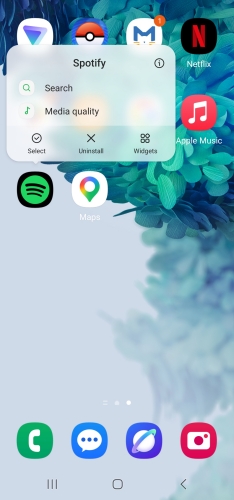
Step 1. Long-press the Spotify icon on your home screen and select Delete App or Uninstall.
Step 2. Restart your smartphone completely to wipe temporary hardware logs.
Step 3. Return to your respective App Store, reinstall Spotify, and log back into your profile.
Part 4. Ultimate Fix to Spotify Saying No Internet Connection
When persistent network handshakes or server-side synchronization bugs cannot be resolved through standard configurations, an effective workaround is to decouple your music library from the official client's live network dependencies. Using external utilities like TunesMake Spotify Music Converter allows you to download and convert your playlists into standard local audio formats directly onto your storage drive.
Once you download Spotify music tracks as plain audio files like MP3, WAV, or FLAC on your computer, you can save them forever and enjoy them on any device you like. You don't need to worry about the bugs and glitches of the Spotify app. Following are the steps to download and convert music from Spotify to MP3 files by using TunesMake Spotify Music Converter.

TunesMake Spotify Music Converter –
Download music from Spotify without premium
- Download Spotify songs, albums, playlists, audiobooks, and podcasts
- Losslessly convert Spotify music to MP3, FLAC, WAV, AIFF, and more
- Remove ads from Spotify music tracks even with a Free account
- Convert Spotify music at 15× faster speed in batch with ID3 tags kept
Security Verified. 100% Clean & Safe.
Step 1 Select Spotify Music to Listen Offline

Install and launch TunesMake Spotify Music Converter on your computer, then the built-in Spotify web player will be opened automatically. You can choose which track or playlist to download. Just need to click the + button to browse all the selected items and add them to the conversion list. The selected music tracks can be loaded successfully.
Step 2 Choose one suitable output format

Click the menu icon at the interface of the TunesMake program. You can find it in the top right corner. After that, select Preferences and turn to the Conversion tab. Here you should choose one output format that is compatible with your device. If you want, you are able to adjust other parameters like the bit rate, sample rate, and channel as well.
Step 3 Download Spotify music to avoid no Internet issues

Now everything is ready. You just need to click the Convert button and wait for a while. When the downloading process is finished, you can enjoy your favorite Spotify music offline without interruption. If you don't know where the downloads are stored on your computer, you can click the Converted icon to find them.
Part 5. Conclusion
That Spotify keeps saying no internet connection available is annoying. It will interrupt your music enjoyment, but you now can fix the issue easily as long as you try the best fixes mentioned above. To fix the issue once and for all, we recommend you use TunesMake Spotify Music Converter. With this tool, you can download the content you like, then listen to them offline freely and never worry about any internet bugs in the Spotify app.
Related Articles


An experienced freelance writer at TunesMake, specializes in using various streaming services from Spotify, Apple Music, to Amazon Music, and more other platforms.
- 1
- 2
- 3
- 4
- 5
- 6
- 7
 Leave Your Comment
(0)
Leave Your Comment
(0)

 Download Center

