








 Store
Store


I played one of my favorite comedy albums on Spotify two weeks ago. I went back tonight to play it again and all tracks but one are greyed out. I’ve tried clearing cache as suggested here. I also found that the same tracks are greyed out on every other device where my Spotify account is logged into. If I search for the album on the Spotify Web Player, it shows up and looks playable. But if I try to log in and play it, it is once again greyed out. How do I get it back?”
— From Spotify CommunityIn the vibrant world of music streaming, Spotify has become a household name, offering a vast library of songs to its users. However, when you use Spotify to stream music, have you noticed that some Spotify songs are greyed out? Nothing is more upsetting than when you find some of them are even your favorite songs. But why are some songs greyed out on Spotify? What to do when the song is greyed out on Spotify? For this issue, Spotify does not give corresponding suggestions. Fortunately, you can still rely on the effective solutions in this post to fix Spotify songs greyed out. Moreover, you can learn the ultimate method to prevent your favorite Spotify songs from being greyed out anymore.

Part 1. Why Are Some Songs Greyed Out on Spotify?
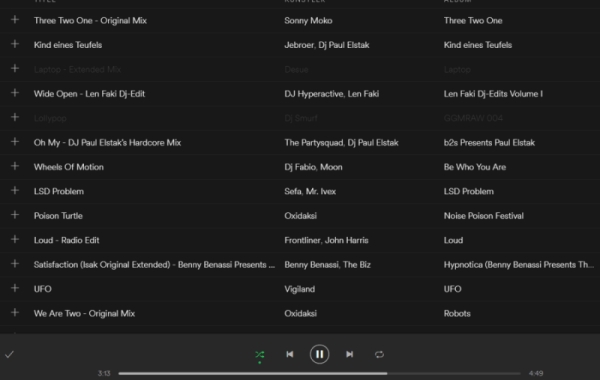
Spotify users often discover greyed out songs when attempting to play a particular track. When a song appears greyed out in your playlist or search results, it signifies that the song is currently unavailable for playback. This leaves many wondering why certain songs are greyed out while others play seamlessly. To shed light on this issue, let’s delve into the reasons behind Spotify songs greyed out.
Reason 1. License Expiration
One of the primary reasons for songs being greyed out on Spotify is licensing issues. The intricate web of music licensing involves negotiations between Spotify, artists, and record labels. When these negotiations hit roadblocks or agreements expire, songs can become temporarily or permanently unavailable. Sometimes, the whole album or the single track is moved from Spotify, but you can find them on other streaming music platforms.
Reason 2. Region Restrictions
Another factor contributing to greyed out songs is region-based restrictions. Due to legal and licensing considerations, certain songs may be limited to specific geographic regions, leading to a disparate user experience worldwide. Some songs may be greyed out on Spotify in a region while you can play those greyed out songs in a new region or country lately. This happens because the region restriction causes songs or playlists to be greyed out in your Spotify account.
Reason 3. Internet Connection
In addition to licensing issues and region restrictions, another important thing that causes songs to be greyed out on Spotify might be the internet connection on your device. When your device is connected to a poor or unstable network, you will find that some songs or albums are greyed out in Spotify, leading to you cannot listen to them on your device.
Reason 4. Unavailable Content
In some cases, songs may be intentionally removed from Spotify by artists or record labels. This decision could be influenced by various factors, including contractual disputes, rebranding efforts, or artist preferences. When your liked artists have changed their ownership or record companies, there would happen that some songs are unavailable on some streaming music platforms.
Reason 5. Spotify Errors
Spotify, the go-to music streaming platform for millions, has its occasional errors. There are frequently some errors that happen to Spotify, including Spotify Error 4, Spotify Error 409, and Spotify Error 30. Some of those errors could cause Spotify songs greyed out. Or there is a problem related to the server of Spotify.
Part 2. How to Fix Songs Greyed out in Spotify [Common Solutions]
After learning what causes the issue, you might be wondering how to bring the greyed out songs back to normal. Here are some practical solutions to resolve this issue. You can try them one by one.
Solution 1. Check Internet Connection and VPN Settings
As a streaming music platform, Spotify relies on a stable Internet connection to stream music. So, the first helpful troubleshooting step is to check the network connection on your device, especially for mobile users. You need to make sure your device is connected to a stable WiFi or other internet network. When you play Spotify music on your mobile phone, you can allow Spotify to run with cellular data.
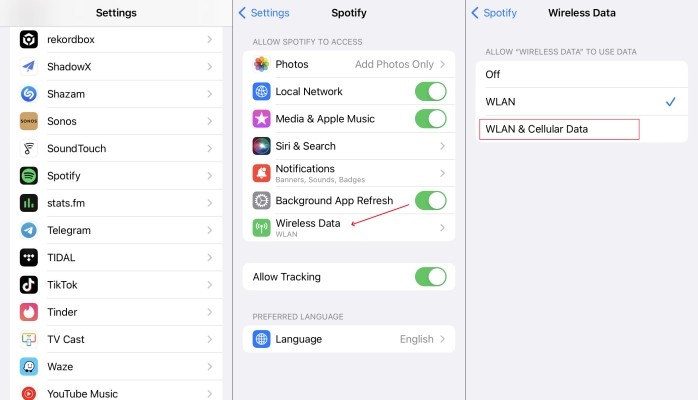
Step 1. Open the Settings app on your iPhone, then tap Spotify.
Step 2. Under Settings of Spotify, tap Wireless Data and select WLAN & Cellular Data.
What’s more, it’s better to disconnect any VPN server if you are using one. That is because some albums or songs are limited in some regions due to local requirements. So, Spotify might block your access to certain content based on your virtual location.
On iOS: Open the Settings app, and then select General > VPN & Device Management > VPN. Here, you can toggle it off.
On Android: You can either turn off VPN through the VPN app or through your Settings app. Just head to Settings > Connections or Network & Internet. Then, find the VPN option and turn it off.
Solution 2. Check Region Settings
While using Spotify abroad, you will receive a message showing that you can only use Spotify abroad for 14 days. So, if your Spotify songs become greyed out due to the change in your location, you can try changing the country or region settings of your Spotify account.
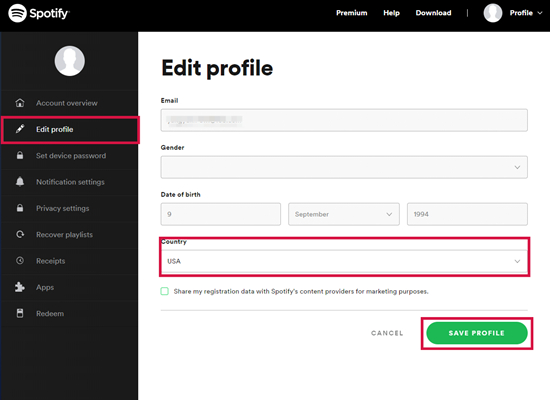
Step 1. Navigate to the Spotify Account page and log in to your Spotify account.
Step 2. In the left column, click the Edit Profile tab, then scroll down to Country.
Step 3. Select the country or region you’re in now and click Save Profile.
Solution 3. Log Out and Log Back in to Spotify
Logging out and logging back in is a common method of resolving various issues in Spotify. When your Spotify songs greyed out, you can try logging out of your Spotify account on your device. Then try logging back in to Spotify and check whether the issue is resolved.
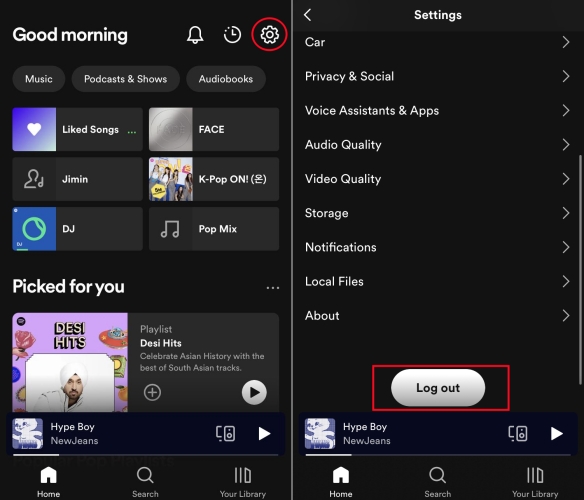
On iOS/Android Devices:
Step 1. Fire up the Spotify app on your device and tap the gear icon in the top right corner.
Step 2. Scroll down to the bottom and tap Log Out. Then you can log back in to Spotify.
On Desktop:
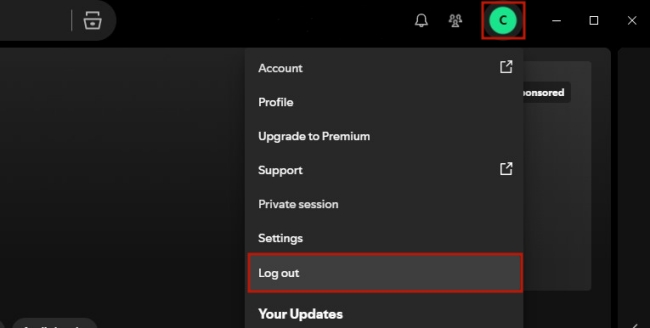
Step 1. Move your cursor over to the top right corner of the Spotify app. Then, click your profile icon.
Step 2. Select Log out.
Step 3. Then, you can restart Spotify and log back in to your account again.
Solution 4. Completely Reinstall the Spotify App
Sometimes, there are some bugs and glitches in the Spotify app. Then it happens that some songs are greyed out in Spotify. To resolve the issue caused by this reason, you can perform a complete clean uninstall and reinstall of Spotify.
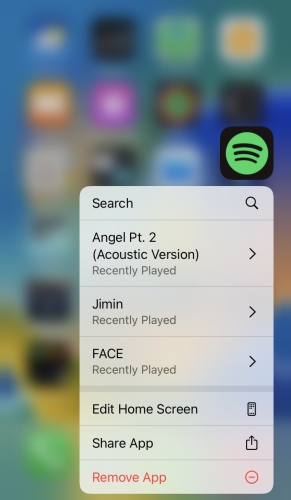
Step 1. On your smartphone, press Spotify until the delete icon appears.
Step 2. Tap Remove App, then tap Delete App to confirm.
Solution 5. Enable Hardware Acceleration in Spotify [Desktop]
The need for hardware acceleration in streaming services like Spotify arises from the growing demand for high-quality audio. However, when some songs in your playlist become greyed out, you can enable hardware acceleration in Spotify to resolve this issue.
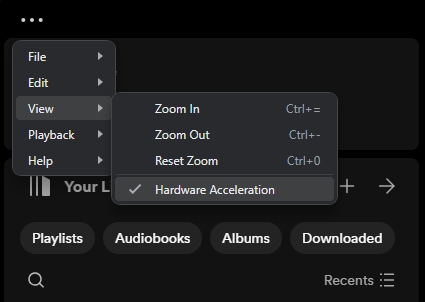
Step 1. Launch the Spotify app on your Mac or Windows PC.
Step 2. Click the three-dot icon in the top left corner, then click View > Hardware Acceleration.
Solution 6. Clear the Cache Data on Spotify
If you often use Spotify to play music on your device, there must be a bunch of streaming cache files and data. The cache and data probably bring about the Spotify songs greyed out issue. In this case, clearing the cache of Spotify on your device could be a good way.
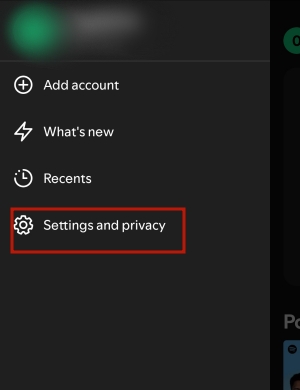
Step 1. In Spotify, head to Home page and tap your profile icon.
Step 2. Then, choose Settings and privacy. Then, you can scroll down to the Storage section and select Clear cache.
Solution 7. Update Spotify to the Latest Version
The latest version of Spotify can help you resolve most of the issues you’ve encountered, as Spotify developers constantly improve the performance by releasing a new version. When some songs are greyed out in Spotify, you can update the Spotify app on your device to the latest version.
Solution 8. Unlock Some Songs or Artists
Spotify allows users to block artists, which prevents that artist from appearing in Discover Weekly List, Daily Mixes, or other created playlists. If you used to block some artists in your Spotify account, then you would encounter the issue. Try unblocking some artists or songs on Spotify.
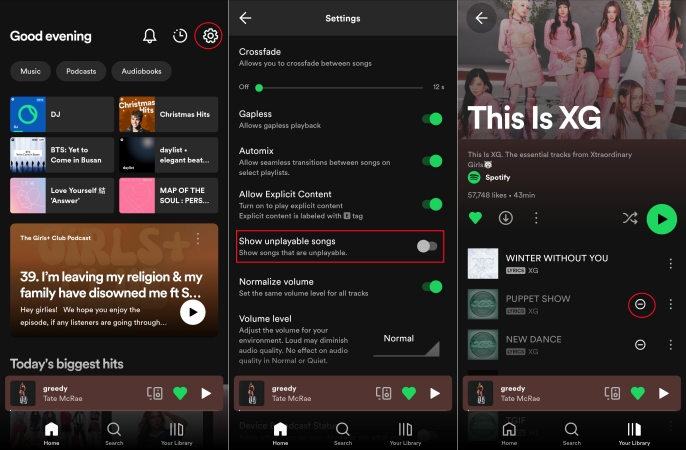
Step 1. Locate Home in Spotify and tap the gear icon in the top right corner.
Step 2. Under Settings, switch Show unplayable songs on.
Step 3. Find those disliked songs and tap Undo. Then those songs are no longer hidden.
Part 3. How to Fix Local Files Greyed Out in Spotify
Some Spotify users found some local files were greyed out on their devices. Local files may be greyed out on Spotify due to syncing issues, file format compatibility, firewall settings, or connectivity problems. If you are facing this issue, here are some helpful solutions you can try.
It is a common occurrence that you open your favorite playlist only to find some songs greyed out and unplayable on Spotify. By resolving the issue with the above methods, you can get greyed out songs on Spotify again. However, the Spotify songs greyed out issue can be attributed to various factors and divided into several cases. In this section, we will troubleshoot some other issues of Spotify songs greyed out. Let’s dive into the details.
Solution 1. Allow Showing Local Files
If you have already uploaded local files to your Spotify library, but they are greyed out, it could be because the app isn’t set to display local content. So, make sure you have enabled Spotify to show local music files. Here’s how to:
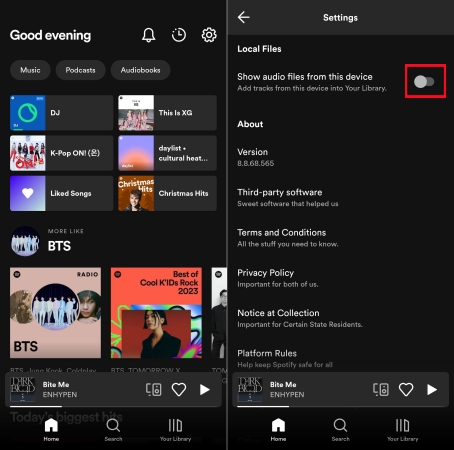
Step 1. Head to the Settings section on the Spotify app.
Step 2. Then, scroll down to find and select Local Files > Show audio files from this device.
Step 3. If you are using Spotify on your desktop, select the Show Local File button.
Step 4. If you have already turned this button on, you can try to re-enable it to fix the Spotify local files greyed out.
Solution 2. Move Local Files to a New Playlist
Sometimes, your local files become greyed out because they fail to sync correctly with Spotify. In this case, you can create a new playlist and move your local files to it. This step can help refresh the Spotify app and ensure your local files are properly detected and linked to the app.
Solution 3. Delete and Re-download Spotify Tracks
Many users found that their downloaded files on Spotify greyed out. One possible reason is that your downloaded tracks are no longer available. If so, you will need to delete and download them again.
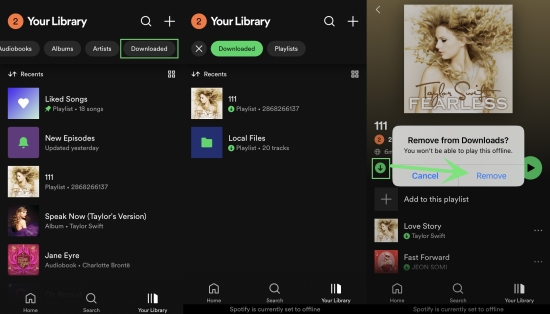
Step 1. Open the Spotify app on your device and head to Your Library.
Step 2. Then, you can enable the Downloaded filter so that you can see all your downloaded songs.
Step 3. Choose the one you want to delete, and then tap the More icon next to it > Remove Download.
Step 4. If you need to delete all the downloaded songs on Spotify, head to Settings > Storage > Remove all downloads.
Part 4. How to Fix Spotify Liked Songs Greyed Out
Spotify’s Liked Songs feature has become an integral part of the user experience, offering a convenient way to save and revisit favorite tracks. There are often issues like Spotify liked songs greyed out. Luckily, this issue can be resolved by the solutions below. Try them.
Fix 1. Disable the Offline Mode
Spotify’s Liked Songs feature has become an integral part of the user experience, offering a convenient way to save and revisit favorite tracks. There are often issues like Spotify liked songs not showing and Spotify liked songs greyed out. The Spotify liked songs greyed out issue can be caused by the internet connection. If you enable Offline Mode in Spotify, then all the liked songs become greyed out. To resolve it, you just need to disable Offline Mode.
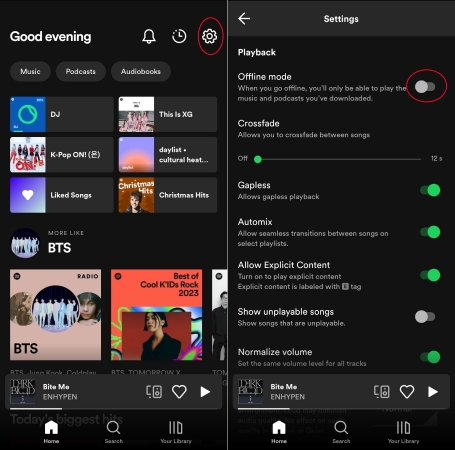
Step 1. Launch Spotify on your phone and tap Home at the bottom of the screen.
Step 2. Tap the gear icon in the top right corner and turn Offline Mode off.
Fix 2. Show Explicit Content
In Spotify’s music library, certain songs, especially those with explicit content, may be greyed out if explicit content is disabled in your settings. To get these songs available again, you need to allow Spotify to show explicit content.
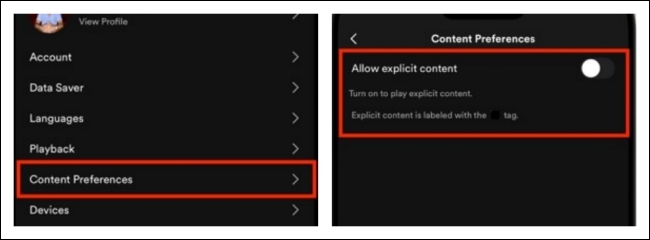
Step 1. Go to Settings on the Spotify app.
Step 2. Then, scroll down to Content Preferences.
Step 3. Enable the Allow Explicit Content button.
Fix 3. Delete and Re-add Greyed Out Songs
The most likely reason your liked songs are greyed out is related to syncing issues. You can force a data reset by deleting and re-adding your liked songs.
Step 1. Enter your Spotify music library and find your Liked Songs.
Step 2. Tap the heart icon next to the song that is greyed out to remove it from your Liked Songs.
Step 3. Once finished, you can restart Spotify. Then, search for this song and add it to your music library again.
Part 5. Ultimate Method: Prevent Songs from Ever Greying Out
The solutions listed above are about how to fix songs greyed out on Spotify. However, it would happen that those songs and albums on Spotify become greyed out again. Even though you have a Premium account, you cannot avoid this issue from appearing. All the music downloaded with a Premium subscription is a cache file, which cannot prevent the Spotify downloaded songs from being greyed out. To resolve the issue once and for all, you can download those songs by using a Spotify music downloader like TunesMake Spotify Music Converter.
Instead of saving Spotify downloads as cache files, TunesMake Spotify Music Converter can download and save Spotify music to the local music files in the formats of MP3, AIFF, FLAC, WAV, M4A, and M4B. By using this Spotify downloader, you can download any song, album, playlist, artist, and podcast from Spotify, even without a Premium account. Adopting advanced decryption technology, this tool can guarantee 100% lossless audio quality and recognize the original ID3 tags like the title, album cover, and more. For a detailed guide, you can check the following steps.

TunesMake Spotify Music Converter –
Download Spotify Songs and Keep Them Forever
- Unlimitedly download Spotify songs, playlists, and podcasts
- Losslessly convert Spotify music to MP3, FLAC, WAV, AIFF, etc.
- Remove ads from Spotify music tracks even with Free accounts
- Convert Spotify songs at 12X faster speed with ID3 tags kept
Security Verified. 100% Clean & Safe.
Step 1
Import Spotify Songs to TunesMake Software
Install and launch the TunesMake Spotify Music Converter on your Windows or Mac computer. Then, you will be led to the official Spotify web player. Now, it’s time for you to find your preferred songs and add them to the conversion list by clicking the lower Add icon > Add to List.

Step 2
Adjust the Output Audio Parameter
You can see the Preferences option in the top three-line menu. Click it and switch to the Conversion tab to customize your audio parameters. Here you can choose MP3 or other popular audio formats as the output format. Plus, you can set the bit rate, sample rate, and channel. After setting the parameters, click the OK button to save the settings.

Step 3
Download Spotify Music as Local Files
Go back to the interface, and you can click on the Convert button at the bottom right corner to start the conversion. When the conversion completes, you can locate the converted folder by clicking the top Converted icon. After that, you can play all the downloaded Spotify music files anywhere and anytime without hassle.

Summary
In conclusion, encountering greyed out songs on Spotify can be frustrating, but solutions are within reach. If you notice Spotify songs greyed out, do not hesitate to use the methods in this post to resolve the issue. To protect songs from getting greyed out again, you’d better use TunesMake Spotify Music Converter to download Spotify music locally for unlimited playback.
Related Articles


A senior editor from TunesMake, dedicated to sharing professional tutorials and solutions of software, movies, and music.
- 1
- 2
- 3
- 4
- 5
- 6
- 7
 Leave Your Comment
(0)
Leave Your Comment
(0)

 Download Center

