








 Store
Store


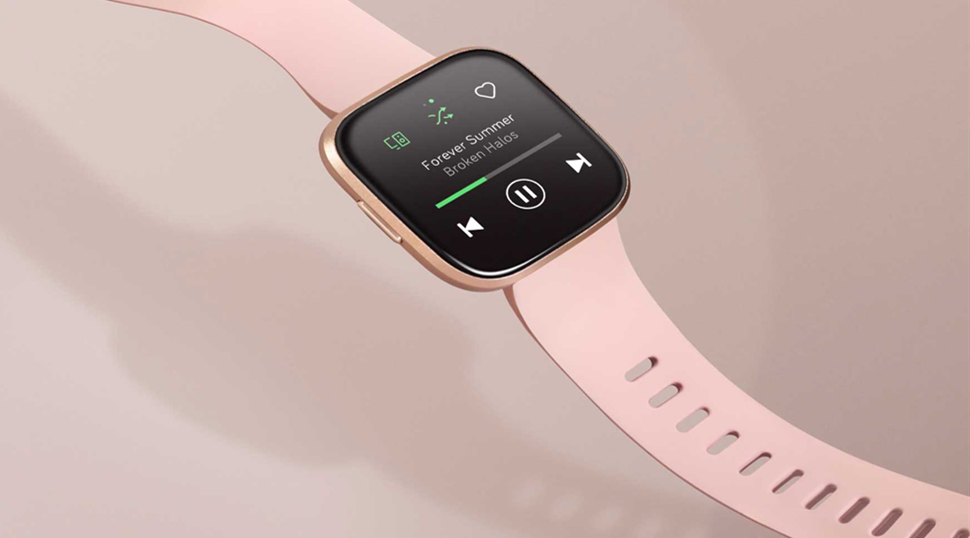
For runners, gym-goers, and anyone trying to cut down on screen time, leaving your smartphone behind is incredibly liberating. But a workout without your favorite tracks? That is a non-starter. Fortunately, learning how to play Spotify on a Galaxy Watch allows you to bring millions of songs, podcasts, and audiobooks right to your wrist.
Whether you are using a modern Wear OS timepiece or an older model, this comprehensive, step-by-step guide will walk you through setting up Spotify, downloading music for offline use, and fixing the most frustrating bugs keeping you from your music.
Part 1. What You Need to Know about Spotify for Galaxy Watch
Before we install the Spotify for Galaxy Watch app, we need to address a few technical realities regarding device operating systems and account limitations to ensure a smooth setup.
Galaxy Watch OS Divide: Wear OS vs Tizen OS
Samsung smartwatches fall into two distinct software categories like Wear OS and Tizen OS, which changes how you interact with the Spotify app.
- Wear OS (Galaxy Watch 4, 5, 6, 7, 8, and Ultra): These modern devices feature a rich, fully updated Spotify app sourced directly from the Google Play Store. It supports smooth scrolling, modern user interfaces, and robust offline caching.
- Tizen OS (Galaxy Watch 3, Galaxy Watch Active 2, and older): These legacy devices use an older version of the Spotify app from the Samsung Galaxy Store. While still functional for basic playback, the app receives fewer feature updates.
Spotify for Galaxy Watch: Premium vs Free
All users can play Spotify on a Galaxy Watch without a premium subscription. But the services offered by Spotify are different between Free and Premium users.
| Feature | Spotify Free | Spotify Premium |
|---|---|---|
| Active Playback Modes | Shuffle play only (Ads included) | On-demand playback (Ad-free playback) |
| Streaming (Wi-Fi/LTE) | ✅ | ✅ |
| Offline Music Downloads | ❎ | Yes (Playlists, albums, and audiobooks) |
| Offline Podcast Downloads | ✅ | ✅ |
| Audio Quality Selection | Low and Normal | Low, Normal, High, Very High, and Lossless |
 Spotify Music Converter
Download any music track, album, playlist, podcast, and audiobook from Spotify without premium for offline listening on Galaxy Watch.
Part 2. How to Add Spotify to Galaxy Watch for Playing Music
Samsung smartwatches have transitioned across different operating systems over the years. Thus, the setup process and features vary depending on the device you own. Here we break down exactly how to configure Spotify based on your specific hardware.
How to Install and Link Spotify on Galaxy Watch
To kick things off, you need to get the Galaxy Watch Spotify app onto your wearable and link it securely to your primary account profile.
For Wear OS Devices (Galaxy Watch 4 and Newer)

Step 1. Wake up your watch and swipe up from the home screen to open the App Drawer.
Step 2. Tap the Google Play Store icon.
Step 3. Tap the magnifying glass icon to search and type Spotify.
Step 4. Select the official Spotify app and tap Install.
Step 5. Once installed, open the app on your watch, then you'll see a prompt to "Pair with Phone" or log in via a code.
Step 6. Open Spotify on your smartphone, and a prompt should appear automatically to authorize your watch. If it doesn't, navigate to spotify.com/pair on your phone browser and enter the code displayed on your watch screen.
For Legacy Tizen Devices (Galaxy Watch 3 & Older)
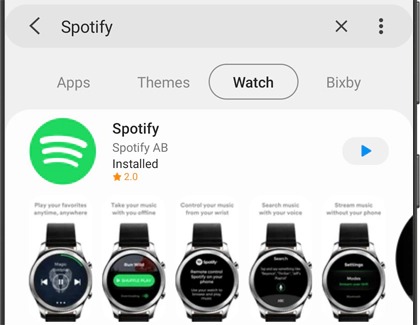
Step 1. Open the Galaxy Wearable app on your paired smartphone.
Step 2. Scroll down and select the Galaxy Store.
Step 3. Search for Spotify and tap Install.
Step 4. Launch the app on your watch and select Log In. You can choose to receive a pin code or enter your account details using the on-screen keyboard.
How to Play Spotify on Galaxy Watch without Phone
The most popular reason to use Spotify on your wrist is to go entirely phone-free. To listen to Spotify music without an internet connection or phone nearby, you must download your content ahead of time.
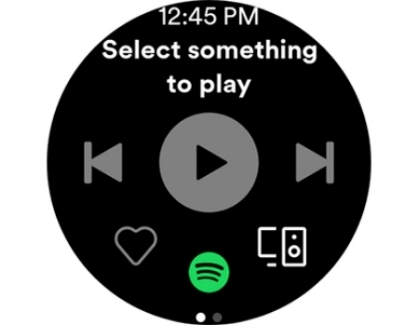
Step 1. Open the Spotify app on your Galaxy Watch.
Step 2. Swipe left to navigate past the player screen into your library container.
Step 3. Find the playlist or album you wish to save locally.
Step 4. Tap the Download to Watch toggle button right above the tracklist.
How to Pair Bluetooth Headphones to Galaxy Watch
Modern Galaxy Watches do not support music playback directly through the built-in speaker for third-party streaming apps. You must route the audio to wireless earbuds.
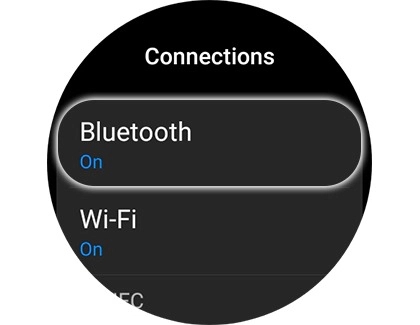
Step 1. On your Galaxy Watch, pull down the quick settings panel and tap the Settings gear.
Step 2. Go to Connections > Bluetooth.
Step 3. Put your headphones or Galaxy Buds into Pairing Mode.
Step 4. Select your headphones from the list of available devices on your watch screen to complete the connection.
Part 3. Best Way to Play Spotify on Galaxy Watch (Offline & Phone-Free)
Because the official Spotify app blocks offline music downloads for Free accounts, users without a Premium subscription need a workaround to listen phone-free. You can bypass this restriction by using a third-party tool like TunesMake Spotify Music Converter to download Spotify music to a computer first. Then you can move downloaded music files to your watch for offline listening.
3.1 Great Tool for Galaxy Watch Spotify Offline
Galaxy Watch offers 8GB of space to save music, including local audio files. Currently, the audio playing format compatible with Galaxy Watch includes MP3, M4A, 3GA, AAC, OGG, OGA, WAV, WMA, AMR, and AWB. Using a Spotify music downloader can help you download and convert Spotify music to those audio formats.
TunesMake Spotify Music Converter is one of the most powerful and professional music downloaders and converters for Spotify on the market. With this smart tool, you can remove the limits from Spotify and download Spotify music to six popular audio formats supported by Galaxy Watch while keeping the original audio quality and ID3 tags.
TunesMake Spotify Music Converter –
Download music from Spotify without premium
- Download Spotify songs, albums, playlists, audiobooks, and podcasts
- Losslessly convert Spotify music to MP3, FLAC, WAV, AIFF, and more
- Remove ads from Spotify music tracks even with a Free account
- Convert Spotify music at 15× faster speed in batch with ID3 tags kept
Security Verified. 100% Clean & Safe.
3.2 Download Spotify Music to MP3 Files
Before you get started, make sure that you have TunesMake Spotify Music Converter installed on your computer. Then you can download and convert Spotify music to MP3 or other Galaxy Watch supported formats in 3 simple steps.
Step 1 Add Spotify Playlist to the Conversion List

Launch TunesMake Spotify Music Converter, and it will automatically load Spotify on your computer. Then navigate to your music library, and when viewing a curated playlist that you would like to download, just click the + button for easy access. Continue to choose the target items and add them to the conversion list.
Step 2 Configure the Output Audio Parameters

Next, go to set the output audio parameter by clicking the menu bar > Preferences. In the Convert window, you can choose the output format as MP3 or the other five audio formats. For better audio quality, you must continue adjusting the bit rate, sample rate, and channel. Remember to save the settings and then start to download Spotify music.
Step 3 Start to Download Spotify Playlist to MP3

To download Spotify music, you just need to click the Convert button. Then TunesMake Spotify Music Converter will start to download your required content. But keep in mind that it may take a little while depending on the size of the playlist and the speed of your internet connection. Once saved, the playlist will be accessible from your computer.
3.3 Transfer Downloaded Music to Galaxy Watch
After downloading and saving Spotify music as local files, you can transfer them to the watch from your phone. Start by connecting your watch to your phone, then the steps below to move your Spotify songs.
For Android users:
Step 1. Connect your Android device to your computer by using a USB cable then move Spotify music files to your device.
Step 2. Launch the Galaxy Wearable app and tap Add contents to your watch from the
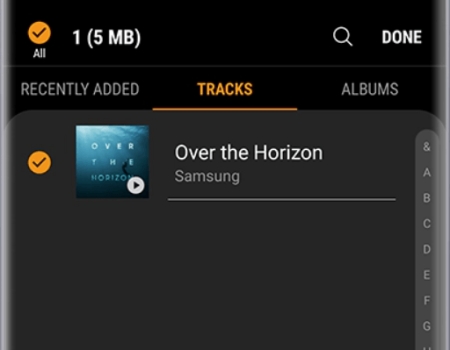
Step 3. Tap Add tracks to choose Spotify songs individually from your Android device.
Step 4. Tick the songs you want and tap Done to transfer Spotify songs to your Galaxy watch.
Step 5. Open the Music app on your Galaxy watch and start to play your Spotify music tracks.
For iPhone users:
Step 1. Sync downloaded music files to your iPhone via iTunes.
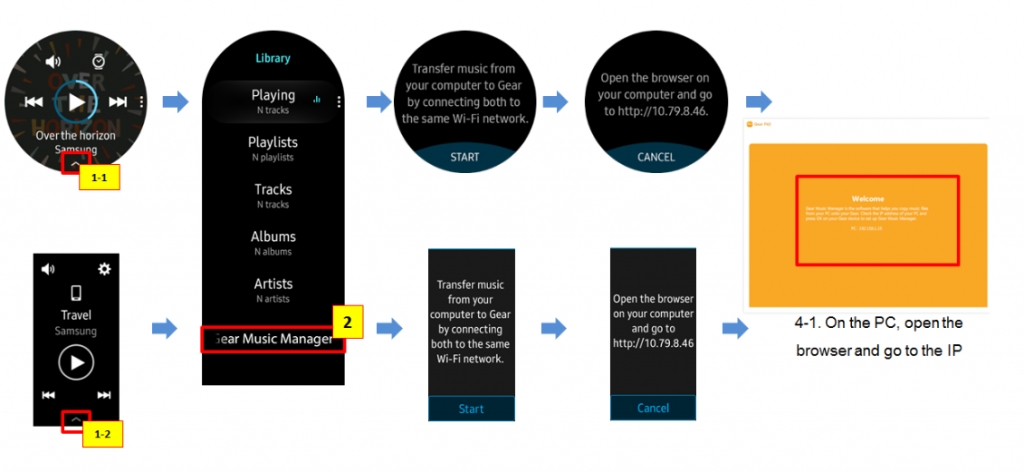
Step 2. Make sure your computer and watch are connected to the same Wi-Fi network.
Step 3. Power on your watch and swipe to launch the Music app then press the phone icon.
Step 4. After choosing your watch as the music source, swipe up on the Now playing screen.
Step 5. Then tap Music Manager at the bottom of the Library then select START.
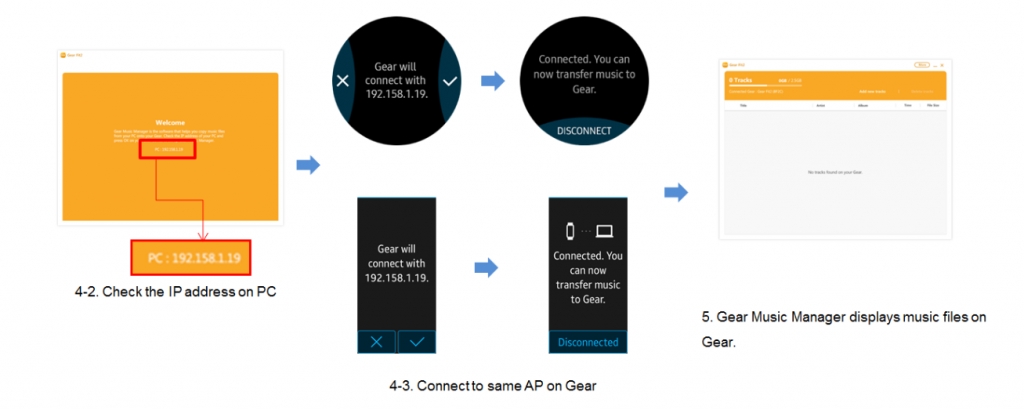
Step 6. Next, start a web browser on your computer and enter the IP address shown on your watch.
Step 7. Confirm the connection and select Add new tracks in the web browser to select the Spotify songs you want to add.
Step 8. Select Open and your selected Spotify songs will be transferred to your Galaxy watch.
Step 9. Once they're finished, click on OK on the web page and then tap DISCONNECT on your watch.
Part 4. Conclusion
Playing Spotify on your Galaxy Watch completely changes how you interact with your music during workouts and daily routines. By pinning your favorite upbeat playlists directly to your watch storage and keeping your wireless earbuds synced properly, you can confidently head out the door leaving the bulky phone behind. Without a premium account, you can download music from Spotify to a Galaxy Watch by using TunesMake Spotify Music Converter. Then you can enjoy our liked Spotify music on your wrist without an internet connect or a mobile phone nearby.
Related Articles


A senior editor from TunesMake, dedicated to sharing professional tutorials and solutions of software, movies, and music.
- 1
- 2
- 3
- 4
- 5
- 6
- 7
 Leave Your Comment
(0)
Leave Your Comment
(0)

 Download Center

