








 Store
Store


Listening to music while driving is a very enjoyable thing, which can activate your mind, delight your mood, and make your driving process, especially long-distance travel, no longer lonely and boring. When you’re in the car, you can’t arbitrarily cut songs to your liking because you’re using Google Maps for road navigation. This hinders our enjoyment of music. Switching between the navigation and streaming service platforms at the same time while driving is very dangerous.
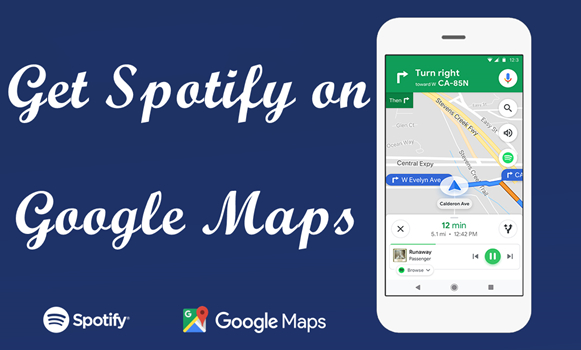
How to resolve it? It is very nice that Spotify has teamed up with Google Maps to let you control your journey and listen in one place. So, you can get lost in the music, not the road. Maybe you can’t wait to know the guide. In the following part, we are going to show you how to get Spotify on Google Maps for listening. Let’s dive into the details now.
Part 1. How to Add Spotify to Google Maps on iPhone/Android
Google Maps has teamed up with Spotify for offering this convenient streaming service for you. If you have installed the latest version of Google Maps and Spotify on your iPhone or Android, then you can go to link Spotify to Google Maps for switching music seamlessly. Now you can follow the instruction below to connect Spotify to Google Maps on both iPhone and Android.
Link Spotify to Google Maps on iPhone/iPad
Step 1. Fire up Google Maps on your iPhone or iPad, then tap your profile image in the top right corner.
Step 2. In the appearing window, tap Settings in the popup window.
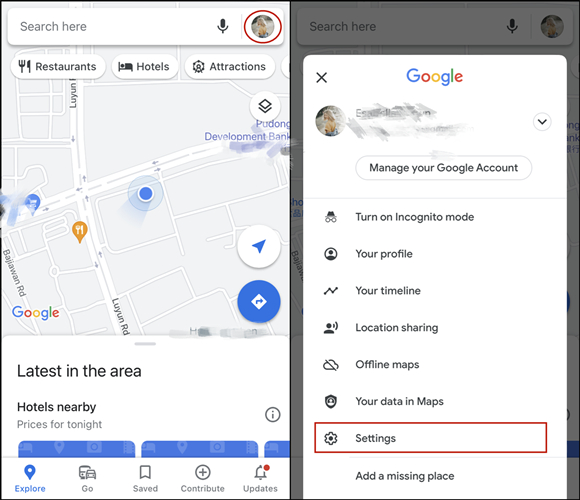
Step 3. Scroll to choose the Navigation settings option.
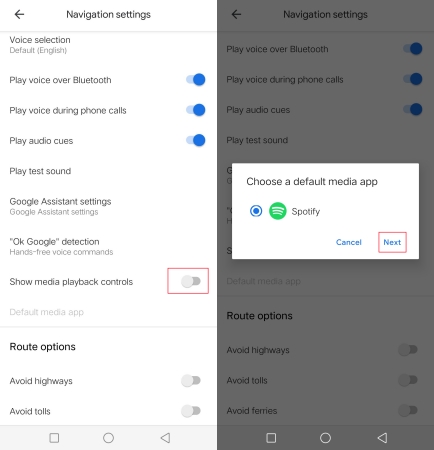
Step 4. Under Navigation settings, toggle Music playback controls on, then select Spotify.
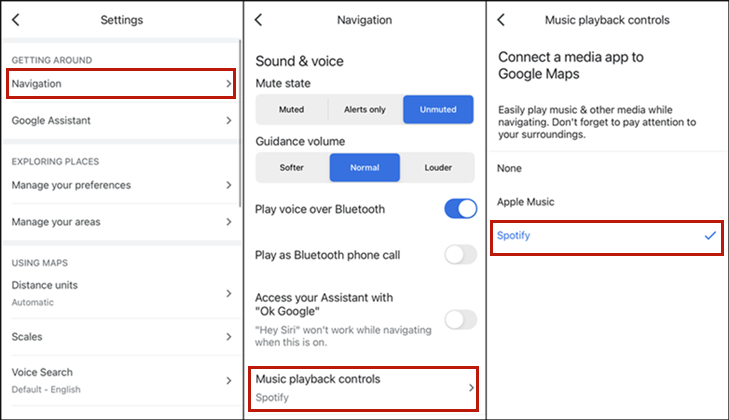
Step 5. Tap Next > OK to connect Spotify to Google Maps.
Link Spotify to Google Maps on Android Device
Step 1. Open Google Maps, tap your profile image and choose the Settings option.
Step 2. Under the Settings page, select Navigation settings.
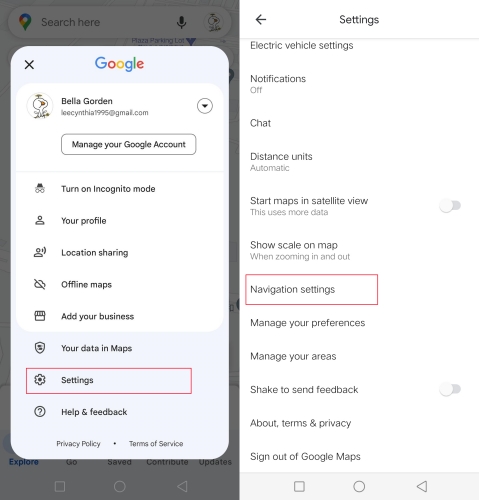
Step 3. Go to find Show music playback controls and toggle it on.
Step 4. Select Spotify and tap Next > OK to link Spotify to Google Maps.
Part 2. How to Control Spotify on Google Maps via Voiced Assistant
Now you can open your Google Maps and choose a destination to start your journey. You can see the Spotify icon on your interface for getting a more detailed operating page. Now you don’t have to leave Google Maps to change your songs or playlists. Furthermore, there is a more convenient way to switch music in Google Maps. That is to use Google Assistant. By using a voice command, you can listen to music while driving without no manual action.
Step 1. Run Google Maps and tap your profile image, then tap Settings.
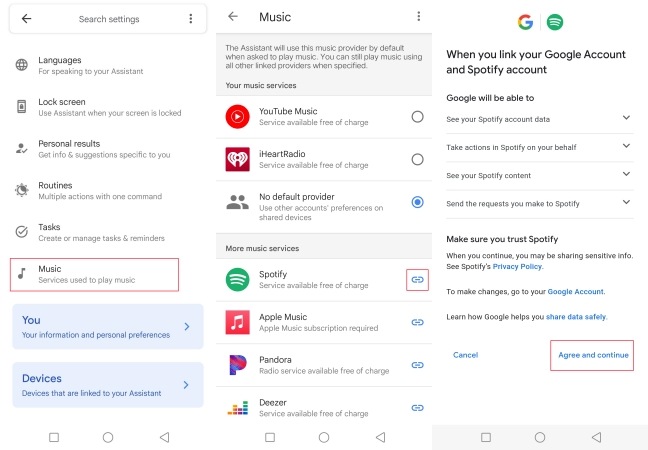
Step 2. Under Settings, tap Navigation settings and select Google Assistant settings.
Step 3. Scroll down to tap Music and select Spotify, then tap Continue.
Step 4. Tap Agree and continue to link your Google account and Spotify account.
Part 3. How to Disconnect Spotify from Google Maps
Is it possible to disconnect Spotify from Google Maps? Sure! If you don’t want to use Spotify as the default music player, then you can choose to remove this streaming service from Google Maps. Later, you have the ability to use other streaming music services in Google Maps. Follow the below steps to remove Google Maps from Spotify.
Step 1. Launch Spotify on your computer and click the profile icon on the top left side of the screen.
Step 2. From the drop-down menu, choose the Account option, then there will appear a new page.
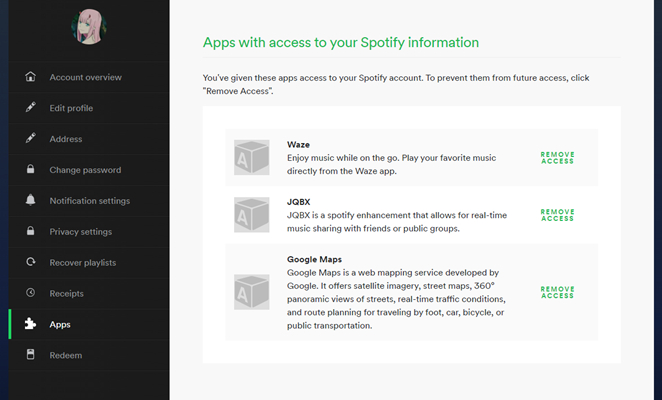
Step 3. On the appearing page, select the Apps button where you can see what apps have built access to Spotify.
Step 4. Find Google Maps and click the Remove Access button to disconnect Spotify from Google Maps.
Part 4. Bonus: How to Play Spotify in Your Car Without Premium
As we all know, Spotify music is encrypted in the format of OGG, which means you can only reach your liked songs through this app. What’s more, the download service only belongs to those premium subscribers. Fortunately, you can turn to a Spotify music converter for help. With a Spotify music converter, you can download and convert Spotify music to many popular formats so that you can play Spotify music on any device or player. If you are searching for the best Spotify music converter right now, we’d like to recommend TunesMake Spotify Music Converter to you.
TunesMake Spotify Music Converter is an easy-to-use yet efficient software for downloading and converting songs, albums, artists, and playlists from Spotify to MP3 and more common formats. Then you are able to play Spotify music on any device or through any media player. You can complete the audio conversion at a 12× faster speed. It also supports preserving ID3 tags and lossless audio quality. Here is a detailed guide on how to use TunesMake Spotify Music Converter.

TunesMake Spotify Music Converter –
Best Spotify to MP3 Downloader for Windows & Mac
- Unlimitedly download Spotify songs, playlists, and podcasts
- Losslessly convert Spotify music to MP3, FLAC, WAV, AIFF, etc.
- Remove ads from Spotify music tracks even with Free accounts
- Convert Spotify songs at 12X faster speed with ID3 tags kept
Security Verified. 100% Clean & Safe.
Step 1
Load Target Spotify Songs into TunesMake Software
Once you install and launch the TunesMake software, it will load the Spotify web palyer spontaneously. Then you can sign in to your account and select any playlist you like. After selecting, just click the Add icon, and the TunesMake tool will automatically analyze and list all the included songs. You can then choose target songs and click the Add to List option. Thus, these sngs will be loaded to the conversion list and be ready for downloading.

Step 2
Set Output Audio Formats and Parameters
TunesMake allows you to personalize the output formats and parameters. You can click the three-line menu button on the top right side of the screen and select Preferences. On the new settings window, you can switch to the Conversion tab and set the parameters, including the codec, sample rate, bit rate, and channel, as well as organize output tracks by artists or albums as you want.

Step 3
Start to Download Spotify Music to MP3
After completing the settings of parameters, you can click the Convert button to initiate the conversion of Spotify music. Wait for a while, and all Spotify music tracks will be converted to your required formats, like MP3. After that, you can locate them on your computer via the top Converted icon and play them on any device at any time. So, you can listen to offline Spotify music in the background on your device while driving on the road.

Part 5. Conclusion
Google Maps has teamed up with Spotify so that you don’t need to switch between them while driving. If you want to download Spotify music for offline listening while driving, why not use TunesMake Spotify Music Converter? It can be very helpful. Hope the above instruction can help you with how to use Spotify with Google Maps. If you have any questions, leave them below.
Related Articles


A senior editor from TunesMake, dedicated to sharing professional tutorials and solutions of software, movies, and music.
- 1
- 2
- 3
- 4
- 5
- 6
- 7
 Leave Your Comment
(0)
Leave Your Comment
(0)

 Download Center

