








 Store
Store


Google Chromecast is designed to cast your favorite entertainment and apps from your phone, tablet, or laptop right to your TV or speaker. Using your smartphone or computer as a remote control, you can make use of Chromecast to access audio and video content from streaming services like Netflix, YouTube, Hulu, Spotify, and more. Does Tidal support Chromecast? How to cast Tidal to Chromecast? This article will give you the answer. Let’s dive into the details.
Part 1. Does Tidal Support Chromecast?
Yes, Tidal has official support for Chromecast. All Tidal users, whether on the free tier or paid subscription plans, can directly use the casting feature to stream Tidal content from their mobile devices or computers to Chromecast-enabled devices, including smart speakers, smart TVs, or sound systems. If your device supports high-resolution output, you can even cast Tidal high-fidelity and Lossless FLAC audio through your connected sound system or TV.
Part 2. How to Cast Tidal to Chromecast on Mobile Devices
With the Tidal mobile app, you can directly stream your favorite music from your iOS or Android device to Chromecast. Make sure that your smartphone is connected to your Chromecast device. Then follow the steps below to get it done.
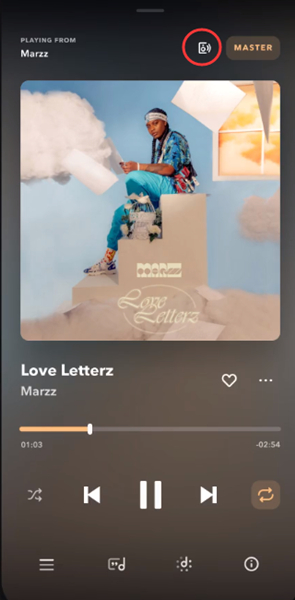
Step 1. Make sure your mobile device and Chromecast device are connected to the same Wi-Fi network.
Step 2. Open the Tidal app on your phone and log in to your Tidal account.
Step 3. Play any track, playlist, or album you want to stream and tap the Now Playing bar at the bottom of the screen.
Step 4. Select the cast icon that appears in the playback interface. Find your Chromecast device in the supported device list and tap on it.
Part 3. How to Stream Tidal on Chromecast from a Computer
If you use Tidal on a computer, there are two ways to cast Tidal from your computer to Chromecast, either through the official Tidal desktop app or the Tidal web player in Google Chrome. We will introduce both methods separately below.
3.1 Using the Official Desktop Application
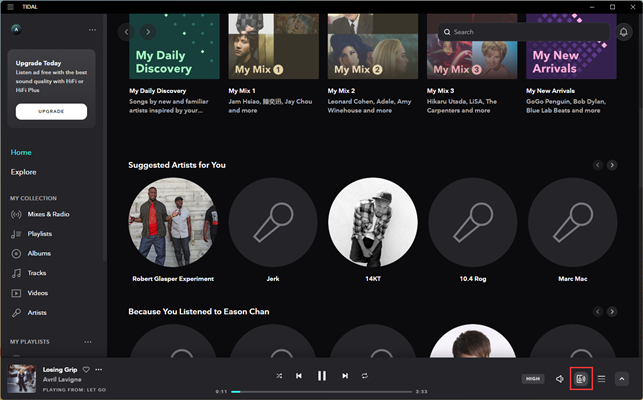
Step 1. Connect your computer and your Chromecast device to the same Wi-Fi network.
Step 2. Launch the Tidal desktop app on your computer and log in to your Tidal account.
Step 3. In My Collection, find songs, albums, or playlists you want to play.
Step 4. Click on the Sound Output icon at the bottom right of the screen.
Step 5. Select your Chromecast or Chromecast Audio from the devices listed.
3.2 Using the Web Player via Google Chrome
Step 1. Open Google Chrome on your computer and go to the official Tidal web player, then log in to your Tidal account.
Step 2. Select the song or playlist you want to listen to on your Chromecast-enabled devices.
Step 3. Click the three-dot menu button in the top right corner of Google Chrome, then select the Cast option from the drop-down menu.
Step 4. Chrome will search for available Chromecast devices automatically. From the device list, find your Chromecast or Chromecast Audio and select it to play music.
Part 4. Troubleshooting: Tidal Chromecast Not Working Issues
Sometimes things don’t go as planned. You may encounter situations where Tidal fails to connect to Chromecast, the music is buffering, or the casting function is unresponsive. Before you give up, try these troubleshooting steps.
Check the network connection: Make sure your computer or mobile device and the Chromecast device are connected to the same Wi-Fi network. This is the basic requirement for stable casting. Also, you should check your internet stability.
Restart everything: Restart the Tidal app, your browser, or the Chromecast device to clear temporary glitches.
Update your software: Ensure your Tidal app is updated to the latest version. Similarly, check the Google Home app to see if your Chromecast firmware requires an update.
Clear the app cache: Clear the Tidal app cache on your Android phone by going to Settings > Apps > Tidal > Storage and tap Clear Cache.
Disable VPNs: If you are using a VPN on your phone or computer, it may mask your local IP address and cause the Tidal app to fail to detect the Chromecast on your local network.
Part 5. Ultimate Offline Alternative: Play Tidal on Chromecast Losslessly
If none of the above solutions resolve the issue, the ultimate method is to play Tidal songs on Chromecast offline. It is especially helpful when your internet is spotty, or if you simply want a way to play your music without the compatibility and offline limitation issues of streaming services.
By converting your Tidal music to local files, you can stream them to Chromecast using media servers like Plex and have a more stable and seamless experience. To do so, you should know that all the music from Tidal is encrypted with digital rights management, which prevents users from playing Tidal music anywhere. Thus, you will need the help of a professional Tidal converter - TunesMake Tidal Music Converter.
TunesMake Tidal Music Converter is featured in downloading and converting Tidal content to six popular audio formats, including MP3, M4A, M4B, WAV, FLAC, and AIFF, with the original sound quality. In addition, you can personalize the audio output settings as you wish. After removing the DRM protection, you can transfer Tidal music to other devices or streaming platforms for playing on Chromecast.

TunesMake Tidal Music Converter –
Download and Convert Tidal Music to Local Files
- Download any Tidal content, including songs, albums, playlists, and artists
- Convert Tidal music to MP3, FLAC, AIFF, WAV, M4A, and M4B
- Preserve a whole set of ID3 tag information in the downloaded Tidal songs
- Handle the conversion of Tidal music up to 22X faster speed and in batch
Security Verified. 100% Clean & Safe.
Step 1
Add Tidal Music to TunesMake

Start TunesMake Tidal Music Converter on your computer, then you’ll find the automatic opening of the Tidal web player. Find the playlist or album you want to download, and then load all the included songs to the conversion list via the lower Add icon > Add to List.
Step 2
Set the Output Parameters

Locate the menu bar and select the Preferences option from the drop-down menu. In the Conversion window, you can set the output audio parameters, such as the output format, bit rate, sample rate, and channel. Then, you can click OK to save the settings.
Step 3
Start to Download Tidal Music

Then you can click on the Convert button at the bottom right, and then TunesMake Tidal Music Converter will start downloading and converting Tidal music to your computer. After completing the conversion, you can check the downloaded Tidal songs via the top Converted icon.
Step 4
Stream Tidal to Chromecast
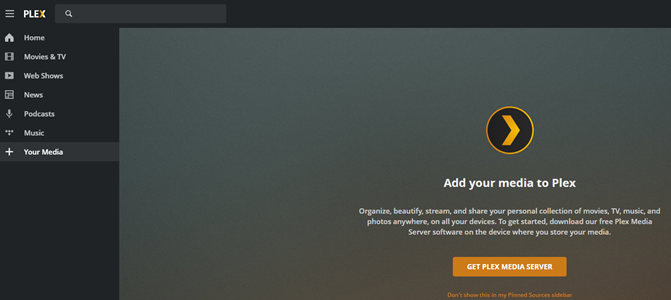
Now you can upload Tidal music to Plex Media Player on your computer. Open Plex on the computer and click on Add Library > Music > Browse from Media Folder. Simply go to add Tidal music to Plex and select Tidal music to play, then click on the Cast icon.
Conclusion
Here are all the methods you can try for playing Tidal on Chromecast. You can choose to play Tidal music on Chromecast from your smartphone, tablet, laptop, or computer. If you cannot use Tidal on Chromecast, then you can use TunesMake Tidal Music Converter. Have a try, and you’ll find it out!
Related Articles

A senior editor from TunesMake, dedicated to sharing professional tutorials and solutions of software, movies, and music.
- 1
- 2
- 3
- 4
- 5
- 6
- 7
 Leave Your Comment
(0)
Leave Your Comment
(0)

 Download Center

