








 Store
Store


Google Chromecast is a powerful device that will easily connect to your TV’s HDMI port, enabling you to cast media from any device to your television for smart streaming. For users who prefer enjoying music on bigger speakers, TVs, and audio systems, the Chromecast Spotify connection is a great choice. Whether you’re streaming from your phone, tablet, or desktop, using Chromecast with Spotify lets you control music playback easily and wirelessly. If you have no idea how to Chromecast Spotify from your devices, this post is a must-read. In this comprehensive guide, you will learn how to use Chromecast with Spotify, how to troubleshoot the issues during cast process, and how to get the most of Spotify on Chromecast - without interruptions and compatibility headaches.
Part 1. Can You Chromecast Spotify?
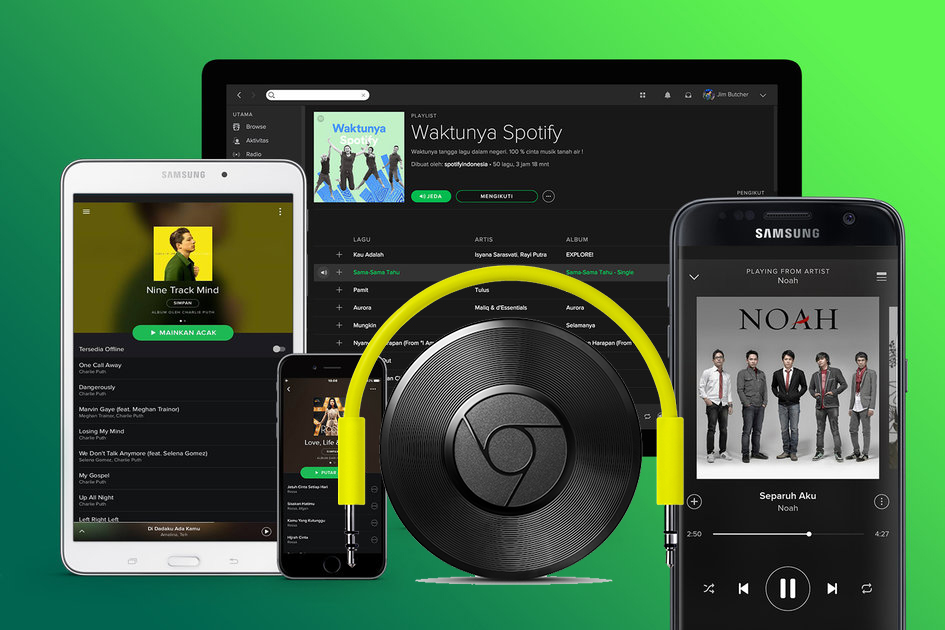
Yes, you can cast Spotify to Chromecast from your phone and computer through Spotify Connect. Chromecast seamlessly integrates with Spotify, offering users a convenient way to amplify their music experience. Only if you have an active Spotify account, casting your favorite Spotify songs and playlists to Chromecast is as easy as a tap on your smartphone or computer. The synergy between these platforms brings a level of ease and sophistication to streaming that was previously unparalleled.
Part 2. How to Chromecast Spotify from iOS/Android/Desktop
Getting started with Chromecast for Spotify is a breeze. Chromecast works with iPhones, iPads, Android phones and tablets, Mac and Windows laptops, and Chromebooks. So, you can Chromecast Spotify across devices with a Spotify Free or Premium account. Simply follow our step-by-step guide to set up Chromecast and link it to your Spotify account. After you know it, you’ll be casting your favorite tunes effortlessly.
From iOS/Android Devices:
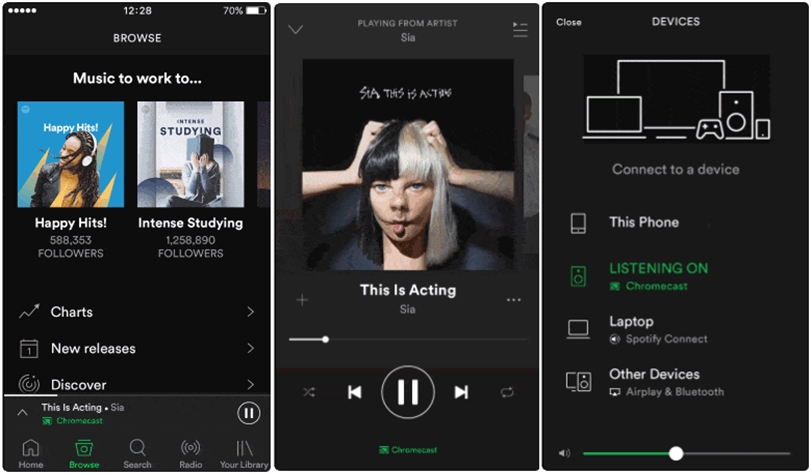
Step 1. First, switch your TV on and set it to the HDMI channel that you’ve plugged your Chromecast into.
Step 2. Then open Spotify on your iPhone and Android device. Select a playlist or an album you wish to cast and tap Play.
Step 3. Next, tap the Devices button at the bottom of the Now Playing screen.
Step 4. Finally, choose Chromecast among the displayed streaming options. It should appear automatically if your smartphone and Chromecast are connected to the same WiFi network.
From Desktop/Web
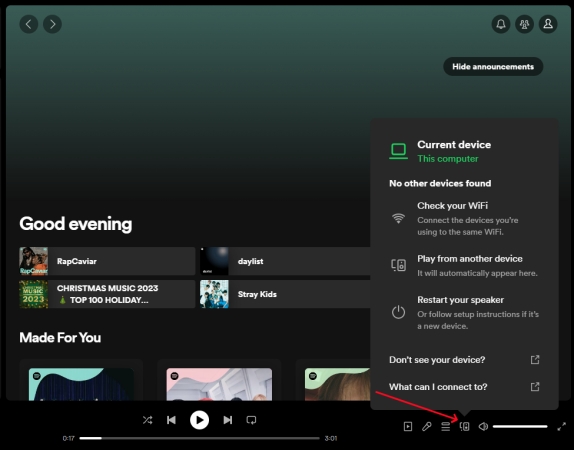
Step 1. First, make sure your computer and Chromecast are under the same WiFi network. And your Chromecast is plugged into the HDMI channel.
Step 2. Then open Spotify on your computer or go to https://www.spotify.com/ . Start to play your liked playlist or album.
Step 3. Next, click the Connect to a Device button at the right bottom of the Now Playing screen.
Step 4. Finally, from the available device list, select Chromecast and then you can listen to Spotify music from your Chromecast device.
Part 3. How to Chromecast Spotify Lyrics Across Devices
In the dynamic world of music streaming, every beat and lyric matters. Gone are the days of simply listening to music. Now you can dive deeper into the soul of the song with on-screen lyrics that sync seamlessly with the rhythm. Some users want to know how to Chromecast Spotify lyrics. To embark on this lyrical journey, enabling Chromecast Spotify Lyrics is the first step. Follow these simple instructions to elevate your music experience.
Chromecast Spotify Lyrics from iPhone/Android
Spotify Connect is a feature that allows you to use one device to remotely control listening on another. If you want to Chromecast Spotify lyrics from your iPhone or Android device, you make use of the Google Home app. Go to download and install the Google Home app on your iPhone or Android device. Follow the below steps to Chromecast Spotify lyrics by using the Google Home app on an iPhone or Android device.
Step 1. Launch the Google Home app on your phone and tap Settings at the bottom of the home screen.
Step 2. Head to Services and tap Music, then find and select Spotify.
Step 3. Tap Link Account and select Log in to Spotify to enter your Spotify account credentials.
Step 4. Start playing music from Spotify and go back to Devices, then find and tap the Chromecast device.
Step 5. Tap the Cast my screen button in the lower-left corner and select Cast screen, then Start now.
Chromecast Spotify Lyrics from Mac/Windows
In addition to using the Google Home app, there is a Cast feature on some web browsers, which enables you to cast Spotify lyrics to Chromecast. But you can only access this feature while playing music from the Spotify Web Player. If you are using Google Chrome, you can cast your liked music from Spotify Web Player to Chromecast on your computer.
Step 1. Open Google Chrome on your computer and create a new tab.
Step 2. Navigate to https://www.spotify.com/ and log into your Spotify account.
Step 3. Find some songs or a playlist to play, then click the Lyrics button at the bottom of the screen.
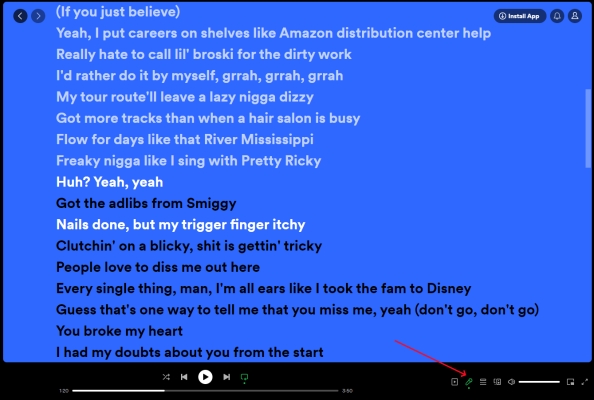
Step 4. Click the three-dot icon at the top right corner of the web browser, then click Save and Share > Cast.
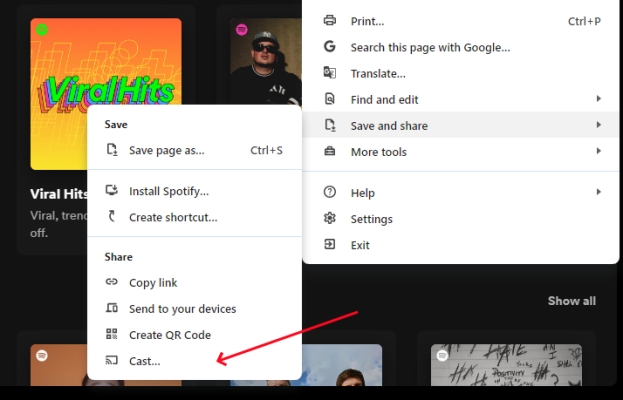
Step 5. Now choose your Chromecast-enabled devices and start singing along to your favorite anthems.
Part 4. Best Way to Get Spotify Chromecast Connection
By following the detailed guidance above, you can easily Chromecast your favorite Spotify music from your desktop or mobile devices. While Spotify Chromecast works well, it isn’t always stable. You may encounter some issues for online streaming, such as Spotify keeps disconnecting from Chromecast or fails to cast smoothly. Therefore, why don’t you consider using a more reliable method to play Spotify to Chromecast? Just download Spotify songs as local audio files, you can play them on any device without limits. To do so, you will need the help of the TunesMake Spotify Music Converter.
It is known that all Spotify files are encrypted in a special format that deters them from being played on another device. Luckily, the TunesMake Spotify Music Converter is possessed with advanced decryption technology. With its help, you can download Spotify songs, playlists, albums, and podcasts in plain audio formats, including MP3, M4A, M4B, WAV, FLAC, and AIFF. After using this tool to remove DRM protection, you can cast Spotify music files to Chromecast without limits. Moreover, the TunesMake program keeps the music sound quality to enhance your listening experience. Follow the below steps to convert Spotify music to MP3 for playing on Chromecast.

TunesMake Spotify Music Converter –
Best Spotify to MP3 Downloader for Chromecast
- Unlimitedly download Spotify songs, playlists, and podcasts
- Losslessly convert Spotify music to MP3, FLAC, WAV, AIFF, etc.
- Remove ads from Spotify music tracks even with Free accounts
- Convert Spotify songs at 12X faster speed with ID3 tags kept
Security Verified. 100% Clean & Safe.
Step 1
Add Spotify Music to TunesMake Software

Launch TunesMake Spotify Music Converter on your computer and head to the Spotify web player on its interface. Then, you can log in and go to the Music Library to find any playlist or album you want to play on Chromecast. Simply select the playlist/album, and then click the Add icon at the bottom. All the songs included in it will be listed. Now, you can pick the ones you need and add them to the conversion list by clicking the Add to List option. If you only need to download one single song, you can try to drag and drop it to the Add icon directly.
Step 2
Set up Audio Parameters for Spotify

Another good thing about the TunesMake program is that it allows you to customize the output audio parameters for Spotify music. Click the top Menu icon > Preferences > Conversion. In this window, you can set the preferences as desired. These include the output format, bit rate, sample rate, and channel. After setting the parameters, click the OK button to save all.
Step 3
Download Music from Spotify to MP3

At this point, your parameters got to be on point. If so, click the Convert button. Your selected Spotify songs will immediately be downloaded and converted to MP3 or the format you choose. Simply browse the converted Spotify music in the history folder by clicking the top Converted icon and locate the folder for saving Spotify songs.
Step 4
Stream Spotify Music to Chromecast
Lastly, you can stream Spotify to Chromecast and turn your TV into that personalized jukebox. Here you need to import those converted Spotify songs to YouTube Music and then cast them from YouTube Music to Chromecast-enabled devices.
1. Head to https://music.youtube.com/ and click your profile image.
2. Select Upload Music and locate the folder containing the converted Spotify music files.
3. Click the Library button in the left column and start playing your Spotify songs.
4. Click the Connect to a Device button and select your Chromecase-enabled devices.
Part 5. Troubleshooting: Chromecast Spotify Not Working
By using Spotify Connect, you can cast your favorite music to your Chromecast-enabled device. However, users occasionally encounter the frustrating issue of Chromecast Spotify not working. In this part, we will explore troubleshooting steps to resolve the issue.
Problem 1. Chromecast Not Showing up on Spotify
When you prepare to connect Spotify to your Chromecast-enabled device but don’t find your device, you can try the following solutions to resolve this issue.
1. Make sure that your phone and Chromecast-enabled device are under the same WiFi network.
2. Try using the Spotify app, instead of using the Spotify Web Player.
3. Go to provide Spotify access to your local network on an iPhone.
4. Switch off Show local devices only in the Spotify mobile app Settings > Devices.
5. Try logging into the device using your Spotify credentials.
Problem 2. Spotify Not Connecting to Chromecast
Sometimes, you fail to connect Spotify to your Chromecast-enabled device for playing. Then you can resolve the issue by following the below steps.
1. Restart the Spotify app and your Chromecast-enabled device.
2. Restart the device running the Spotify app.
3. Make sure your Spotify app and device are up-to-date.
4. Restart your WiFi or try a different WiFi network.
5. Allow Spotify to display over other apps.
Conclusion
Having gone through this article, you are now up to date with Chromecast Spotify on your mobile or desktop devices. If you encounter some problems while using them, you can check Part 5 of this post to find some helpful solutions. Or, you can use the TunesMake Spotify Music Converter to download your Spotify songs locally. This step will remove all the issues, ensuring a great experience with Chromecast Spotify.
Related Articles

A senior editor from TunesMake, dedicated to sharing professional tutorials and solutions of software, movies, and music.
- 1
- 2
- 3
- 4
- 5
- 6
- 7
 Leave Your Comment
(0)
Leave Your Comment
(0)

 Download Center

