








 Store
Store


You might think that one account for music streaming is the main way to go, but don’t discount Tidal Connect, which would allow you to stream music from Tidal on multiple devices simultaneously. Common opinions say that it is not that simple to play Tidal on multiple devices at the same time, well, is this true? Of course not! When it comes to the best way to enjoy music, that is one sentence can conclude, listen to Tidal on multiple devices everywhere without limits.
If you’re currently looking for a solution to play Tidal music on multiple devices simultaneously, congratulations! You have come to the right place. In the next article, we will walk you through three popular and workable methods to play Tidal on more than one device with ease.
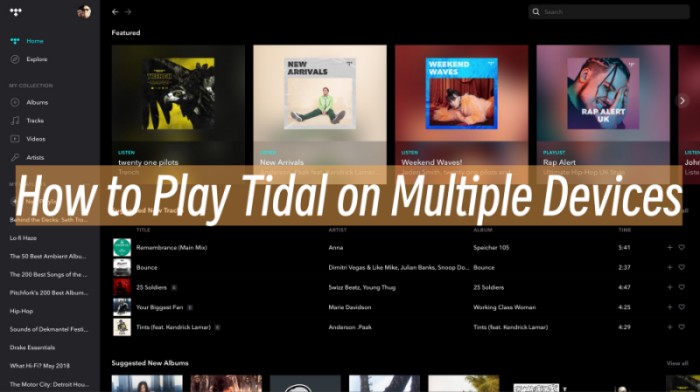
Method 1. Stream Tidal on Multiple Devices via Family Plan
For users who are looking for a straightforward and official method to play Tidal across multiple devices simultaneously, the Tidal Family Plan is the best option to start. Tidal Family plan allows up to 6 users to stream Tidal music at the same time—each with their own account and personalized experience. Currently, the Family plan cost $16.99 per month, providing ad-free, offline listening experience.
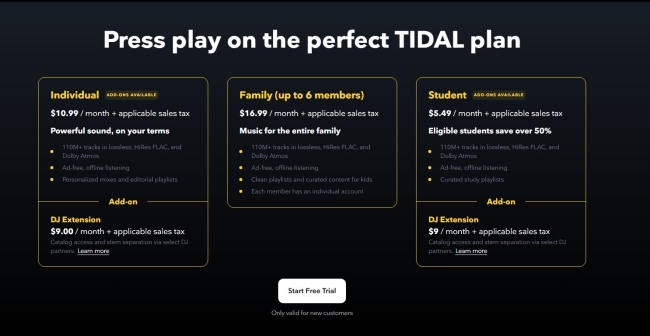
How to subscribe to Tidal Family Plan
Step 1. If you’re a new Tidal user, you’re able to enjoy the Family plans for free for 30 days. Just head to the Tidal official website and click the Start Free Trial button.
Step 2. If you already subscribed to a Tidal plan, you can modify and change it to the Family plan. Start by logging in at account.tidal.com.
Step 3. Then, click the Subscription tab. Here, you should the Family plan.
Step 4. After choosing, you need to confirm the selection and initiate the change.
How to Add Users to Your Family Plan

Step 1. Visit the Tidal official website and log into your Tidal Family account.
Step 2. Go to the Family plan editing page, select Invite family member and enter the email address, then click Invite.
Step 3. This will send an email invite to the recipient to join your Family Plan.
Step 4. Existing Tidal users should click Accept Invitation and Join Family. New users should click Join Family > Continue, and then create a new Tidal account.
Note
You can add 5 additional accounts to enjoy the Family plan, but always remember that all your accounts should be in the same location as the primary account holder. Only in this way can you add the member to Family plan successfully.
Method 2. Play Tidal on 6 Devices via Tidal Offline Mode
If you are an individual user who owns several devices and want to play Tidal on your smartphone, tablet, or other devices at the same time, your best option is to utilize the Offline Mode on Tidal. It is known that Tidal allows its subscribers to download music tracks for offline playback. That is to say, you can use 1 PC/Mac in Online Mode, and 5 smartphones/tablets in Offline Mode. Or, use 1 smartphone in Online Mode, 3 tablets, and 2 smartphones in Offline Mode.
How to Download Tidal Songs
Step 1. Open the Tidal mobile app and tap the Search button. Type in the song name you’d like to listen to.
Step 2. Locate the song in the search results and tap the More icon (three-dots icon) to open the menu.
Step 3. Tap Add to My Collection to add the song to your music library.
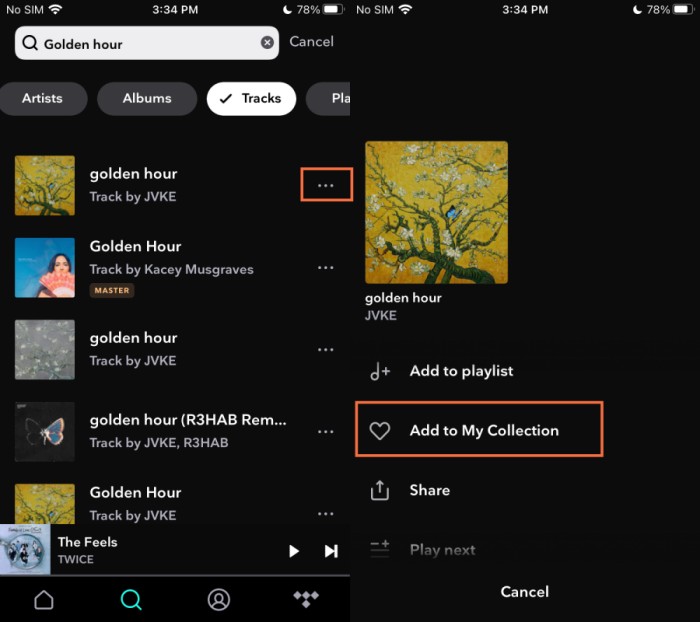
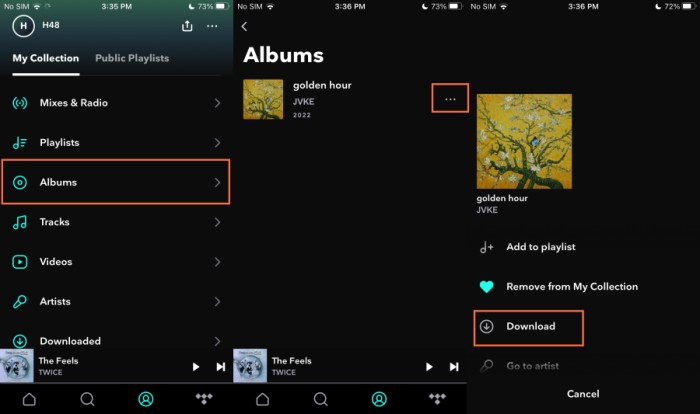
Step 4. Go to My Collection and tap Playlists, Albums, or Tracks to find the songs you’d like to download.
Step 5. Navigate to the song or album and tap the More icon beside. Then select Download and Tidal will start to download it automatically once you subscribed to Tidal Premium.
How to Enable Tidal Offline Mode
After downloading, you can easily access your downloaded songs on Tidal. Just go to My Collection > Downloaded to locate them. Now, you can listen to Tidal online on one device and enjoy Tidal offline on the other 5 devices at the same time.
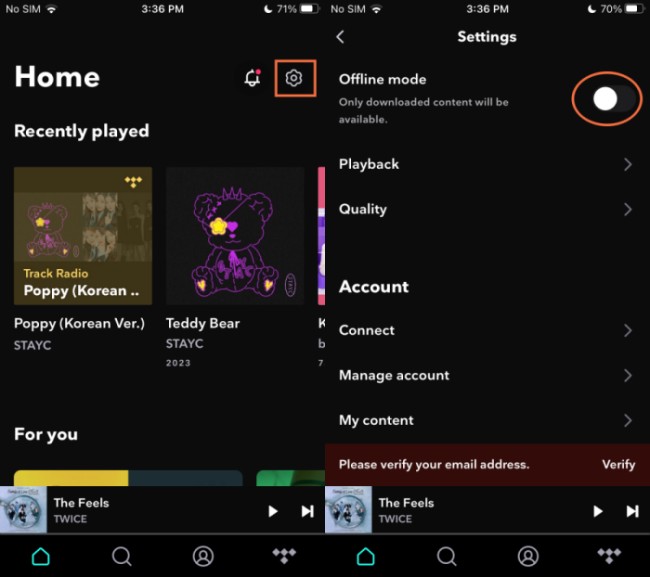
Step 1. To turn on Tidal Offline mode, launch the Tidal mobile app first.
Step 2. Tap the gear icon from the upper right to go to Settings.
Step 3. Switch the Offline Mode button at the top. It will turn green from grey.
Now you can listen to Tidal on multiple devices online and offline.
Method 3. Listen to Tidal on Multiple Devices Without Limits
Using Tidal Offline Mode is effective for playing Tidal songs on multiple devices. However, this method comes with certain restrictions. For example, you are not allowed to download Tidal songs on a desktop, the Tidal downloads will expire if your subscription ends, and the downloaded Tidal songs can be played only with the Tidal app. If you are looking for a more flexible solution, you can consider converting your Tidal songs to local audio files. Once done, you can transfer them to diverse devices for unrestricted offline playback, even those that don’t support the Tidal app.
To do so, you should bypass the DRM protection of Tidal music. Luckily, TunesMake Tidal Music Converter has your back. TunesMake Tidal Music Converter is specially designed for all Tidal users to enjoy Tidal music from worldwide everywhere without limits or errors. It adopts innovative technology to help you remove the DRM codes from Tidal and convert Tidal music to FLAC, AIFF, M4A, M4B, MP3, and WAV formats. In addition to that, it automatically keeps the sound quality and all ID3 tags to ensure your listening experience. After conversion, it’ll be a piece of cake to listen to Tidal offline on any compatible devices or players simultaneously.

TunesMake Tidal Music Converter –
Download and Listen to Tidal Music on Multiple Devices
- Download any Tidal content, including songs, albums, playlists, and artists
- Convert Tidal music to MP3, FLAC, AIFF, WAV, M4A, and M4B
- Preserve a whole set of ID3 tag information in the downloaded Tidal songs
- Handle the conversion of Tidal music up to 22X faster speed and in batch
Security Verified. 100% Clean & Safe.
Step 1
Import Tidal Music to TunesMake Software
TunesMake Tidal Music Converter is now available on both Windows and Mac computers. You can get the right version that is compatible with your operating system via the Free Download button above. When you launch the TunesMake program, it will load the Tidal web player automatically. You can then choose the playlist/album you like, and click the Add icon in the lower right corner. After that, you can pick the songs you want to download and add them to the conversion list by clicking Add to List.

Step 2
Select the Output Audio Parameters
After importing, you can set the output audio parameters on demand. Click the menu bar at the top right corner and select the Preferences option. There are some audio parameters, such as the output format, bit rate, sample rate, and channel you can personalize. To listen to Tidal on more devices, here you can choose MP3 as the output audio format.

Step 3
Download Tidal Songs to DRM-free Formats
After setting the formats, you can click the Convert button to start the conversion. It’s no problem to convert a batch of music files. Just have a cup of tea, and you’ll get the converted tracks soon. Once finished, you can access the converted music files easily in your local folder by clicking the top Converted icon.

Step 4
Play Tidal on Multiple Devices
After the conversion, you have the Tidal music files for offline listening. It’ll be as easy as walking in the park to listen to Tidal music on multiple devices. You can upload the converted Tidal songs to an MP3 player, or transfer them to a USB drive, or play the music through your smart TV, your wearable watch, as well as other devices. You can even play them on more than 6 devices as you want. That’s awesome!
Wrap Up
With the above three ways, you can play Tidal on multiple devices with ease. The Tidal Family plan is very suitable if you have more than one accounts to share the premium features, and it allows up to 6 accounts to listen to Tidal music with premium. Or another simple step for you is to utilize the Tidal Offline mode. While both require you to have a Tidal Premium account, otherwise, you cannot manage to do it. For anyone who wants to listen to Tidal offline on multiple devices without premium, TunesMake Tidal Music Converter is ready to help.
Related Articles




A senior editor from TunesMake, dedicated to sharing professional tutorials and solutions of software, movies, and music.
- 1
- 2
- 3
- 4
- 5
- 6
- 7
 Leave Your Comment
(0)
Leave Your Comment
(0)

 Download Center

