









 Store
Store


Cloud streaming has completely transformed the modern DJ booth. Instead of spending thousands of dollars building a local digital music library track by track, digital DJs can now access over 110 million songs instantly.
If you are using Virtual DJ, integrating Tidal into your workflow is one of the smartest moves you can make. By combining Tidal's high-fidelity audio catalog with Virtual DJ's cutting-edge AI feature like real-time stem separation and automatic AI lyric extraction, you can craft unique, flawless live sets on the fly.
However, due to recent licensing shifts and subscription restructures, setting up this connection isn't quite as plug-and-play as it used to be. This comprehensive guide covers exactly how to connect Tidal to Virtual DJ, navigate the new subscription rules, and explore an alternative way to use Tidal with Virtual DJ without limits.
Part 1. Does Tidal Work with Virtual DJ?
Yes, Tidal works directly with Virtual DJ, allowing you to stream from its massive catalog of over 110 million tracks right inside your mix.
However, because of recent platform changes, you cannot just use a standard streaming plan. To successfully connect Tidal to Virtual DJ for use, you need to navigate a few requirements and modern features.
The Mandatory Tidal DJ Extension Add-On
To use Tidal within any hardware or software DJ integration, Tidal requires a specific two-part plan structure:
-
The Base Subscription: You must have an active Individual subscription ($10.99/month) or an eligible Student subscription ($5.49/month).
-
The DJ Extension: You must purchase the DJ Extension Add-On for an additional $9.00/month.
Without this $9.00 add-on, Virtual DJ will be blocked from accessing Tidal's servers, even if you can log into the website or mobile app perfectly fine.
Critical Plan Restrictions to Avoid
To prevent activation headaches, keep these two strict rules in mind:
-
No Family Plans: The DJ Extension cannot be added to a Tidal Family Plan. If you are on a family plan, you must migrate to an individual account to use Virtual DJ integration.
-
Direct Billing Only: If your subscription is billed through Apple App Store subscriptions or Google Play Billing, you won't be able to buy the DJ Extension. You must cancel that plan and resubscribe directly via the official Tidal website.
Part 2. How to Use Tidal with Virtual DJ Online
Once your Tidal account has the proper DJ Extension attached, linking it to Virtual DJ takes less than two minutes. Following are the steps to connect Tidal to Virtual DJ for use.
Step 1 Locate Tidal in the Browser Panel
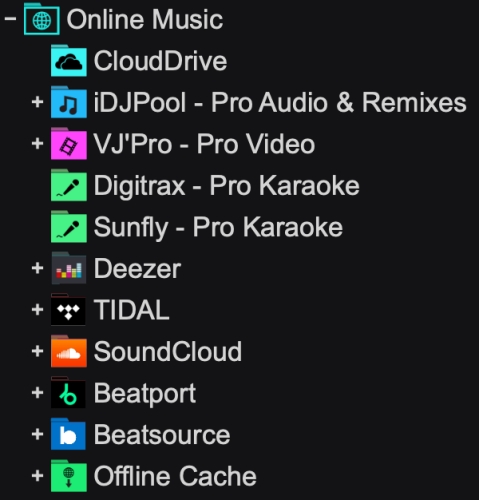
Open Virtual DJ on your computer. Look at the left-hand sidebar, which houses your folder directory and music libraries. Scroll down until you find the Online Music folder group. Click the small arrow next to it to expand the options, and select Tidal.
Step 2 Initiate the Authorization Link
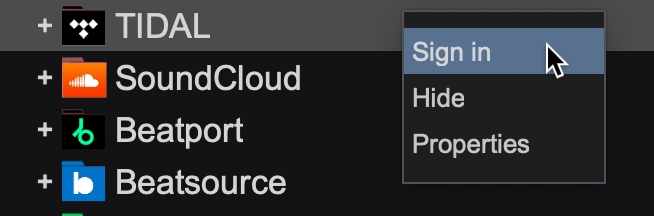
Once you click on the Tidal folder, the main track list window will display a prominent blue button or prompt that says Sign In or asks you to initialize the connection. Click this button.
Step 3 Authenticate in Your Web Browser
Virtual DJ will automatically open your default web browser and take you to the secure Tidal login page. Enter your email and password, or log in using your linked Apple credentials.
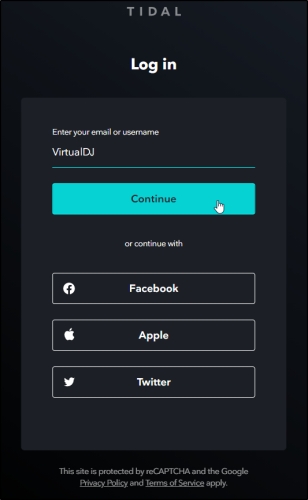
After logging in, the browser will display a message asking to redirect you back to the software. Click the Open Virtual DJ button or allow the browser link to complete.
Step 4 Access Your Tidal Library
Switch back to Virtual DJ. The software will display your custom Tidal playlists, favorite tracks, and albums directly within the software's browser window. You can now use the search bar at the top right of the browser panel to search the entire online Tidal catalog in real-time.
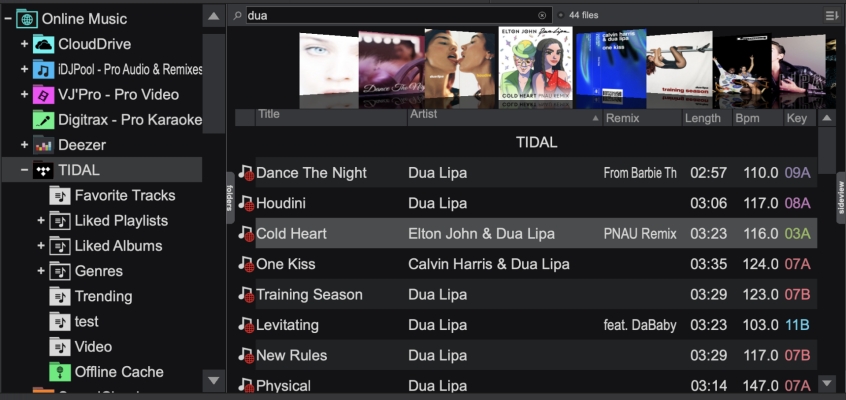
How to get offline Tidal music in Virtual DJ
Officially, TIDAL supports native offline caching inside Virtual DJ. You save tracks to an offline locker for use without an internet connection.
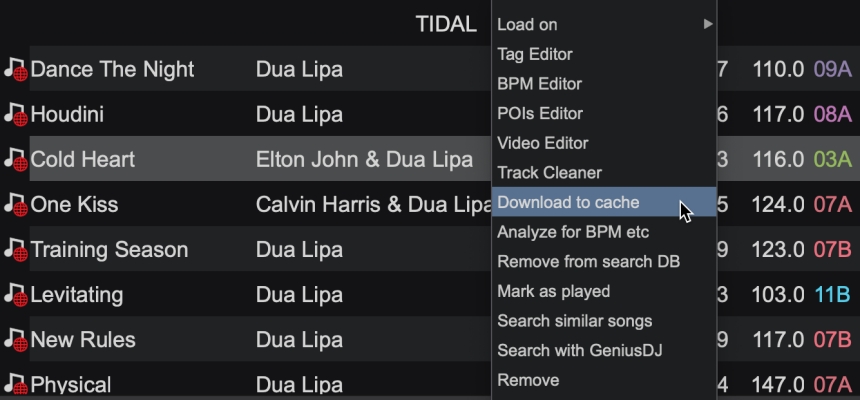
Step 1. Browse Tidal's music library and right-click on any music track.
Step 2. Select Download to cache to save files to the Offline Cache folder.
Part 3. Alternative Way to Make Virtual DJ and Tidal Work
Currently, a Tidal subscription with the DJ Extension add-on is indispensable for using Tidal with Virtual DJ. This may be beyond the budget of some users. Is there way to use and mix Tidal music with Virtual DJ without the DJ Extension add-on? Sure, an alternative approach is to use an external utility like TunesMake Tidal Music Converter prior to the gig.
3.1 Best Tool for Tidal and Virtual DJ Work
TunesMake Tidal Music Converter allows users to download their selected Tidal tracks or full playlists directly onto a local hard drive in standard DJ-friendly formats like FLAC, WAV, or 320kbps MP3 while preserving the original ID3 metadata tags.
By saving these tracks directly to your local drive ahead of time, you can access them instantly through Virtual DJ's Local Music folder tree, giving you a reliable playback option that doesn't need active authentication or a constant internet connection.

TunesMake Tidal Music Converter –
Download Tidal music for using in Virtual DJ
- Download songs, albums, playlists, and artists from Tidal without premium
- Convert Tidal music to MP3, FLAC, WAV, AIFF, M4A, and M4B losslessly
- Handle the conversion of Tidal music up to 25× faster speed and in batch
- Save a whole set of ID3 tags during the conversion process automatically
- Preserve the original audio quality up to HiRes FLAC or 320kbps MP3
Security Verified. 100% Clean & Safe.
3.2 Download Tidal Tracks to DJ-friendly Formats
TunesMake Tidal Music Converter is available on both Windows and macOS computers. You can download and install the right version, depending on the operating system. Then follow the steps below to save Tidal music locally for mixing in Virtual DJ.
Step 1 Load Tidal Music into the Conversion List
Start by opening TunesMake Tidal Music Converter on your computer, then the built-in Tidal web player will be immediately loaded. In your Library, find any music track, album, or playlist to download and click the + button to add the target items into the conversion list.

Step 2 Set the Output Audio Parameters for Tidal
To make Tidal music playable in Virtual DJ, you need to set the output format as the audio format compatible with Virtual DJ. Here you can set MP3 as the output format by clicking the menu bar > Preferences > Conversion. Also, you can change the bit rate, sample rate, and channel.

Step 3 Download Tidal Music as Local MP3 Files
Now you can click the Convert button at the bottom right corner, and TunesMake Tidal Music Converter will save Tidal music to your computer. After conversion, you can view the converted Tidal music in the history list by clicking the Converted icon.

3.3 Import Local Tidal Music Files to Virtual DJ
With the help of TunesMake Tidal Music Converter, you have Tidal music saved as local audio files on your computer. Then you can easily import offline music files to the Virtual DJ app for use when you don't have an internet connection.
Option 1. Import Tidal Music to Virtual DJ from Local Folder
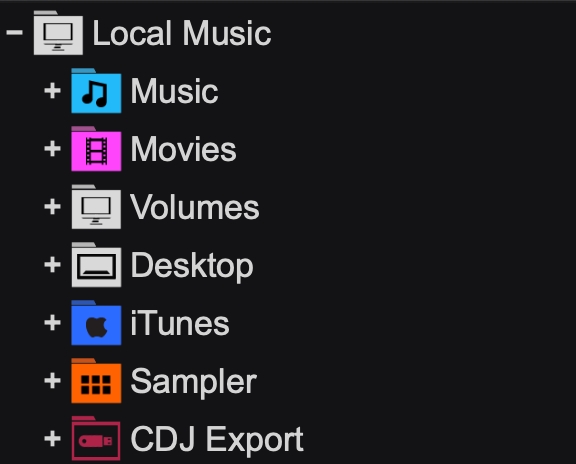
Step 1. Open Virtual DJ and head to the Local Music folder.
Step 2. From the drop-down list, select Music or Hard Drives.
Step 3. Locate the folder where you store the converted Tidal music files.
Step 4. Open the folder and select the music track to use in Virtual DJ.
Option 2. Add Tidal music to Virtual DJ from iTunes Library
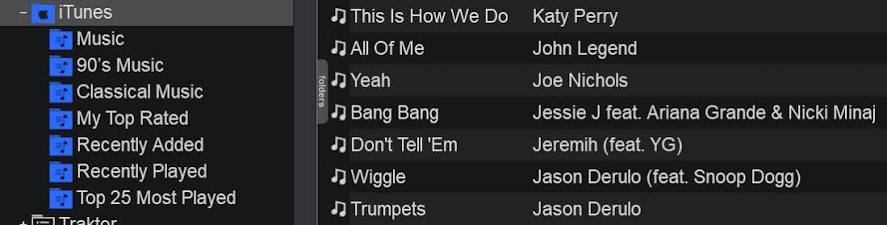
Step 1. Open iTunes and upload the converted Tidal music to your library.
Step 2. Launch Virtual DJ and click the Local Music folder to find iTunes.
Step 3. Right-click on the iTunes option and browse the Tidal songs you've uploaded.
Step 4. Select the Tidal songs, then add them to Virtual DJ for mixing.
Part 4. Which Is the Best Way to Use Virtual DJ and Tidal?
Here is a comparison table outlining the differences, advantages, and limitations of using Tidal with Virtual DJ via the official Tidal DJ Extension Add-On versus using a third-party tool like TunesMake Tidal Music Converter.
| Feature | Tidal DJ Extension | TunesMake Tidal Music Converter |
|---|---|---|
| How It Works | Streams music directly from the cloud inside Virtual DJ via the Online Music folder tree. | Downloads and converts TIDAL tracks into local audio files on your hard drive before mixing. |
| Monthly Cost | Base TIDAL Plan ($10.99/mo) + DJ Extension Add-On ($9/mo) = ~$19.99/month. | Standard TIDAL subscription cost + a one-time or subscription fee for the TunesMake software. |
| Internet Requirement | Mandatory. Requires a stable, live internet connection during your set to load and stream music. | None during the gig. Music is played locally from your hard drive, completely offline. |
| Real-Time Stem Separation | Fully Supported. The $9 DJ Extension officially grants access to Virtual DJ's local, real-time AI stem splitting. | Supported. Since the files are saved as standard local audio formats, Virtual DJ can easily separate stems. |
| Library Management | Real-Time Sync. Your saved tracks, favorites, and playlists on the Tidal app instantly update inside Virtual DJ. | Manual Sync. You must manually convert and import new music or updated playlists into Virtual DJ's Local Music folder. |
| Hardware Compatibility | Seamless integration with all officially supported Virtual DJ controllers and MIDI mapping. | Functions exactly like standard local MP3s; perfectly compatible with all controllers. |
| System Stability | Dependent on the venue's Wi-Fi network strength. Spotty internet can cause tracks to buffer or fail to load. | Highly stable. Eliminates buffering risks since tracks load directly from internal computer hardware. |
-
Choose the official Tidal DJ Extension if you want instant access to over 110 million songs on the fly, appreciate automated playlist syncing, and always perform in venues with a reliable, high-speed internet connection.
-
Choose TunesMake Tidal Music Converter if you frequently perform in clubs or outdoor venues with poor cellular reception or Wi-Fi, want to avoid the extra $9 monthly streaming add-on fee, and prefer the security of a 100% offline local library.
Part 5. Conclusion
It's pretty to use Tidal with Virtual DJ after reading this guide. You can choose to link Tidal to Virtual DJ for use or use TunesMake Tidal Music Converter to download Tidal music for mixing with Virtual DJ. But what are you hesitating about? Just head over here and give it a try! Then you would get a better listening experience of Tidal music.
Related Articles

A senior editor from TunesMake, dedicated to sharing professional tutorials and solutions of software, movies, and music.
- 1
- 2
- 3
- 4
- 5
- 6
- 7
 Leave Your Comment
(0)
Leave Your Comment
(0)

 Download Center

