








 Store
Store


Falling asleep to your favorite songs, relaxing lo-fi beats, or ambient playlists is one of the best ways to wind down at night. However, waking up at 3:00 AM with your headphones still blasting music or finding your phone battery completely drained is far from ideal. Learning how to set a sleep timer on Apple Music ensures your audio stops automatically once you have drifted off.
Depending on the device you use, the setup process varies slightly. While Android features a Sleep Timer inside the app, iPhone users rely on a clever iOS system feature, and desktop users have built-in system routines. This guide breaks down every method step-by-step so you can set your bedtime soundtrack hassle-free.
Part 1. Does Apple Music Have a Sleep Timer?
Yes, Apple Music supports sleep timer functionality, though how you access it depends on the device you are using. On Android, Apple Music features a built-in sleep timer directly within the app. On iOS and desktop, there is no direct feature inside the Apple Music app; instead, users can utilize a built-in system workaround. If you are already in bed and need a quick answer, find the best method for your current setup from this fast lookup table.
| Platform | Method Used | Built-in Sleep Timer |
|---|---|---|
| iPhone & iPad | Siri voice command, the Clock app, or the Shortcuts app | No |
| Android | Apple Music In-App Menu | Yes |
| Mac | Power settings or the Shortcuts app | No |
| Windows PC | Power settings | No |
| Smart devices | Siri voice command | No |
Part 2. How to Put a Sleep Timer on Apple Music for iPhone & iPad
If you are looking for a Sleep Time feature inside the Apple Music app on your iPhone or iPad, you will not find one. No matter, there are still workarounds for you to put a sleep timer for Apple Music on your iPhone or iPad.
Method 1. Use the Clock App
On iPhone and iPad, Apple leverages that the Clock application to pause media playback across all media apps, including Apple Music. Here is how to set an Apple Music sleep timer on an iPhone or iPad using the Clock app.
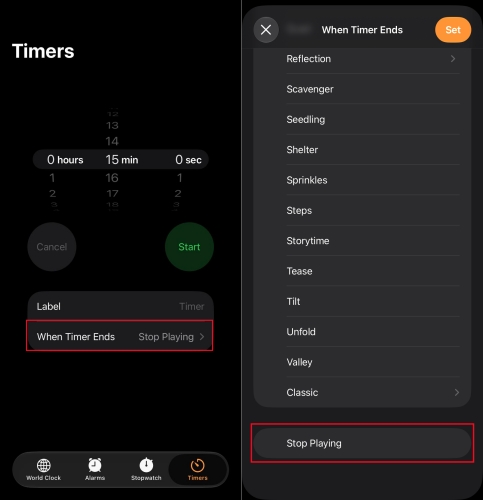
Step 1. Open the Clock app on your iPhone or iPad.
Step 2. Tap the Timers tab in the bottom right corner.
Step 3. Set your desired timer duration and tap When Timer Ends.
Step 4. Scroll all the way to the bottom of the list and select Stop Playing.
Step 5. Tap Set in the top right corner, then tap Start to begin in the countdown.
Step 6. Switch to Apple Music and play your music on your device.
Pro Tip:
-
The Clock app remembers your preference. Once you select When Timer Ends to Stop Playing, future timers will default to this option until you change it back to a standard alarm tone.
Method 2. Use Siri Voice Commands
If you are already tucked into bed and do not want to look at a bright screen, using Siri is the quickest, hands-free method to set a sleep timer on Apple Music. Simply activate Siri on your iPhone or iPad, and say one of the following commands.
"Hey Siri, set a sleep timer for 30 minutes."
"Hey Siri, stop playing music in 45 minutes."
"Hey Siri, stop playing when this song ends."
Siri will respond to confirm that a timer has been set. When the countdown reaches zero, your Apple Music playback will immediately pause.
Method 3. Use the Shortcuts App
For those who go to bed at the exact same time every night, you can automate your Apple Music sleep timer using the built-in Shortcuts app so you never have to configure it manually. Follow the steps below to set a sleep timer for Apple Music with the Shortcuts app.
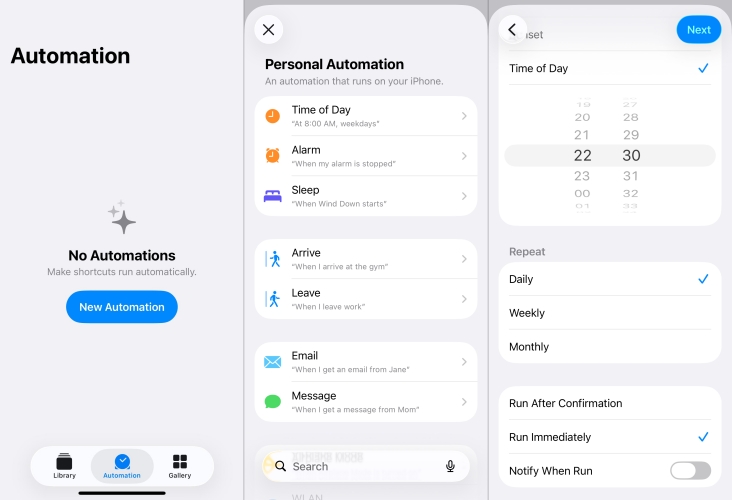
Step 1. Open the Shortcuts app and select the Automation tab.
Step 2. Tap the + (plus) icon to create a new automation and select Time of Day.
Step 3. Choose your usual bedtime and set it to repeat daily.
Step 4. Set the automation to Run Immediately, then tap Next.
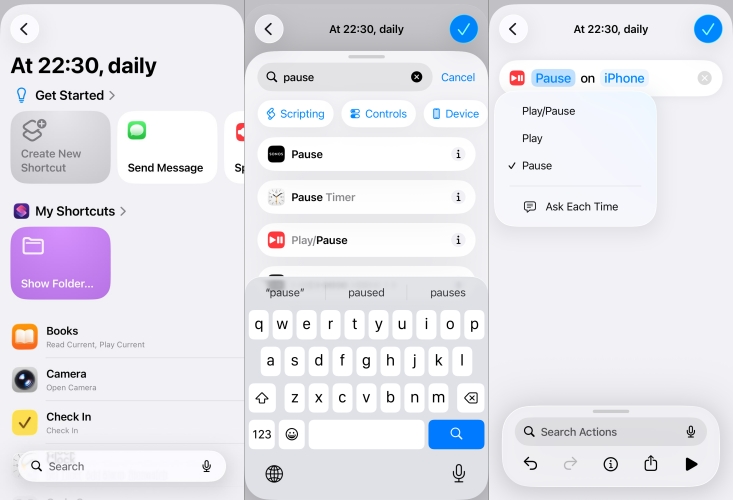
Step 5. Tap Create New Shortcut and search Pause.
Step 6. Select Play/Pause in the search result and set to Pause.
Step 7. Tap Done to save the automation.
Now, regardless of what audio is playing, your device will pause playback at your chosen time every night automatically.
Part 3. How to Set a Sleep Timer for Apple Music on Android
Unlike on iOS, the Apple Music app for Android includes a dedicated, native sleep timer built right into the app menu. To set a sleep timer in Apple Music on Android, just perform the following steps.
How to Turn AutoPlay On or Off in Apple Music
Apple Music's AutoPlay feature automatically creates an infinite queue of similar songs whenever your current album, playlist, or manual queue ends. When you're not sure what to play next, you can use AutoPlay to get continuous listening.
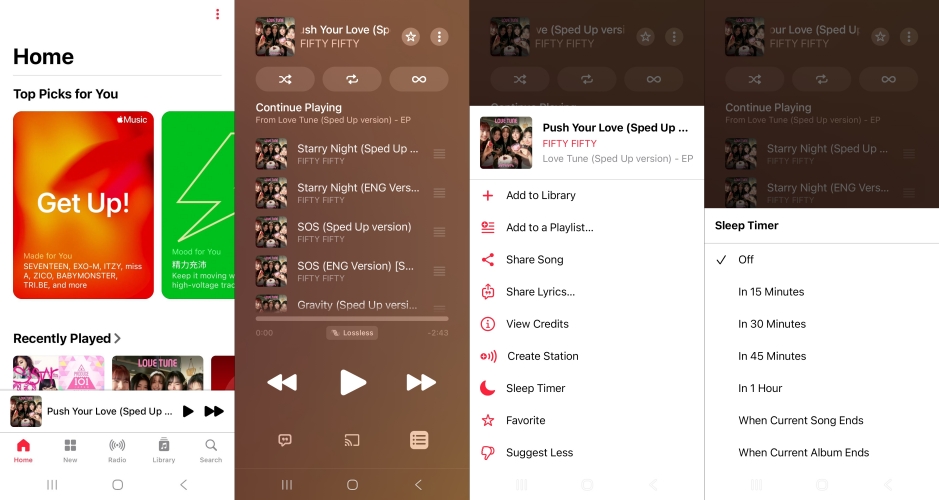
Step 1. Launch Apple Music on your Android smartphone or tablet.
Step 2. Start playing your desired playlist or album in Apple Music.
Step 3. Expand the Now Playing screen for the current track to full size.
Step 4. Tap the three-dot menu icon located in the top right corner.
Step 5. Select Sleep Timer from the drop-down menu.
Step 6. Choose your preferred duration to play on your device.
Part 4. How to Make a Sleep Timer on Apple Music for Mac & Windows
If you listen to Apple Music on your Mac or Windows PC while studying, working, or relaxing in bed, you can use built-in operating system controls to stop playback of Apple Music. Let's explore how to make a sleep timer for Apple Music on Mac and Windows PC.
Make a Sleep Timer on Apple Music for Mac
On Mac computers running macOS, you have two primary options.
Option 1. Use the Shortcuts App
Step 1. Open the Shortcuts app on your Mac.
Step 2. Create a new shortcut and add the Wait action.
Step 3. Add the Pause action for Apple Music right after the wait command.
Step 4. Run the shortcut whenever you start your bedtime music.
Option 2. Use Sleep Settings
Step 1. Go to System Settings > Energy Saver.
Step 2. Set the display and computer to sleep after a specified period of inactivity.
Make a Sleep Timer on Apple Music for Windows PC
Windows users streaming Apple Music can rely on system power configurations.
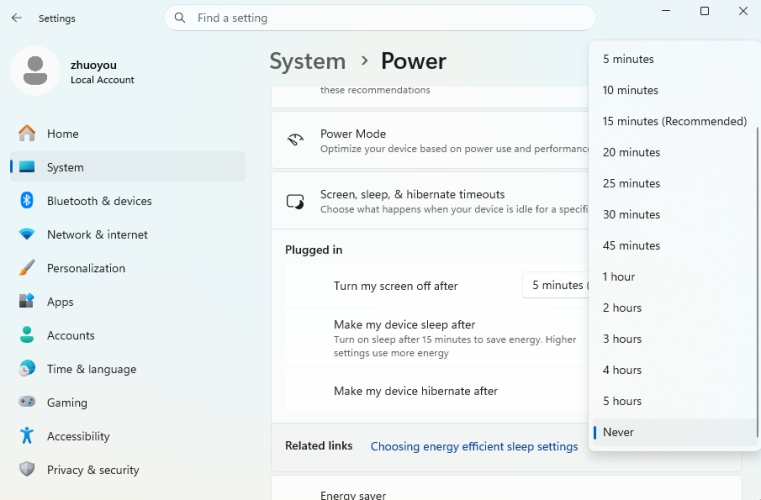
Step 1. Open Settings on Windows (Win + I).
Step 2. Navigate to System > Power & battery.
Step 3. Expand the Screen and sleep menu.
Step 4. Set the time under "When plugged in, put my device to sleep after" to your desired countdown duration.
Alternative Solution to Play Apple Music on Players with Built-in Sleep Timer
If you prefer using media players such as VLC or standalone portable audio players that feature built-in sleep timers, you may encounter compatibility restrictions with protected Apple Music streams. TunesMake Apple Music Converter allows you to convert your Apple Music tracks into common audio formats like MP3 or FLAC. Once converter, you can import your tracks into any media player app that offers native sleep timer or auto-shutdown features.

Streaming Audio Recorder –
Bakc up Apple Music tracks for playing anytime
- Download songs, albums, and playlists from Apple Music
- Convert Apple Music to MP3, M4A, M4B, WAV, FLAC, and AIFF
- Remove DRM protection from Apple Music completely and safely
- Preserve the original audio quality and ID3 tags for management
- Support downloading music from 10 popular streaming platforms
Security Verified. 100% Clean & Safe.
Part 5. How to Add a Sleep Timer on Apple Music across Smart Speakers
When listening away from your main phone screen, hands-free options offer seamless control over your sleep playback.
Set a Sleep Timer for Apple Music on Apple Watc
You can set an Apple Music sleep timer directly from your wrist if you are listening to Apple Music before sleeping on your Apple Watch.
Step 1. Press the Digital Crown and open the Timer app on your Apple Watch.
Step 2. Scroll down and set your desired duration.
Alternatively, press and hold the Digital Crown to summon Siri on your watch and say: "Stop playing music in 20 minutes."
Set a Sleep Timer for Apple Music on HomePod
Setting a timer on HomePod requires no app configuration. Simply use voice controls with Siri before or during playback.
Say: "Hey Siri, set a sleep timer for 45 minutes."
Or say: "Hey Siri, stop playing in 30 minutes."
HomePod will confirm the request verbally and gradually pause the audio stream once the countdown expires.
Part 6. Conclusion
Setting a sleep timer on Apple Music is quick and straightforward once you know where to look. iPhone users can rely on the Clock app or Siri voice commands, Android users benefit from an in-app menu, and desktop users can take advantage of system power settings or automated shortcuts. Pick the method that best fits your nightly routine, and enjoy worry-free listening as you fall asleep.
Related Articles

A passionate writer specialized in creating engaging content about music and entertainment, covering everything from the latest music trends and entertainment news to practical tutorials.
- 1
- 2
- 3
- 4
- 5
- 6
- 7
 Leave Your Comment
(0)
Leave Your Comment
(0)

 Download Center

