








 Store
Store


Does Spotify work on Chromebook? Can I use Spotify on a Chromebook? Is it possible to stream all my favorite tunes and podcasts from Spotify on my Chromebook? How to download Spotify for Chromebook?
With a Spotify account, you can listen to music from Spotify on your device using the Spotify client app or web player. Currently, Spotify supports playing music on mobile, computer, tablet, and other devices. But it’s not easy to get the playback of Spotify on Chromebook. So, Can you download Spotify on a Chromebook? Sure, there are four methods for you to play Spotify on Chromebook. Let’s walk through how to download Spotify on Chromebook right now!
Part 1. How to Install the Spotify App for Chromebook
Although Spotify doesn’t develop a Spotify Chromebook app, you can try to download the Android version of Spotify on your Chromebook using the Google Play Store app. Alternatively, with the Linux operating system, you can also install Spotify for Chromebook by typing some commands. Check the 2 ways below!
Option 1. Download Spotify for Chromebook via Play Store
Note
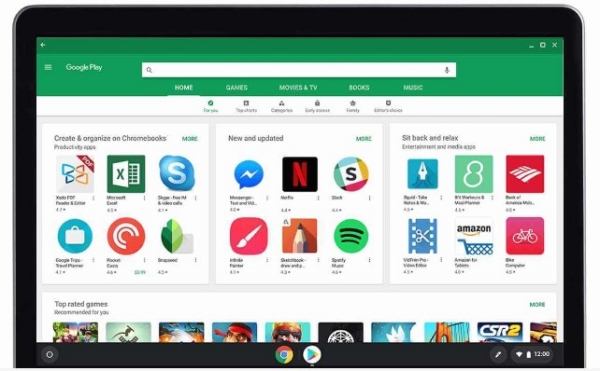
Currently, the Google Play Store is only available for some Chromebooks. So, if your Chrome OS system supports Android apps, you can install Spotify from the Play Store.
1) To get the Android version of Spotify on your Chromebook, make sure your Chrome OS version is up-to-date.
2) Open the Quick Settings panel at the bottom right of your screen and select Settings.
3) Scroll down till you get to Google Play Store and hit on Turn on to enable Google Play Store on your Chromebook.
4) Open the Play Store on your Chromebook and search for Spotify.
5) On the search results page, hit on Install to get Spotify download for Chromebook.
Option 2. Download Spotify for Chromebook via Linux
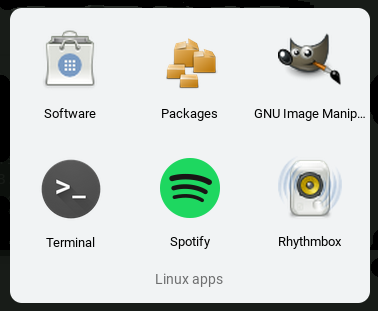
1) Launch a Terminal under the Linux apps section of your App Drawer. First, add the Spotify repository signing keys for verifying any download. Then enter the command:
sudo apt-key adv –keyserver hkp://keyserver.ubuntu.com:80 –recv-keys 931FF8E79F0876134EDDBDCCA87FF9DF48BF1C90
2) Then enter the following command to add the Spotify repository:
echo deb http://repository.spotify.com stable non-free | sudo tee /etc/apt/sources.list.d/spotify.list
3) Next, update the list of packages available for you by entering the command:
sudo apt-get update
4) Finally, to install Spotify, enter:
sudo apt-get install spotify-client
5) Once completing the process, launch the Spotify add from your Linux apps menu.
Part 2. Best Way to Get Spotify Download for Chromebook
Listening to Spotify music on your computer, phone, or tablet is free, easy, and fun. However, you cannot directly get the Spotify app on a Chromebook since Spotify only develops the version for Android, iOS, Windows, and Mac operating systems. In this case, the quickest, simplest way to enjoy Spotify on Chromebook is to download Spotify songs.
To download Spotify songs for playing on Chromebook without limits, we would like to use a Spotify downloader. Here we do recommend TunesMake Spotify Music Converter to you. This is also the best way for those who are looking how to get Spotify Premium for free on Chromebook.
TunesMake Spotify Music Converter is an easy-to-use yet professional music converter for Spotify. With this smart tool, you can easily download and convert Spotify music to MP3, WAV, FLAC, AIFF, M4A, and M4B without subscribing to any Premium Plan. Adopting advanced decryption technology, TunesMake ensures 100% lossless quality while preserving original ID3 tags. So even if you play Spotify for Chromebook, you can have the same experience as the Spotify app. Let’s see how to download Spotify songs without Premium.

TunesMake Spotify Music Converter –
Best Spotify to Chromebook Downloader
- Unlimitedly download Spotify songs, playlists, and podcasts
- Losslessly convert Spotify music to MP3, FLAC, WAV, AIFF, etc.
- Remove ads from Spotify music tracks even with Free accounts
- Convert Spotify songs at 12X faster speed with ID3 tags kept
Security Verified. 100% Clean & Safe.
Step 1
Add Spotify Music to TunesMake

Launch TunesMake Spotify Music Converter, and then it will soon load the Spotify web player on its interface. Head over to the music library of Spotify and start selecting Spotify songs you want to play. Then, you can drag and drop a song to the lower Add icon to load it to the conversion list. If you need to download songs in batches, you can select a playlist or album. Next, click the Add icon > Add to List so that all the songs can be loaded successfully.
Step 2
Pick the Output Format and Parameters

When you finish loading the songs you want to listen to on your Chromebook offline, you can set the output parameters as you wish. Just click the top Menu icon and select the Preferences option. Then, switch to the Conversion tab so that you can change the output format, quality, bit rate, sample rate, channel, and so on.
Step 3
Convert and save Spotify music to MP3 files

Whenever you are ready, select the Convert button at the bottom of the screen to start downloading and converting Spotify music tracks. Once the conversion is complete, go to browse the converted music files by clicking the top Converted icon. Then, you can find them in the history list.
Step 4
Transfer Spotify files to Chromebook
After completing the conversion and download, you can use Google Drive to transfer Spotify music files from your PC or Mac to your Chromebook for playing offline.
1) On your PC or Mac go to google.com/drive.
2) Log in with the same account you use on your Chromebook.
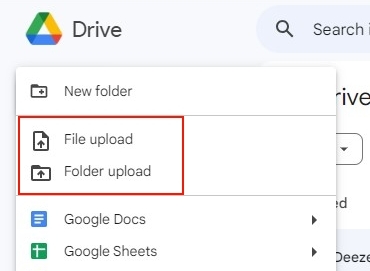
3) Click on the New button in the upper-left corner and then Folder Upload.
4) Select the folder where converted Spotify songs are stored.
5) Hit on Upload to finish the process.
6) Now log in to the same account on your Chromebook to access all these files. You are free to download these Spotify Music files on your Chromebook and listen offline.
Part 3. How to Get Spotify Unblocked for School Chromebook via Web
With the help of TunesMake Spotify Music Converter, you are able to download your favorite songs from Spotify for playing on a Chromebook. If you don’t want to install any additional applications, there is another method for you to access the Spotify library on your Chromebook. You could choose to use the Spotify Web Player to play your favorite songs.
1) Launch a browser on a Chromebook and then navigate to https://open.spotify.com/.
2) Sign in to your Spotify account by typing in your Spotify credentials.
3) Find and select any track, album, or playlist to play on your Chromebook.
This way sometimes is impractical as School administrators block websites. The Spotify website also is included. You can find how to bypass the website blocks in the post below:Part 4. FAQs about Spotify for Chromebook
Can I download Spotify on my Chromebook?
Yes. You can install the Spotify app using the Google Play Store or Linux. If you don’t want to download the app, then you can use the Spotify Web Player to play your favorite tunes.
Why is Spotify not working on my Chromebook?
Maybe Spotify is prevented from playing protected content. Launch Spotify for Chromebook. Select the three dots icon in the right-hand corner and go to App Info. From here, select Allow Protected Content. If you are using Spotify web player, then it might be Spotify unblocked for School Chromebook. So you have to unblock Spotify.
How to get Spotify Premium for free on Chromebook?
To get Spotify Premium for free on Chromebook is simple as long as you use TunesMake Spotify Music Converter. It works well for Spotify Free users to download Spotify songs for offline listening, so you don’t have to subscribe to Spotify Premium plans anymore.
Can I upload local files to Spotify using my Chromebook?
No, you cannot upload local files to Spotify using the Web Player since the feature is only available for the full desktop. If you are using the Android app you might be able to download your local files to your Chromebook.
Conclusion
That’s all. You could download the Android version of Spotify or use the Spotify Web Player to play your favorite tunes on Chromebook. For offline listening, simply use TunesMake Spotify Music Converter to download Spotify songs without a Spotify Premium account.
Related Articles



A senior editor from TunesMake, dedicated to sharing professional tutorials and solutions of software, movies, and music.
- 1
- 2
- 3
- 4
- 5
- 6
- 7
 Leave Your Comment
(0)
Leave Your Comment
(0)

 Download Center

