








 Store
Store


Having an audio visualizer bouncing to your favorite tracks completely transforms the vibe of your desktop setup. For years, Rainmeter has been the go-to tool for Windows customization enthusiasts looking to add that perfect aesthetic touch.
However, if you have tried downloading a Rainmeter Spotify visualizer recently, you have likely run into a frustrating roadblock: the bars might bounce to your system audio, but the track titles, artist names, and album artwork are completely blank.
This happens because Spotify updated its security and API systems, rendering legacy Rainmeter media plugins completely obsolete. But don't worry, and you don't have to give up on your dream setup. In this guide, we will walk through two methods to perfectly sync Spotify with Rainmeter, as well as, some fixes to Rainmeter Spotify not playing.
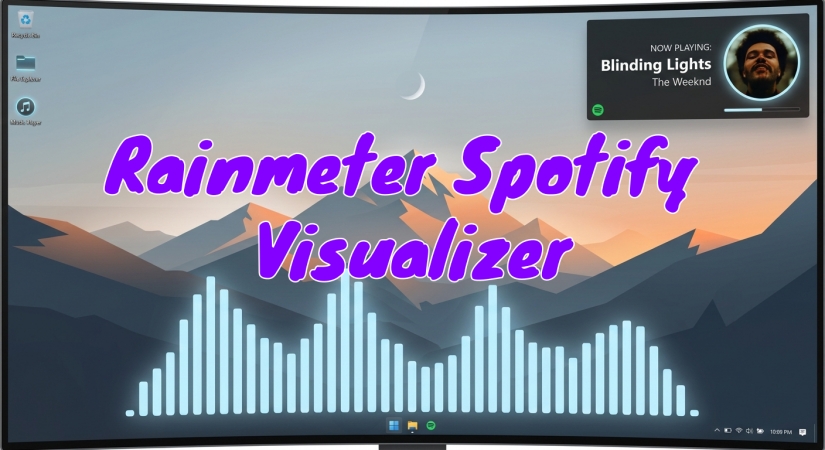
Part 1. Best Rainmeter Spotify Visualizer for Setup
When choosing a Rainmeter skin to visualize Spotify music on a Windows PC, several popular options stand out for desktop customization. Following are top-tier choices that are actively maintained, look stunning, and integrate beautifully with modern Spotify data setups.
| Visualizer Name | Design Aesthetic | Key Strengths |
|---|---|---|
| Monstercat Visualizer | Classic, Retro, Icon-driven | Highly reliable, automatic scaling, built-in WebNowPlaying support. |
| ModularVisualizer | High-tech, Ultra-modern | Deep customization suite, features beautiful 3D layered effects behind your wallpaper. |
| VisBubble | Circular, Minimalist, Clean | Perfect for wrapping audio bars around a central clock or desktop icon. |
| Fountain of Colors | Linear, Sleek, Smooth | Highly customizable bar counts, angles, and butter-smooth frame rates. |
Best Feature-Rich Skin: Monstercat Visualizer
The undisputed champion of the Rainmeter community. Modeled after the famous Monstercat YouTube music videos, this skin features incredibly responsive audio bars accompanied by a clean media player that pulls album art, track titles, and precise timeline tracking straight from Spotify.

Best All-Rounder: ModularVisualizer
If you want total control over your theme, ModularVisualizer is unmatched. It offers over 40 distinct visualizer styles, ranging from simple lines to ambient gradient glows that change dynamically based on the color palette of your current Spotify album cover.

Best Circular Layout: VisBubble
For enthusiasts who prefer a clean, circular visual layout, VisBubble allows you to map your audio frequencies into a rotating or pulsing ring, which looks incredible when centered around a desktop clock, minimalist system monitor, or focal point in your background wallpaper.

Best Minimalist Design: Fountain of Colors or Lano
If you hate clutter and prefer your visualizer to blend elegantly into the background, Fountain of Colors is the perfect choice. It generates a sleek, traditional linear bar graph that is highly customizable. You can change the bar count, adjust the spacing, tilt the bars to any angle, and tweak the audio sensitivity to create a subtle, butter-smooth ambient wave.

Part 2. How to Add Spotify to Rainmeter via Local Offline Playback
Since Spotify is updating its app constantly, many Rainmeter visualizer skins cannot match its new versions in time. Some of them just do not work properly or won't show album art or any other music information. Another drawback of it is that almost every Rainmeter Visualizer only works on Windows. If you use a Mac, things can be difficult. But don't worry. There is a potent method that can help to remove all the obstructions of Rainmeters and make them more user-friendly.
Whether you're looking for a Rainmeter Spotify integration on Mac or want to make your song information appear on the Now Playing page, you can't miss this one-click solution. All you need is to download and convert Spotify music to MP3, which makes it possible to play Spotify on many compatible devices or platforms. Therefore, you can play Spotify music on some media players that can show the Now Playing page.
2.1 Tool for Setting up Rainmeter Spotify Visualizer
TunesMake Spotify Music Converter can help solve this issue by converting Spotify music, audiobooks, and podcasts into standard formats like MP3 or FLAC. It is designed for both Spotify Free and Premium users to download and convert Spotify music. Most importantly, the conversion won't destroy the audio quality and the original ID3 tags will be preserved as well.

TunesMake Spotify Music Converter –
Download music from Spotify without premium
- Download Spotify songs, albums, playlists, audiobooks, and podcasts
- Losslessly convert Spotify music to MP3, FLAC, WAV, AIFF, and more
- Remove ads from Spotify music tracks even with a Free account
- Convert Spotify music at 15× faster speed in batch with ID3 tags kept
Security Verified. 100% Clean & Safe.
2.2 How to Convert Spotify Music for Rainmeter
To make a full preparation, you will need to install TunesMake Spotify Music Converter on your computer in advance. Now, let's dive into the detailed information without further ado.
Step 1 Select Spotify Music for Conversion

First, launch TunesMake Spotify Music Converter and it will run the built-in Spotify web player at the same time. Now you can log into the Spotify web player with your Spotify account credentials. Then go to your library and select any playlist or album to download.
Step 2 Adjust the Output Audio Format

TunesMake allows you to customize the output audio format and adjust audio parameters like the sample rate. You can get Spotify music for your personal demands. Just click the menu icon at the top right corner, choose Preferences, and enter the Conversion tab.
Step 3 Convert Spotify Music to MP3 Local Files

Once setting the format, click the Convert button to start the conversion. The converter will be conducted with a 15× faster speed. After that, you can click the Converted icon to find the location of the downloaded music files on your computer.
2.3 How to Play Spotify Music on Rainmeter
Now you can easily add Spotify songs to Rainmeter. You just need to add them to other players so that you can see the song information and control the playback on your computer. Depending on which player you use as a default player, there are two ways to reach it. Find the one that matches your situation and try the precise steps below.
On iTunes
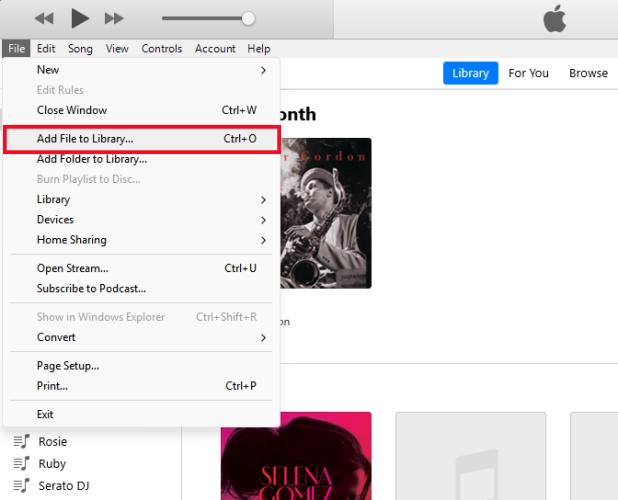
Step 1. Run the iTunes app on your computer.
Step 2. Click Files > Add File to Library and go to your File Explorer.
Step 3. Find the downloaded Spotify music files and add them to your iTunes library.
Step 4. Open the Rainmeter app and enjoy your Spotify music with the skin you download.
On Windows Media Player
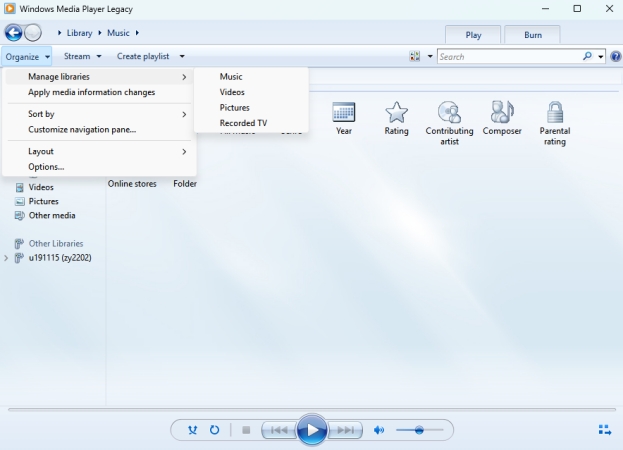
Step 1. Fire up Windows Media Player on your computer.
Step 2. Click Organize > Manage libraries > Music.
Step 3. Click the Add button and select your music file.
Step 4. Open Rainmeter and choose the skin you like.
Part 3. How to Connect Spotify to Rainmeter via Third-Party Plugins
With TunesMake, you can easily make a Rainmeter Spotify visualizer work by converting your Spotify playlists into local audio files. But if you don't want to use any converting tools, you can connect Spotify to Rainmeter via a third-party plugin while streaming music from the Spotify desktop app or the Spotify web player. Here is what you need and how to set up.
The Modern Prerequisites: What You Need First
To build a fully functional Spotify visualizer setup today, we need a reliable bridge to pass data from your Spotify client straight into Rainmeter. Relying on basic skin installations won't cut it anymore. Here is the toolkit you need.
- The Rainmeter Client: The base software that hosts your desktop skins.
- WebNowPlaying: A brilliant, modern plugin standard that replaces the defunct SpotifyPlugin.dll. It fetches real-time metadata directly from media players.
- Spicetify-cli: A powerful command-line customization tool for the official Spotify desktop application. It allows us to inject the WebNowPlaying extension directly into Spotify.
Step-by-Step Guide: Sync Spotify with Rainmeter
Let's get your setup configured from scratch. Follow these steps precisely to ensure your audio visualizer and media metadata sync up flawlessly.
Step 1 Install or Update Rainmeter
First, ensure you are running the most stable, up-to-date version of Rainmeter to prevent compatibility bugs.
1) Head over to the official Rainmeter website and download the latest Final release.
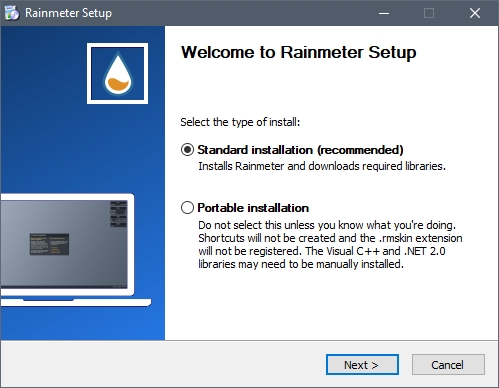
2) Run the installer, choose the Standard installation, and follow the on-screen prompts.
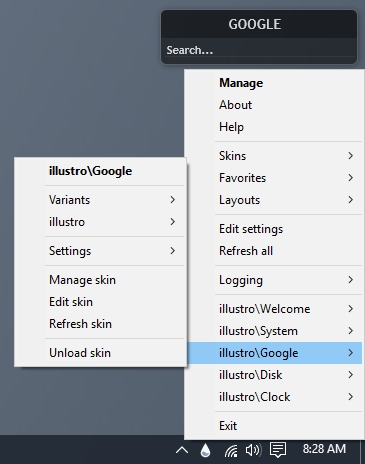
3) Once installed, you will see a few default "Illustro" skins load on your desktop. You can right-click and click Unload skin on these to clear your canvas.
Step 2 Configure the Spotify Data Bridge
This is the crucial step that most outdated tutorials skip. Here are two options depending on the official Windows Spotify app or the Spotify web player you listen to.
For the Spotify Desktop App (Using Spicetify)
1) Close Spotify completely.
2) Right-click your Windows Start button and select Terminal, PowerShell, or Command Prompt.
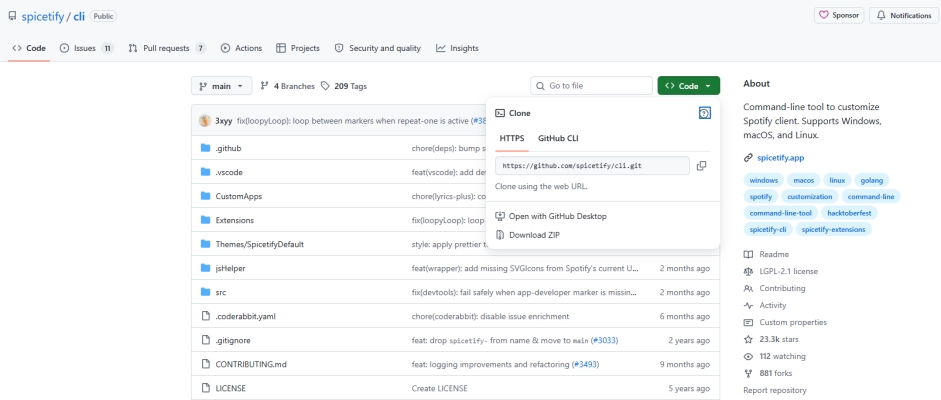
3) To install Spicetify, copy and paste the official installation command from the Spicetify GitHub repository documentation and press Enter.
4) Once Spicetify is installed, type spicetify in your terminal to initialize it, then type spicetify backup apply to clear the initial setup.
5) Run the command to enable the WebNowPlaying companion extension via Spicetify's configuration settings.
6) Finally, type spicetify apply and press Enter. Spotify will automatically relaunch, now fully equipped to talk to Rainmeter.
For the Spotify Web Player (Using Browser Extension)

1) Open your preferred browser.
2) Search the extension store for WebNowPlaying Companion and click Add to Browser.
3) Pin the extension to your toolbar. It will automatically detect when you have a Spotify tab playing music.
Step 3 Download and Load Your Visualizer Skin
Now that your data bridge is active, it's time for the fun part: adding the actual visualizer.
1) Download a modern visualizer that supports the WebNowPlaying standard.
2) Double-click the downloaded .rmskin file.
3) Click Install when the Rainmeter Skin Installer window pops up.
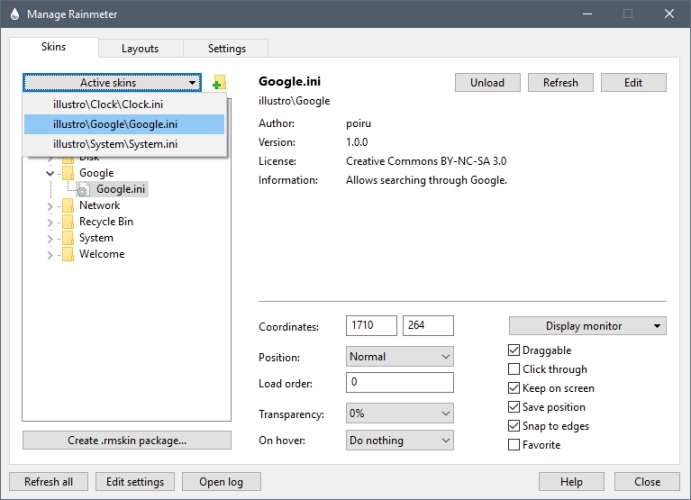
4) Open your Manage Rainmeter window from your system tray.
5) Locate your new visualizer folder, select the .ini file, and click Load.
6) Fire up Spotify, play a track, and watch your new visualizer spring to life!
Part 4. Conclusion
Since the Rainmeter Spotify plugin has been shut down, it's not as convenient as before to get Rainmeter visualizer skins worked with Spotify. But there are still some alternative ways to make Rainmeter Spotify visualizer work. You can try using a third-party plugin to connect Spotify to Visualizer. For the Now Playing feature, you're supposed to download Spotify musicn via TunesMake Spotify Music Converter. After that, you're able to see Rainmeter Spotify visualizer on other music players like iTunes or Windows Media Player.
Related Articles






A senior editor from TunesMake, dedicated to sharing professional tutorials and solutions of software, movies, and music.
- 1
- 2
- 3
- 4
- 5
- 6
- 7
 Leave Your Comment
(0)
Leave Your Comment
(0)

 Download Center

