








 Store
Store


Shuffle Play allows us to listen to Spotify playlists in random order. This is great as you don’t know what the next song is, and you will expect something new to impress you. However, some of you guys may not like this playing mode. So, when you want to play your Spotify playlist in order, how to turn off Shuffle on Spotify? Don’t worry, we’ll offer you some tips about how to do this, and now please read this post carefully. Whether you have a Spotify Premium or not, you can find steps to enjoy your favorite Spotify tunes as you want.
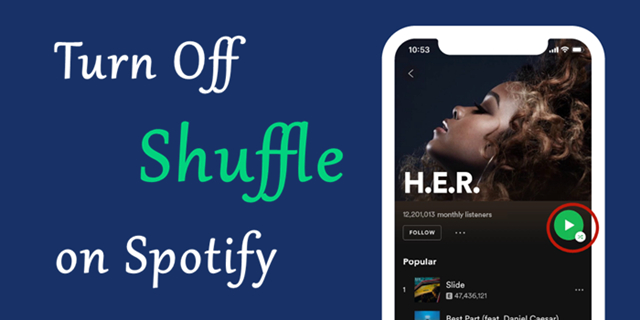
Part 1. How to Turn Shuffle Off Spotify on a Mobile Phone
To turn off the Shuffle play feature on Spotify as you wish, you will need a Spotify Premium subscription. With a valid Premium account, it’s pretty easy to control the music playback in any order you want. If you only have a Free account, you cannot turn off shuffle on Spotify directly. You will need an alternative method. Check more information on Part 3.
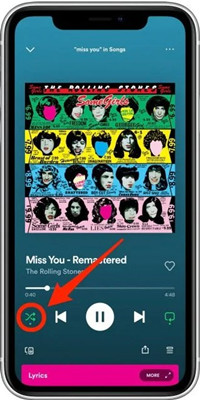
1. When you open the Spotify app on your mobile phone, choose a song to play. Then the Now Playing bar will appear at the bottom.
2. Now you should tap the Now Playing bar and you’ll enter the playing interface. Then you can see two intersecting arrows under the lyrics section. This is the Shuffle button.
3. The final step is to turn off shuffle on Spotify. Once you turned off this feature, you can see the button turned to grey.
Part 2. How to Turn Off Shuffle on Spotify Desktop
The procedures on desktop or Spotify web player are similar but differ from the operating interface. You need to turn off the feature with a monthly subscription account too. If you’re using Spotify on a desktop or via web player, you can do as follows:
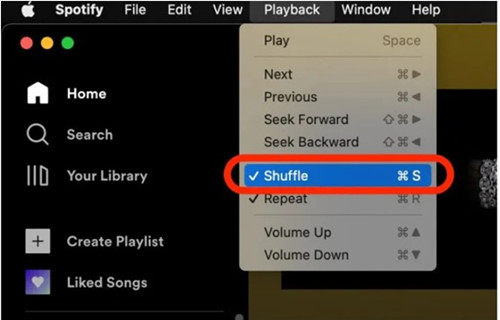
1. You can open the Spotify app on your desktop or use it via the Spotify web player, then choose a song to play. You will see the Now Playing bar at the bottom of the player or screen. And now tap it to enter the playing page.
2. When you see two intersecting arrows under the lyrics section of the player. It is active when it is green, you need to press it until it turned grey.
3. On your desktop, you can select the shuffle button from the Playback setting on the top of the interface. You can click it to turn off the shuffle play mode on Spotify.
Part 3. How to Turn Off Shuffle and Play Spotify Music Freely
It’s easy to turn off the Shuffle mode on Spotify. However, you need a Spotify Premium account. For those people who don’t have subscription accounts, is there no way to turn off Shuffle on Spotify? Well, that is absolutely wrong. Now, let me recommend a great alternative. That is to download Spotify songs to local audio files and play them on other media players, so you can listen to Spotify however you wish without issues. To download Spotify songs locally, all you need is the TunesMake Spotify Music Converter.
TunesMake Spotify Music Converter can remove DRM from Spotify with ease. With TunesMake, you can convert Spotify music to MP3 and other common audio formats. So, you can stream Spotify on multiple devices without any hassle. After conversion, you can download Spotify music to your local drive and keep them playable offline forever without a premium. Therefore, it’s easy to listen to your favorite songs in order.

TunesMake Spotify Music Converter –
Download Spotify Songs Locally for Free Playback
- Unlimitedly download Spotify songs, playlists, and podcasts
- Losslessly convert Spotify music to MP3, FLAC, WAV, AIFF, etc.
- Remove ads from Spotify music tracks even with Free accounts
- Convert Spotify songs at 12X faster speed with ID3 tags kept
Security Verified. 100% Clean & Safe.
Download Spotify Playlist as Offline Playback with TunesMake
With this one-click solution, you only need 4 simple steps to download the Spotify playlist for offline listening. Now you can follow the instructions below to start your conversion.
Step 1
Import Spotify Playlist to TunesMake
TunesMake Spotify Music Converter works on both Windows and Mac computers. You can install it on your desktop via the Free Download button. When it is finished, launch it. You will be then led to the Spotify web player. Sign in to find the playlist or album you want to download. Then, you need to select it and click the Add icon at the bottom. Therefore, the TunesMake program will automatically analyze and list all the songs. Choose the songs you like and add them to the conversion list by selecting Add to List.

Step 2
Select the Output Formats and Parameters
Next, you can choose the output format of your Spotify songs and change the audio settings according to your demands. Click the top Menu icon and choose Preferences > Conversion. In this tab, you can adjust audio format, audio quality, channel, bit rate, sample rate, and more. Don’t forget to save your changes by clicking OK.

Step 3
Convert Spotify Playlist to MP3
After setting the output formats, you can click the Convert button to start your conversion. When finished, you can locate the converted Spotify playlist in your local folder by clicking the Converted icon.

Step 4
Listen to Spotify in Order without Premium
Now you have converted your Spotify playlist to local audio files successfully. Then, you can stream them on any other devices you like. Simply open these files on other media players on your computer, or import them to your phone via a USB cable for offline playing.
Summary
It’s easy to turn off shuffle on Spotify while you’re having a monthly subscription. However, for those people who don’t have it, it will be difficult to achieve that. Therefore, why not try the alternative method to listen to Spotify music? Come on, download TunesMake Spotify Music Converter, and give it a try. Then you can freely enjoy your Spotify playlist in order or random play.
Related Articles


A senior editor from TunesMake, dedicated to sharing professional tutorials and solutions of software, movies, and music.
- 1
- 2
- 3
- 4
- 5
- 6
- 7
 Leave Your Comment
(0)
Leave Your Comment
(0)

 Download Center

