








 Store
Store


AirPlay is a wireless screen projection technology used in Apple products, making it easy to send music from one device and play it on another. It enables you to share videos, photos, music, and more from Apple devices to your Apple TV and favorite speakers. It’s perfect for families to sit together and share the latest family videos and pictures on the TV. You may wonder if it is possible to AirPlay Spotify Music on your devices. Of course, the answer is positive. In this post, we will walk you through how to AirPlay from Spotify on different devices, like Mac, iPhone, iPad, and Apple TV. Plus, we will introduce a bonus tip to help you play your favorite Spotify songs on any device without limitations. Let’s check it out.
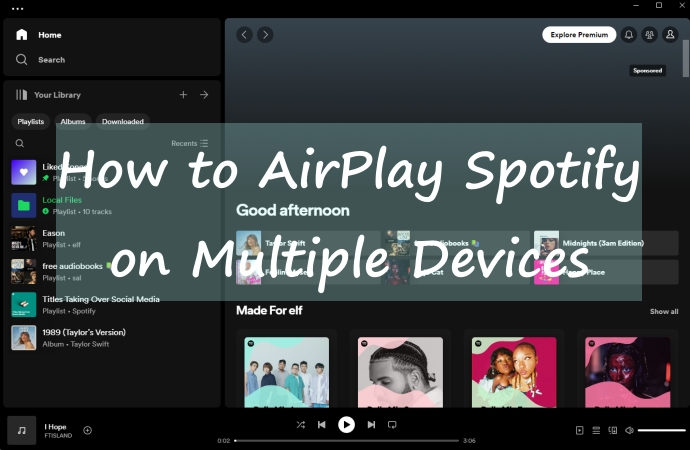
Part 1. Can You Use AirPlay on Spotify?
Before we start using AirPlay, we need to figure out if our devices support AirPlay. So, what devices support AirPlay? Many Apple devices support AirPlay, including iPhone, iPad, iPod touch, Mac, and Apple TV. Additionally, AirPlay is also supported on a range of third-party devices such as speakers, smart TVs, and soundbars that are AirPlay-enabled. You can check if your device is compatible with AirPlay in the Settings. Select General in Settings. If there is an option for Apple AirPlay Settings, your device is compatible.
Apple AirPlay vs Spotify Connect
You can choose to play Spotify on other devices via AirPlay or Spotify Connect. If you are an Apple user, AirPlay might be your first choice. If you are not an Apple user, then you can also try Spotify Connect to enjoy music on other devices. Let’s take a look at some differences between these two ways.
| Apple AirPlay | Spotify Connect | |
|---|---|---|
| Compatibility | Apple devices only | Devices specified by Spotify |
| Audio Quality | Lossless audio quality | Great audio quality |
| Operation | Offer more options | Easy to use |
| Special Feature | Whole home audio mode | Multiroom streaming |
Part 2. How to AirPlay Spotify from Mac to TV/Other Devices
Before we start AirPlay Spotify from Mac to other devices, make sure that your Mac and AirPlay-enabled devices are connected to the same network. Here we’d like to show you how to AirPlay Spotify to Apple TV or other Apple devices from Mac.
Step 1. Open the Spotify app on your Mac and log into your Spotify account.
Step 2. Select a playlist or an album to play.
Step 3. Click Control Center in the menu bar at the top right corner of your Mac.
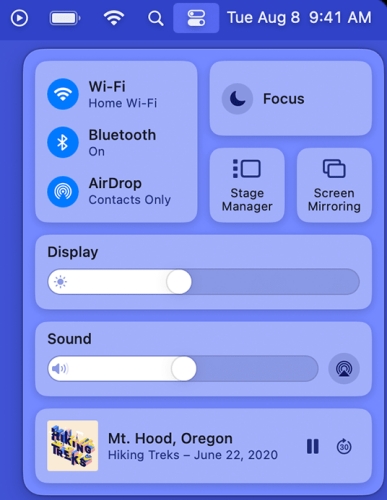
Step 4. Click AirPlay under Sound and select your HomePod, Apple TV, or other Apple devices to play.
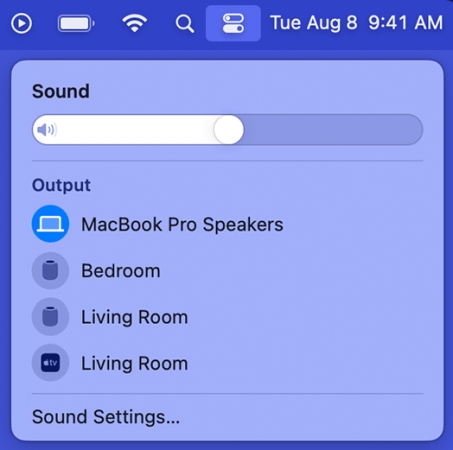
Step 5. Now your Spotify music will be played through your TV.
Part 3. How to AirPlay from Spotify iPhone/iPad
There are two ways to AirPlay Spotify from iPhone or iPad. You can do this by using the Control Center or streaming Spotify automatically whether you want to get Spotify AirPlay HomePod or AirPlay Spotify to Apple TV. Let’s see how to do this.
Option 1. AirPlay Spotify from iPhone Using Control Center
You can AirPlay Spotify from an iPhone or iPad by using Control Center with simply four steps.
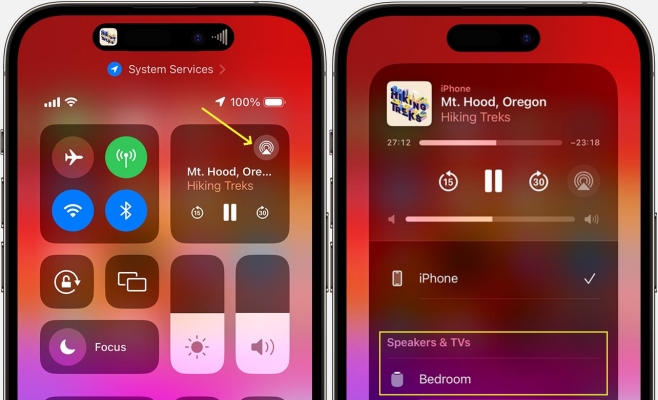
Step 1. Connect your iPhone or iPad with your devices to the same network.
Step 2. Play Spotify music on your iPhone or iPad, then open Control Center.
Step 3. Tap the AirPlay icon in the top right corner.
Step 4. Choose the device that you want to AirPlay Spotify to.
Option 2. AirPlay Spotify from iPhone Automatically
According to your AirPlay connection settings, your iPhone or iPad can suggest or automatically connect to AirPlay-enabled devices you use frequently. Your AirPlay-enabled device and your iPhone or iPad must be connected to the same network before you can get automatic and suggested AirPlay connections. Let’s see how to do this.
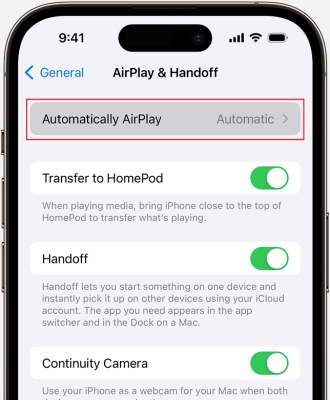
Step 1. Go to Settings on your iPad or iPhone.
Step 2. Then tap General, and select AirPlay & Handoff.
Step 3. Tap Automatically AirPlay, then choose Automatic.
Step 4. Open Spotify on your iPhone or iPad, and play a song. Spotify will AirPlay to the suggested and automatic AirPlay connection.
Part 4. How to AirPlay Spotify from Apple TV to HomePod
More than just a TV, Apple TV can serve as a hub for playing audio at your home on devices. If you have an Apple TV and HomePod, you can listen to Spotify music from Apple TV through HomePod. Before we start, make sure your Apple TV and HomePod are connected to the same network. Then, follow the steps below to enjoy your favorite music.

Step 1. On Apple TV, open the Control Center by pressing and holding the TV button on the Siri Remote.
Step 2. Select the General Settings option, then click the Audio Controls button.
Step 3. Open the Spotify app on your Apple TV, play a song, and click the AirPlay icon.
Step 4. Choose HomePod from the list of available devices. Then you can enjoy Spotify music from Apple TV through HomePod.
Part 5. Bonus: Play Spotify on Multiple Devices Freely Without AirPlay
AirPlay no doubt makes it easier for users to play their favorite Spotify songs via multiple devices. However, when connecting two devices via AirPlay, there are always some issues. The unstable internet connection, or issues with the device itself, all affect the success rate of the AirPlay connection. So, how can we play Spotify on multiple devices without encountering these problems? One great solution is to download your favorite Spotify songs as local files so that you can play them on any device without problems. By doing so, you can even play Spotify on two devices simultaneously and freely.
Downloading Spotify music locally is a solution, but how can you do so with the obstruction of the DRM protection? Don’t worry. TunesMake Spotify Music Converter got your back. As a professional and effective music downloader designed for both Spotify Free and Premium users, it can help you download your favorite songs, playlists, albums, and podcasts to normal audio formats, including MP3, M4A, M4B, WAV, FLAC, and AIFF. In addition, it smartly keeps the original sound quality to ensure your offline listening experience. After downloading, it’s a breeze to transfer the downloaded Spotify files to any device and play them offline at any time you want.

TunesMake Spotify Music Converter –
Best Tool to Download Spotify Music Locally
- Unlimitedly download Spotify songs, playlists, and podcasts
- Losslessly convert Spotify music to MP3, FLAC, WAV, AIFF, etc.
- Remove ads from Spotify music tracks even with Free accounts
- Convert Spotify songs at 12X faster speed with ID3 tags kept
Security Verified. 100% Clean & Safe.
Step 1
Import Spotify Songs to TunesMake Software
Install the TunesMake Spotify Music Converter on your computer via the Free Download button above. Then, you can launch it and visit the Spotify web player on the interface. Now, feel free to find the playlists or songs you want to download. Once you select the target playlist, you can click the Add icon at the bottom and load all the included songs via the Add to List option.

Step 2
Set Output Parameters for Spotify Music
When you finish selecting your targeted songs, it’s time to set the output settings according to your needs. Click the top Menu icon at the top right corner, and then select Preferences. When the settings window pops up, you can switch to the Conversion tab and choose an output format from MP3, M4A, M4B, WAV, FLAC, or AIFF. Besides, you can also change other parameters, such as channel, bit rate, sample rate, and more. Don’t forget to save your changes by clicking the OK button.

Step 3
Convert and Download Spotify Songs
After you save the parameter settings, click the Convert button to start downloading Spotify songs to your computer as local files. Wait for a few seconds, and you will find your songs downloaded to your computer. Then click the top Converted icon to browse all downloaded tracks.

Step 4
Play Spotify on Multiple Devices
Once you finish downloading, the Spotify songs will be saved on your computer forever. Then you can upload them to your devices for listening even without AirPlay and an internet connection.
Part 6. Conclusion
About how to AirPlay Spotify on multiple devices, I guess you must have an answer in your mind now. AirPlay is a great feature for users to play songs via different devices. Making good use of it can enhance and refresh your listening experience. When you get any trouble with Spotify on AirPlay, don’t forget the best tool – TunesMake Spotify Music Converter, which allows you to download and play Spotify music on any device.
Related Articles




A passionate writer specialized in creating engaging content about music and entertainment, covering everything from the latest music trends and entertainment news to practical tutorials.
- 1
- 2
- 3
- 4
- 5
- 6
- 7
 Leave Your Comment
(0)
Leave Your Comment
(0)

 Download Center

