







 Store
Store


AllToMP3, a great way to help music lovers download songs from Spotify, SoundCloud, Deezer, and YouTube into MP3, gives away its features for free. It’s currently available on Windows, Mac, and Linux. Depending on your operating system, you can choose an appropriate version for your computer. If anyone thinks that AllToMP3 is a good one for users to download music, think again. In this article, we’ll talk about everything you want to know about AllToMP3, from its overview, how to use AllToMP3, to the best alternative when AllToMP3 is not working. Let’s dig into all the detailed information.
Part 1. AllToMP3 Overview: Everything You Should Know
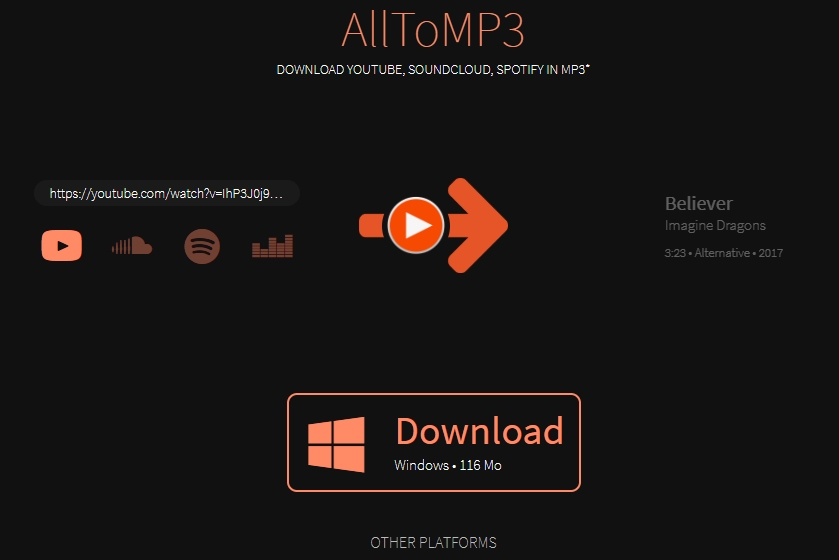
AllToMP3 is a desktop application that can be used to download music from Spotify, Deezer, SoundCloud, and YouTube in 256kbps MP3 with ID3 tags kept. Regardless of using a Windows, Mac, or Linux computer, you can install AllToMP3 for downloading music to MP3. It is completely free for all users to use and is designed with an easy-to-use and intuitive interface. As AllToMP3 integrates a search engine, you can simply specify a song name or input the music link. However, you need to put up with lots of shortcomings, such as a slow conversion rate, loss of output audio, and unstable operating processes.
Key Features of AllToMP3
- Download streaming music to MP3
- Support multiple music platforms
- Support batch download
- Save ID3 tags and album artwork
- Free to use with no subscription needed
Pros and Cons of AllToMP3
-
🙆♀️ Pros:
- Download music from Spotify, Deezer, SoundCloud, and YouTube;
- Fully compatible with Windows, macOS, and Linux computers;
- Save music with ID3 tags like cover, title, artist, genre, and lyrics;
- Come in four languages: English, Japanese, Finnish, and Russian.
-
🙅♀️ Cons:
- Software crashes sometimes when downloading music;
- Downgrade the output audio quality after conversion;
- Unstable real-time conversion and slow conversion speed;
- Only supports converting music to the MP3 audio format.
Part 2. How to Use AllToMP3 to Download Music
Many users love AllToMP3 due to its straightforward workflow and its free nature. If you own a device that is compatible with AllToMP3, you can try the following steps to install and use it for downloading the music you love.
Step 1. Download the appropriate version of AllToMP3 from https://alltomp3.org/, then follow the onscreen prompts to install it on your computer.
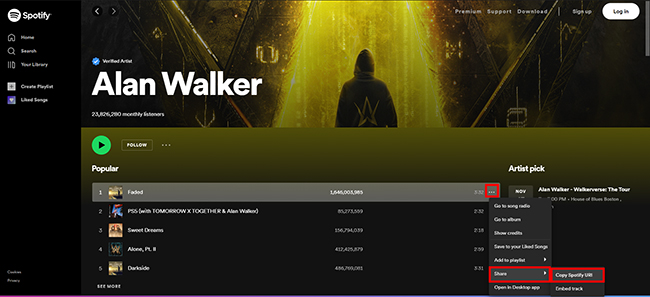
Step 2. Open Spotify Web Player or the Spotify desktop app and browse the track you want to download.
Step 3. Right-click the three-dot icon and select Share, then click Copy Song URI.
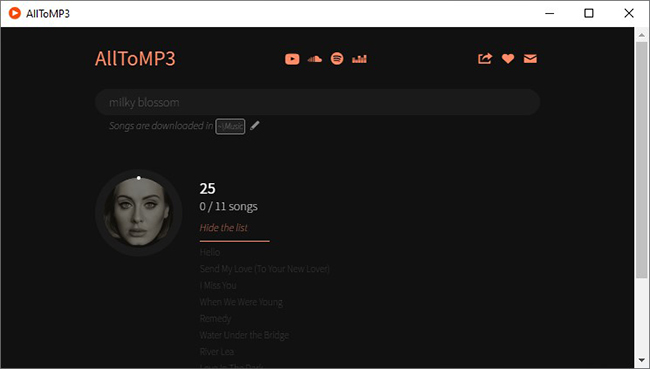
Step 4. Go to AllToMP3 and paste the copied link into the input area.
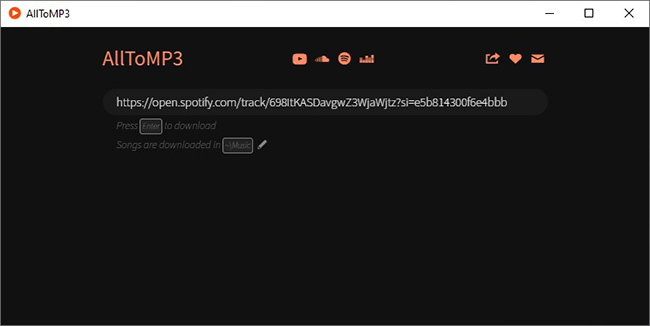
Step 5. Press the Enter button on your keyboard. After that, AllToMP3 immediately gets to work on ripping Spotify music to MP3.
Part 3. FAQs about AllToMP3
Does AllToMP3 still work in 2026?
Currently, AllToMP3 still works. However, its success rate has dropped significantly since streaming platforms have changed APIs frequently. If you want to download songs from Spotify or other music platforms more stably, you can jump to Part 5 to find the best alternative.
Is it safe to use AllToMP3?
The official version of AllToMP3 is safe. It is an open-source program that does not contain built-in malware. However, you should be careful if you download it from third-party sites, which often bundle it with adware or unwanted programs. The best option is to download this tool from its official site.
What audio quality does AlltoMP3 provide?
AlltoMP3 usually outputs music in MP3 format at up to 256kbps. Most tracks are pulled from YouTube, and the audio quality is limited. If you prefer lossless audio, this tool will likely disappoint you. We recommend you try its alternative - TunesMake Streaming Audio Recorder. Keep reading, and you can find more detailed information about it.
Does AlltoMP3 support batch or playlist downloads?
Yes, AlltoMP3 supports batch downloads. You can paste the URL link of your preferred playlist and download all the songs at once on AlltoMP3.
Part 4. How to Fix AllToMP3 Not Working
After the above introduction, you’ll know what you can get from AllToMP3. And with the above steps, you can download music from Spotify or other streaming music platforms. Throughout the entire process, however, there also exist several problems like AllToMP3 not working and AllToMP3 Spotify not working. The problem can be caused by several reasons, and you can follow the below steps to solve AllToMP3 not working.
Solution 1. Update AllToMP3 to the latest version.
If AllToMP3 has an update, then you can download and install the latest version of AllToMP3. In this case, head to the official website of AllToMP3 and download the latest version of AllToMP3.
Solution 2. Reset the firewall and security programs.
Sometimes, the firewall on your computer will prevent you from using AllToMP3. Or you have installed a security program that disables the running of AllToMP3 on your computer. Simply turn the firewall off or disable security programs.
Solution 3. Make sure that Spotify or another streaming service is available.
If you are in a place that doesn’t support Spotify, then you cannot directly use AllToMP3 to download music. You’d better use a VPN while downloading Spotify music with AllToMP3.
Solution 4. Choose an alternative to AllToMP3.
Sometimes, it is not easy to fix it, and you’ll fail to download Spotify songs. It is because the developers haven’t updated the service for quite a long time. Here you may need to find an AllToMP3 alternative.
Part 5. Best AllToMP3 Alternative to Download Streaming Music
With AllToMP3, you can easily download music from services like YouTube Music, SoundCloud, Deezer, and Spotify to MP3. But it also has some limitations. If you are looking for a more stable tool that offers better audio quality than AllToMP3, you may consider TunesMake Streaming Audio Recorder.
TunesMake Streaming Audio Recorder is an all-in-one, potent music downloader for all audiophiles. It supports downloading music from diverse music services, including Spotify, Tidal, Apple Music, Amazon Music, Deezer, LINE Music, Qobuz, Pandora, SoundCloud, and YouTube Music. Whether you want to save songs, playlists, albums, and podcasts, this TunesMake tool can help you finish it without much effort. Once downloaded, you can play these local music files on other media players or devices for unlimited offline playback. The best thing is that the TunesMake program allows you to personalize the audio settings. You can change the audio format to MP3, M4A, M4B, WAV, FLAC, or AIFF and change other parameters like bit rate, sample rate, and channel for better quality.

Streaming Audio Recorder –
Download Streaming Music to Local Files
- Unlimitedly download streaming music songs, playlists, and podcasts
- Losslessly convert streaming music to MP3, M4A, M4B, WAV, FLAC, and AIFF
- Remove DRM protection from many streaming music platforms
- Convert streaming songs with original sound quality and ID3 tags kept
Security Verified. 100% Clean & Safe.
Step 1
Customize the output settings
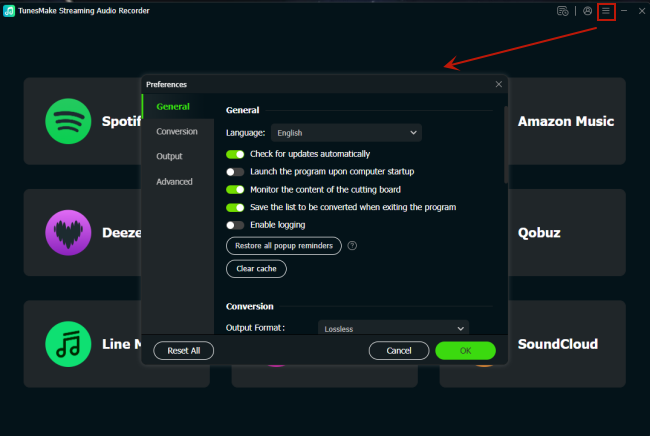
After installing the TunesMake Streaming Audio Recorder, you can launch it to set the output audio settings as you wish. Click the top Menu icon and select Preferences > Conversion. In this new window, you should pick an output format. If you prefer better quality, you can choose FLAC. In addition, you can change other parameters like output quality, channel, bit rate, sample rate, and so on. When you finish, save your changes by clicking the OK button.
Step 2
Pick a music service and log in
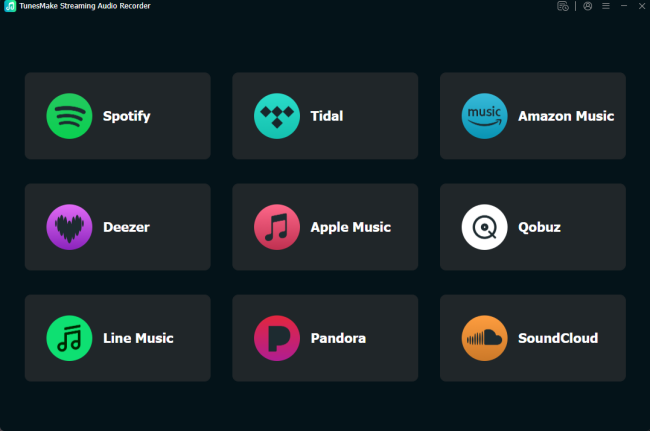
Now, go back to the interface of the TunesMake program. You can see diverse music services here. Select any platform, and you will be led to its official website. So, you can log in to your account.
Step 3
Add songs from music services to the TunesMake tool
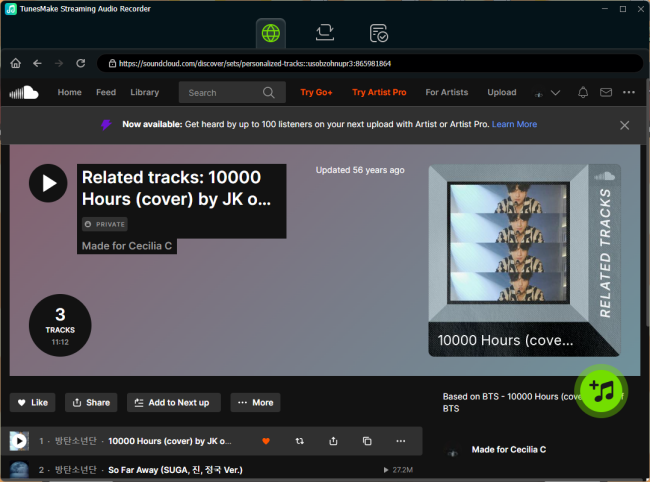
After logging in, feel free to browse the music library and find the music tune you want to download. If you only want to download one single song, you can try to drag and drop it to the Add icon in the lower right corner. If you want to download songs in batches, you just need to select a playlist and then click the Add icon > Add to List. Thus, all the songs included in this playlist will be loaded to the conversion list.
Step 4
Download streaming music to MP3 or other formats
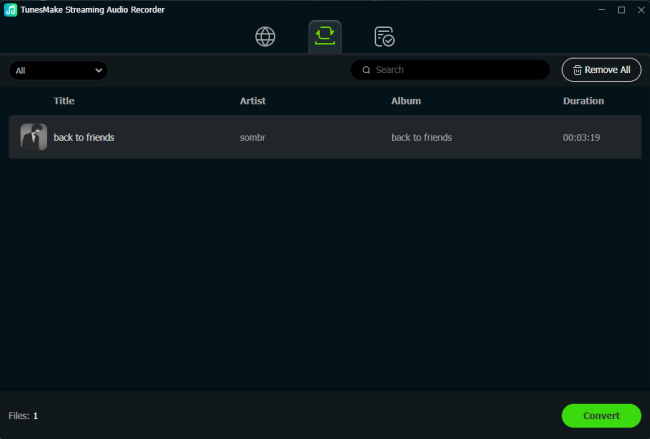
Whenever you are fully prepared, you can begin downloading the songs you choose from the streaming music service to your local device. Just click the Convert button at the bottom. Then, the TunesMake program will do everything for you. Just wait for a while, and then you can find all your downloads by clicking the top Converted icon.
For users who especially want to save Spotify tunes, there is a more dedicated tool - TunesMake Spotify Music Converter. With its help, you can even download any Spotify content to a local file, even without a Premium subscription.
 Spotify Music Converter
A powerful and versatile Spotify Music Converter specially designed to losslessly download and convert tracks, playlists, albums, and podcasts from Spotify to MP3 and more.
Part 6. Other Common Alternatives to AllToMP3
Except for TunesMake Streaming Audio Recorder, there are also other alternative tools of AllToMP3 circulating on the internet. In this part, we have assembled 2 common AllToMP3 alternatives.
No.1 Audacity
Audacity is a free, open-source, and cross-platform audio software that allows you to record and edit audio on Windows, macOS, and Linux computers. You can use it to record any audio playing on your computer, including audio from the Spotify Web Player or the Spotify app.

-
🙆♀️ Pros:
- Record audio from several music resources, including Spotify;
- Offer free audio recording and editing services.
-
🙅♀️ Cons:
- Not support batch recording;
- Record audio in real-time;
- Save songs with low quality.
No. 2 Apowersoft Online Audio Recorder
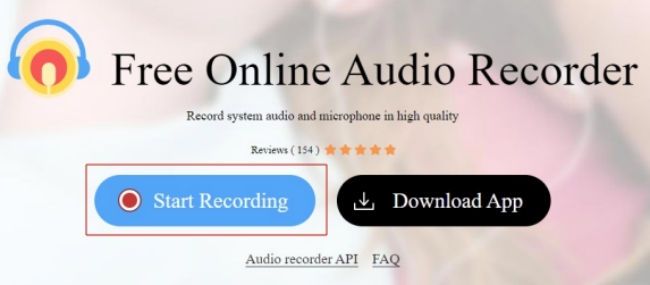
Apowersoft Online Audio Recorder is a web-based audio recorder. It is a free tool that can be accessed on any browser. Whether you want to record streaming music or internal system audio, it is a great option. After recording, you can preview and save the recording as a local MP3 file and play it on your computer or other devices.
-
🙆♀️ Pros:
- Free of charge;
- Easy to use and web-accessible.
-
🙅♀️ Cons:
- Lossy audio quality;
- Consume a lot of time;
- Only supports the MP3 format;
- Don’t support batch downloading;
- Don’t keep ID3 tags.
Part 7. Comparison and Conclusion
| AllToMP3 | TunesMake Streaming Audio Recorder | Audacity | Apowersoft Online Audio Recorder | |
|---|---|---|---|---|
| Supported OS | Windows, Mac, and Linux | Windows, Mac | Windows, Mac, and Linux | Any browser |
| Output Formats | MP3 only | MP3, M4A, M4B, WAV, FLAC, AIFF | MP3, WAV, OGG, FLAC,and more | MP3 only |
| Audio Quality | Lossy | Lossless | Lossy | Lossy |
| Batch Download | ✔ | ✔ | ✘ | ✘ |
| Customize Audio Settings | ✘ | ✔ | ✘ | ✘ |
After you’ve dug into all the detailed information given in this article, you may have a full understanding of alternatives to AllToMP3. Which one is the most suitable for you? Maybe you will have your answer now. Or you can try to use all the above tools and after that, you’ll find out why TunesMake Streaming Audio Recorder is the best one.
Related Articles



A senior editor from TunesMake, dedicated to sharing professional tutorials and solutions of software, movies, and music.
- 1
- 2
- 3
- 4
- 5
- 6
- 7
 Leave Your Comment
(0)
Leave Your Comment
(0)

 Download Center

