








 Store
Store


Spotify is one of the go-to music streaming platforms for millions of people around the world. With access to millions of music tracks, you can create playlists to organize your favorite tracks. Beyond a collection of songs, it’s also a carefully curated soundtrack of your life. You can make different playlists to reflect different moods, energies, and more. However, many users are frustrated by Spotify’s default sorting behavior. If you want to make your playlist more neat, learn how to change song order in Spotify playlist here. This guide will show you all the detailed steps to manage your playlist, whether you are using the Spotify desktop or mobile app. Without further ado, let’s explore them.

Part 1. Can You Rearrange Songs on Spotify Playlist?
Before we dive into the steps of changing song order in Spotify playlists, let’s clear the worry of some users - yes, you can rearrange songs in your Spotify playlists. However, based on the devices you are using, and the type of Spotify account you have, and the specific playlist you choose, there are some limitations.
One of the biggest limitations is that only Premium users can change the song order in a playlist on the Spotify mobile app. Additionally, some playlists that are generated automatically by Spotify or curated by other users cannot be reordered.
There are two basic ways to manage the song order of Spotify playlists. The first choice is to use the predefined parameters, like Title, Artists, and Date Added. Another option is to manually drag and drop songs. By doing so, you can arrange these songs in any order you like. Let’s take a look at how to rearrange songs on both desktop and mobile devices.
Part 2. How to Change Song Order in Spotify Playlist [Desktop]
The Spotify desktop app for Windows or Mac offers the most robust and easiest controls for rearranging the song order in your playlist. The process is quite simple. Besides, you don’t need to have a Premium subscription. Here are the available options you can make use of:
2.1 Utilize the Top Abscissa Filter
One of the most straightforward ways to organize your song order is by using the default sort feature.
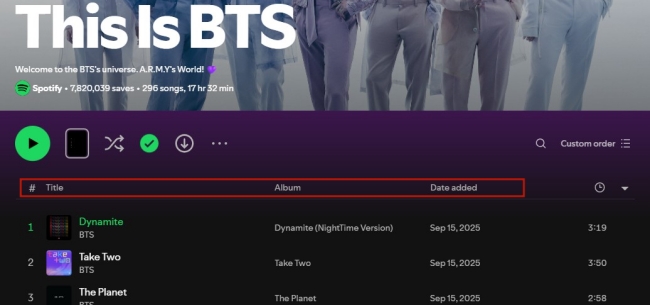
1. Head to the Spotify app installed on your desktop. Then, click into the playlist you need to rearrange.
2. You can choose your own playlist or a Spotify-curated playlist.
3. Under the playlist name, you can see a top abscissa filter, including Title, Album, and Date Added.
4. Click the one you want to sort by, and Spotify will rearrange your songs automatically based on the filter you clicked.
For example, if you click on the Title option, Spotify will arrange all the songs in alphabetical order. Click it again, and the songs will be placed in reverse.
2.2 Use the Custom Order Filter
Except for the top filter, Spotify provides another feature that helps you manage the songs on your playlists - Custom order. This Custom order feature is available for all users. With this method, you are able to sort your playlist by Custom order, Title, Artist, Album, Recently Added, and Duration.
Just enter any playlist you like. Then, you can find this filter at the top right corner. Click it, and you can select any filter you need to control how your songs are arranged.
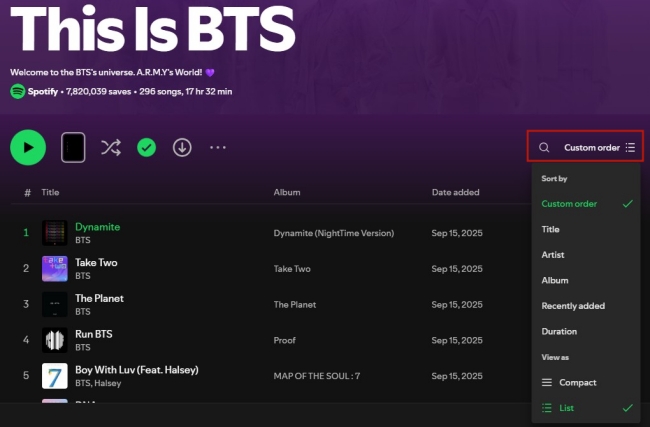
2.3 Via Drag-and-Drop
If you’re looking for a more personalized arrangement, you can simply drag and drop the songs into the desired order. This method is incredibly simple and efficient.
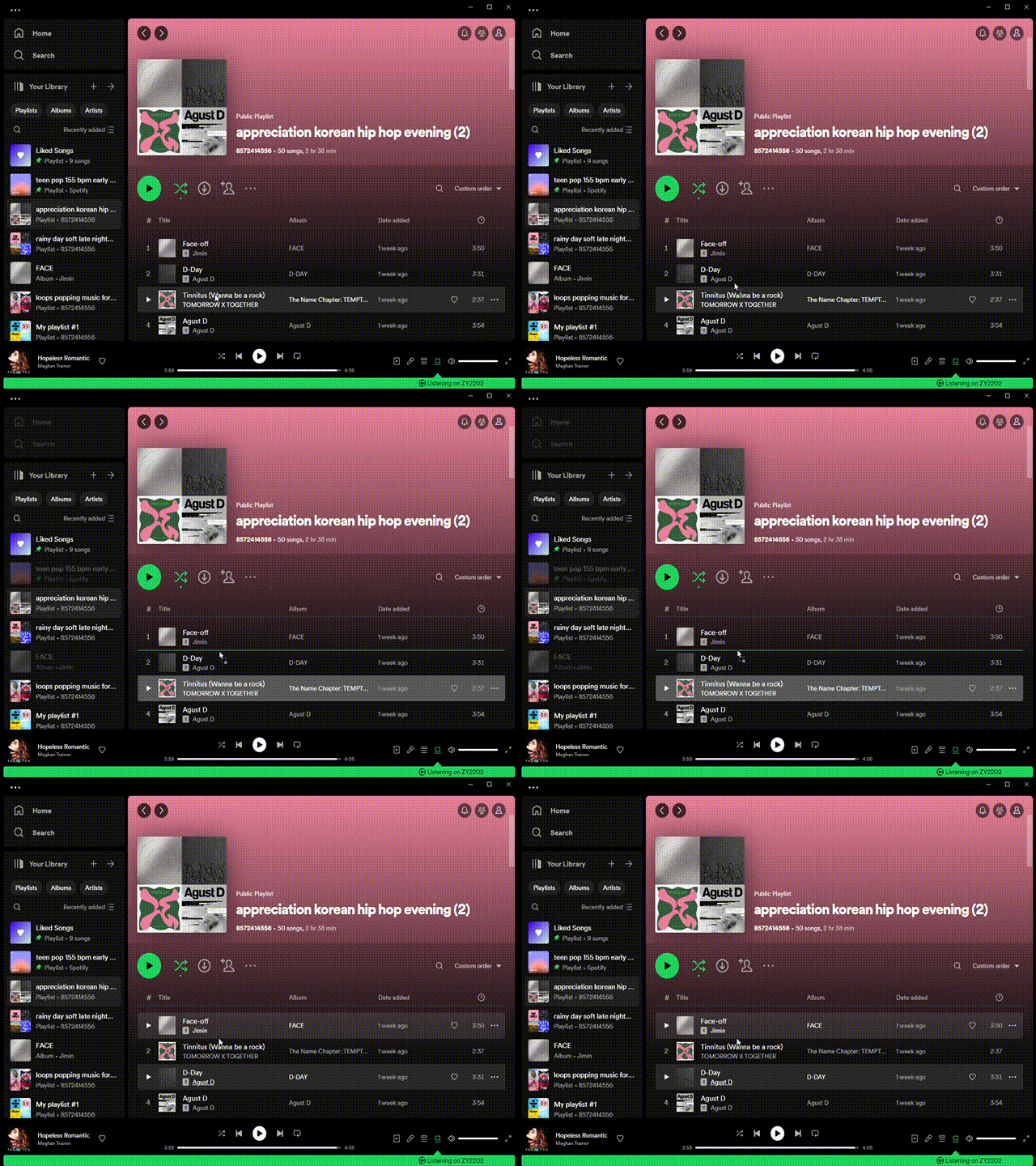
1. Launch the Spotify desktop app or go to the Spotify web player.
2. Locate your created playlist from the left sidebar.
3. Please make sure songs in this playlist display in Custom order; otherwise, you can’t change the song order on Spotify.
4. Select the song and hold it to drag it to the position where you want it to be in this playlist.
5. To change the order of multiple items in the playlist, press the Shift/Ctrl/Com key to select them first. And then drag it as a whole to the position you want.
Part 3. How to Change Order of Songs in Spotify Playlist [Mobile]
While the desktop app offers the smoothest reordering experience, most users are accustomed to using Spotify on their mobile phones. Compared to the desktop version, Spotify’s mobile app is a bit more restrictive. Only Premium subscribers can change the song order of Spotify playlists. Due to the Spotify limits, Free users can only listen to songs randomly and have limited skips. If you want to arrange songs on your playlist more freely without a Premium account, you can jump to Part 5 and try the alternative.
3.1 Use the top Sort Filter [Premium Only]
Spotify lets you sort songs and playlists so you can quickly filter and view them in a particular order. This way only needs one tap and you can get the bulk of songs arranged in your selected order.
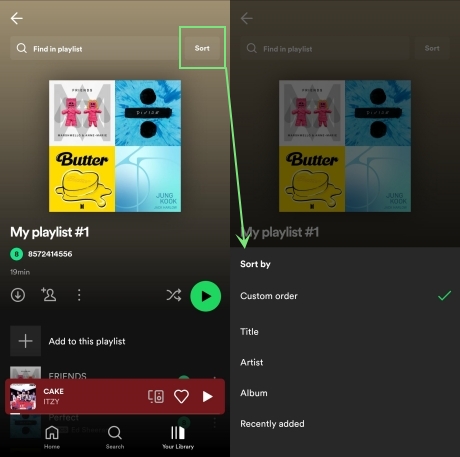
1. Access the playlist from the Spotify app which you’d like to reorder.
2. Simply scroll up to bring the hidden menu, then tap on Sort.
3. Now, you can choose to sort songs in this playlist by Custom order, Title, Artist, Album, or Recently added.
3.2 Customize Song Order Manually [Premium Only]
If you are unhappy with the established order options Spotify provides, you are free to customize and rearrange songs in your own playlists. Here’s how.
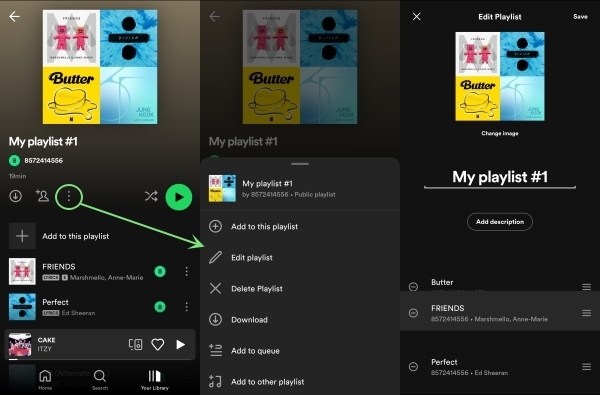
1. On Spotify, start by pulling up a playlist that you made.
2. Touch the three dots under the name of the playlist, and select Edit (iOS) or Edit playlist (Android).
3. Tap and hold the hamburger button next to each track for changing order of songs in Spotify playlist.
4. After making songs in your preferred order, tap on Save.
Part 4. How to Change the Order of Spotify Playlists
In addition to changing order of songs in Spotify playlist, Spotify also allows you to rearrange Spotify playlist. If you also wonder how to change order of Spotify playlists, take the steps below.
Method 1. Sort playlists to rearrange Spotify playlist
For Spotify playlists, you can also set a custom order or a particular order for how all your playlists are listed.
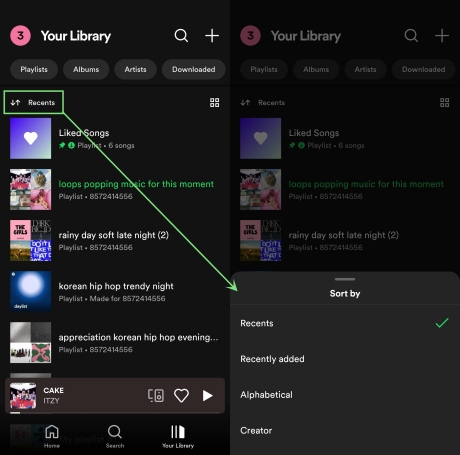
1. Either on the Spotify mobile app or the desktop app, locate Your Library.
2. Tap Recents under Your Library to open the menu.
3. Then you can view all your playlists in your preferred order like Recents, Recently added, Alphabetically, or Creator.
Method 2. Pin the playlist to rearrange Spotify playlist
Except for the above way, you can also pin your favorite playlist to the top. After that, whenever you open Your Library, the pinned playlist will appear above the rest whichever sort preference you choose. Grab the following steps to learn how to change Spotify playlist order by pin.
1. On Your Library, find the playlist you liked most.
2. Right-click it on your desktop and select Pin playlist. You can also pin your favorite album here.
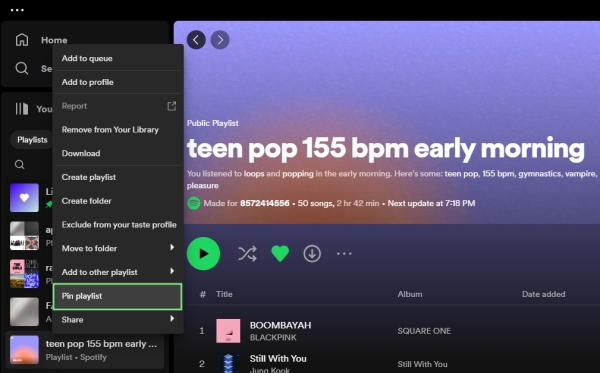
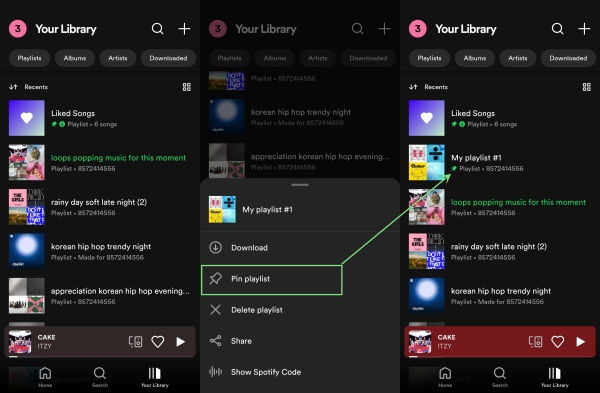
3. On your smartphone, long-press it to access the Pin playlist option.
Part 5. Bonus: How to Rearrange Songs on Spotify Playlist Freely
For Free users who prefer playing Spotify songs on their mobile phones, it is a little bit tricky to change song order in a playlist. For those who want more flexibility when it comes to organizing Spotify playlists, using a third-party tool can be a huge advantage. By downloading Spotify songs and playlists locally, you can have the ability to truly manage and rearrange your songs without platform restrictions.
To get the freedom and versatility that the standard Spotify environment cannot provide, you should not miss the TunesMake Spotify Music Converter. TunesMake Spotify Music Converter helps both Spotify Free and Premium users download songs, albums, playlists, podcasts, and radios from Spotify without DRM protection. It supports saving Spotify songs in MP3, M4A, M4B, WAV, FLAC, and AIFF. With advanced decryption technology, TunesMake ensures lossless quality while enabling users to get higher quality by changing sample rate and bit rate.

TunesMake Spotify Music Converter –
Save Spotify Playlists Locally for Freely Rearrangement
- Unlimitedly download Spotify songs, playlists, and podcasts
- Losslessly convert Spotify music to MP3, FLAC, WAV, AIFF, etc.
- Remove ads from Spotify music tracks even with Free accounts
- Convert Spotify songs at 12X faster speed with ID3 tags kept
Security Verified. 100% Clean & Safe.
Step 1
Add the Spotify playlist to TunesMake

Click the Free Download button above, and you can get the TunesMake Spotify Music Converter installed on your Windows or Mac computer. Launch the TunesMake program, and it will load the official Spotify web player automatically. Then, you can sign in to your account and find the playlist you want to download. Enter the detailed page of this playlist, and then click the lower Add icon > Add to List. Thus, the TunesMake program will load all songs to its conversion list.
Step 2
Adjust the customizable output parameters

After your selected Spotify playlist is added to the converter, head to customize the parameters by clicking the three lines in the upper-right corner > Preferences > Convert. Here, you can select 6 output formats and change the sample rate, bit rate, and channel according to your needs. Then click the OK option and be ready to save the settings you adjust.
Step 3
Download playlist from Spotify without Premium

When everything is ready, click the Convert button at the bottom-right, and TunesMake Spotify Music Converter will convert your Spotify songs to your selected format. After conversion, go to the Converted history list and use the search icon to locate the converted Spotify songs in your local folder.
Now, you can easily transfer the downloaded songs to other media players or devices for offline playback. Feel free to arrange their order as you want.
Conclusion
Learning how to change song order in Spotify playlist doesn’t have to be a hassle! With just a few clicks and taps, it is easy to rearrange Spotify songs in an ideal order so that you can find what you want to look for and listen to quickly. If you want to fully control your Spotify playlists, you can use the TunesMake Spotify Music Converter to save all the songs in your playlist as local files. Once finished, you can play them anywhere and anytime you want.
Related Articles






A professional writer at TunesMake, crafts in-depth tutorials, practical tips and expert advice focusing on streaming music, technology, and more.
- 1
- 2
- 3
- 4
- 5
- 6
- 7
 Leave Your Comment
(0)
Leave Your Comment
(0)

 Download Center

