








 Store
Store


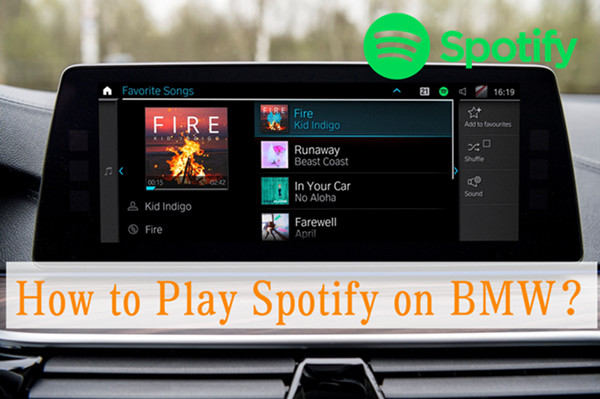
Nowadays, music streaming is not limited to mobile phones at home; it’s okay to stream anywhere you want, including smart speakers, bigger screens like TVs, and even cars. Many people are accustomed to turning on the radio once they embark on the road. If you want to listen to your customized playlists, a streaming music platform is your best choice. As one of the biggest and most famous music streaming service providers, Spotify, of course, is frequently used daily. Therefore, BMW drivers would like to know if there is a BMW Spotify integration and how to play Spotify on BMW. If you are also looking for the answer, no worries, this post is exactly what you want. You can learn three effective methods to play your favorite Spotify music on your BMW without hassles. Plus, you can even get the solutions to the Spotify app not showing or working on the BMW.
| Methods | Pros and Cons | Get it |
|---|---|---|
| 1. Use iDrive System | 😀Pros: Easy to use Control music without your phone ☹️Cons: Not supported on old BMW models Require a Spotify Premium subscription |
Read More |
| 2. Use Android Auto/Apple CarPlay | 😀Pros: Familiar Spotify interface Support voice control ☹️Cons: Require your phone to be connected all the time Require a stable network connection |
Read More |
| 3. Use USB drive | 😀Pros: Lossless audio quality Supports diverse audio formats No connectivity issues Save your phone data Available for playing on other devices Offline and ad-free listening ☹️Cons: Need to download Spotify content first |
Read More |
Method 1. Connect Spotify to BMW with BMW iDrive System
For the most integrated experience, using the Spotify app on BMW is the preferred choice for most owners. Luckily, this is easy to reach with BMW’s infotainment system - iDrive. This method allows you to control the music playback directly using the car’s controller without your phone. Just notice that not all BMW models support this method. Here are some basic requirements:
- Your BMW has Operating System 7.0, 8.0, 8.5, or higher
- You have activated the BMW ConnectedDrive service: BMW Connected Music
- You have an active Spotify Premium account
1. Make sure you have installed the BMW Connected app the Spotify app on your smartphone in advance.
2. Then, connect your smartphone to the vehicle via Bluetooth.
3. Once done, the BMW will automatically detect and show the Spotify app on its screen.
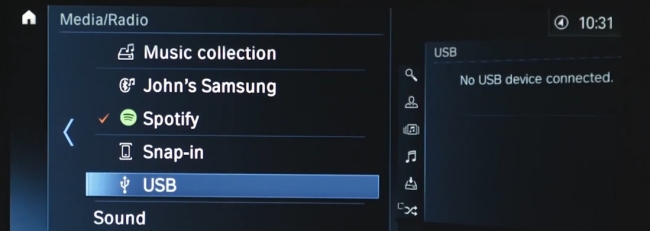
4. You can then go to Media or ConnectedDrive, and tap Spotify.
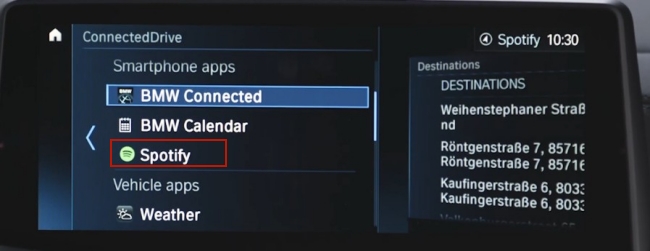
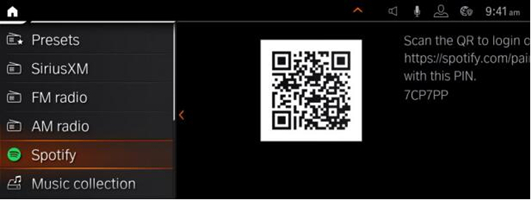
5. Follow the on-screen prompts to log in to your Spotify Premium account. Then, you can select your favorite songs or playlists and play them on your BMW directly.
Method 2. Get Spotify on BMW via Android Auto/Apple CarPlay
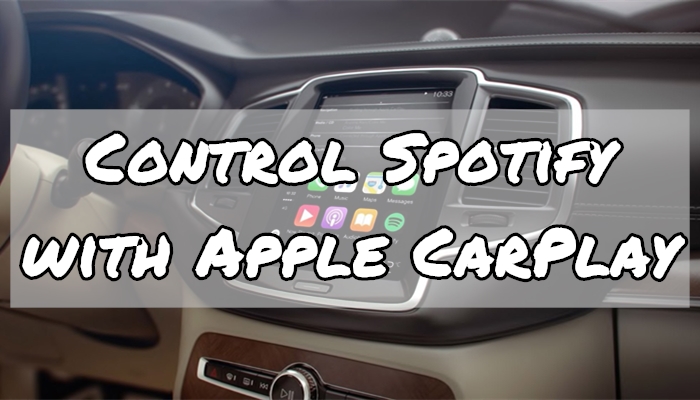
If you have old BMW models that don’t support Spotify or you prefer the familiar interface on your smartphone, Android Auto and Apple CarPlay are more flexible solutions. With their help, you can directly mirror your smartphone’s app onto the dashboard of your BMW to play Spotify music. Moreover, you can access Google Assistant or Siri to get a hands-free experience.
Connect Spotify to BMW via Android Auto
1. To start, launch the Settings app on your Android device and turn on Bluetooth to make your device visible in BMW.
2. Locate the Com menu from your BMW iDrive settings and select Mobile Devices.
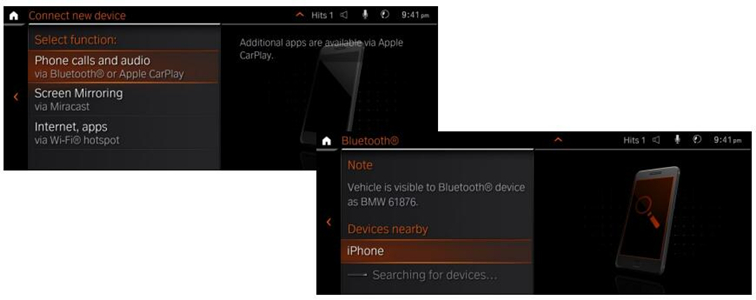
3. Next, tap + New Device and then select Phone calls and audio.
4. Select your Android device to pair on the BMW iDrive screen and tap Pair to gain your pairing code.
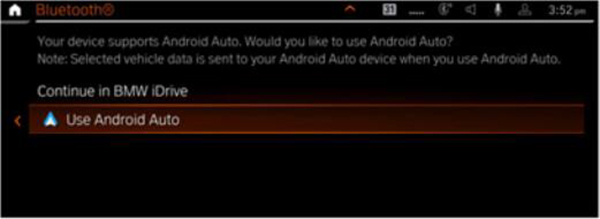
5. Proceed by selecting Use Android Auto and then follow the on-screen instructions to finish the pairing.
Connect Spotify to BMW via Apple AirPlay
1. On your iOS device, navigate to Settings and then select General > CarPlay.
2. Accordingly, on your BMW display, select Com and then choose Mobile Devices.
3. Tap on + New Device and then select Phone calls and audio to select your iOS device.
4. On your device, enter the pairing code and tap on Pair to pair your device to BMW.
5. On your BMW display, select Confirm note and then you can play Spotify on BMW.
Method 3. Play Spotify on BMW via a USB Drive
With the above methods, you’re able to stream Spotify on BMW. But, they all require you to own a valid Spotify premium subscription, which is not affordable for everyone to pay for a music subscription monthly. Moreover, a good network is quite necessary. What if we are in an area without internet? How to listen to Spotify on a BMW without a network? Of course, you can! The best method is to download your favorite Spotify songs to local files, and then import them to a compatible USB drive. Thus, you can easily play Spotify on your BMW offline.
To get this done, all you need is a professional music downloader - TunesMake Spotify Music Converter. It is a dedicated downloader designed for both Spotify Free and Premium users. You can use it to download songs, playlists, albums, and podcasts from Spotify and save them in plain audio formats. The available options include MP3, M4A, M4B, WAV, FLAC, and AIFF. In other words, you can completely own the songs you’ve downloaded. And it’s no problem to play Spotify music on multiple devices. After conversion, you can enjoy the downloaded Spotify songs on your BMW offline without a subscription by using a USB cable or Bluetooth.

TunesMake Spotify Music Converter –
Best Spotify to BMW Downloader and Converter
- Unlimitedly download Spotify songs, playlists, and podcasts
- Losslessly convert Spotify music to MP3, FLAC, WAV, AIFF, etc.
- Remove ads from Spotify music tracks even with Free accounts
- Convert Spotify songs at 12X faster speed with ID3 tags kept
Security Verified. 100% Clean & Safe.
Step 1
Select Spotify Music for Playing on BMW
Before conversion, you should install the TunesMake Spotify Music Converter on your device first. When it is finished, you can launch it and visit the official Spotify web player on its interface. Then, feel free to find the playlist you want to download. Select it and click the Add icon in the lower right corner, so all the songs in this playlist will be loaded. You can pick the songs you like and add them to the conversion list by clicking Add to List. If you only need to download one songs, you can try dragging and dropping it to the Add icon directly.

Step 2
Adjust the Output Audio Parameters
TunesMake support 6 output formats for you to choose from; they’re all compatible with multiple devices. We’ve set the MP3 as the default, but you can also change it in the menu settings on the top right of the interface. When you see a menu icon on the top right corner, click it and a window will pop up, then select the Preferences then go to Convert to set up. You can also customize the archives and some parameters like sample rate, bit rate, etc..

Step 3
Download Spotify Music Offline for BMW
Now, confirm all of your settings and click the Convert button to start. Then, TunesMake will download and save the Spotify music to your computer drive with the format you want automatically. After conversion, you can locate them by clicking the Converted icon to check your converted music tracks.

Step 4
Play Converted Spotify Music on BMW
Now, you can move the downloaded Spotify music to a compatible USB drive. Once done, you are able to connect the USB drive to your BMW. Select Media > USB Audio on the iDrive screen and play your downloaded Spotify songs to begin listening through the BMW’s built-in media player.
Troubleshoot: Spotify App Not Showing on BMW
When trying to play Spotify on a BMW, a common frustration that many users may encounter is that the Spotify app does not show up in the menu or does not workon the BMW. Luckily, most software-related issues can be fixed with a few simple steps. Here are some possible solutions that you can try:
1. Check your network and make sure the connection is stable and fast. If necessary, restart your network settings.
2. Make sure your Spotify Premium subscription is still available.
3. Remove your smartphone from your BMW. Then, restart your smartphone and vehicle and try to reconnect them.
4. Update the BMW iDrive software to the latest version. Just navigate to the Apps section on your BMW. Then, press the OPTIONS button on the iDrive controller and select Update Apps and Services.
5. If you’re stuck on the login process, try logging out of Spotify on your smartphone and re-linking the QR code in the car.
6. Check and make sure your BMW ConnectedDrive service is still active.
7. Reboot the BMW system by pressing and holding the Volume/Power knob for exactly 30 seconds. When the screen goes black and restarts with the BMW logo, you can try to play Spotify Music again.
Bottom Line
For users who own a Spotify Premium subscription and a new BMW model with OS 7 or higher, it’s easy to play Spotify on BMW via the official Spotify app. However, for those who value sound quality and don’t want to keep paying for Premium, the TunesMake Spotify Music Converter is a better solution. It guarantees that you can save your favorite Spotify songs locally and then play them on your BMW without limits.
Related Articles



A senior editor from TunesMake, dedicated to sharing professional tutorials and solutions of software, movies, and music.
- 1
- 2
- 3
- 4
- 5
- 6
- 7
 Leave Your Comment
(0)
Leave Your Comment
(0)

 Download Center

